 DocumentFlow Desk
Search for the structural marker rather than a visible gap
The tutorial describes using Find and Replace to locate section breaks. Open the search controls, place the cursor in Find what and choose Section Break from the Special menu where available. Word inserts ^b as the search code. Use Find Next to move to a boundary. This targets the structural element rather than text that resembles a break label. Keep the search scope clear and review any remembered options before assuming the absence of results means the document contains no sections beyond the first.
Inspect each boundary with the surrounding section content
Finding a break selects its position, making it easier to review the material before and after it. The source demonstrates moving sequentially through the document while the dialog remains open. Use that inspection to identify why each section exists, such as a new layout region or a numbering change. A search result is a location, not a recommendation to delete it. Review the actual section requirements before changing the boundary, especially where the clean page view hides important distinctions between continuous and next-page behavior.
Use navigation carefully and verify any subsequent edits
The source also describes entering ^b in the Navigation pane in its demonstrated Word version. Interface behavior can vary, so use the supported special-character search workflow in the installed application when needed. After changing or removing a located boundary, inspect the surrounding layout and continue to the next intended occurrence. Keep a recoverable copy for complex documents. A systematic search can make structural review faster, but the final decision still depends on the document's section settings and the purpose of each transition rather than the number of breaks found.
Prepare the search so it targets a structural code
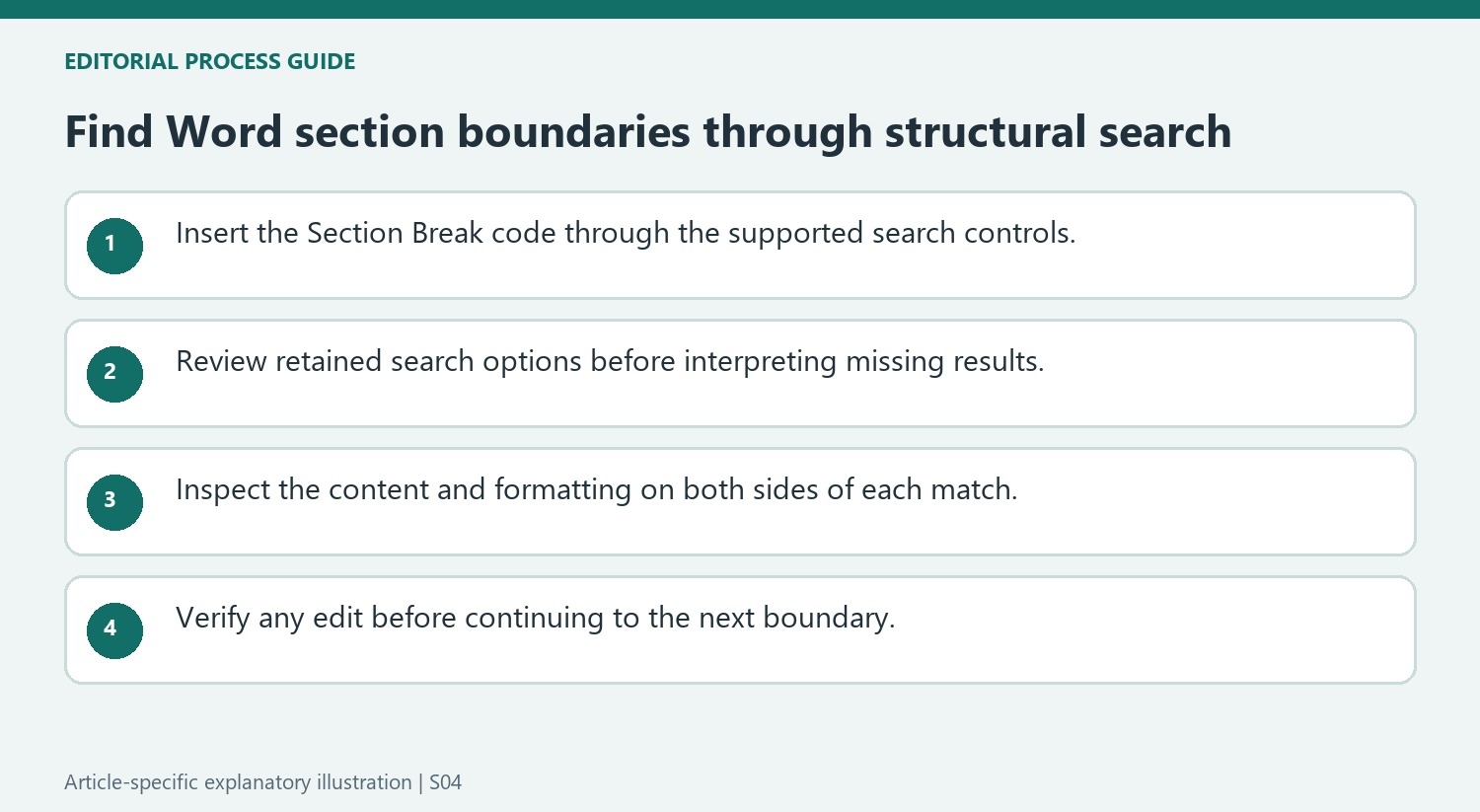
The tutorial uses the Special menu to insert the section-break code into Find what. This avoids confusing a typed description of a break with the actual structural element. Confirm that the search field contains the intended code and inspect any retained search criteria. A previous formatting restriction or another option can affect results, so an empty result should prompt a settings check before a conclusion about the document structure.
Begin with Find Next rather than a replacement action. The task here is to locate and review boundaries, not remove them automatically. A long document can contain sections that look visually similar while carrying different layout requirements. Navigating to a boundary supplies a useful location for inspection without deciding whether that section is necessary or whether its start type should change.
Inspect both sides before making a located change
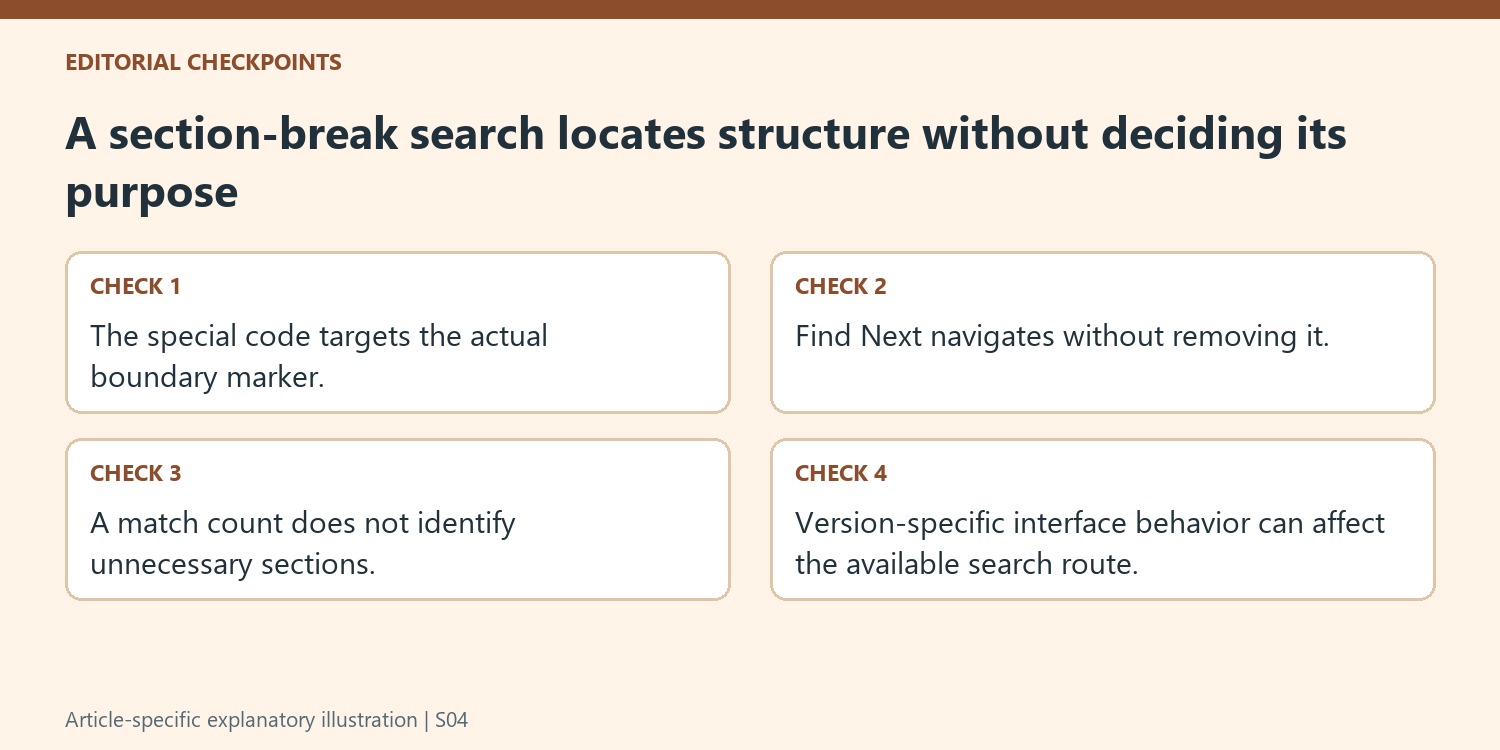
Read the content before and after the selected marker, then inspect any distinct page layout, numbering or running elements. A continuous boundary may separate a small formatting region, while a page-starting boundary can mark a chapter. The count of search matches is not a measure of how many boundaries should be deleted. Each one needs a purpose-based review in the context of the document.
The source notes that editing can continue while the search dialog is open. Keep the active selection in mind when returning to the text so the intended operation does not affect another nearby marker. After a change, inspect the resulting page flow before navigating onward. If an unexpected result appears, restore the prior state and investigate the actual section settings rather than compensating with additional breaks.
Account for the demonstrated version when choosing the search interface
The article illustrates Word 2013 and also describes a Navigation pane search. Menu details and supported behaviors can vary, so use the installed application's special-character search route when the simplified pane does not behave as expected. Keep the search focused on section breaks until that review is complete, then clear or change the criteria for the next task. Finish by inspecting representative revised boundaries in the clean page view as well as with formatting marks visible. Both the structural intent and the reader's final layout should remain clear.
References
- How to Find Section Breaks in a Word Document. How-To Geek; Lori Kaufman.





















Comments
0