 DocumentFlow Desk
Choose whose future changes should be recorded
Microsoft describes enabling Track Changes through Review and selecting options such as For Everyone or Just Mine where available. Check the actual state before editing a shared document. A file supplied in review mode may restrict turning tracking off, requiring the appropriate sharing workflow or a separate copy when permitted. Disabling tracking stops new marks but does not resolve previous revisions. Keep that distinction clear at the beginning of a review so contributors understand which edits will be recorded and which existing proposals still await a decision.
Use markup views without mistaking them for deletion
Simple Markup provides a reduced indication of changes, while All Markup exposes more detail. No Markup hides the revision display and Original presents an earlier-looking view, but unresolved changes and comments remain stored. Show Markup can further limit visible edit types or reviewers. Inspect those filters when expected revisions appear to be missing. A clean-looking screen can therefore be a viewing choice rather than a finalized document. Keep the review scope explicit before copying content, printing a version or asking another contributor to approve what they see.
Resolve revisions through the intended acceptance scope
Use Previous and Next to inspect changes and Accept or Reject to decide them. The source distinguishes all changes from all changes shown, which matters when reviewer or edit-type filters are active. Check the selected scope before using a bulk command. Some options also stop tracking after resolving revisions, combining two separate actions. Review the final wording afterward, and handle comments through their own controls. The useful endpoint is a document whose retained content reflects deliberate decisions, with a tracking state and display appropriate to the next stage of collaboration.
Treat tracking, visibility and decisions as three separate controls
Tracking determines which future edits are recorded. Markup settings determine how recorded proposals are shown. Accept and Reject determine the retained content. Inspect these independently at the beginning of a review. A document can have tracking off, a quiet display and unresolved earlier revisions at the same time, so no single switch provides a complete description of its review state.
Choose For Everyone or Just Mine according to the collaboration task where those options are available. In a file shared for review, the source warns that permission can prevent turning tracking off. Follow the shared workflow rather than assuming a display change grants a different editing role. A separate permitted copy and the authoritative shared document should remain clearly distinguishable if both are used.
Inspect filters before applying a command to shown changes
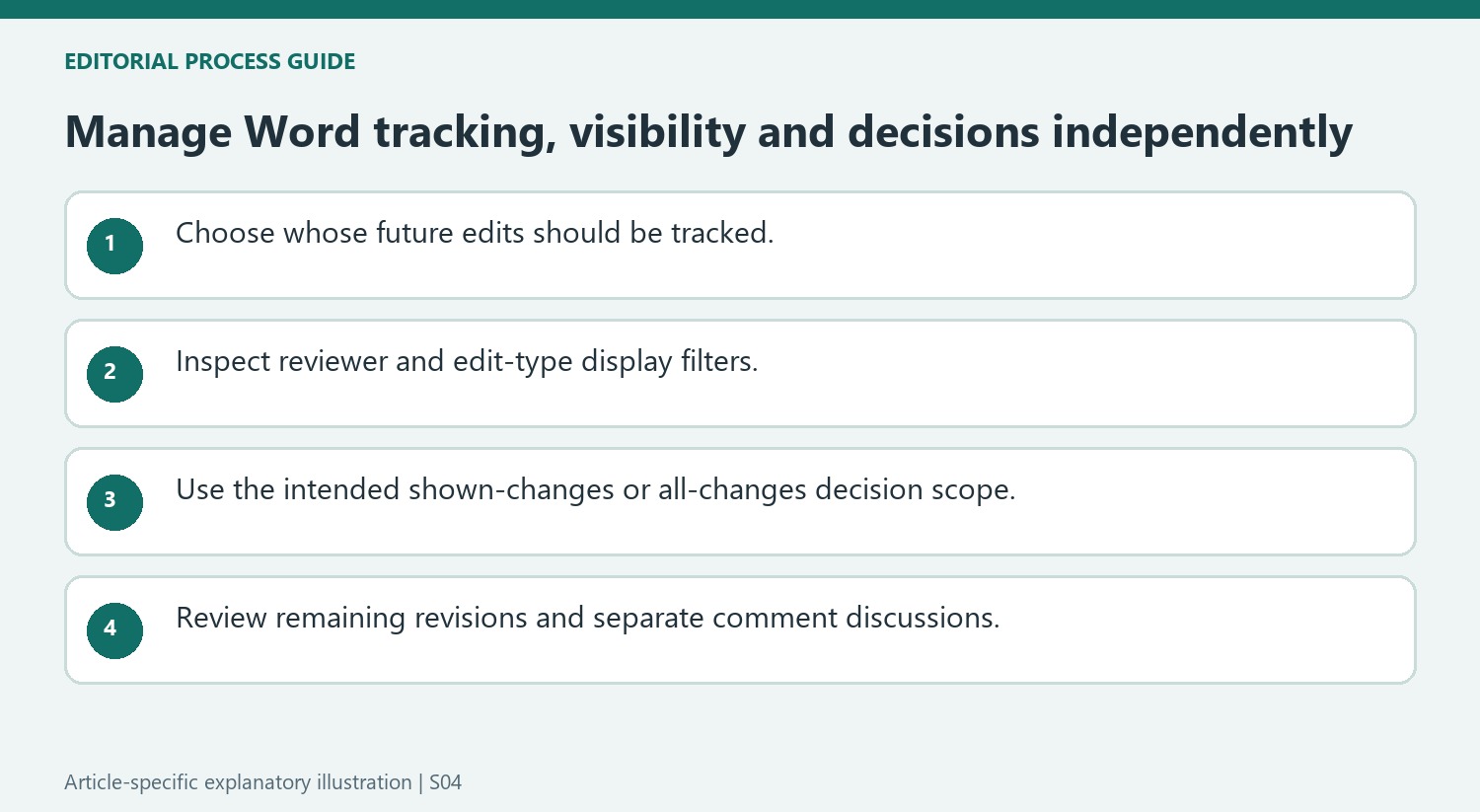
Show Markup can limit the visible edit types or the people whose changes appear. A proposal that disappears after filtering has not thereby been rejected or accepted. Check those filters before deciding that no revisions remain. The scope matters especially when the menu offers Accept All Changes Shown or Reject All Changes Shown alongside commands addressing all changes.
A selective review can be useful when one contributor or edit type needs attention, but its completion does not settle proposals hidden by the current view. Restore the relevant broader view for the final pass and inspect remaining items. Keep the surrounding sentence available because different reviewers can have proposals in the same passage, and evaluating one isolated mark may not reveal the intended combined result.
Review printed output and summary panes for their actual purpose
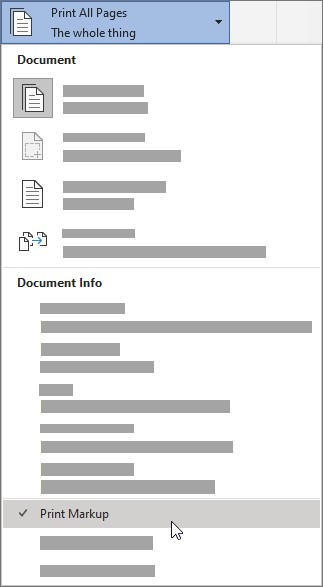
The print settings can omit markup without removing it from the source document. Choose that output deliberately and keep it distinct from resolving revisions. The Reviewing Pane can summarize visible tracked changes and comments, but Microsoft advises making editorial changes in the document itself. Check the pane with the intended filters understood, then review the retained text normally. Comments remain separate from Track Changes, so handle their discussions through their own controls rather than assuming that accepting every text edit also clears every thread or settles every remaining discussion.
References
- Track changes in Word. support.microsoft.com.





















Comments
0