 DocumentFlow Desk
Reveal the boundary before selecting it
Microsoft recommends Show/Hide on the Home tab to expose formatting marks, including section breaks. Use that view to identify the exact boundary rather than selecting an apparent blank area. Several break types can look similar in a clean document view while having different effects on page flow. Inspect the neighboring section content and note any separate headers, footers or numbering that still needs to remain. Keep a recoverable copy when the layout is important so the original structure can be compared if deletion produces an unexpected result.
Understand which section formatting will survive
The source warns that deleting a section break combines the text on both sides into one section. The resulting section uses the formatting from the section that followed the break. That can change the preceding pages even if no visible words were deleted. Review the intended outcome before pressing the platform-appropriate deletion key. If the real goal is only to share a header or footer with the previous section, the relevant Link to previous behavior may be more suitable than removing a structural boundary that supports other independent layout settings.
Inspect the merged section rather than only the cursor position
After deletion, review both sides of the former break and the relevant running elements. Check orientation, margins and numbering where those settings differ in the original. A boundary can disappear successfully while leaving a layout that no longer matches the document requirement. If the result is wrong, restore the earlier state and reconsider which setting needs adjustment. Hiding section marks is a separate viewing action and does not merge sections. Keep that distinction clear when preparing a clean reading view after the structural review is complete.
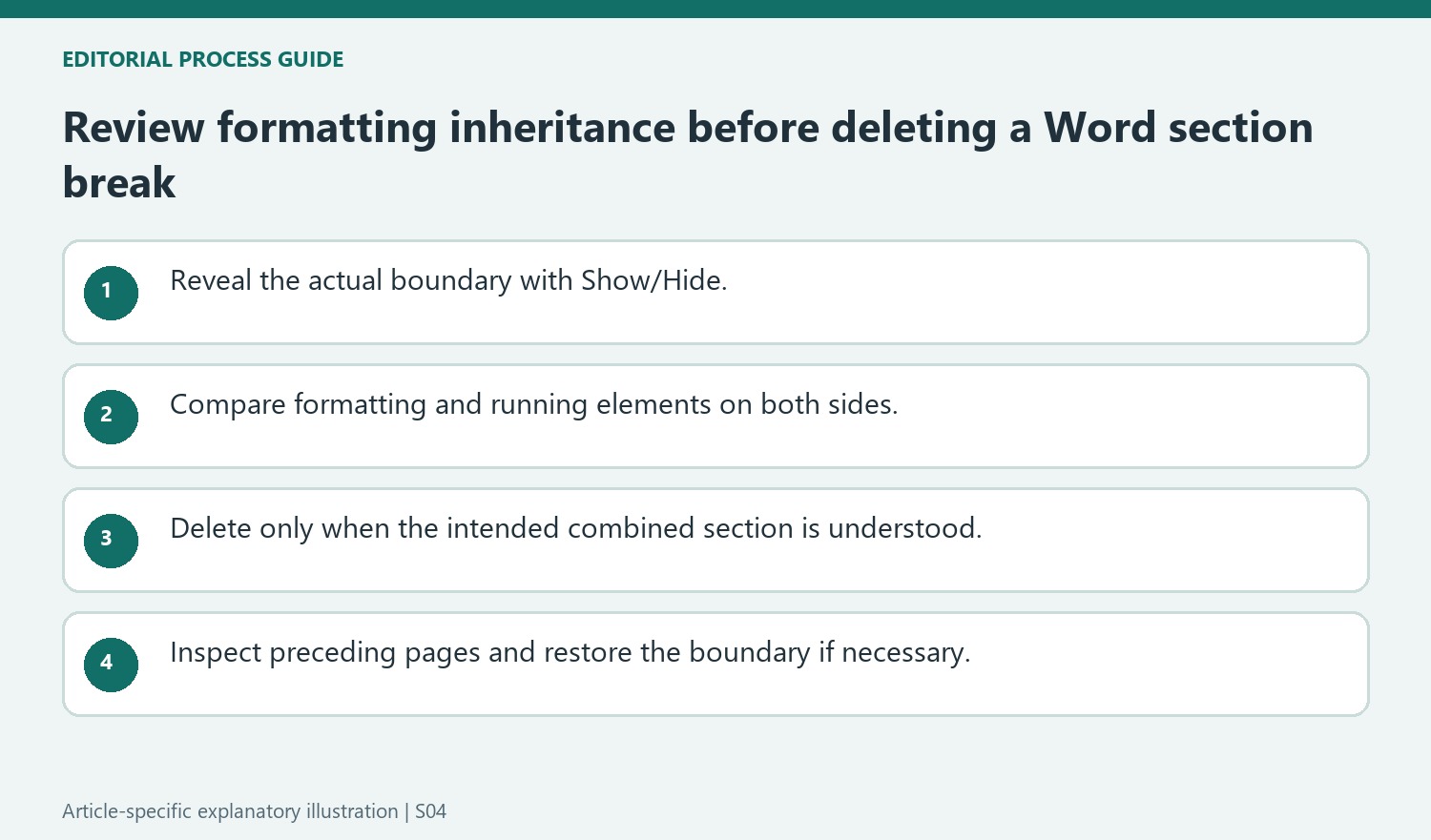
Understand the formatting inheritance before deleting the boundary
Microsoft warns that the combined section adopts the formatting of the section that followed the deleted break. The effect can therefore reach earlier content even though only one structural marker was removed. Compare the preceding and following sections before deletion, particularly if they use different orientation, margins or running elements. Decide whether that inherited result is actually the intended one.
A request to remove an unwanted blank space may not require merging sections at all. Inspect the break type and its purpose first. If independent formatting still matters, changing the start behavior or another relevant property can be more appropriate than destroying the boundary. The visible space is a symptom to understand, while the section boundary may be supporting requirements that are less obvious in the current view.
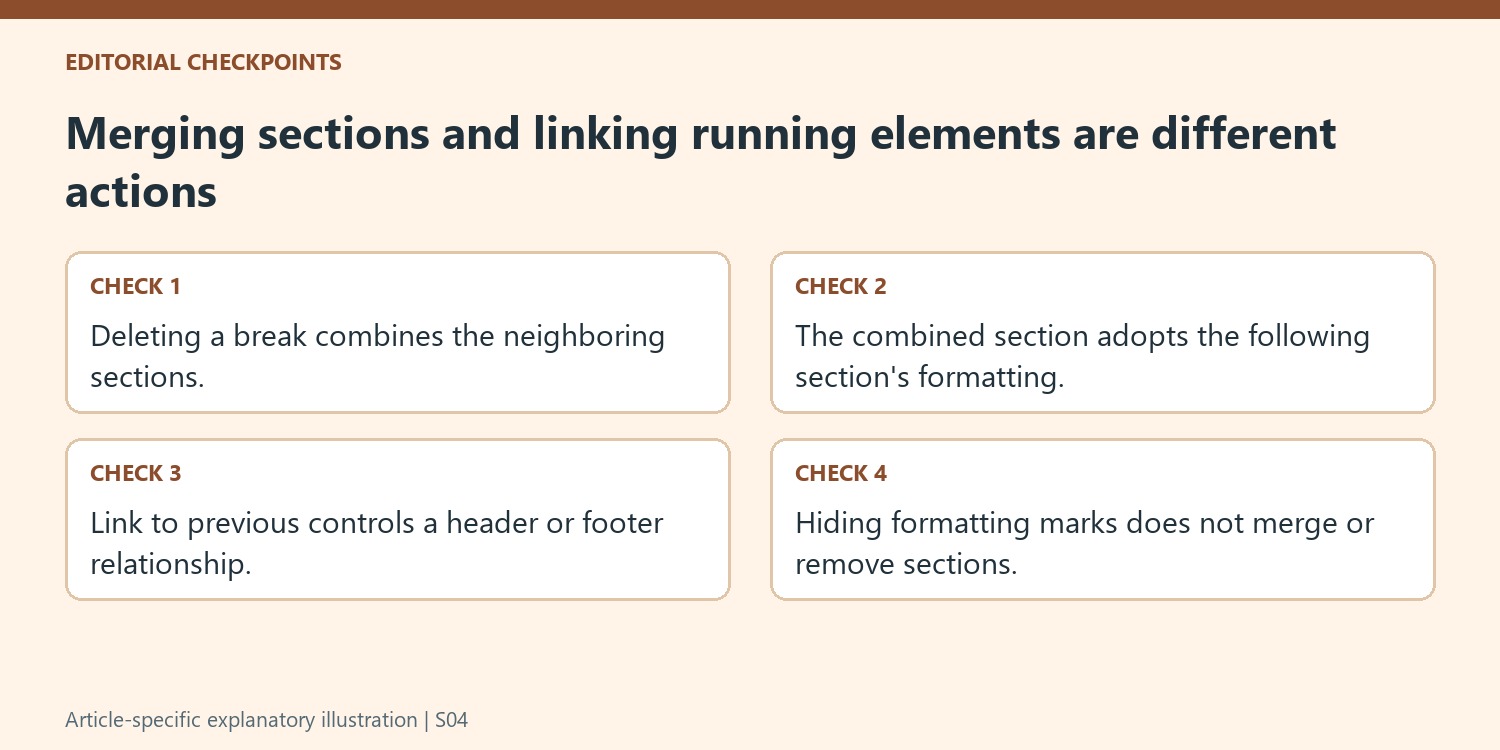
Use Link to previous for the specific continuity it controls
The source points to Link to previous when the goal concerns retaining earlier headers or footers rather than removing the section. Treat that as a specific relationship between running elements. It does not mean every independent layout property must be abandoned. Review the header or footer connection separately from orientation, margins and other section settings before deciding which control solves the problem.
After a linkage change, inspect the relevant elements on both sides of the boundary. A header may now continue as intended while the sections remain independently useful for other reasons. This narrower operation is easier to reason about than deleting a section break and trying to reconstruct lost formatting afterward. Keep the distinction between sharing a running element and merging complete sections clear throughout the repair.
Select the actual marker and review the complete affected region
Show/Hide exposes the break so the deletion can target a known structural element. Follow the appropriate key behavior for the current platform rather than repeatedly pressing keys near an unexplained blank area. Then inspect earlier pages as well as the cursor location, because inherited formatting can change more than the immediate transition. If the merged result is unsuitable, undo and compare it with the preserved structure. Hide formatting marks only after the review; a clean display does not itself remove or repair a section boundary.
References
- Delete a section break. support.microsoft.com.





















Comments
0