 DocumentFlow Desk
Set the mode to match the collaboration task
Microsoft describes three browser modes. Reviewing records edits as tracked changes, Editing allows ordinary changes, and Viewing does not allow document edits. Inspect the current mode before making a test correction so the result follows the intended review process. In shared files, tracking can apply to everyone or only the current contributor where the controls permit it. Mode and permission are related but different questions: a user should still follow the file owner's authorized collaboration workflow instead of assuming a mode selector grants unrestricted editing access.
Use comments for discussion and revisions for proposals
Word for the web supports adding, reading, replying to and deleting comments alongside its tracked-change features. Use a comment when the task needs an explanation or a question, and a tracked edit when proposing a concrete wording change. Keep the discussion connected to the relevant passage. Reviewers should inspect the actual proposed text rather than relying only on a comment saying it was corrected. A browser-based workflow can handle many routine review tasks, but its controls are a subset of the full desktop application's available features.
Move to desktop Word when the required controls are missing
The source describes Open in Desktop as a way to continue work in Word while keeping the file in its existing storage location when saved. Tracked changes are preserved through the supported workflow. Check the intended file before editing so a downloaded duplicate is not mistaken for the shared original. After returning to the browser, verify the saved content and tracking state. Switching applications changes the available tools, not the need to resolve proposals deliberately or keep contributors clear about which document is the authoritative shared version.
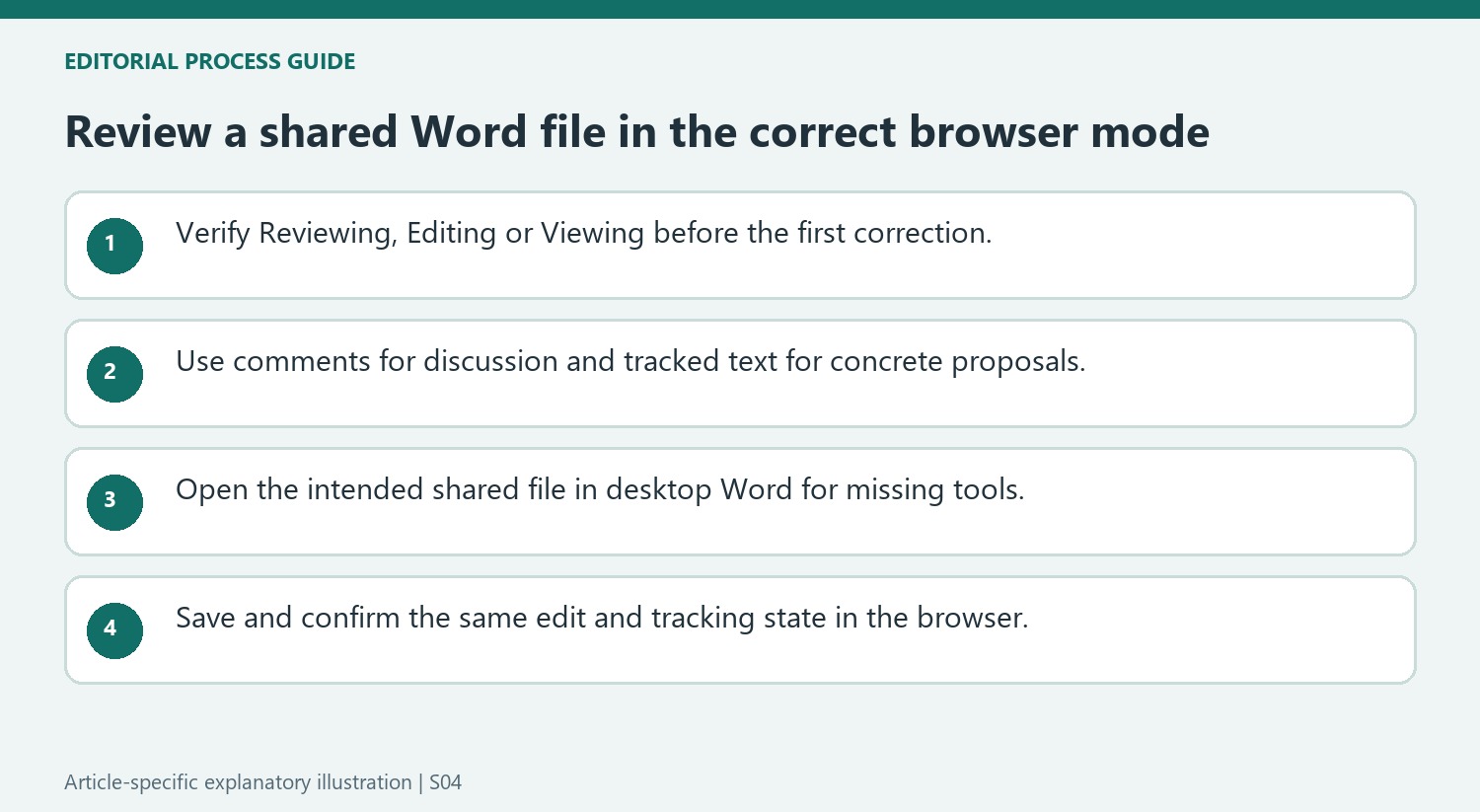
Verify the mode before making the first shared-file correction
Reviewing records edits as proposals, Editing allows ordinary changes, and Viewing prevents content edits in the described browser workflow. Inspect the selected mode before changing a short passage. Then verify that the correction appeared in the intended way. This simple first check prevents a series of ordinary edits from being mistaken for tracked proposals or a review limitation from being mistaken for a broken text selection.
A mode control does not replace the file owner's collaboration permissions. Use the editing role provided for the task and keep the authoritative shared file identifiable. If a separate copy is created for another purpose, name or organize it clearly so its changes are not assumed to be present in the original. The browser interface can simplify access while leaving these file-management responsibilities unchanged.
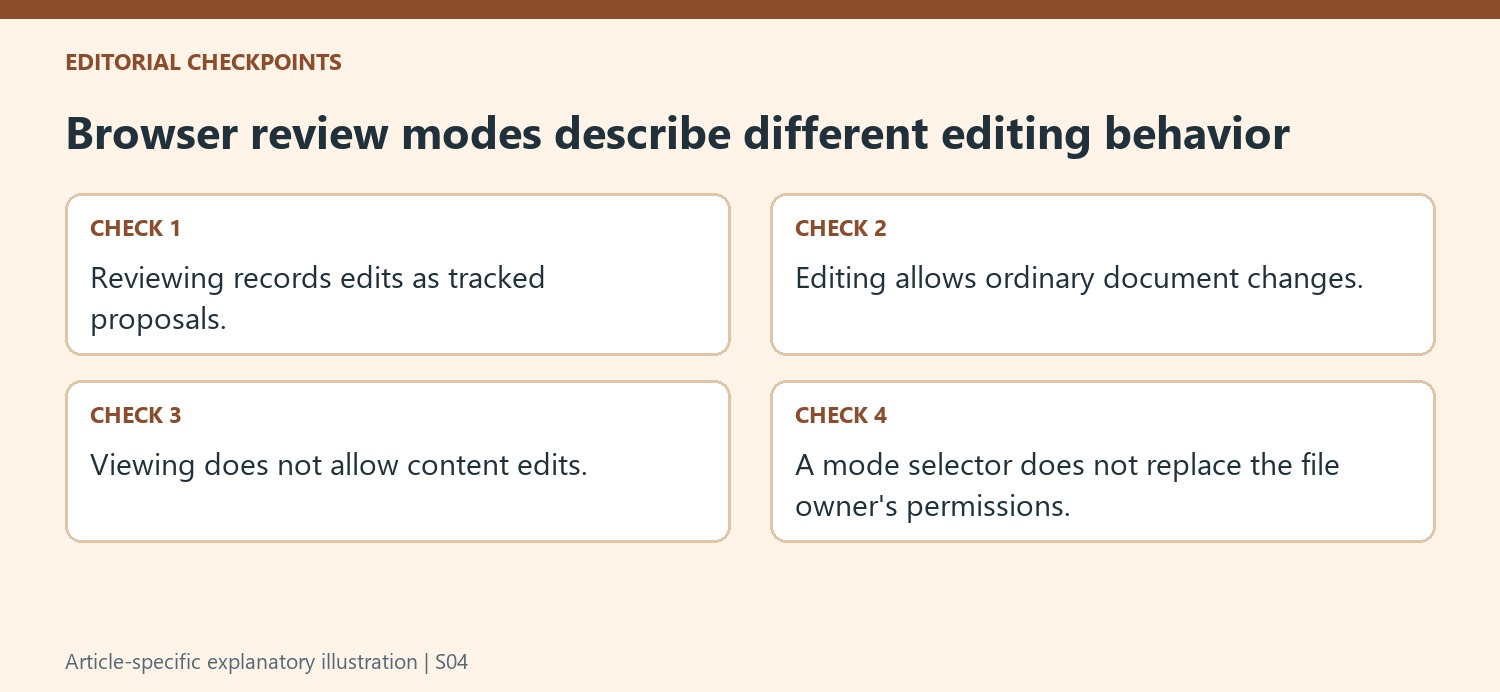
Choose comments or tracked wording according to the review need
A comment can explain a concern, request evidence or discuss an alternative without replacing the actual sentence. A tracked edit proposes a concrete change to the wording. Use them together when the proposal needs a reason, and keep the discussion attached to the relevant passage. A comment saying that a correction is needed does not itself make that correction part of the document.
After another contributor responds, inspect the actual proposed wording as well as the thread. A useful discussion can lead to a different edit from the initial suggestion. Resolve the textual proposal deliberately and handle the comment through its own controls when appropriate. Browser support for comments and tracking does not mean they are the same review object or that completing one automatically completes the other.
Use the desktop handoff for missing capabilities and verify the return
The source provides Open in Desktop for work needing the fuller Word interface. Confirm the intended shared document before using it, then save through the supported workflow so the file remains in its existing storage location. On returning to the browser, check a recognizable edit and the tracking state. This confirms continuity rather than assuming that every open Word window represents the same file. The application switch supplies additional tools while preserving the need for explicit review decisions and a clearly identified authoritative version.
References
- Can I use Track Changes in Word for the web?. support.microsoft.com.





















Comments
0