 DocumentFlow Desk
Assign the structural role of each section title
Microsoft explains that Word builds an automatic contents table from headings in the document. Select each intended section title and apply the appropriate style through Home, Styles. Heading 1 marks a major level, with subordinate levels used according to the document's organization. Avoid assigning every title the same level merely to make it appear in the table. Inspect the heading hierarchy first so navigation reflects the actual relationship between sections rather than a collection of visually similar paragraphs that happen to be bold or enlarged.
Insert an automatic table at the intended location
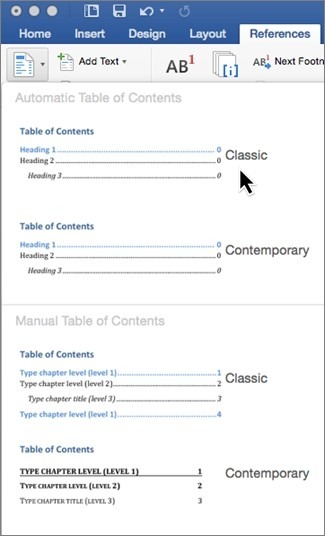
Place the cursor near the beginning or wherever the document's navigation belongs, then use References, Table of Contents and an automatic style. Microsoft distinguishes this from a Manual Table of Contents, which inserts placeholders without a heading-driven update relationship. Choose the automatic version for navigation that needs to follow revisions. Review the first result for missing sections, unnecessary detail and an appropriate number of levels. Formatting options can change fonts, leaders and depth, but the contents needs a correct heading structure before those presentation choices can produce a useful result.
Troubleshoot omissions through the source and refresh
If a heading is missing, select its text in the body and inspect its style. A manually formatted title can look correct while remaining ordinary text. Correct the intended heading level and update the contents through its field controls. After later changes to heading text, order or page positions, refresh again and inspect the result. Avoid typing a missing line directly into a generated table as the primary fix, since a future update can overwrite the local edit. Maintain the relationship between document structure and navigation so both remain understandable to the next editor.
Use the heading hierarchy as the source of navigation meaning
Assign a major section and one of its subordinate topics their intended heading styles before generating the table. This small example establishes how the hierarchy should read. Extend the same rule to the rest of the document and inspect any visually prominent line that has not been assigned a role. Manual font changes can make ordinary text look like a heading while leaving it outside the expected contents structure.
Do not promote every missing entry to the highest level merely to make it visible. First identify whether it is a major section, a subsection or a line that does not belong in navigation. The goal is a contents table that represents relationships, not just one that lists every large or bold paragraph. A clear structure also helps later editors decide where a newly inserted topic belongs.
Inspect the automatic result before adjusting its appearance
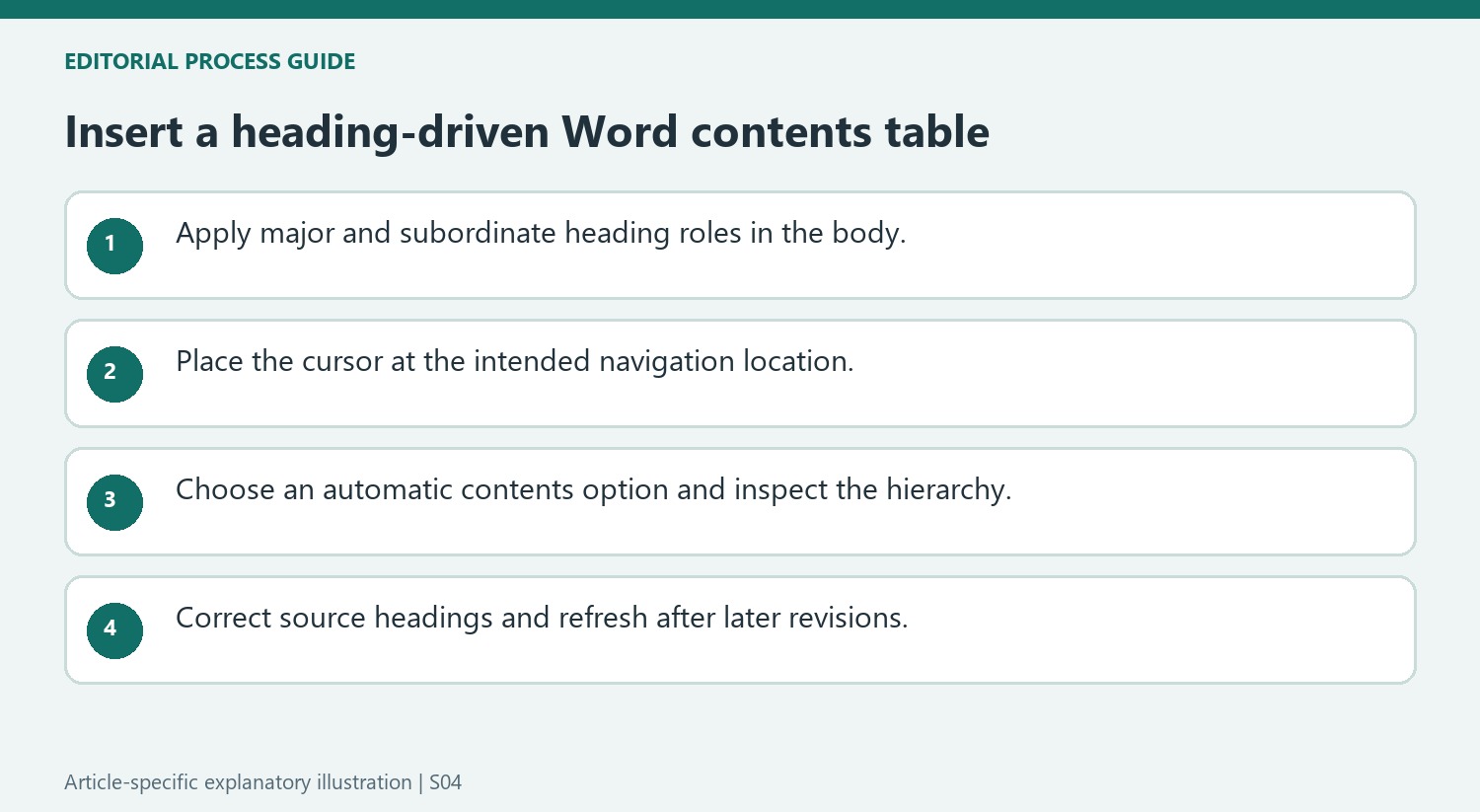
Place the insertion point deliberately so the new table does not interrupt a paragraph or a section title. After choosing the automatic option, compare its first and last entries with the document. Inspect indentation as well as wording. An apparent omission can be caused by a body paragraph that lacks a heading role, while excessive detail can reflect levels that need a separate inclusion decision.
The manual option creates placeholders rather than using headings to maintain the same relationship. Choose it only with the separate entry maintenance understood. For an automatic table, correct the source heading and refresh instead of inserting a replacement line by hand. That preserves the relationship when the table is regenerated after a later change. Presentation options should then make the correct structure easier to scan.
Review the table after headings move or change names
The support page explicitly links updates to heading text, sequence and level. Keep those changes in mind during revisions, not only changes to page numbers. After refreshing, verify a moved section and any renamed heading against the body. Check that the navigation belongs to the final saved version before sharing it. If the document is revised again, update the table again as needed. An automatic relationship makes maintenance practical, but a reader still depends on the author to distribute a current and accurately organized navigation table.
References
- Insert a table of contents. support.microsoft.com.





















Comments
0