 DocumentFlow Desk
Keep the component files and headings organized
The source demonstrates an older Word workflow that retains separate section documents and creates a common contents file. Each component must use suitable built-in heading styles so its entries can be collected. Keeping the files in one directory simplifies references, although a full path can identify a file elsewhere. Choose clear filenames and preserve the components before building the combined navigation. This approach does not merge their text into one continuously paginated document, so it needs a maintenance plan for references and page numbering as the separate sections change.
Add an RD reference for every included document
Through Insert, Quick Parts, Field, the tutorial selects RD, meaning Reference Document, and supplies the component filename. A relative-path option can be used when the file location supports it. Repeat for each intended component, then insert an automatic contents table in the common file. Check field display if codes appear instead of the expected result; the source discusses toggling field-code visibility. Review the included references carefully so a forgotten component or an outdated filename does not silently produce incomplete navigation for the collection.
Coordinate starting page numbers and refresh after changes
The example requires setting the starting page number in each subsequent component so the collection reads as one sequence. That coordination must be revisited when an earlier component grows or shrinks. Open the common contents file and update the whole table when headings change, or the relevant page references when only pagination changes. Inspect boundary entries between files to confirm the numbering is consistent. The method can serve a carefully managed collection, but its manual dependencies make it important to document the file order and review the complete output before distributing the separate sections together.
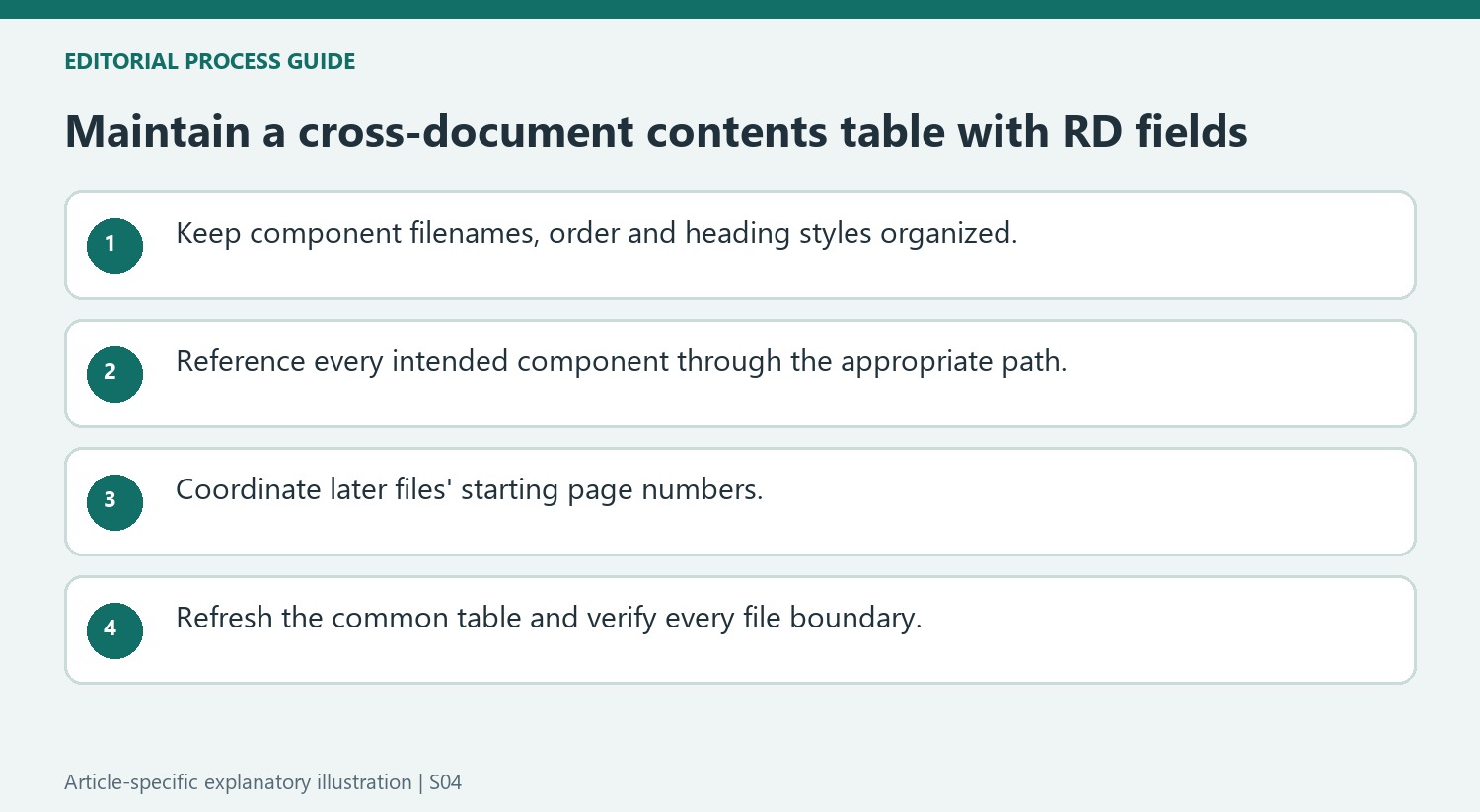
Treat the common contents file as an index of separate components
RD fields identify documents whose headings should contribute to the shared table. They do not combine all component text into one automatically continuous file. Maintain a clear component order and confirm that each reference points to the intended document. Keeping related files together can simplify relative paths, while a full path identifies a component stored elsewhere under the tutorial workflow.
A moved or renamed component deserves a reference check before updating the table. An apparently successful refresh is not proof that every intended file remains represented. Compare a known heading from each component with the combined output. This makes omissions visible and helps distinguish a missing reference from a heading that exists in the component but lacks the required built-in style.
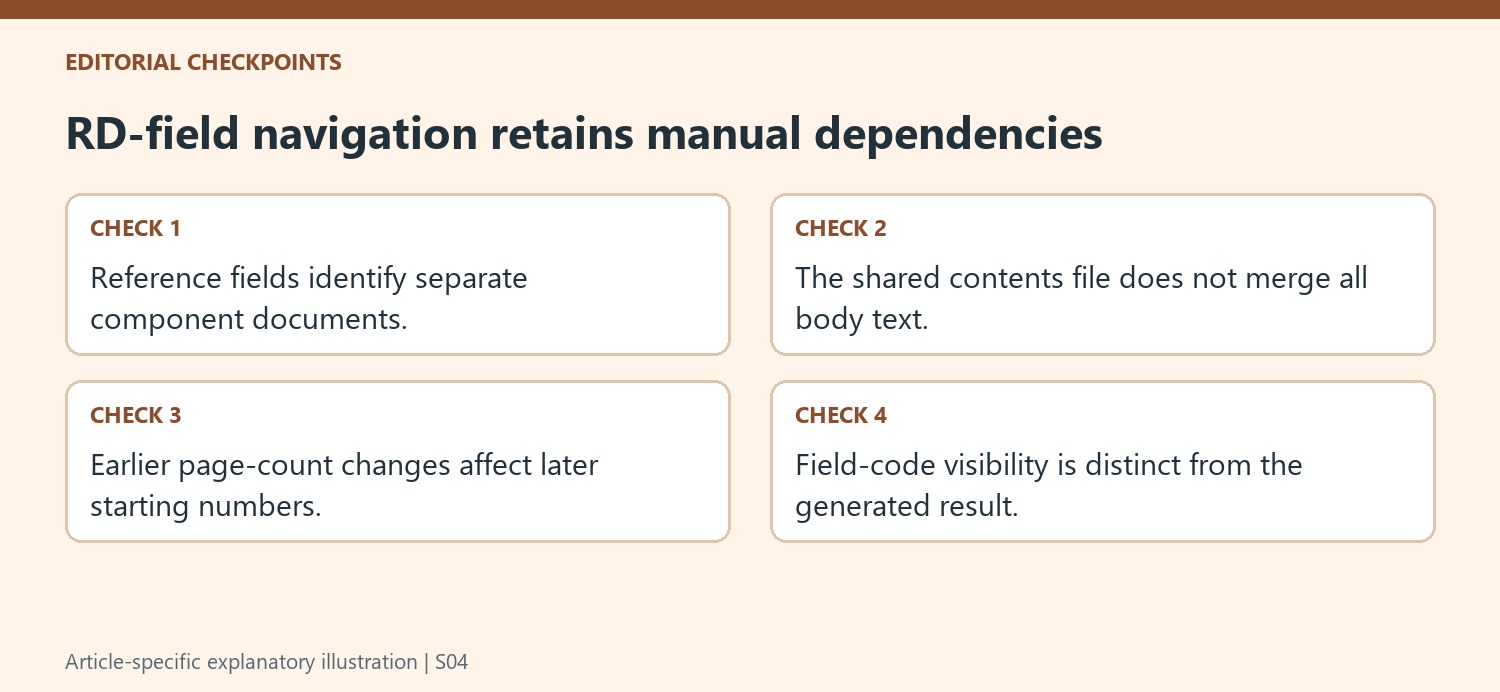
Coordinate pagination through the complete ordered set
The example begins with separate files whose first pages are each numbered one. To present them as one sequence, later files need appropriate starting page numbers. Record the final page of each component and the start expected in the next one. Check these boundaries directly rather than looking only at the common contents page, where repeated or overlapping numbers can be harder to interpret.
When an earlier component grows or shrinks, review every later starting number affected by the change. Updating the common table alone does not establish the intended continuous numbering in the individual documents. This dependency is the main maintenance cost of the separate-file approach. Keep the file order and page-start convention with the working materials so another editor can repeat the same process after revisions.
Review field display separately from field results
The tutorial discusses displaying field codes and toggling the contents field between code and result. Seeing an RD or contents instruction is therefore a display state to investigate, not a reason to type over it with ordinary text. Return to the result view and inspect the generated entries after refreshing. Choose an entire-table update when component headings change and inspect the boundary entries again. Before distributing the collection, verify that the common index and all separate documents belong to the same revision, with consistent filenames, heading wording and coordinated page starts.
References
- Create One Table of Contents from Multiple Word 2010 Documents. How-To Geek; Lori Kaufman.





















Comments
0