 DocumentFlow Desk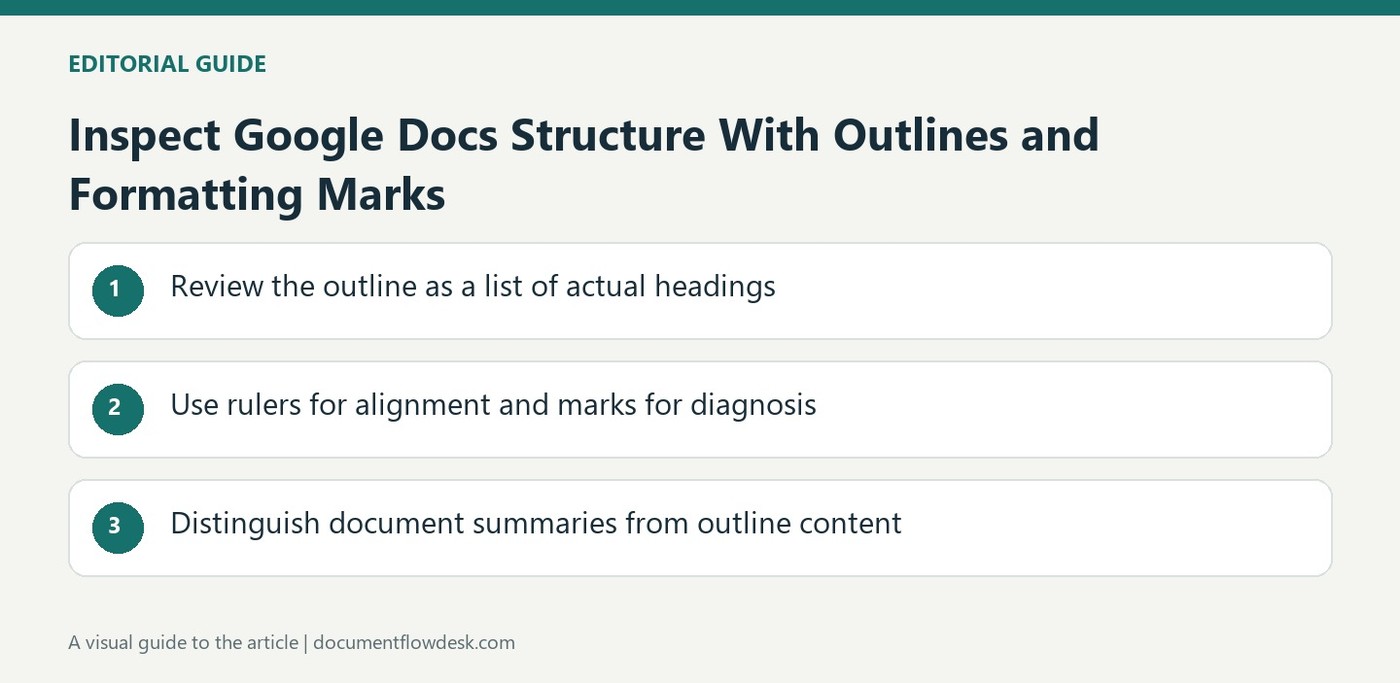
Review the outline as a list of actual headings
Google describes opening the outline through View, Show outline and using its entries to navigate. Heading styles add appropriate text to the outline, while subtitles are not included under the current guidance. Inspect the hierarchy and entry names before assuming a missing navigation item means the content was deleted. A heading can be removed from the outline and later re-added by selecting its text and using Add to document outline. Keep that distinction clear when maintaining a long document with a deliberately simplified navigation pane.
Use rulers for alignment and marks for diagnosis
Rulers help align text, graphics and tables, and their visibility can be toggled through View. Non-printing characters provide another kind of information: they show positions of spaces, tabs, paragraph breaks, line breaks and supported section or page breaks. Turn them on when a layout behaves unexpectedly. Several empty paragraphs and a paragraph-spacing setting may look similar in a clean view, but their behavior during revision differs. Seeing the underlying marks makes it easier to choose the right correction instead of adding more invisible characters to compensate for an unexplained gap.
Distinguish document summaries from outline content
The current source explains that summaries are no longer available in the document's left panel. It directs users to the file's Details information in Drive, where a description can be maintained. That metadata serves a different purpose from headings inside the document. Use the outline for structure and navigation, and use a description to explain the file itself where appropriate. After diagnosing layout, hide non-printing marks if they distract from reading, but revisit them when future edits introduce unexpected indentation, spacing or breaks that are difficult to explain from appearance alone.
Use each document view to answer a specific diagnostic question
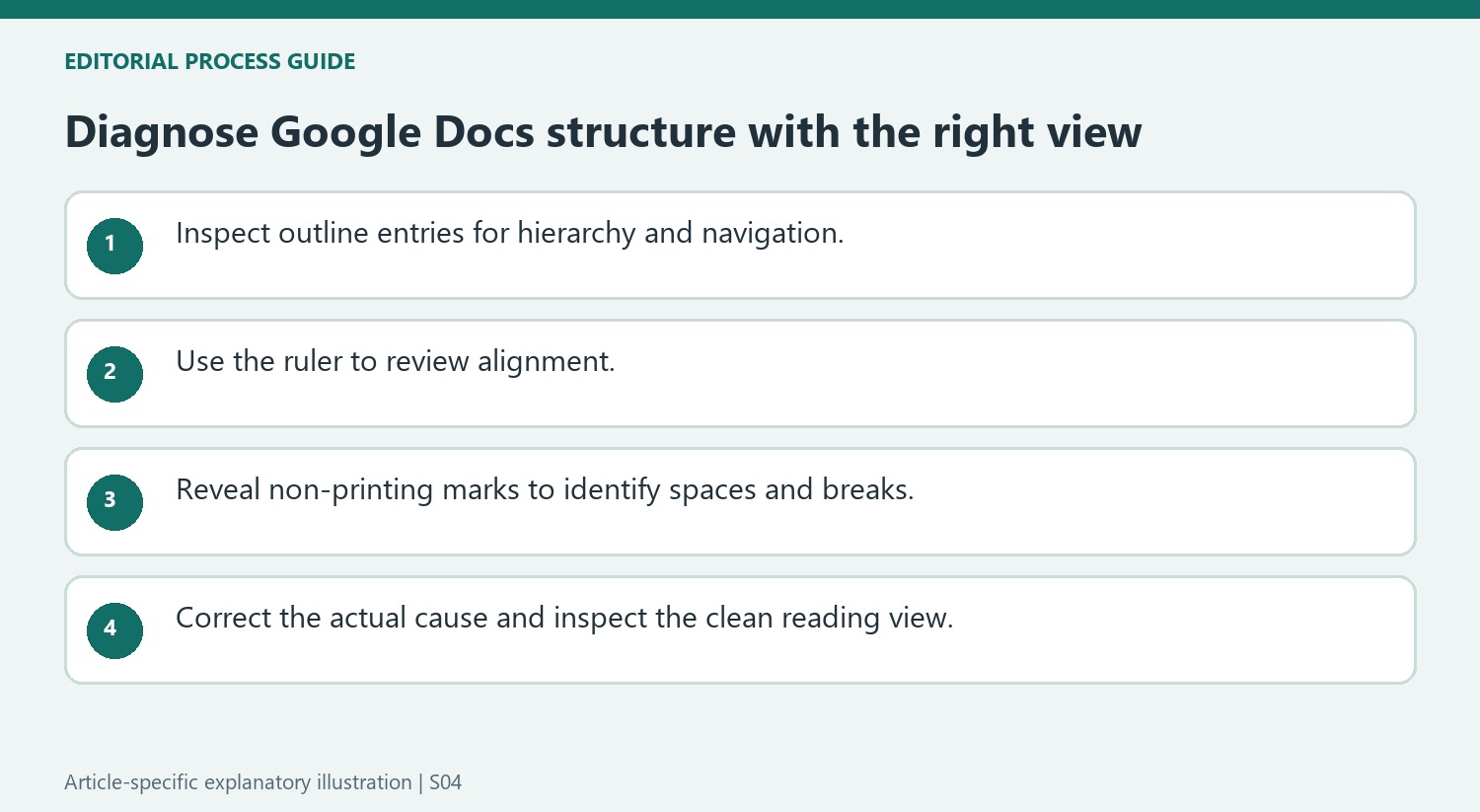
The outline answers where headings sit in the content hierarchy. The ruler helps inspect alignment and positioning. Non-printing characters reveal where formatting-related characters and breaks were inserted. Choose the view according to the symptom instead of treating all three as interchangeable decoration. A missing outline entry, an unusual indent and a large gap can have different causes even when they appear near the same paragraph.
For an outline problem, first check the heading style and whether the entry was explicitly removed. For a spacing problem, reveal marks and distinguish spaces, tabs and paragraph breaks. For alignment, review the ruler alongside the relevant text or object. This sequence gives the correction a concrete target and reduces the temptation to compensate for an unknown cause with another invisible character.
Preserve the distinction between navigation and document content
The guidance notes that subtitles do not appear in the outline. A subtitle therefore should not be treated as a missing heading simply because it is absent from the pane. Decide what role the line actually serves before changing its style. If it is a subordinate section heading, assign the appropriate heading role; if it is genuinely a subtitle, its exclusion can be expected.
Removing an outline entry does not remove its heading text, and the supported add-back command can restore it. Check the existing content before creating another copy of an apparently missing section. After restoring navigation, follow the entry and confirm its destination. A concise outline is useful only when its remaining labels accurately describe the structure rather than hiding problems that still need editorial attention.
Maintain file descriptions separately from the heading hierarchy
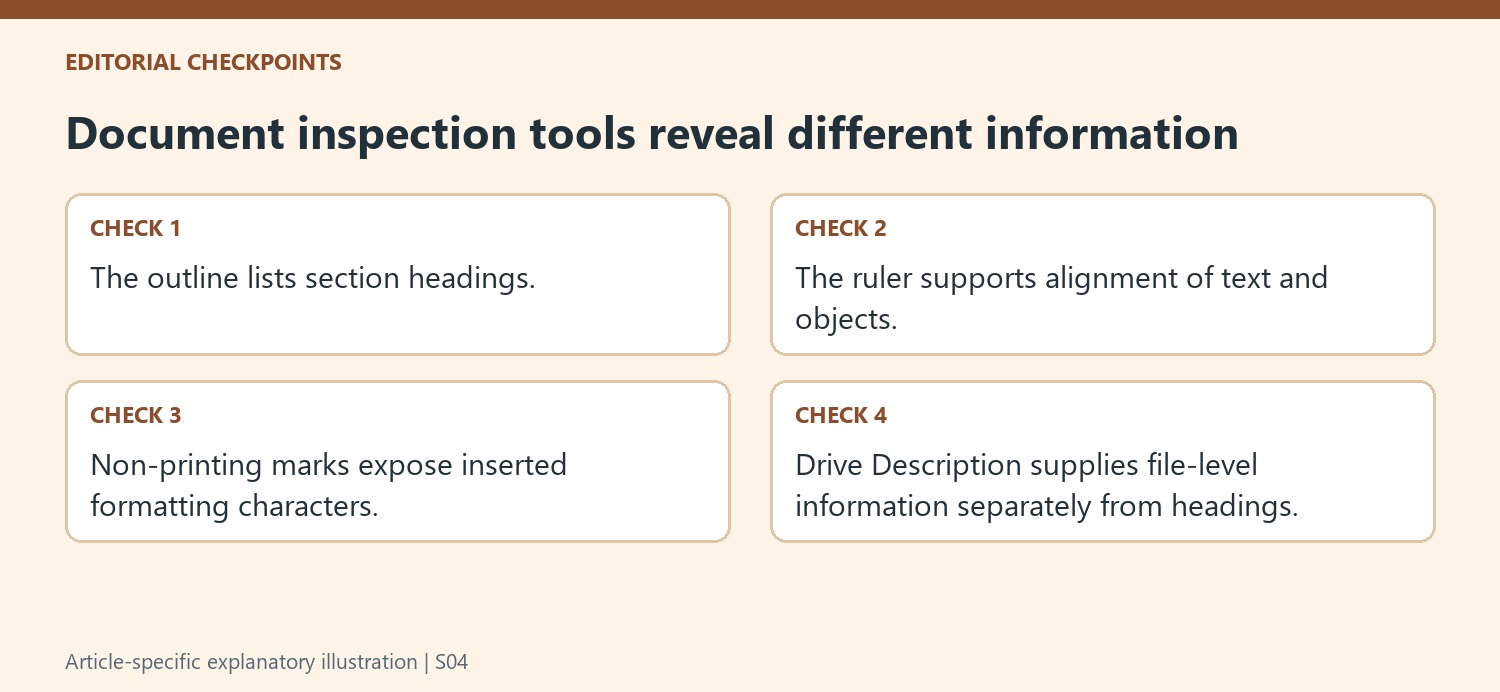
The current instructions direct document summaries to the Description area in Drive file details. That description explains the file as a whole and does not replace section headings inside it. Review the appropriate location when following an older workflow that expected a summary in the left panel. After finishing a layout diagnosis, hide marks if needed for clean reading, then inspect the corrected passage normally. A successful repair should both use the intended underlying structure and produce a readable result when diagnostic aids are no longer visible.
References
- View document outlines, rulers, & non-printing characters. support.google.com.






















Comments
0