 DocumentFlow Desk
Set the contents layout through its dedicated controls
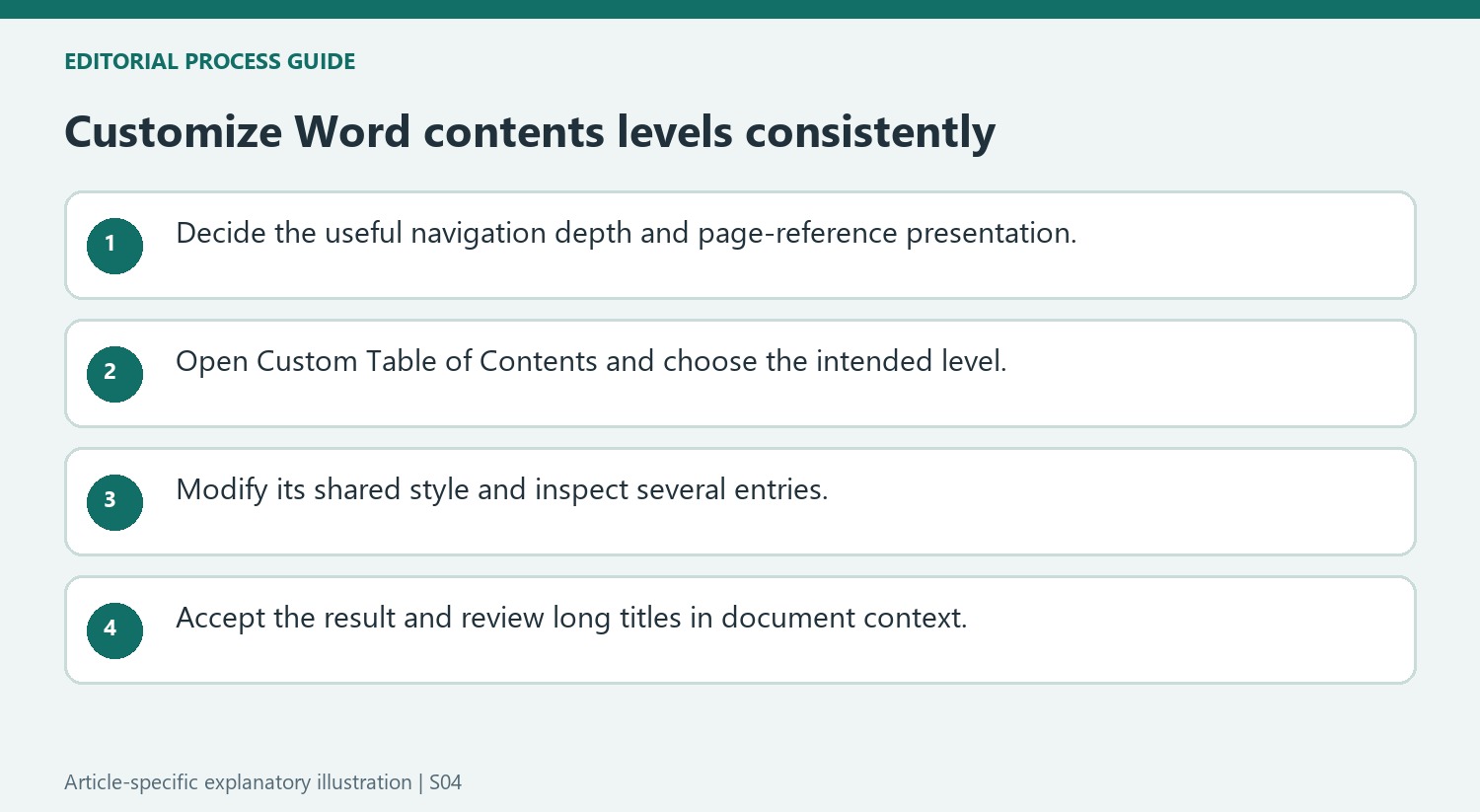
Microsoft describes customizing an existing contents table through References, Table of Contents, Custom Table of Contents. Use this dialog to choose page-number visibility and alignment, tab leaders, formats and the number of heading levels to show. Review those settings against the document's hierarchy. A short report may not need every subordinate heading in its navigation, while a long manual may require greater detail. The choice affects how easily a reader can scan the table, so decide the desired depth before changing individual fonts or spacing.
Modify the formatting of each intended level
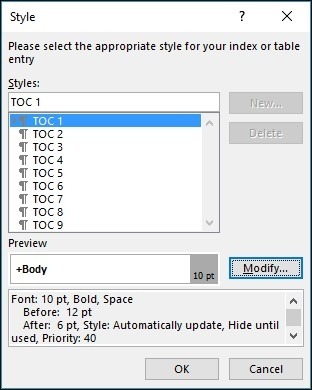
Select Modify to access the styles used for contents levels. Microsoft notes that changing Formats to From template can enable the Modify control when it is unavailable. Choose the intended level, open its Modify Style pane and make the required appearance changes. Repeat only for the levels that need adjustment. This approach keeps repeated entries consistent rather than applying isolated manual edits to individual lines. Check indentation and emphasis together so the difference between a major section and its subsection remains visible without relying on excessive decoration or unusually large text.
Inspect the accepted result in its actual document context
Use OK to apply the reviewed settings or Cancel to discard an unsatisfactory preview without removing the existing table. After applying changes, inspect entries with long titles, several hierarchy levels and page numbers of different lengths. Check that tab leaders and alignment still help connect each title with its page reference. The contents styles determine appearance, while the underlying headings determine membership and wording. Keep those responsibilities separate during troubleshooting, and update the generated table after structural revisions before judging whether an apparent omission is a formatting issue or a missing heading.
Set a navigation policy before changing visual details
Choose how much of the hierarchy the contents should expose. Including every small subsection can make a long table difficult to scan, while showing too few levels can force readers to search through broad chapters. Compare the proposed depth with the actual use of the document. A navigation table should support locating material, and its visual design follows that purpose rather than deciding it.
Page-number visibility and tab leaders also depend on the reading context. Where page references are shown, inspect whether the title-to-number relationship remains easy to follow across the full width. A long heading that wraps to another line can behave differently from the short examples visible in the dialog preview. Check the applied document after accepting a candidate layout.
Modify the intended contents level rather than its body heading
The Modify workflow selects a level in the Styles list and then edits that level through Modify Style. Confirm the selected level before changing font, size or other appearance properties. A major-section entry and a subsection entry can need different emphasis, but their relationship should remain understandable without excessive decoration. Review at least two examples of each changed level to confirm the effect is consistent.
When Modify is unavailable, Microsoft directs users to choose From template in Formats. That changes access to the style-based customization workflow; it does not establish that every current entry has the correct heading level. Keep the source hierarchy review separate. A beautifully formatted contents line can still be misplaced if its body paragraph was assigned an inappropriate structural role.
Accept or discard a preview without losing the existing table
The support page distinguishes OK from Cancel: accepting applies the reviewed customization, while canceling leaves the existing contents table. Use that distinction when experimenting with several designs. After applying a choice, inspect the table in context with adjacent pages and review the longest headings and largest page numbers. Then refresh after later structural changes and check the same examples again. Style definitions offer consistent repeated formatting, but the final table still needs correct wording, membership and page references supplied by the current saved document and its actual heading structure.
References
- Format or customize a table of contents in Word. support.microsoft.com.





















Comments
0