 DocumentFlow Desk
Decide whether fixed pages are part of the document
Google distinguishes Pages from Pageless through File, Page setup. Pages provides page breaks and controls such as orientation, margins, headers, footers and numbering. Choose it when the document needs a deliberate printed or paginated structure. Pageless instead presents a continuous flow, allowing wider tables and images to adapt to the screen. Consider the actual material and reading context before switching. A long collaborative reference and a numbered report may contain similar words but need different layout behavior to remain useful to their readers.
Review the visibility of existing page-based elements
The source notes that some elements, including headers, footers and watermarks, are not shown in pageless mode. Switching back to pages can make them visible again. Do not assume those elements were removed or that their hidden state is suitable for the eventual export. Certain additions, such as page numbers and columns, also require pages format. If a command is unavailable, inspect the current mode before recreating the layout manually. A view optimized for continuous reading does not provide every feature of a page-based document.
Treat text width as a personal viewing preference
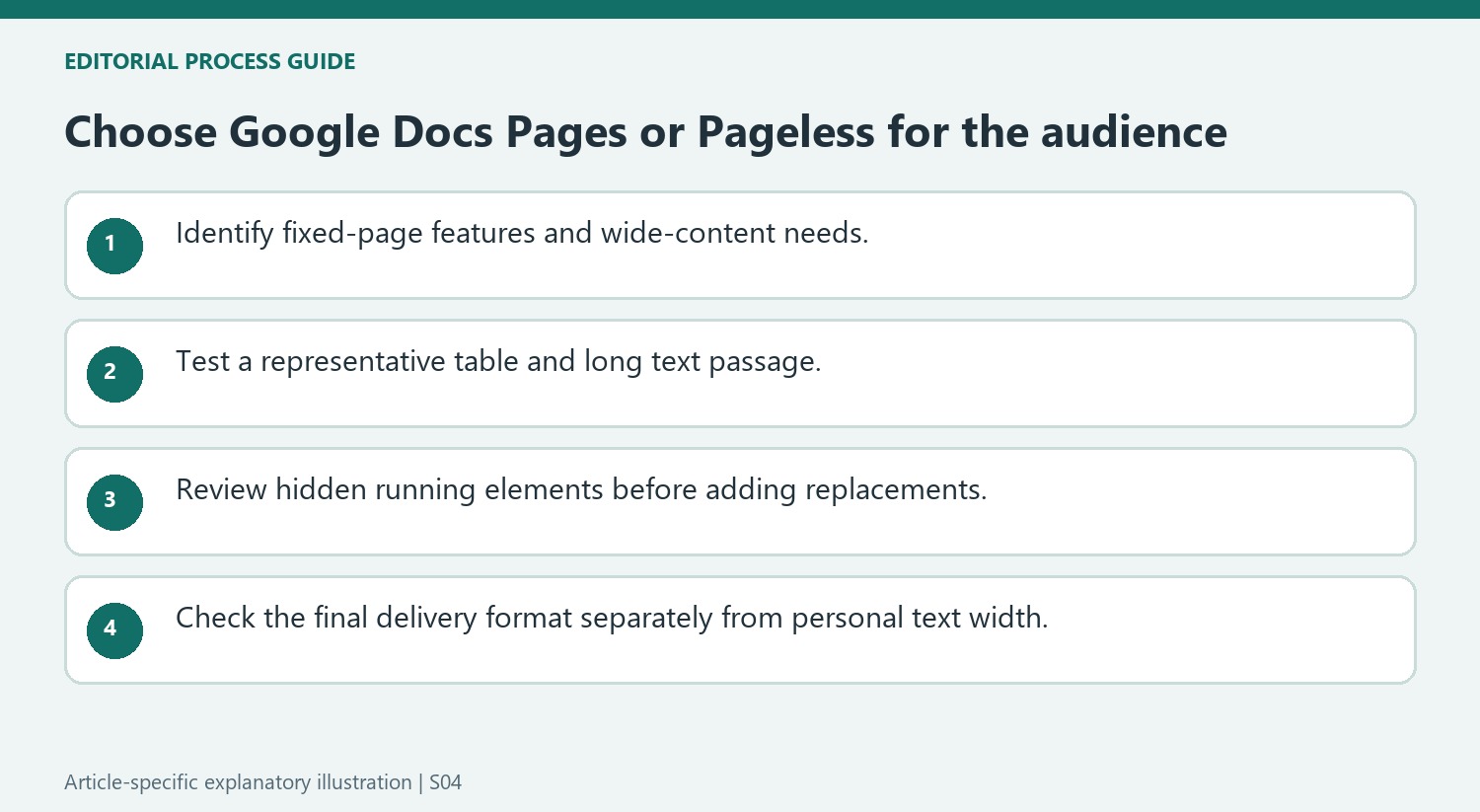
For pageless documents, View, Text width offers choices such as narrow, medium and wide. Google explains that this preference affects the pageless documents the user views and does not change collaborators' views in the same way. Select a comfortable width, but avoid treating it as a shared layout guarantee. The page-setup dialog also offers a default-setting option for future documents. Keep that broader preference separate from a change needed for one file, and review the final document in the mode and output format that the intended audience will actually use.
Evaluate wide content and fixed page requirements together
Pageless mode allows wide tables and adapts images and line wrapping to the screen. That can suit material read continuously on different displays. Pages supplies fixed page boundaries and controls needed for an intentionally paginated report. Review the actual mix of content before deciding. A wide table does not automatically outweigh a requirement for headers or numbered pages, and a familiar page view is not automatically essential to a collaborative reference.
Test a representative wide table and a long text passage after switching. Observe whether horizontal scrolling is needed and whether the explanation remains easy to follow. In pages mode, inspect whether the table fits the available area. The two modes offer different behavior rather than two identical previews, so judge the choice by how readers will navigate and use the material.
Check hidden elements before assuming the document has lost them
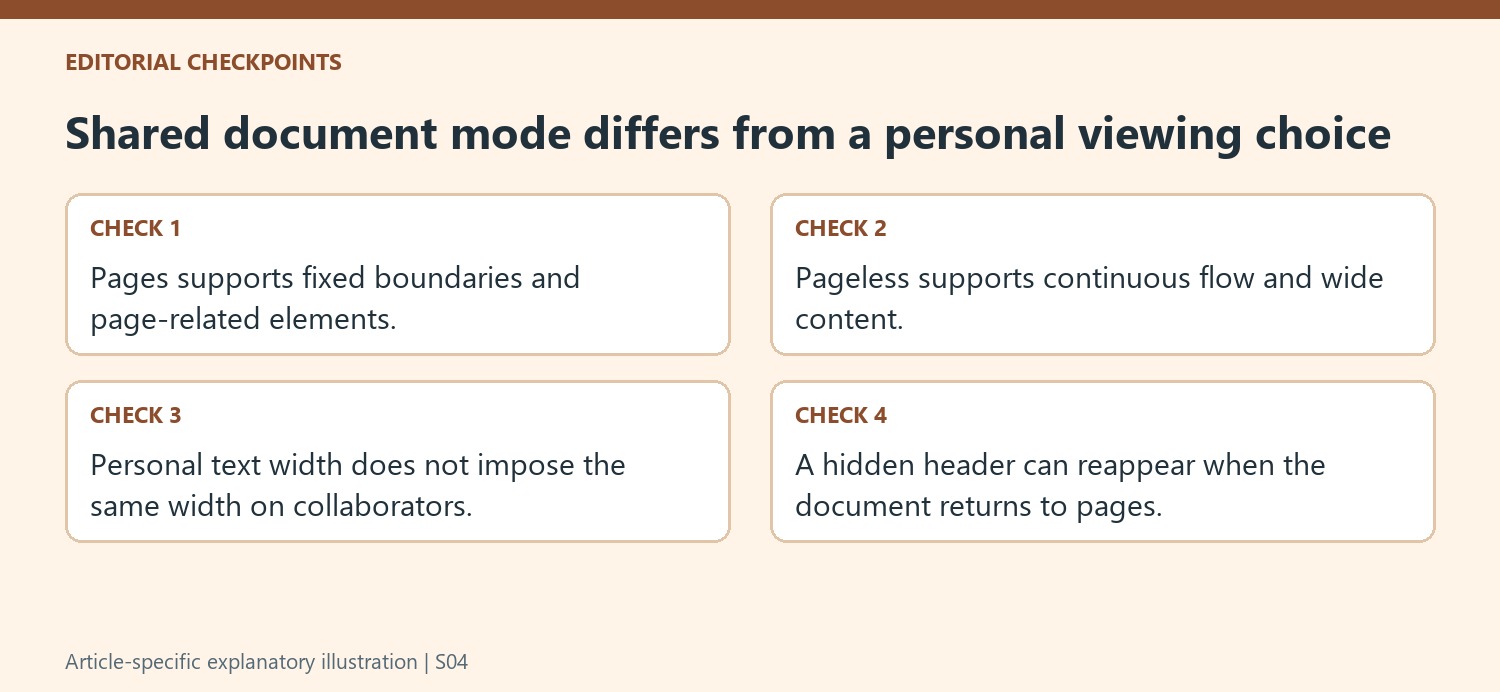
Google notes that headers, footers and watermarks can become invisible in pageless mode and reappear when the document returns to pages. Their absence from the current view is therefore not the same as deletion. Inspect the page-based view before adding replacements or deciding that a final export contains no such elements. A mode change deserves a content review as well as an appearance review.
Some additions, including columns and page numbers, also require pages. When an option is unavailable, confirm the current format before constructing a manual substitute. Typed page labels or improvised column spacing can introduce maintenance problems without reproducing the supported page-based feature. Choose the mode that provides the required document behavior, then use its intended structural controls.
Distinguish a personal viewing width from the shared document format
The pageless text-width preference applies to the user's view across pageless documents and does not impose that same width on collaborators. Review layout assumptions accordingly. A paragraph that looks compact in one view can wrap differently for another reader, so keep visual references understandable without relying on one exact line break. Set as default is another broader choice affecting new files. Keep it separate from adjusting the current document and inspect the final delivery format independently before assuming that the editing view describes every reader's experience on a different device or screen size.
References
- Change a document’s page setup: pages or pageless. support.google.com.





















Comments
0