 DocumentFlow Desk
Choose the break according to the intended structure
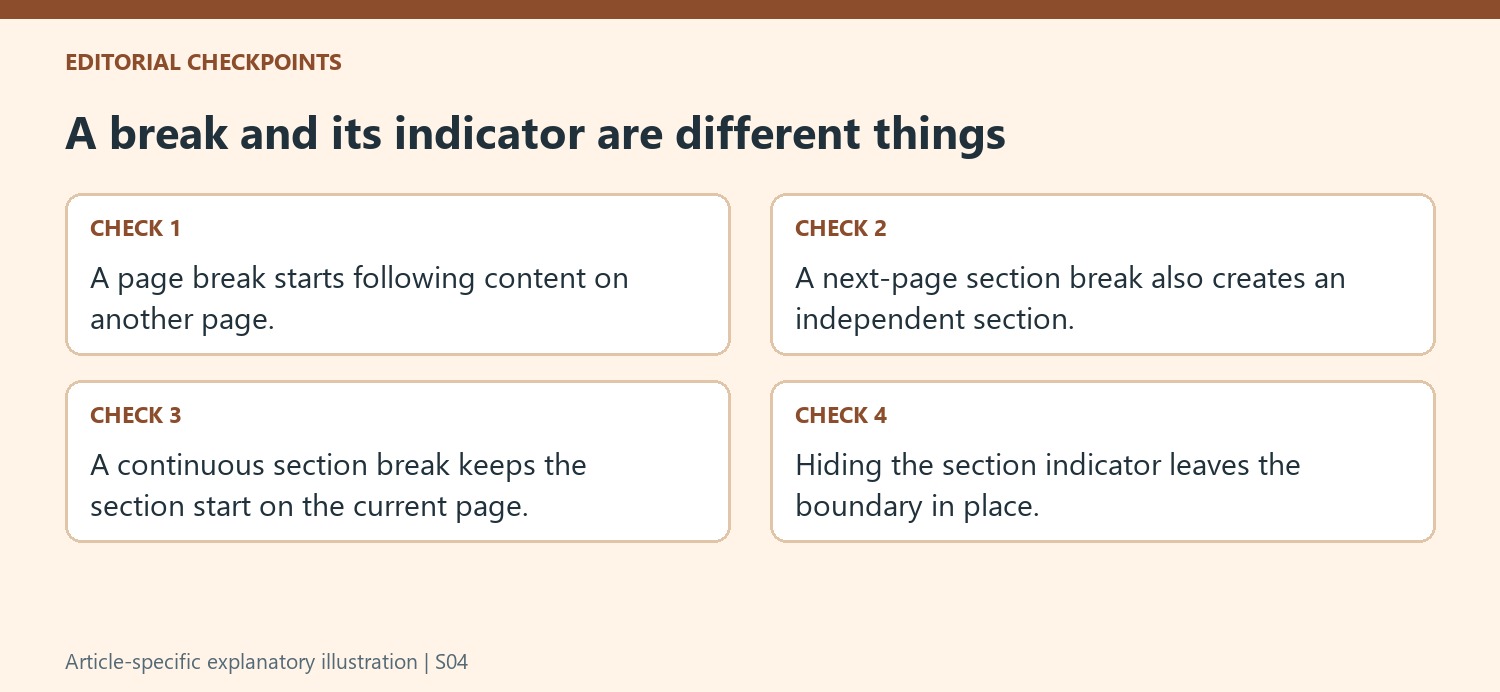
The source distinguishes Page break, Section break next page and Section break continuous. A page break starts following content on another page without creating a separate section. A next-page section break combines a section boundary with a new page, while a continuous break starts a section on the current page. Decide which behavior is needed before inserting one through the break controls. A new chapter and a short passage with different column formatting may require different choices even when both initially appear to create extra space around the content.
Show section boundaries while reviewing the layout
The article describes showing section breaks through the View menu so their boundary indicators become visible. Use that diagnostic view when a document has unexplained layout changes or when a newly inserted section seems to affect neighboring content. Hiding the indicator changes the view rather than removing the structural break. Keep that distinction clear before editing. Current Docs versions also offer non-printing-character views, so inspect the available display controls instead of assuming that a break is absent merely because it is not visible in the clean reading view.
Remove the intended boundary and inspect the result
Place the cursor carefully when deleting a break, following the appropriate Backspace or Delete behavior for the platform. Show section boundaries first when that makes selection easier. Removing a page break can move text upward; removing a section boundary can also affect how layout settings apply to the neighboring material. Review the paragraphs on both sides and any associated columns or page settings afterward. Avoid compensating for the result with repeated blank paragraphs. Restore or replace the structural control when the document still needs an explicit page transition or a separate formatting section.
Choose the smallest structural change that expresses the requirement
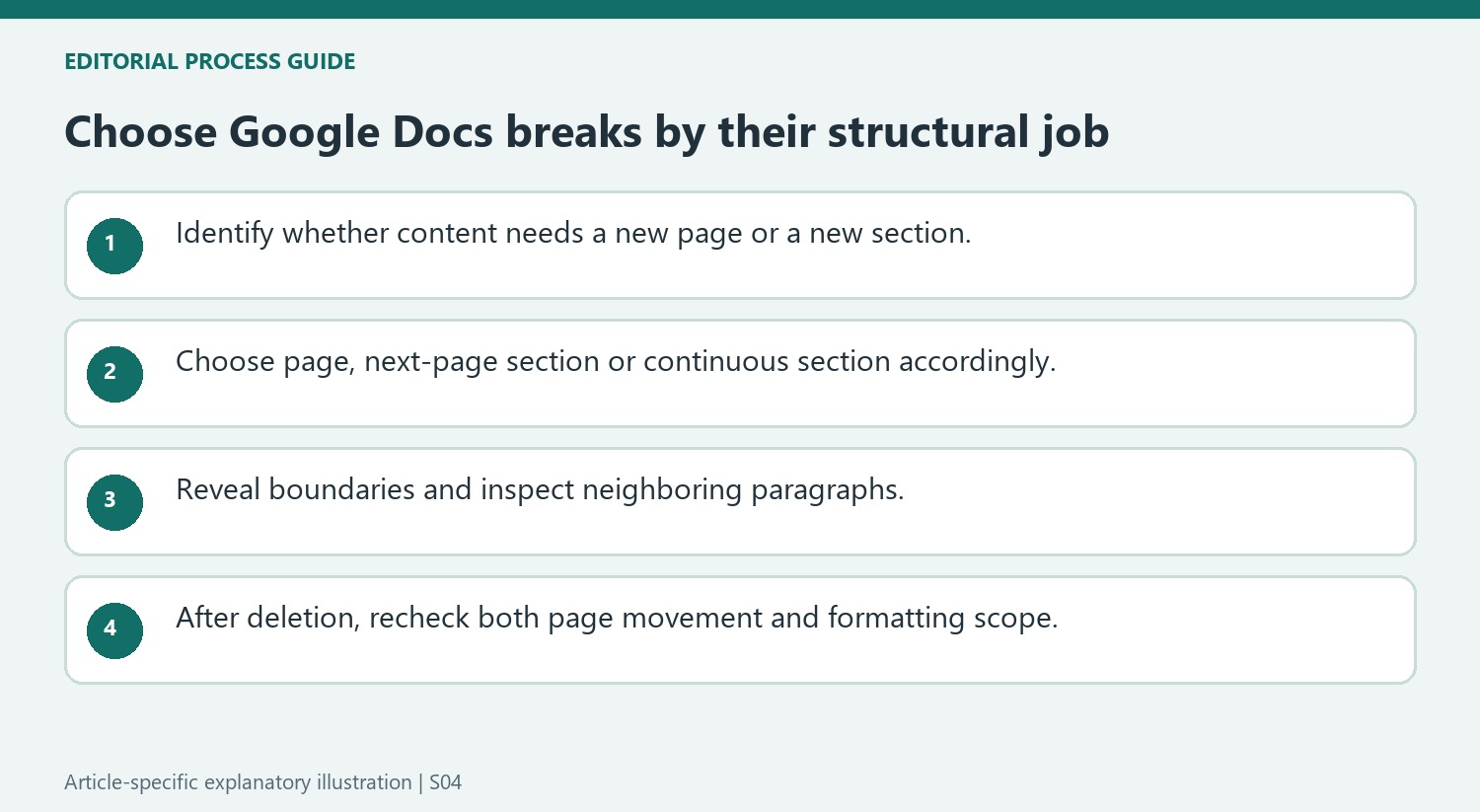
A chapter that must begin on a fresh page may need only a page break. A passage with its own column treatment may need a section boundary even if it remains on the current page. Decide the intended relationship before inserting the break. Similar-looking space in the current draft can conceal different behaviors when content is added earlier or a section setting changes later.
Test the chosen boundary by inspecting the paragraphs immediately before and after it. A next-page section break combines two decisions: a new section and a new page. A continuous break supplies the section boundary without that page transition. Use the appropriate option rather than creating several boundaries and then compensating for the resulting gaps with extra blank paragraphs.
Use a boundary display to diagnose the actual document structure
The tutorial describes a blue dotted indicator for section boundaries and a View setting for hiding it. A hidden indicator is a display choice, so inspect the setting before assuming the section break is absent. More recent interfaces can also expose non-printing characters. Follow the purpose of the diagnostic view when the available menu differs from the older tutorial.
Once the boundary is visible, compare it with the content that should have separate formatting. A misplaced break can leave the first paragraph outside the intended section or include an extra paragraph in it. Moving or replacing the boundary deliberately is clearer than adding another one nearby without checking the existing structure. Keep the clean reading view available for reviewing the eventual visual result afterward.
Review deletion as a structural edit rather than a cosmetic cleanup
Place the cursor carefully and follow the platform-appropriate key behavior described by the workflow. After removing a break, inspect what moved and whether section-specific formatting still applies as intended. A page break removal affects the page transition; a section break removal can also alter the scope of layout settings. If the result is unexpected, undo and inspect the boundary again instead of repeatedly deleting. The document should retain an intentional explanation for each page transition and each independently formatted section, even after the visible dotted indicators are hidden.
References
- How to Add, Show, and Remove Page and Section Breaks in Google Docs. How-To Geek; Sandy Writtenhouse.





















Comments
0