 DocumentFlow Desk
Choose a sensible boundary in the content
The source describes section breaks as a way to divide a document into regions with independent layout behavior. Place the cursor at a deliberate transition, preferably between paragraphs or complete sentences. Avoid splitting an unrelated passage merely because the cursor happens to be near a page edge. Decide which material needs separate treatment before inserting the boundary. A short multi-column passage and a new chapter can both require sections, but the most suitable starting position differs according to their purpose and the intended reading layout.
Select the section-start type through Layout controls
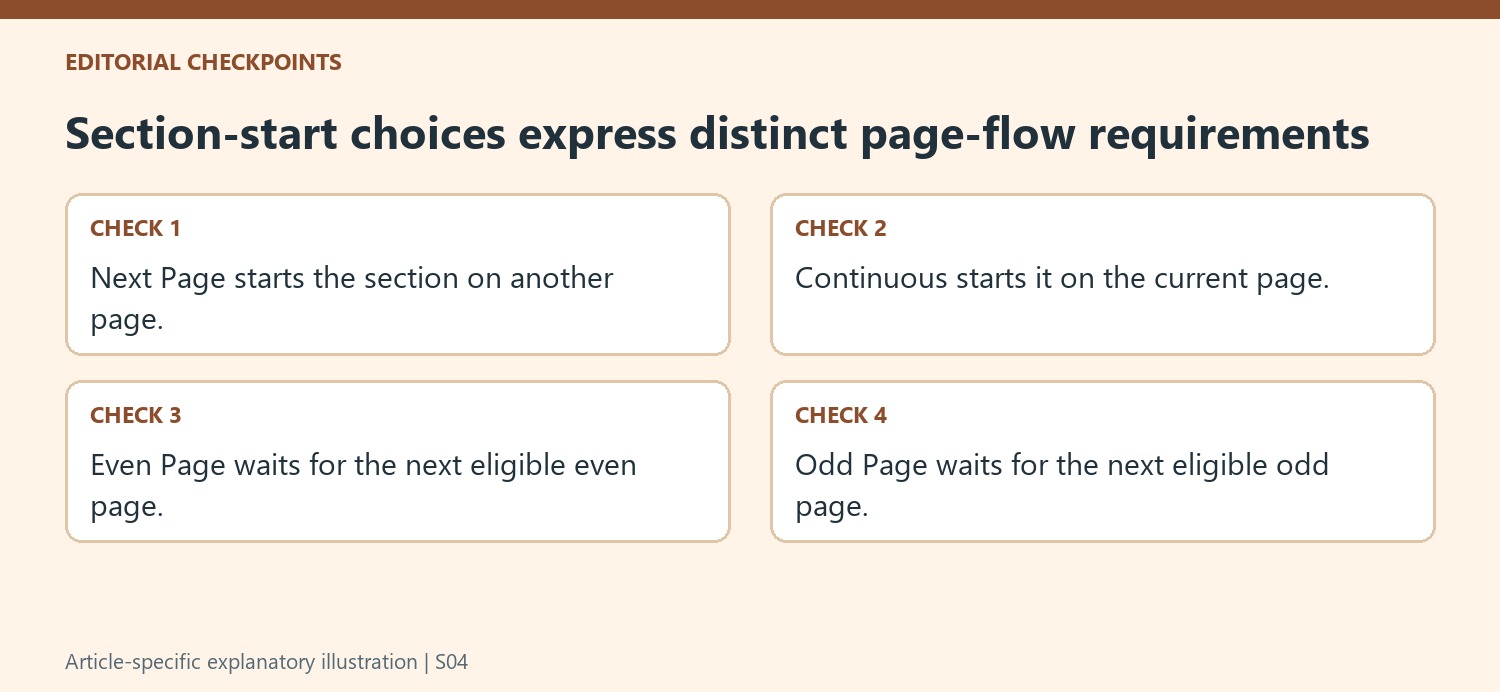
Open Layout, Breaks and inspect the section-break options. Next Page begins the following section on a new page. Continuous starts it on the same page, which can support a local layout change such as columns. Even Page and Odd Page begin at the next page with the specified parity. Choose deliberately: a parity requirement can leave an intervening page that is expected rather than an editing error. Review the resulting transition before adding more breaks, because several boundaries inserted together can make the document's behavior difficult to diagnose.
Show the structure when reviewing or removing a boundary
The article recommends displaying non-printing characters through Home so the section boundary is visible. Use that view to inspect where the new section begins and whether it corresponds to the intended text. Removing a section break can change how formatting applies across the neighboring material, so preserve a copy and review the full affected region before deletion. Keep the distinction between a section and a page break clear during later maintenance. A document with purposeful boundaries is easier to revise than one whose layout depends on invisible, unexplained transitions placed only to fix temporary visual gaps.
Plan the layout region before inserting its starting boundary
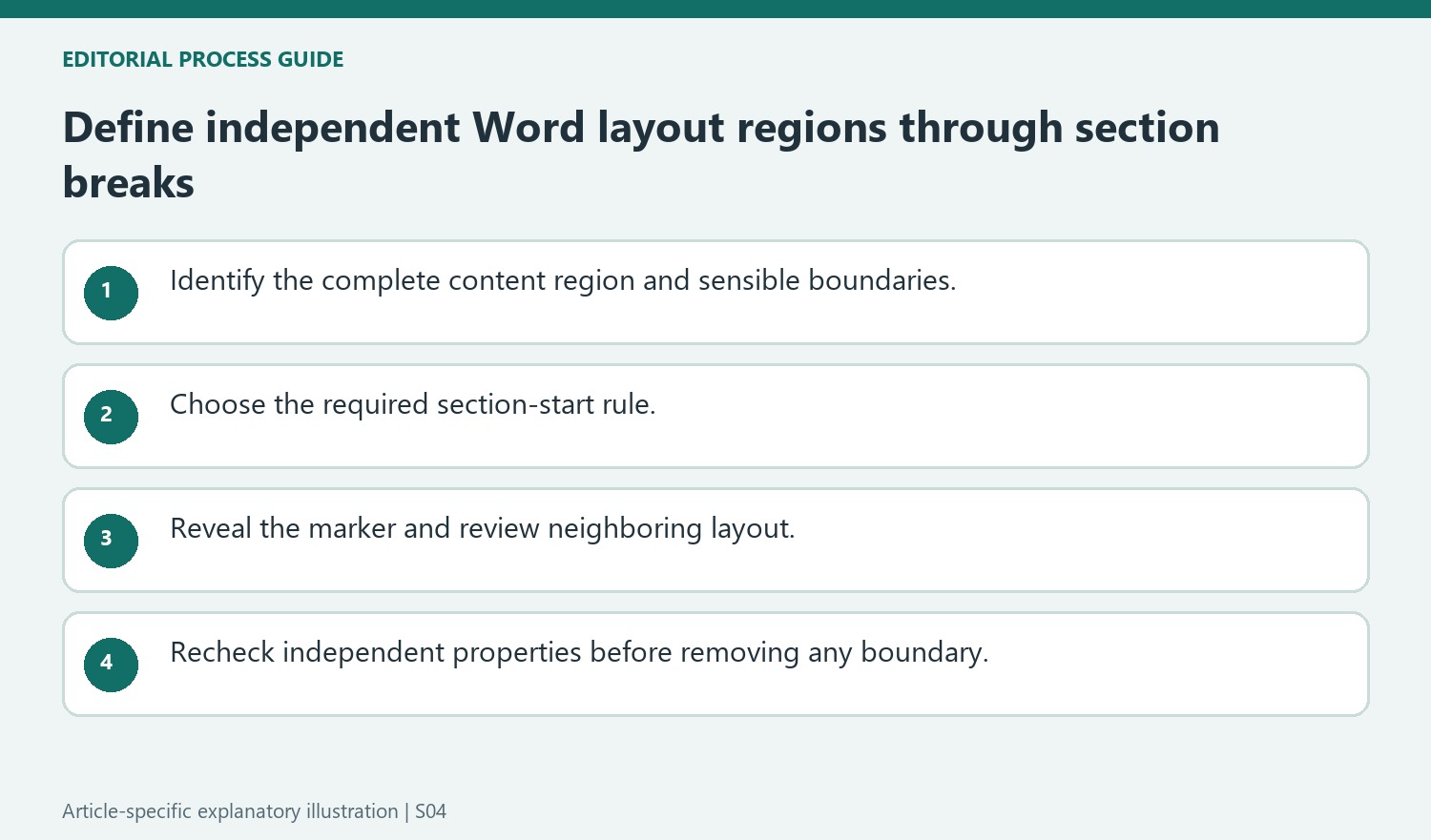
Identify the complete passage that needs separate treatment and decide where ordinary formatting should resume. A multi-column example can require a local region, while a new chapter may require a fresh page and independent numbering. Place the boundary at a sensible content transition. Splitting a sentence or placing the break at an approximate visual gap makes later maintenance harder to explain.
Inspect both the start and the end of the intended region when additional boundaries are required by the layout. A correctly inserted first boundary does not alone establish where the independent treatment stops. Keep a recoverable version before changing a complex document and use visible formatting marks to compare the actual section structure with the original plan.
Interpret the start options as different page-flow rules
Next Page begins the section on another page, while Continuous starts it within the current page. Even Page and Odd Page impose a parity requirement. That requirement can produce an intervening page when the next eligible page is not the immediately following one. Review the chosen rule before deleting an apparently unwanted blank page, because that space may follow directly from the intended chapter-opening convention.
The current amount of text can make several start types appear similar in one draft. A later insertion can expose their different behavior. Choose according to the enduring layout requirement, not just the position produced by the present page count. Confirm the selected option and inspect the surrounding content before adding another break in an attempt to correct an unexplained transition.
Review independent section properties before removing a boundary
The Show/Hide control exposes the structural marker and makes deliberate selection easier. Before deleting it, inspect the formatting carried by the neighboring sections and the requirements they still serve. A boundary can support columns, numbering or other independent treatment even when the surrounding paragraphs look similar. If only the start behavior needs revision, use the supported section-setting workflow for the installed application rather than assuming deletion is necessary. After any change, review both regions and their running elements so the final document has understandable, purposeful section boundaries.
References
- How to Insert a Section Break in Microsoft Word. How-To Geek; Bryan Clark.





















Comments
0