 DocumentFlow Desk
Use a page transition for the content that should move
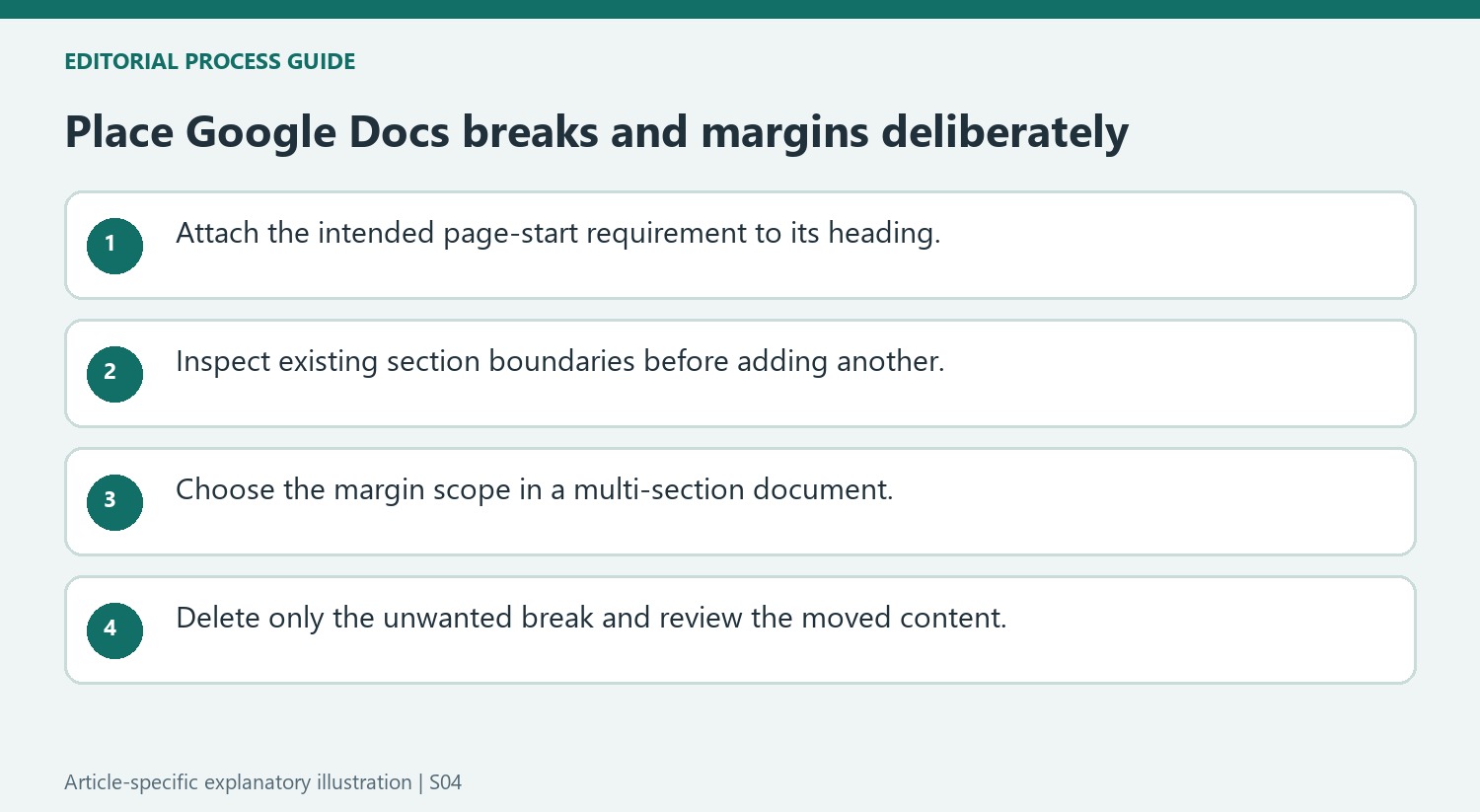
Google describes inserting breaks through the Insert controls and adding a page break before a selected paragraph through Line and paragraph spacing. The paragraph setting is useful when a heading should consistently start a new page. Select the intended paragraph carefully and inspect the result with its surrounding text. A page break expresses a layout requirement directly, whereas repeated empty paragraphs only imitate that position until earlier edits change the pagination. Keep the source structure visible when troubleshooting unexpected blank areas or headings that move away from their intended page.
Create a section only when independent settings are needed
Section boundaries can separate areas that need different margins, numbering or other page-related treatment. Choose a continuous or next-page boundary according to whether the new section should begin on the same page or another one. Show section breaks through View while checking their positions. Google notes that the visibility preference can persist across opened documents, so a clean view is not proof that a boundary does not exist. Inspect the actual structure before adding another break that may create an unnecessary empty section or confusing formatting scope.
Check scope when adjusting margins or deleting a break
The source directs users with multiple sections to Page setup to choose which sections a margin change should affect. Review that selection before accepting it, then inspect wide tables and nearby paragraphs. When removing an unwanted page break, place the cursor at the relevant boundary and use the appropriate deletion key carefully. Review the content that moves afterward. Deleting a break and hiding its indicator are different operations. Keep the remaining structure intentional so later changes to text length do not require another series of manual spacing corrections to recover the page arrangement.
Attach a page-start requirement to the paragraph that owns it
Add page break before can keep a selected heading at the start of a page. Confirm the paragraph selection and inspect the result. This expresses a continuing requirement more directly than inserting repeated empty paragraphs ahead of the heading. When text is added earlier, the setting still describes where the heading belongs rather than depending on the previous count of blank lines.
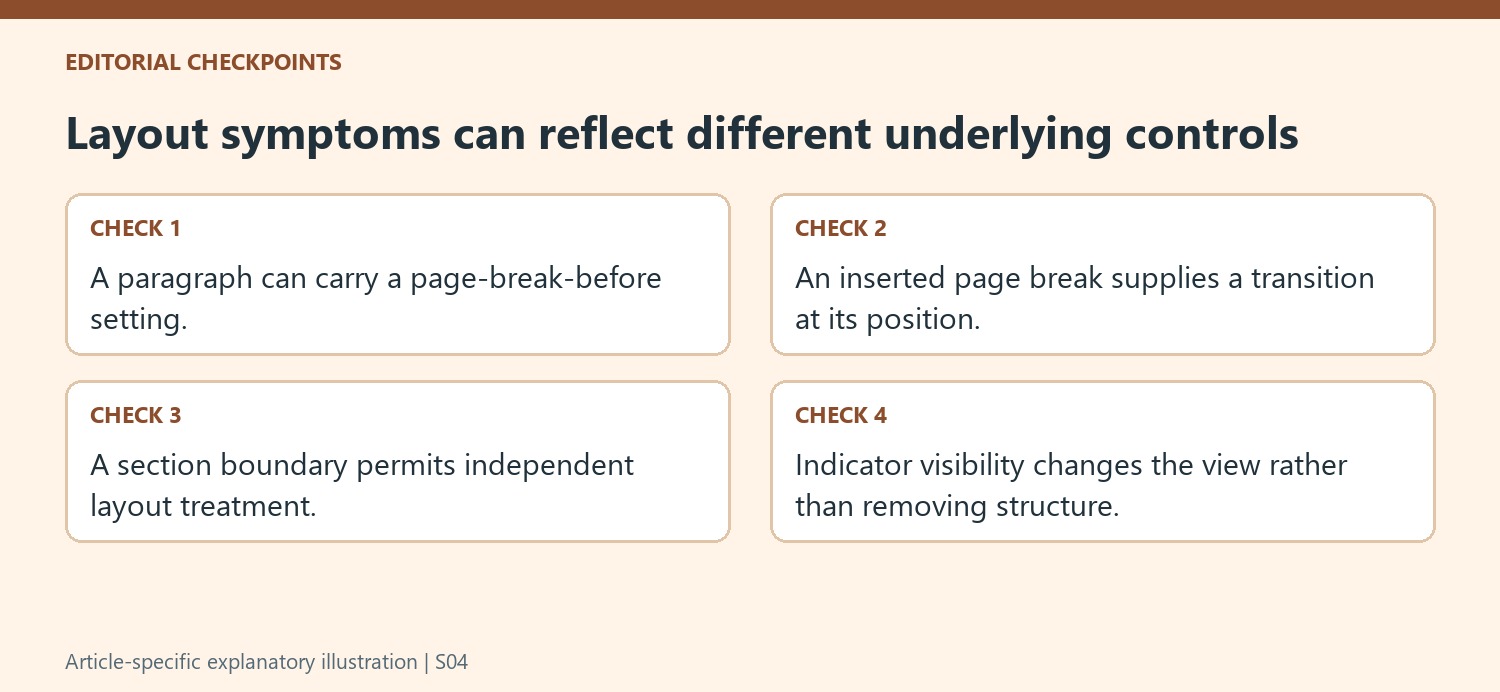
An inserted page break is another explicit page transition. Choose the mechanism that suits the document structure and avoid stacking both without inspection. Multiple transitions around the same heading can create confusing blank space. Show the relevant diagnostic marks or section indicators when needed, then review the clean page after removing unnecessary controls. A new page should have an identifiable structural reason.
Separate a section boundary from its visible indicator
The section-break view makes boundaries easier to locate, and the source says that the visibility preference persists across opened documents. A later file may therefore show or hide indicators according to that preference rather than its own lack of sections. Check the actual view state before inserting another boundary. Hiding the dotted line does not simplify the underlying section structure.
Create a section when margins, numbering or another page treatment needs its own scope. Decide whether it should begin on a new page or continue on the current one. The names of those options describe different starting behavior, so inspect the resulting boundary rather than assuming every section starts the same way. Review neighboring paragraphs and any table that crosses or sits near the change.
Verify the margin scope and any content moved by a deletion
For multiple sections, the Page setup workflow lets the editor choose which sections receive a margin change. Read that choice before accepting and inspect the available width afterward. A table can fit the current section while becoming crowded elsewhere if a change was applied too broadly. When deleting an unwanted page break, inspect the moved content immediately and stop once the intended boundary is gone. Repeated deletion without checking can remove more than the unwanted control. Keep the document structure deliberate so later edits do not require another round of manual spacing repairs.
References
- Add page breaks & move margins. support.google.com.





















Comments
0