 DocumentFlow Desk
Establish heading levels before generating navigation
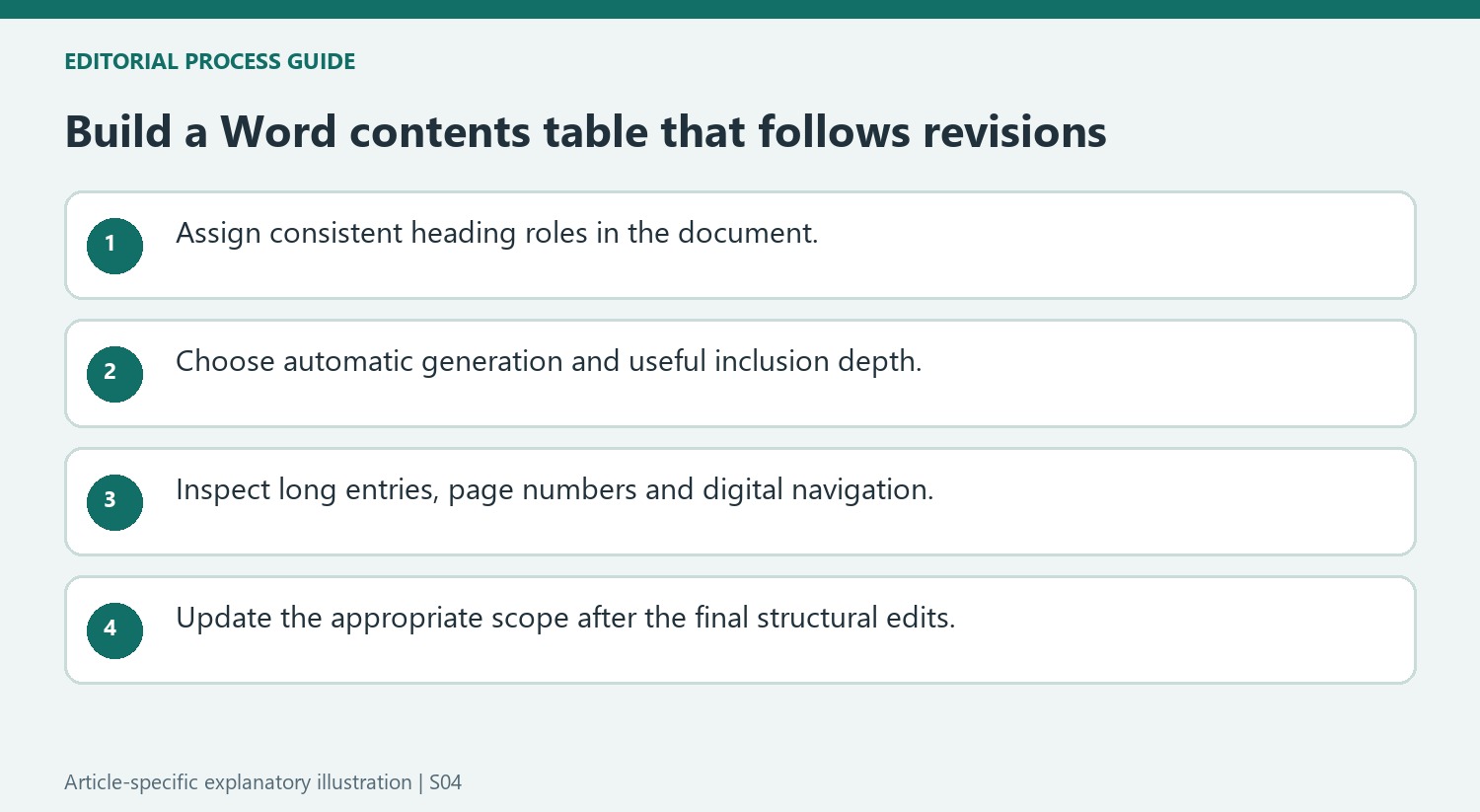
The source explains that Word normally builds an automatic table of contents from its built-in heading styles. Apply the appropriate levels to major sections and their subsections before inserting the table. A visually prominent paragraph does not necessarily function as a heading if its appearance was set manually. Review the hierarchy for consistency, and modify a heading style when repeated appearance needs to change. This keeps the section structure distinct from presentation and gives the generated contents table a reliable set of entries to reference.
Choose automatic generation and suitable display options
Place the cursor where the contents belongs and use References, Table of Contents. An automatic option builds entries from headings, while a manual table provides placeholders that must be maintained separately. Custom Table of Contents offers control over included levels, page-number alignment, tab leaders and the styles used inside the table. Choose according to the intended reading context, including whether the document will be printed or navigated digitally. Inspect a few entries and destinations before styling the complete table, since missing or misleveled headings need correction at their source.
Refresh the right scope after edits
When sections move, names change or pagination shifts, update the contents through its field controls. Updating page numbers alone preserves the existing heading text, while an entire-table update can incorporate revised or newly added headings. Review the result after the update and confirm that the contents is separated from following material with an appropriate structural break. Avoid manually correcting generated page numbers as a substitute for updating the field. Those local edits are difficult to maintain and can become misleading as soon as the document is revised again.
Review inclusion depth before styling individual entries
The guide describes three built-in heading levels as the default starting point, with custom options controlling additional levels. Decide which levels help the reader navigate the actual document. A brief report may be clear with major sections only, while a long dissertation can need a more detailed hierarchy. Inspect the resulting outline as a whole before choosing typefaces or tab leaders for its individual lines.
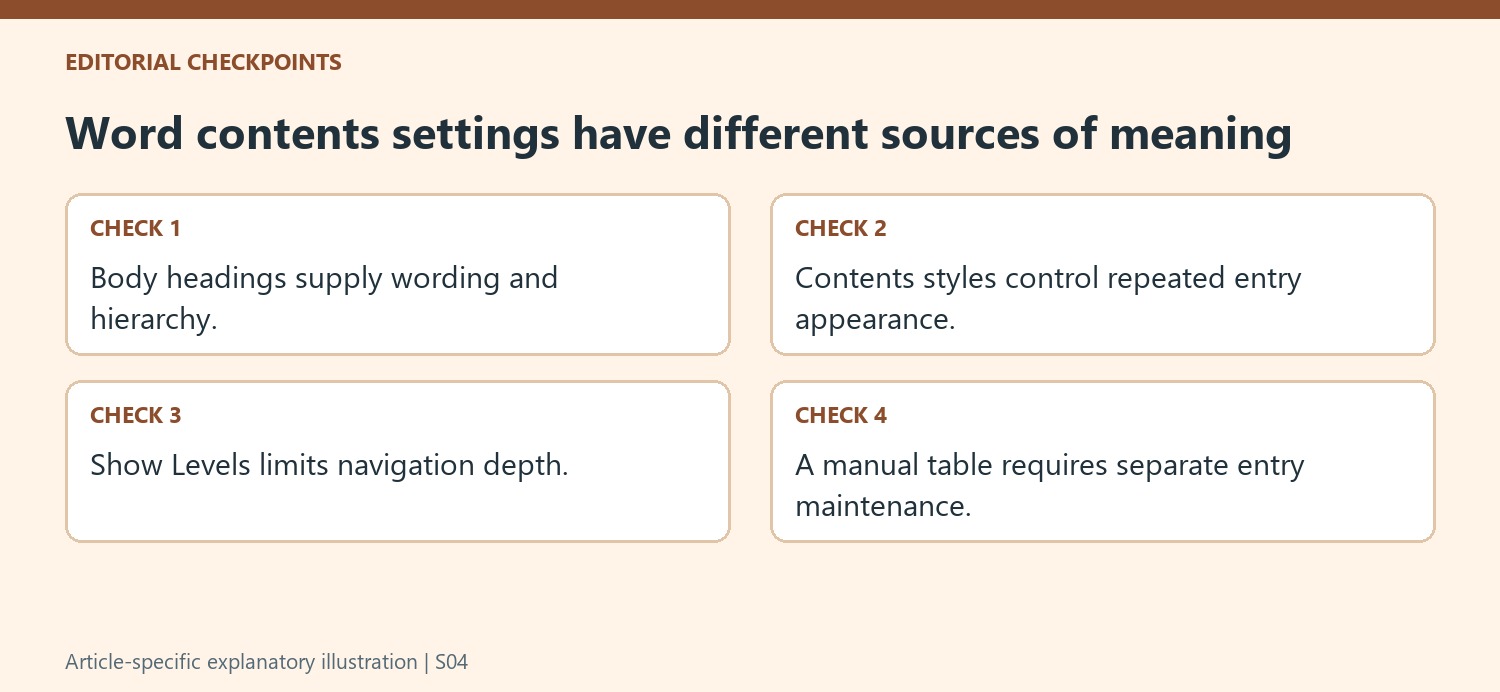
A missing subsection can reflect its heading style or the number of levels included. Review both causes before manually typing an entry into the generated table. The body headings supply the wording and structure, while the contents table has its own presentation styles. Changing a body heading merely to obtain a different contents font can disturb the document hierarchy without solving the correct formatting problem.
Choose an automatic or manual table with its maintenance burden understood
An automatic table uses the document headings, while the manual option supplies a layout whose entries must be maintained by the editor. The two can look similar on the page, so inspect behavior rather than judging by dots and alignment. For a document with frequent revisions, maintaining separate manually typed page references requires repeated comparisons with the complete body.
Page numbers are particularly useful in a printed document, while supported hyperlinks can help a digital reader reach a section. Test the delivered format rather than assuming the editing view guarantees the same experience. Long entries, wrapped text and multi-digit page references deserve attention because they can reveal alignment problems that a short sample heading does not expose.
Update after the last changes that affect navigation
An entire-table update is appropriate when heading text or membership changed, while a page-only update addresses pagination without adopting revised heading wording. Choose based on the actual revisions and inspect a known changed heading afterward. Keep the contents separate from following material with a suitable break, then review its final page boundary. If another late edit shifts the document, repeat the relevant update before distribution. The generated field reduces repetitive typing while still requiring a final check against the version readers will receive in print or through the chosen digital delivery format.
References
- How to Create and Update a Table of Contents in Microsoft Word. How-To Geek; Marshall Gunnell; Tony Phillips.





















Comments
0