 DocumentFlow Desk
Confirm the document uses pages before changing layout
Google's guidance places orientation, paper size, margins and page color in File, Page setup with Pages selected. These settings are unavailable in the same form for a pageless document. Choose the mode according to the intended output rather than searching repeatedly for a missing margin control. Review the current paper size and orientation before adjusting them. A page setup that suits on-screen reading may not match a printing requirement, and changing those dimensions can alter line wrapping, table width and the total number of pages.
Use sections for a deliberate mixture of orientations
A document can combine portrait and landscape sections, which is useful for wider tables or graphics. The source describes changing a selected passage's orientation or inserting a section break and setting orientation for that section. Inspect Apply to carefully: This section, This section forward and Whole document have different reach. Show section breaks when the boundary is unclear. A correct landscape page can still be followed by unintended landscape pages if the change was applied forward more broadly than the intended single section.
Review neighboring pages and any saved default
After accepting the settings, inspect the changed content and the pages immediately before and after it. Verify that the margins leave enough readable space and that tables or images still fit their intended area. Google also provides Set as default for future documents. Use it only when the settings represent a reusable preference rather than a one-off report requirement. The current file's page setup and a default for later files are separate decisions. A final layout review should check the complete document in the mode in which it will be distributed or printed.
Start with the output requirement before editing dimensions
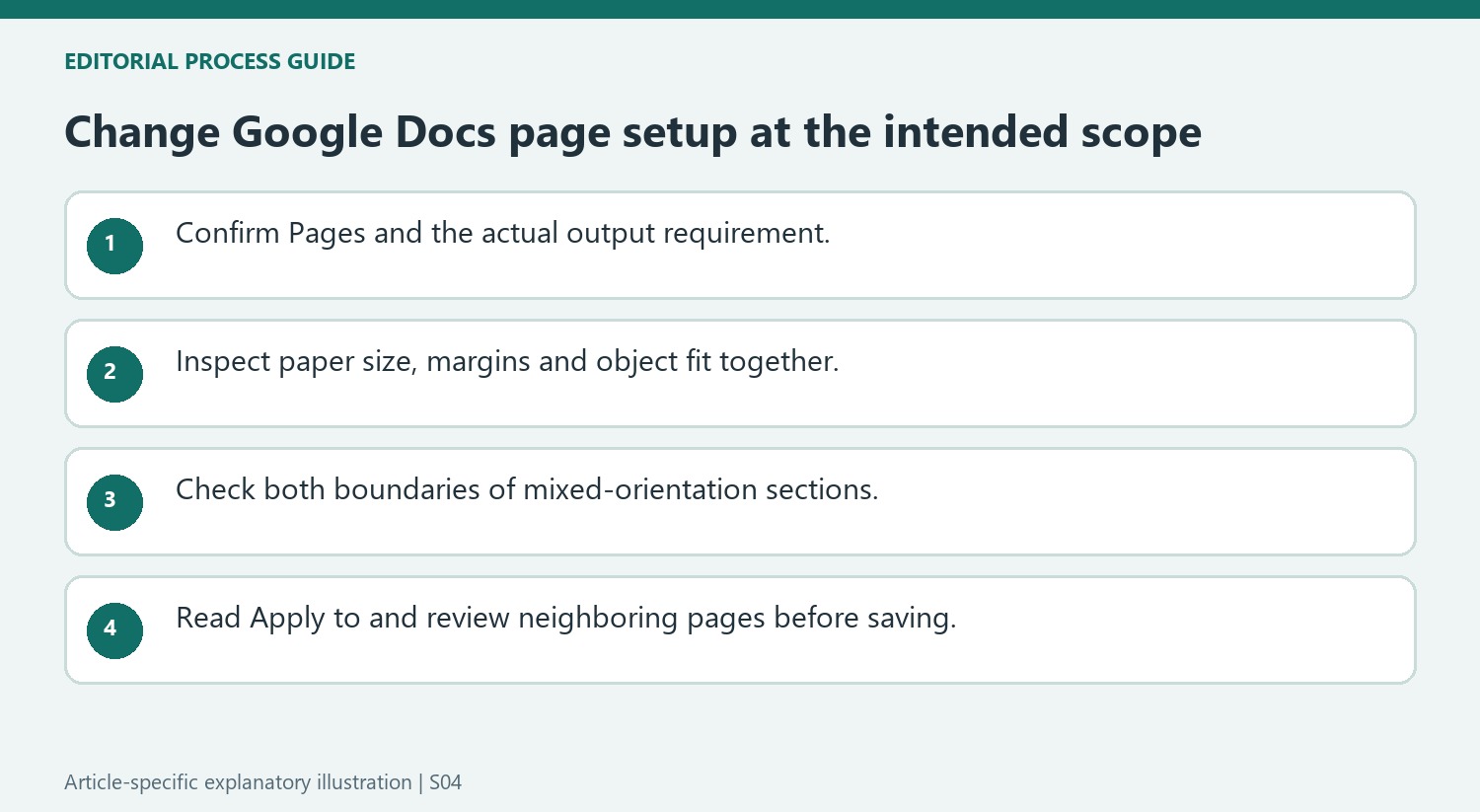
A fixed printed report needs an appropriate paper size and usable margins, while continuous on-screen reading may favor another mode. Confirm Pages in the setup dialog before looking for page-specific controls. Then inspect the current orientation, paper size and margins together. Changing only one can leave a wide table outside the available text area or make a previously comfortable line length difficult to read.
After a size or margin change, review the entire page rather than the selected object alone. Text can rewrap, images can shift relative to nearby explanations and the total page count can change. The setup dialog defines the page geometry but does not confirm that every existing object fits the new geometry. Inspect representative dense pages as well as a simple page near the beginning.
Verify both boundaries of a mixed-orientation section
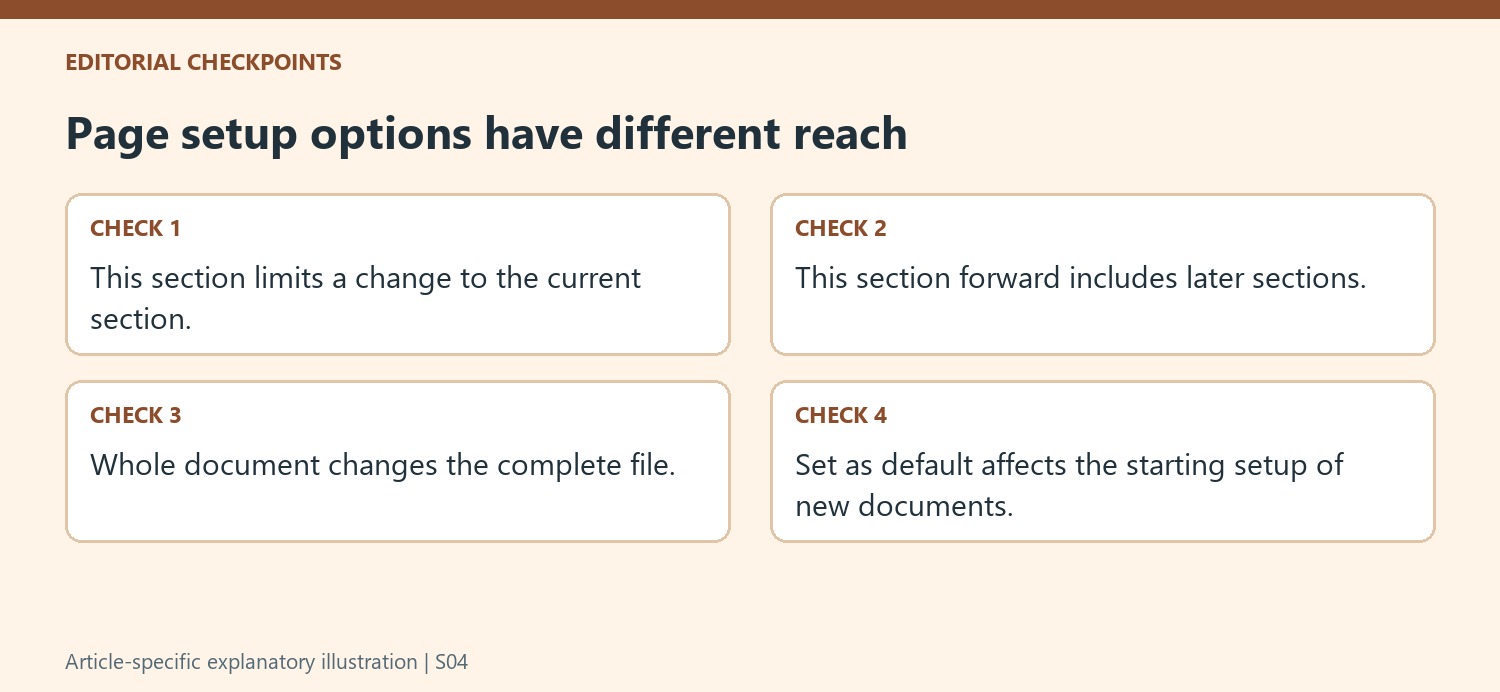
For a landscape table within a portrait report, identify where the wider section starts and where ordinary portrait content should resume. Show section breaks if those boundaries are difficult to see. Apply the chosen orientation to the intended section and inspect the following section as well. A correct landscape page does not establish that later pages were kept outside the change.
The source distinguishes This section, This section forward and Whole document. Read the selected scope every time, especially when reusing the dialog after an earlier operation. A forward change may be appropriate for the rest of a report but is broader than a local table adjustment. Confirm the visible result against the actual requirement rather than assuming that the currently selected content always limits every setup operation.
Keep a one-file adjustment separate from a future default
Set as default makes the current choice relevant to new documents. Use it when the page setup is an enduring preference, not simply because it appears beside OK. A report prepared for one paper size can have requirements that do not apply to the next document. After accepting the current settings, inspect the final view used for distribution or printing. Check margins, text width and the fit of large objects, then review neighboring sections to ensure that the scope and page geometry remain intentional throughout the complete file.
References
- Change page settings on Google Docs. support.google.com.





















Comments
0