 DocumentFlow Desk
Identify the section whose starting behavior should change
Microsoft directs users to the relevant section before changing its start setting. Confirm the boundary and the content that follows it, particularly in a long document with several layout regions. A section start and a manually inserted page break are different structural controls. Decide whether the section should begin on another page or continue in the current flow before editing. Preserve a reviewable copy when the document has complex numbering or running elements, then inspect neighboring pages so the intended section is clearly identified rather than chosen by approximate visual position.
Use the section-layout dialog in desktop Word
In the Windows instructions, open the Page Setup dialog from Layout, choose its Layout tab and select the new Section start option. The Mac instructions locate the corresponding setting through Format, Document, Layout. Follow the relevant desktop workflow and inspect the selected value before accepting it. The command changes the starting behavior of an existing section rather than requiring a replacement boundary to be inserted nearby. Keeping the operation focused helps avoid creating additional sections that complicate numbering, headers or other layout decisions unnecessarily.
Verify the result and account for the browser limitation
Select OK, then review the section boundary and the content immediately before and after it. Check whether the new start matches the intended page flow and whether any nearby blank page has an understandable reason. Microsoft states that section breaks cannot be changed in Word for the web; use the desktop application for this operation. Confirm that the saved file is the intended shared or working version before continuing. A successful dialog change should still be followed by a layout review, because the practical effect depends on the document's existing content and section settings.
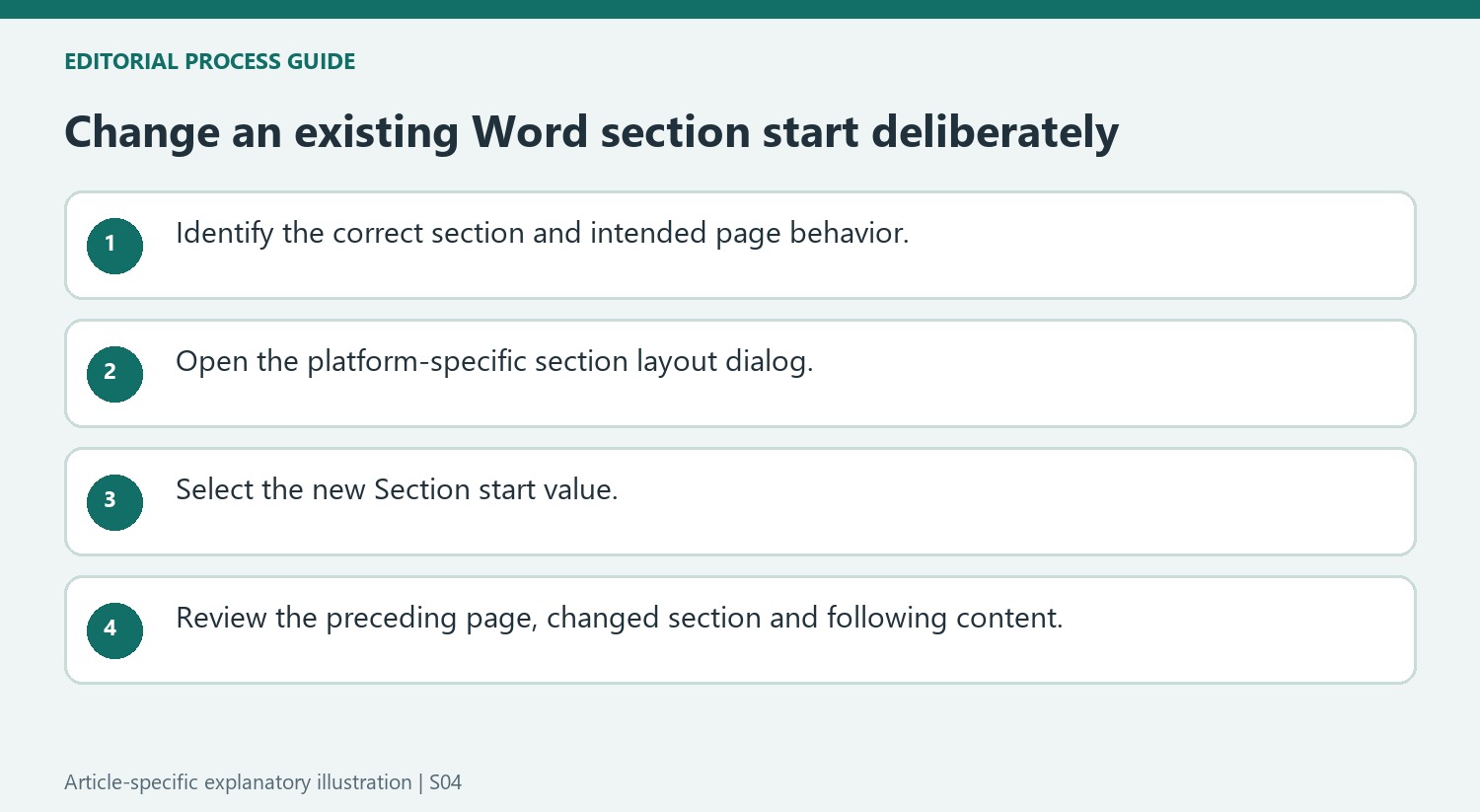
Locate the intended section before opening its start setting
A clean page view can make a section boundary difficult to distinguish from a page transition. Inspect the relevant content and boundary so the setting is applied to the correct section. If the document has several similarly formatted sections, use recognizable nearby wording to confirm the location. Changing a start type in the wrong section can alter a later page while leaving the apparent problem untouched.
Record the intended behavior in plain language before entering the dialog. The section may need to continue on the current page or begin under a different page-start rule. This keeps the operation focused on its actual purpose. An extra break inserted nearby is not a reliable substitute for changing the existing section start and can add another boundary that must be maintained later.
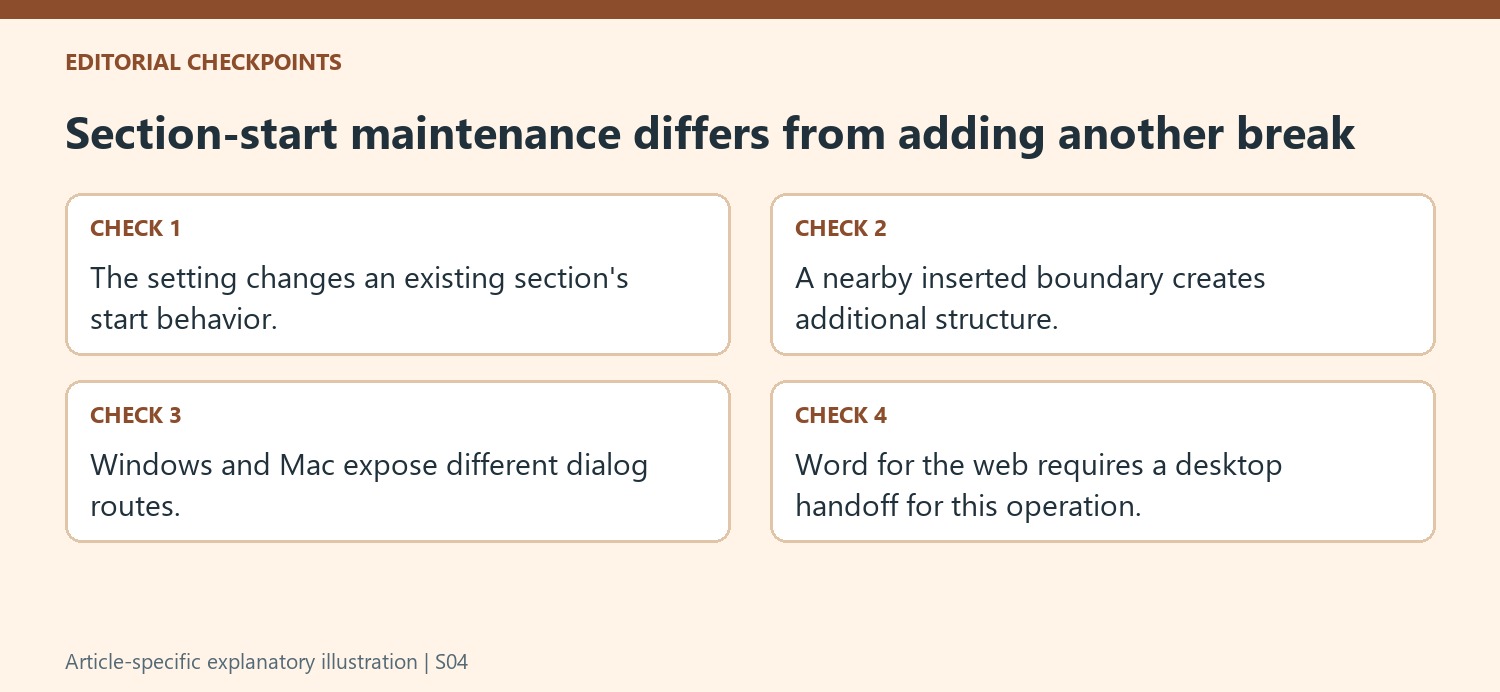
Follow the platform-specific route to the same section property
The Windows instructions open Page Setup from Layout and then use its Layout tab. The Mac instructions use Format, Document and Layout. Those routes differ, but both target the Section start setting. Inspect the selected value and confirm the section context before accepting. If the current interface does not match the tutorial exactly, follow the purpose of that property rather than choosing a nearby command solely because it mentions breaks.
The source explicitly says that Word for the web cannot change section breaks through this workflow. Use the desktop application for the required operation and confirm which document was opened. A browser limitation does not imply that the section must be deleted and recreated manually or that its text needs to be moved into another file. Keep the structural change as limited and reviewable as possible.
Review page flow and neighboring section requirements afterward
After applying the new start setting, inspect the page before the boundary, the first page of the changed section and the following content. A blank area can reflect the chosen starting rule rather than missing text. Also review any nearby numbering and running elements that help distinguish the sections. If the result does not match the original requirement, restore the prior state and recheck the selected section. Save the intended working file only after the visible layout and the underlying section-start choice agree.
References
- Change a section break. support.microsoft.com.





















Comments
0