 DocumentFlow Desk
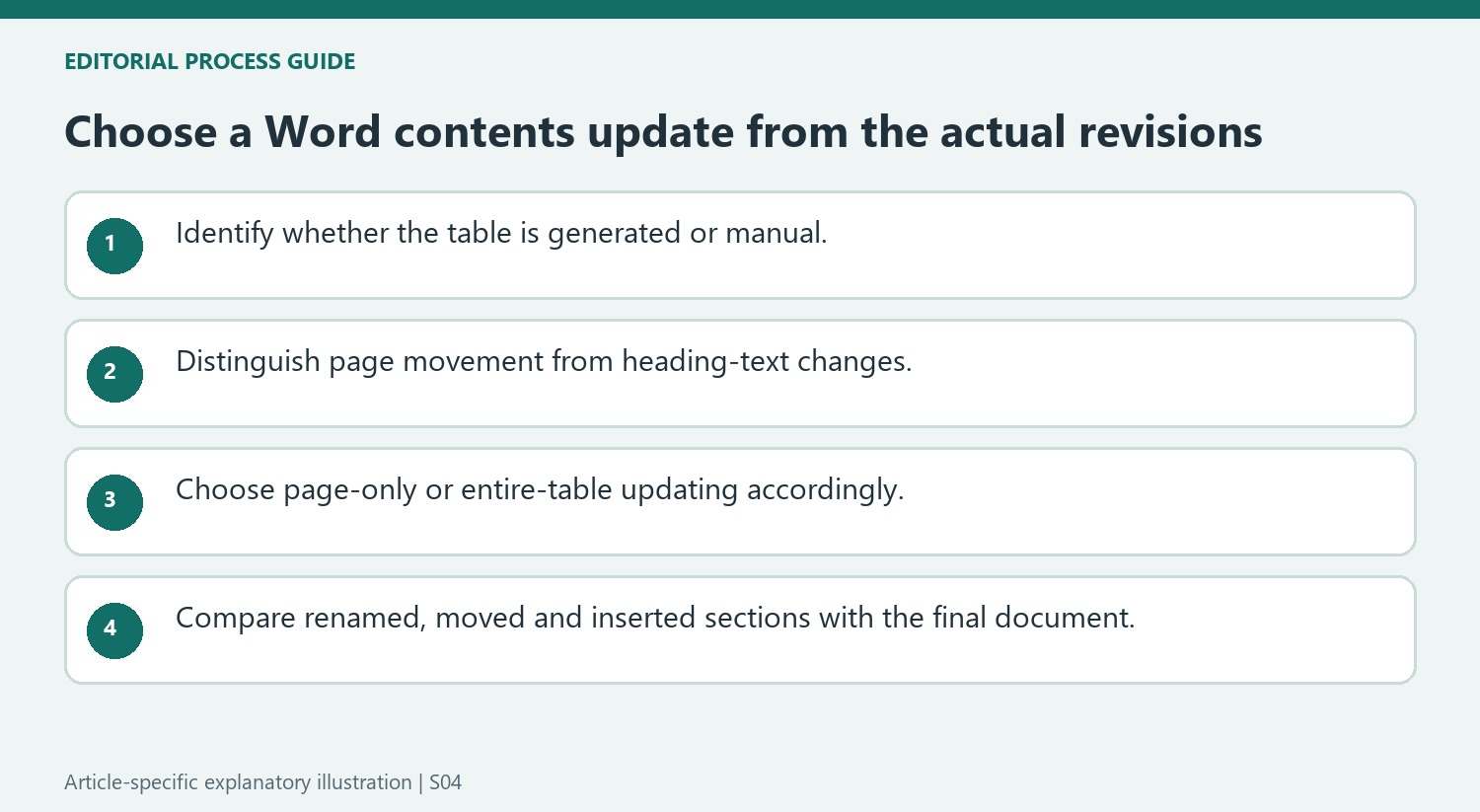
Identify whether the table is generated or manual
Microsoft distinguishes a table generated from document headings from one typed manually. Word can update an automatic table through its field-based relationship with those headings. A manual contents table does not have the same connection and needs its entries edited separately. Check which kind the document contains before trying to refresh it. A familiar visual appearance is not sufficient evidence: manually typed titles, dotted leaders and page numbers can resemble an automatic table while lacking the update behavior needed for a document that changes frequently.
Match the update scope to the revisions
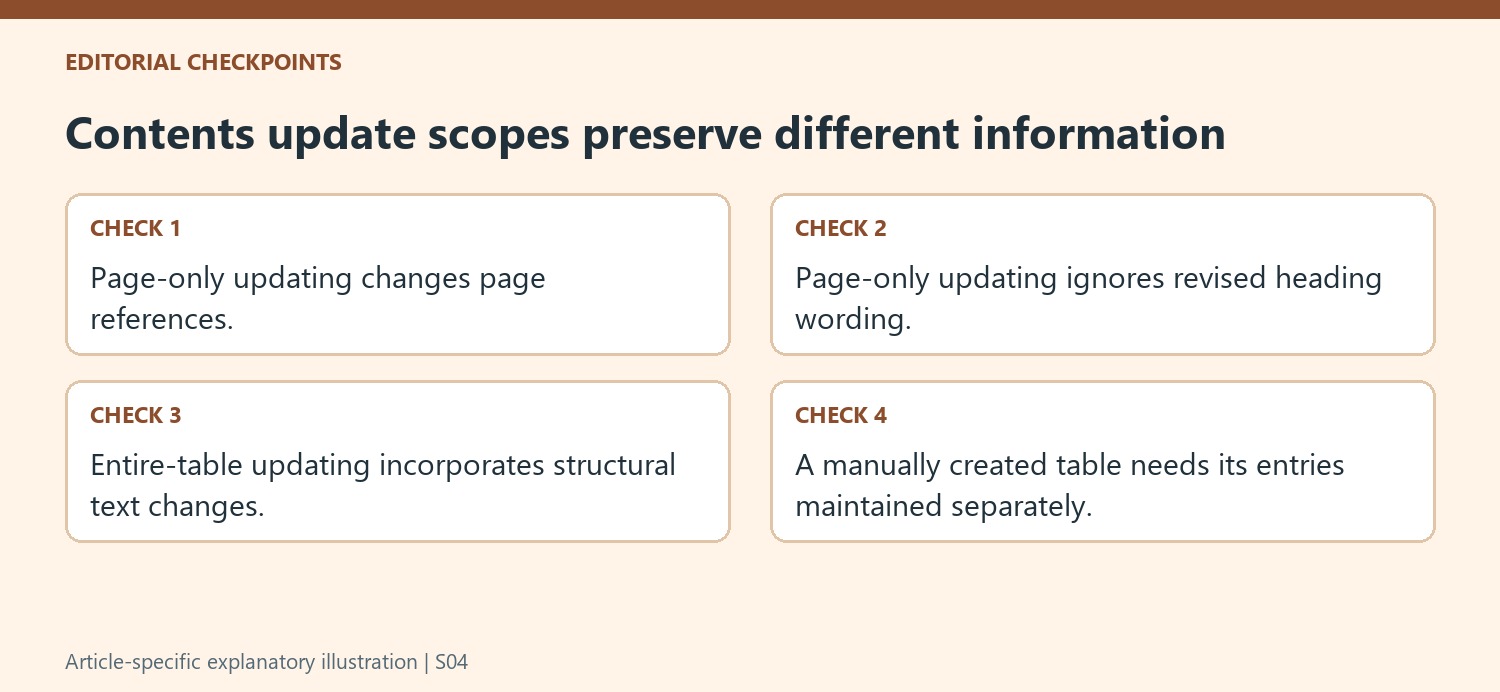
On References, select Update Table and review the two choices. Update page numbers only changes the pages associated with the current entries but ignores changes to heading text. Update entire table incorporates revised heading wording and page changes. Choose the broader update when headings have been added, removed, renamed or reorganized. A page-only refresh can leave an apparently tidy table whose text no longer matches the document. Reviewing the nature of the revisions first avoids assuming that every update command performs the same maintenance operation.
Check the resulting navigation after applying the change
Select OK, then compare representative entries with the current headings and their destinations. Include a renamed heading, a moved section and a new section when those changes occurred. If an entry is still absent, review the source heading and the table's inclusion settings rather than repeatedly updating unchanged inputs. Keep the contents review near the end of document preparation, because later edits can alter pagination again. The update command reduces manual maintenance, but a final comparison remains useful for confirming that the navigation describes the version being distributed.
Classify the revision before choosing the update option
A paragraph added within an existing section can change page positions while leaving heading names unchanged. Renaming a section changes the navigation text itself, and adding a new heading changes membership. Review which kinds of edits occurred since the previous update. The two options are intentionally different, so choosing the narrow one for every revision can preserve obsolete wording behind apparently current page references.
If several kinds of changes occurred together, use the update scope that includes the structural changes. Then compare the table with a short list of known edits rather than trusting the command completion alone. This turns review into a concrete check: the renamed heading should have its current name, the inserted section should appear where intended, and a moved section should have its new page reference.
Identify a manual contents table through its relationship to headings
Microsoft says a manually created table cannot be updated through Word in the same way as a heading-generated one. Its appearance may still include aligned numbers and dotted leaders, so those details do not establish that the update workflow is available. Inspect whether the table was actually created from headings before treating a missing refresh behavior as a document error.
For a manual table, changes must be maintained in the entries themselves under the documented workflow. Keep a record of the sections and page references that need revision, especially when an earlier edit shifts many later pages. An automatic table can reduce that repeated maintenance, but adopting one requires an appropriate heading structure rather than simply reformatting the typed navigation to resemble a generated table.
Use representative checks after the update and before delivery
Compare entries near the beginning, middle and end, including a recently edited section. Open the corresponding body headings and inspect their actual page locations. If a new heading remains absent, investigate the source structure and the table settings instead of repeating an update over unchanged inputs. Finish this review after the last substantial edits that affect pagination. A late inserted illustration or expanded paragraph can move later pages again, so the table should be judged against the same saved document version that will be distributed to its readers.
References
- Update a table of contents. support.microsoft.com.





















Comments
0