 DocumentFlow Desk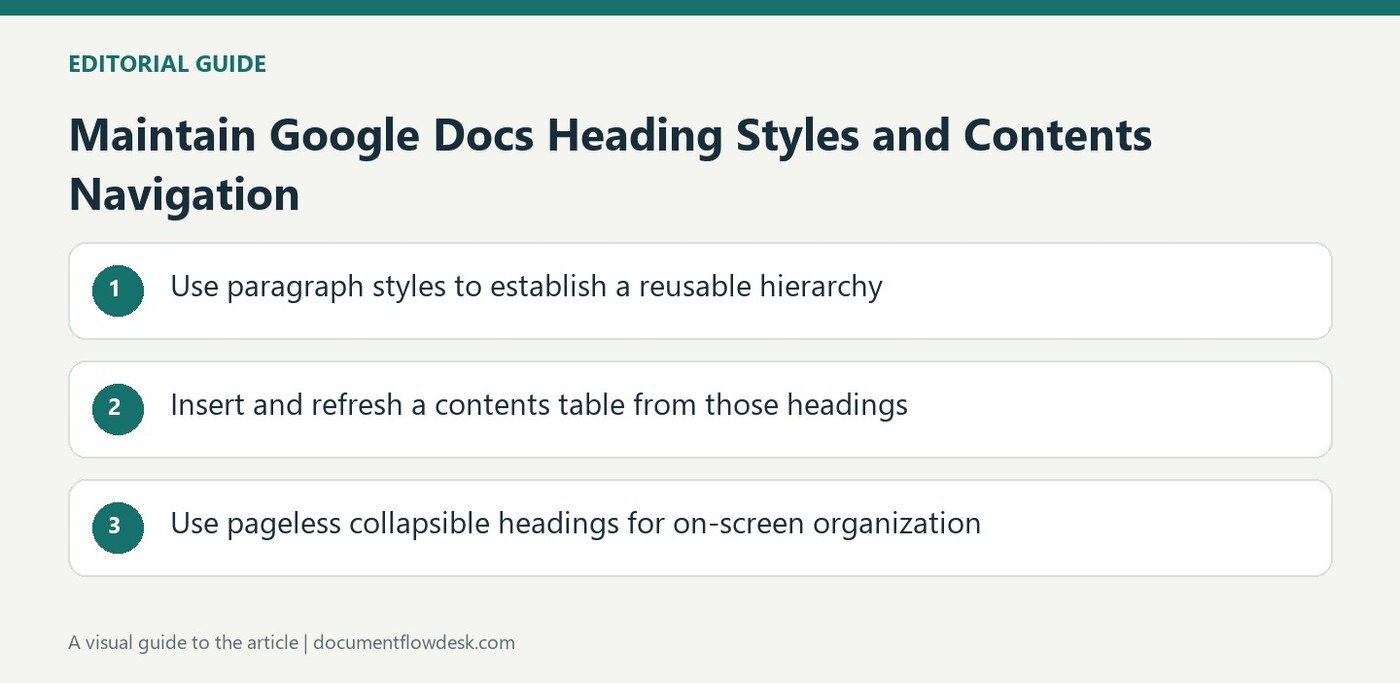
Use paragraph styles to establish a reusable hierarchy
Google's instructions distinguish Normal text, Title, Subtitle and Heading levels one through six. Select the intended paragraph and apply its semantic role through Paragraph styles. To change a recurring style, format a representative example and update that style to match. All text using the same style can then follow the definition. Review the scope before updating it, especially Normal text, because the change can influence other appearance choices. A consistent style system makes later revisions easier than repeatedly setting the font and size of individual section titles.
Insert and refresh a contents table from those headings
The current guidance places the table-of-contents command under Insert, Page elements. Choose a location and presentation, then review the entries against the document structure. The contents options can control formatting, indents and included headings where supported. Refresh after adding or renaming sections so navigation follows the current text. Google notes that some contents-table formatting is unavailable in pageless documents, making the format a functional decision rather than only a visual preference. Check the document mode before troubleshooting a missing presentation control.
Use pageless collapsible headings for on-screen organization
In pageless mode, headings can be expanded or collapsed to manage the visible content. The source notes that viewers and commenters as well as editors can use that display behavior. A collapsed section is hidden from the current view, not removed from the document. Keep heading names meaningful so the reduced view still communicates the structure. Default styles can also be saved, reused or reset through the styles options. Review a new document after applying defaults, since a familiar appearance still needs headings that suit the new content and audience.
Distinguish applying a style from redefining that style
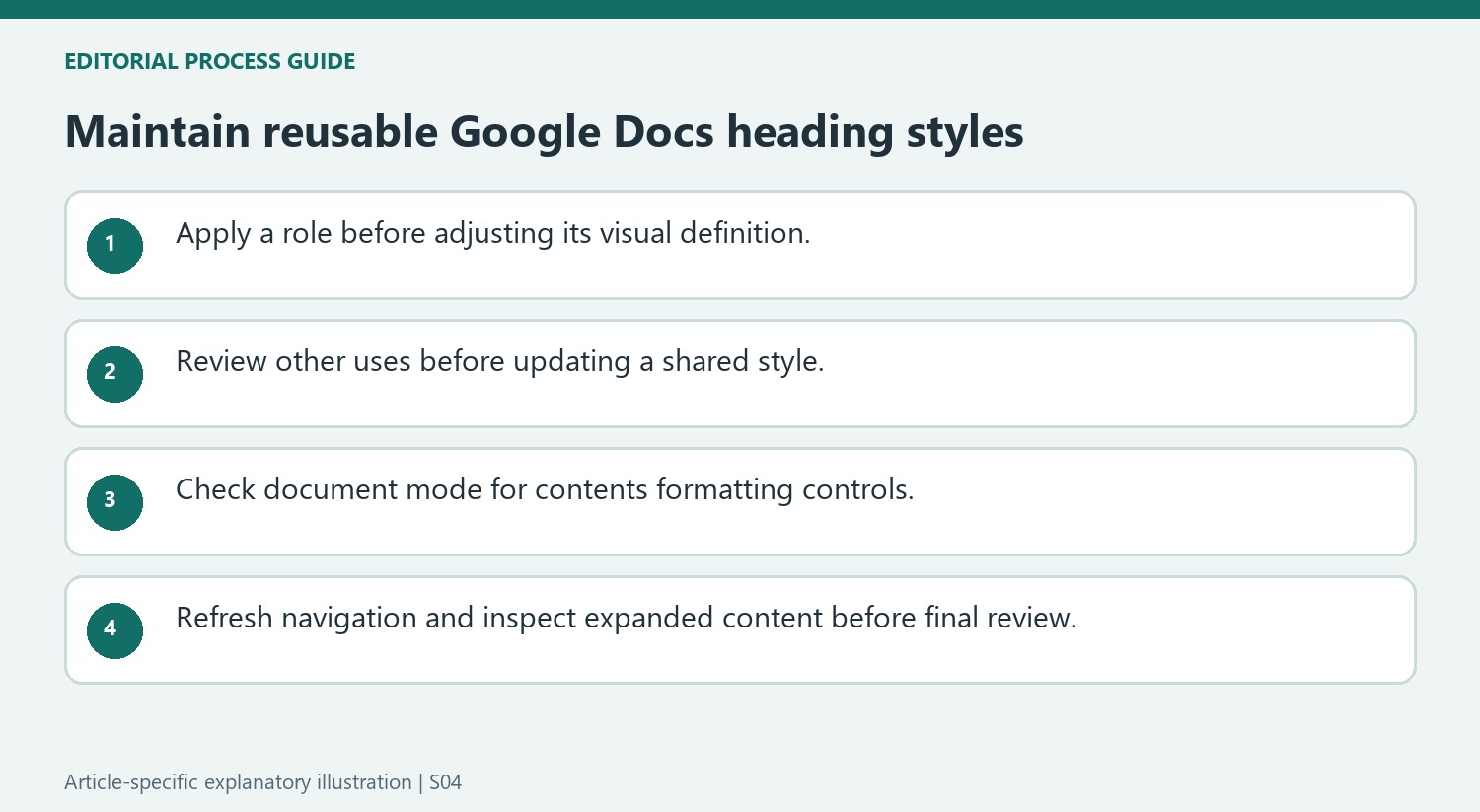
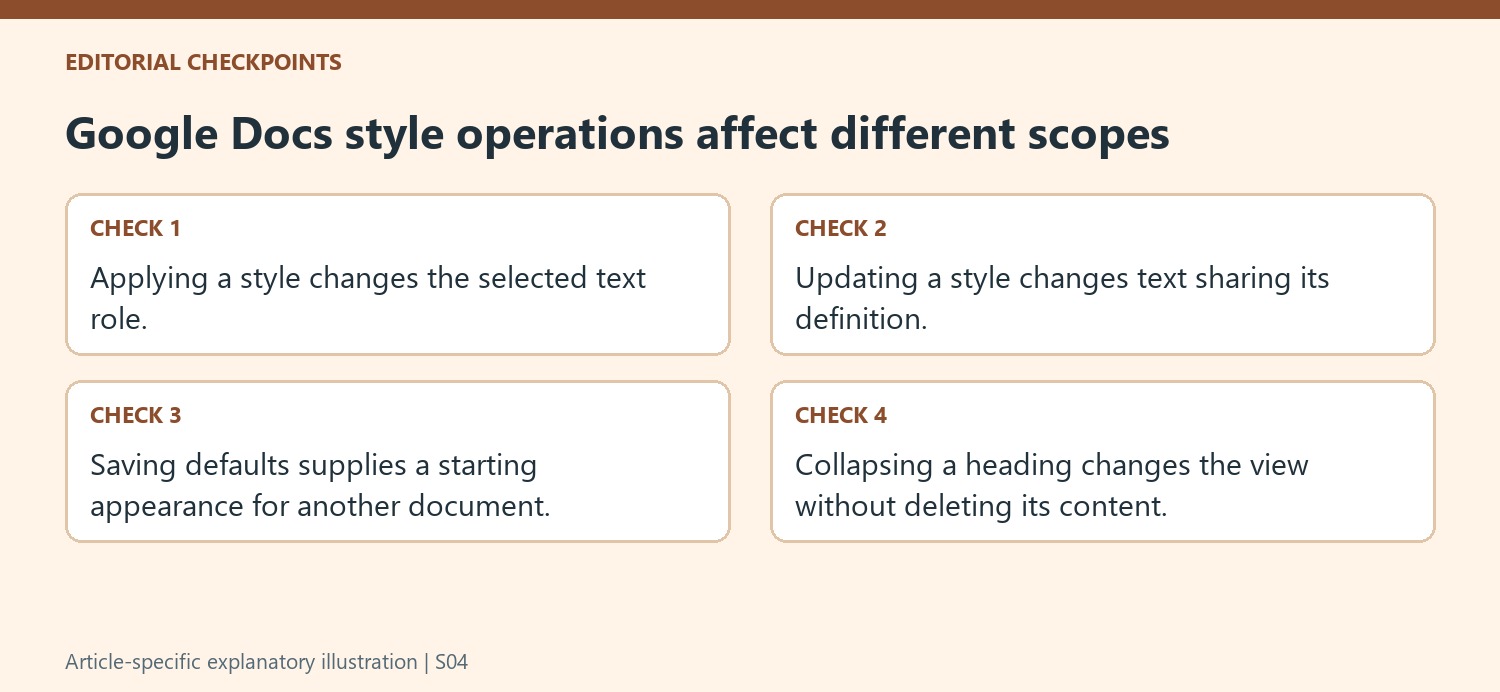
Applying Heading 2 assigns a role to selected text. Updating Heading 2 to match a formatted example changes the definition used by other text with that role. Inspect several existing examples before performing the second operation. A local adjustment intended for one unusual heading can otherwise become a document-wide change because the update works through the shared style definition.
The source also notes that changing Normal text can influence heading fonts. Review body paragraphs and several heading levels after updating it. Keep semantic levels based on section relationships even when adjusting the visual design. A lower-level heading should not be promoted solely to obtain a preferred font size if that promotion misrepresents its place in the contents table and document organization.
Check document mode before troubleshooting missing contents controls
Google distinguishes pageless documents from a page-based presentation, and the guidance limits some contents-table formatting in pageless mode. Inspect that choice before searching for a missing indent or appearance control. A feature that is unavailable in the current mode may require a mode decision, rather than another attempt to select the same navigation table.
Where formatting controls are available, review the included heading levels and indentation after making changes. A table containing every small subheading can become difficult to scan, while one containing only broad sections may omit the navigation a long report needs. Choose the inclusion rule according to the reader and verify that generated links still point to the intended headings after refreshing.
Use collapsible sections as a view of content rather than its deletion
In pageless mode, collapsing a heading reduces the visible material beneath it without removing that material from the document. Expand a section before concluding its text has disappeared. The source allows viewers and commenters to use the same display behavior, so meaningful headings help people who are reading rather than editing. When saving or reusing default styles, inspect a new document separately. A familiar appearance can reduce setup work, but the new content still needs its own hierarchy and clear section wording. Before a final review, expand the relevant sections and confirm that the full text still follows the order suggested by the visible heading structure.
References
- Add a title, heading, or table of contents in a document. support.google.com.






















Comments
0