 DocumentFlow Desk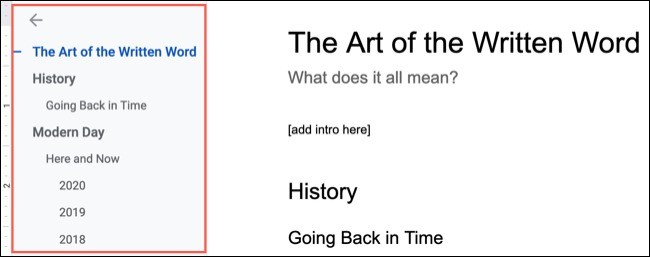
Build the outline from real heading styles
The source describes opening the document outline through View. If it is empty or incomplete, inspect whether the section titles actually use heading styles. Making a line large or bold is not the same as assigning a structural heading. Select the intended text and apply a suitable level through the styles controls. Choose levels according to the relationship between sections rather than the font size that looks attractive. The outline then provides a compact view of the document's organization that is easier to assess than a series of manually formatted titles.
Use the outline as navigation and a structural check
Selecting an outline entry moves to the corresponding location in the document. This is useful when long passages, tables or images separate the sections. Inspect the indentation to see whether subordinate topics belong beneath the intended parent headings. As headings are inserted or revised, the outline can reflect those structural changes. Use that overview to notice missing sections or inconsistent levels before fine-tuning page layout. A navigation list helps readers only when its wording makes the destination understandable and its hierarchy accurately represents the organization of the content.
Distinguish removing an entry from deleting its text
The article describes removing an item from the outline without deleting the associated heading from the document. A removed heading can be selected in the body and added back through the context menu. Use this deliberately so an incomplete navigation pane is not mistaken for missing content. The outline can also be hidden or closed when more writing space is needed. Reopen it during review to verify the final structure, especially after moving or deleting sections that may leave headings at unsuitable levels or navigation entries that no longer describe their content.
Audit the heading sequence before relying on the navigation pane
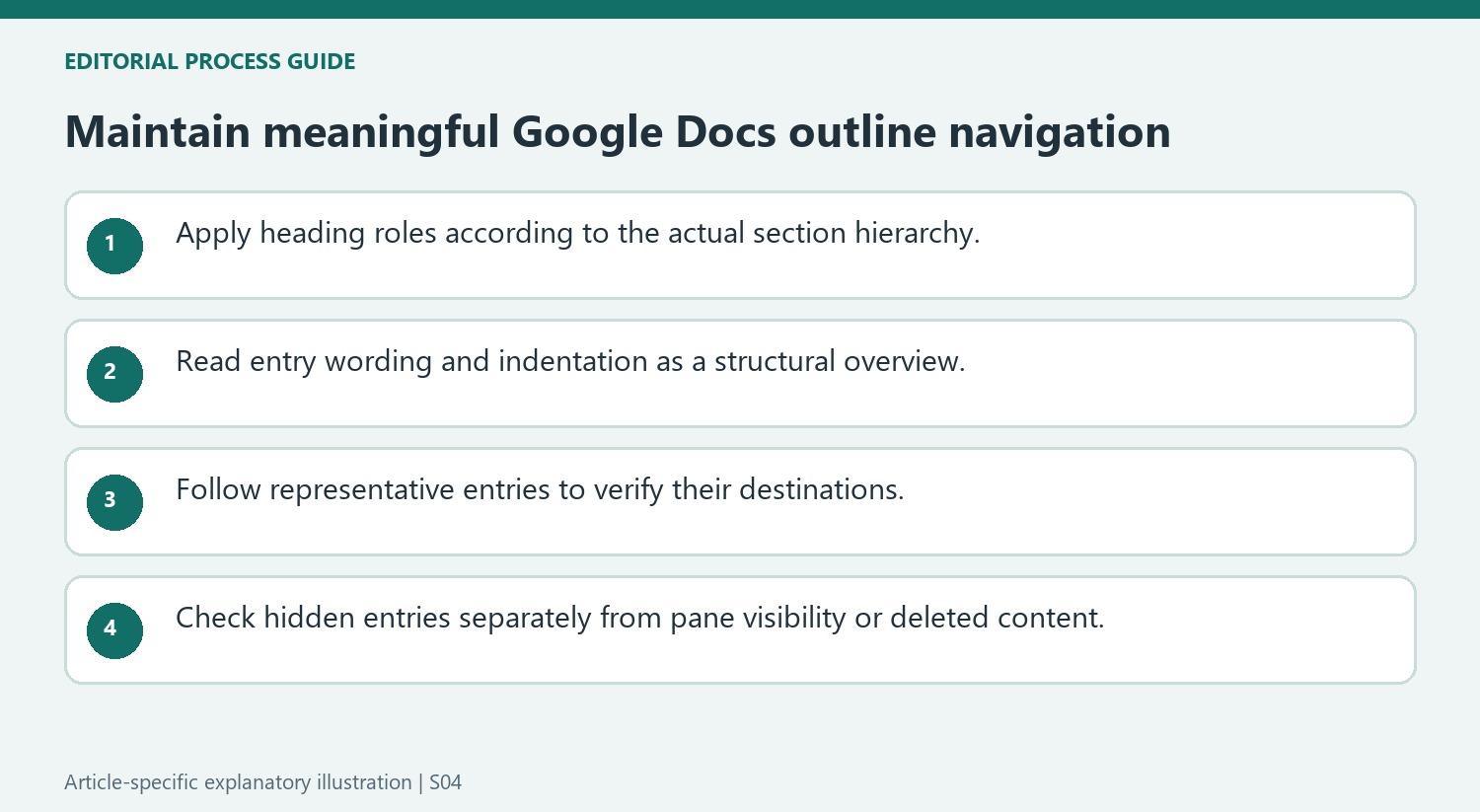
Read the outline from top to bottom without looking at the body. The entry names should communicate the progression of the document, and the indentation should expose the relationship between major sections and supporting topics. If two unrelated sections sit beneath one parent, inspect their heading levels in the body. Changing the visual size of a heading alone does not repair that hierarchy.
Then follow a few entries to their destinations, including one near the end of the document. Check that the heading wording accurately describes the material below it. An outline can navigate precisely to an outdated heading, so a functioning link is not sufficient evidence that the content organization is current. Review the relationship after moving a large section or adding material between existing headings.
Separate a hidden outline entry from a missing section
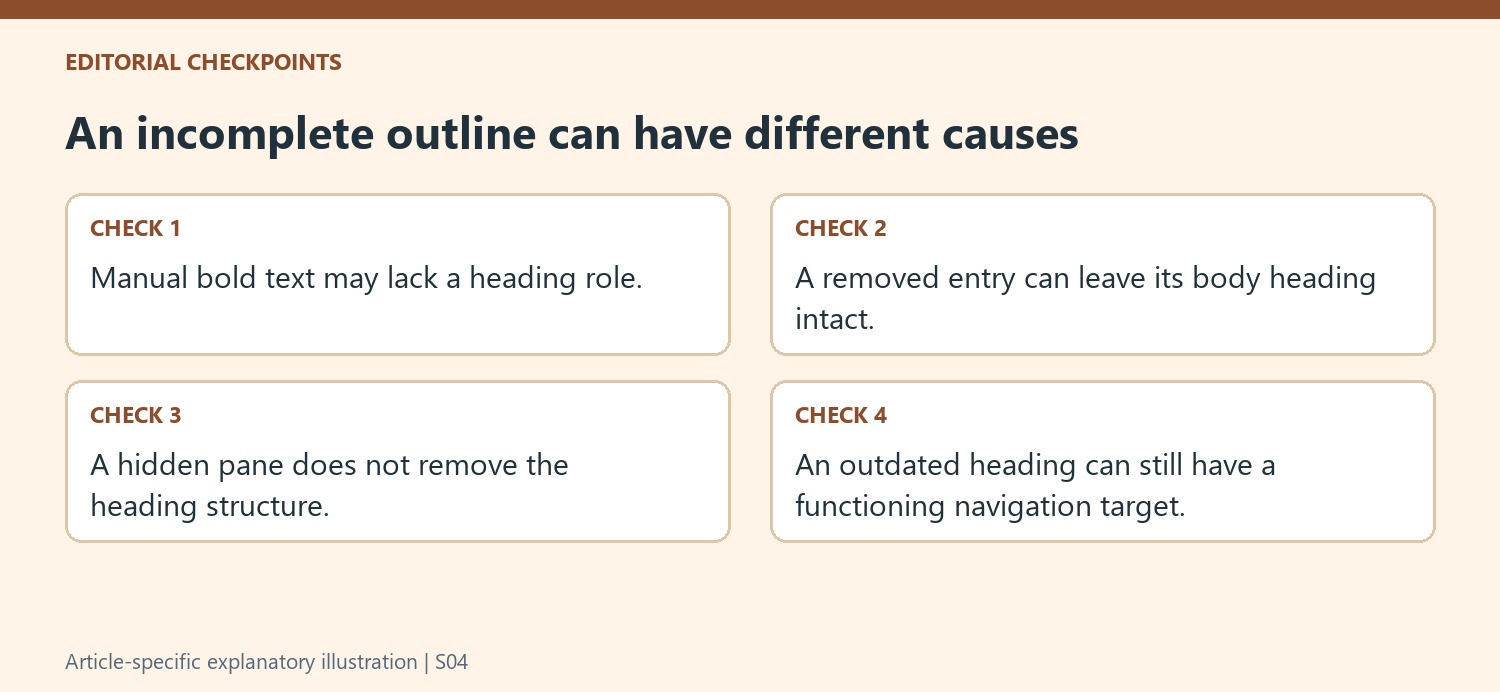
Removing an entry through its outline control leaves the corresponding text in the document. If a section seems absent from navigation, search or inspect the body before recreating it. Duplicating content to compensate for a removed navigation entry creates a new problem and can leave two similar sections with different wording. Select the existing heading and use the supported add-back action when it belongs in the outline.
Closing or temporarily hiding the pane is another separate display action. The headings can remain in place while the writing area becomes wider. Reopen the pane during structural review rather than rebuilding headings because navigation is not currently visible. A useful maintenance habit is to check pane visibility, individual entry inclusion and heading style as distinct causes of an incomplete-looking outline.
Keep navigation wording useful at every level
A short major heading can name a broad topic while lower headings distinguish its subtopics. Avoid a sequence of identical labels such as Overview when they do not reveal the destination. Rename the actual heading when its meaning needs improvement, then review how the revised wording appears in navigation. For lengthy reports, the outline is particularly helpful between tables and images that occupy substantial space. Its usefulness depends on meaningful entry text and accurate hierarchy, not on how many headings can be fitted into the pane at once.
References
- How to Use the Document Outline in Google Docs. How-To Geek; Sandy Writtenhouse.






















Comments
0