 DocumentFlow Desk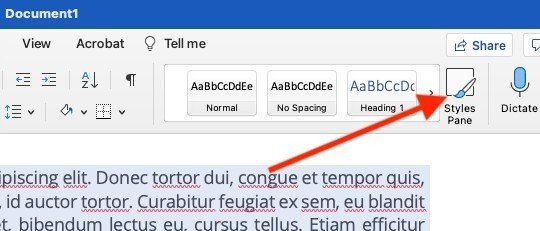
Define the reset before selecting the content
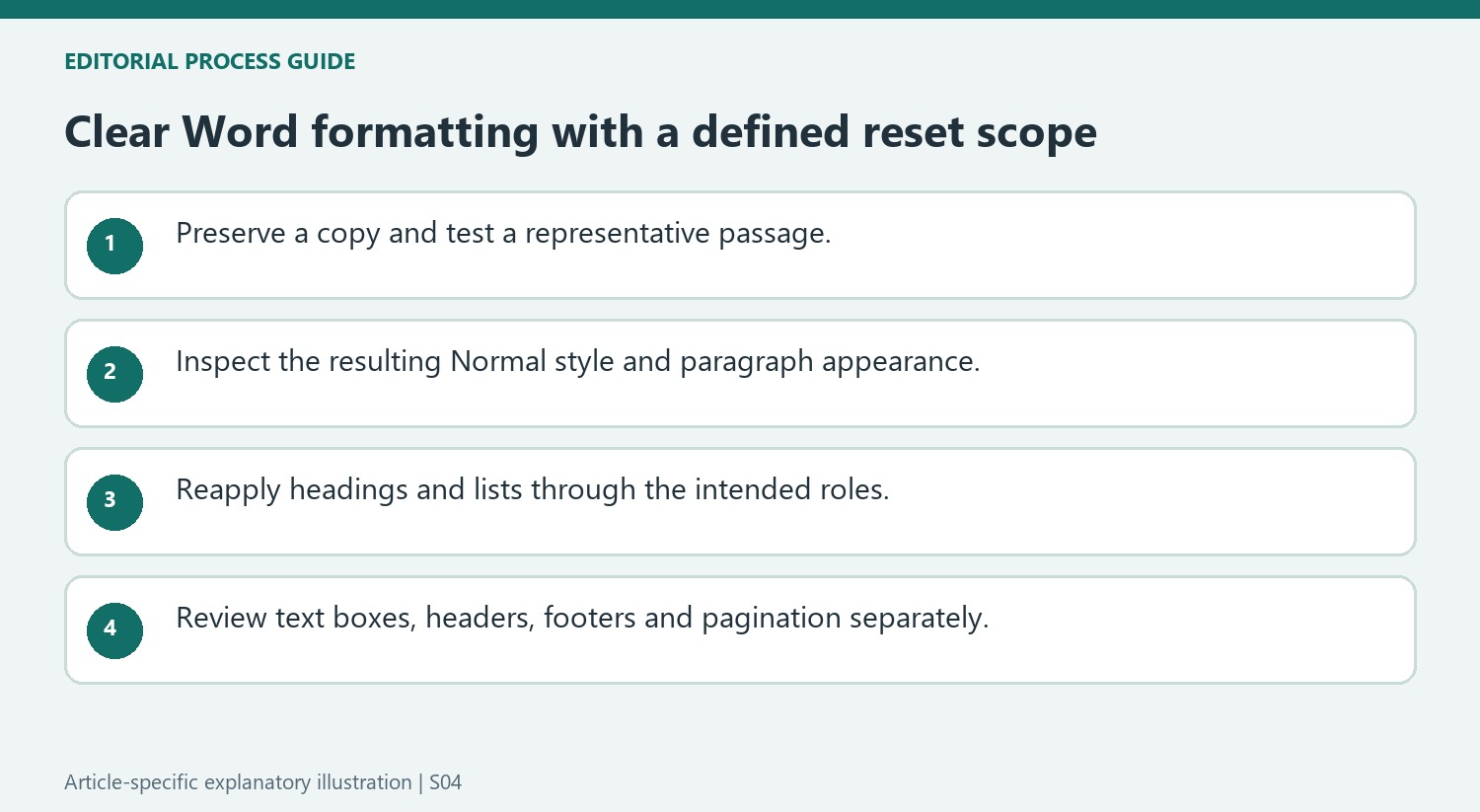
The source describes clearing formatting when direct changes have become inconsistent or a passage needs a fresh starting point. Select the specific content first, or use the appropriate Select All shortcut for the main document. Inspect the scope before continuing. A formatting reset changes appearance and can affect intentional emphasis, so preserve an original copy when a large portion will be changed. Decide what the document should look like afterward rather than treating the absence of visible differences as proof that the right structure has been restored.
Use the available clearing controls and review the style
The article describes a Clear Formatting option through the Styles pane and a Clear All Formatting button in the Home tab's Font section. In its example, the cleared passage returns to Normal. Review the resulting font and paragraph appearance against the surrounding document. A paragraph's associated style matters because styling and direct formatting are different layers. If a particular heading or list still needs a structural role, apply an appropriate style after the reset instead of rebuilding the entire appearance through isolated font and spacing changes.
Inspect separate areas and respect editing restrictions
Selecting the main document does not necessarily cover text boxes, headers and footers. The source advises clearing those areas separately when they need the same treatment. Check them explicitly so a reset does not leave inconsistent text in a running header or an annotation box. A protected document may also restrict formatting changes, which cannot be resolved simply by repeating the clearing command. Review the permitted editing state and use the authorized document workflow. Finish by checking representative pages, lists and headings to ensure the reset achieved the intended result without removing useful visual hierarchy.
Separate a visual reset from rebuilding document structure
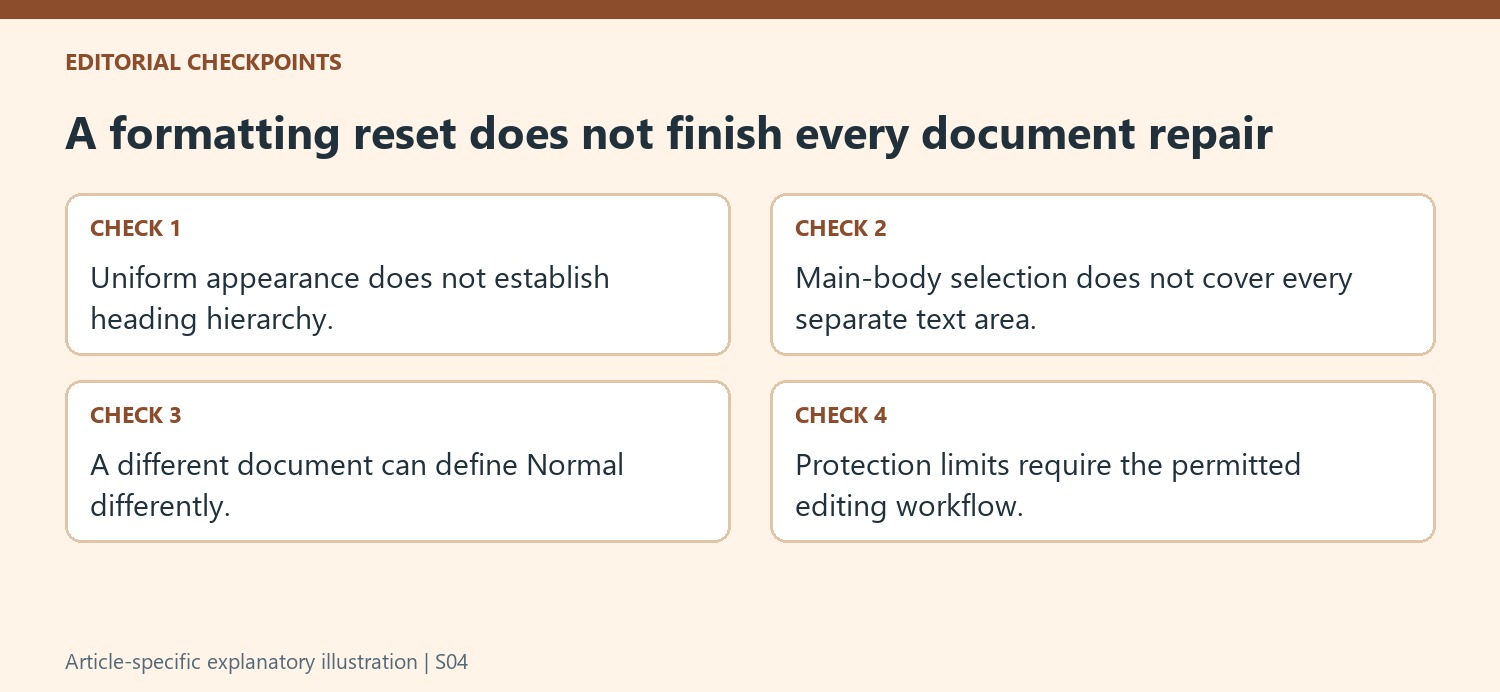
Clearing formatting can make a problematic passage easier to rework, but a uniform appearance is not the same as a meaningful document hierarchy. After the reset, identify headings, body paragraphs and lists again. Apply the appropriate roles deliberately rather than recreating every distinction with isolated bold, font-size or spacing changes. This helps the document remain coherent when another section is inserted later.
Review the Normal style used by the current document. The article shows content reverting to Normal, whose actual appearance belongs to that document and its configuration. Do not assume a reset will reproduce the exact font or spacing of an unrelated file. Compare the result with the intended document standard before applying the same operation to a much larger selection.
Review a representative sample before resetting all main-body text
Choose a passage that contains the kinds of formatting you need to remove and at least one intentional distinction worth protecting. Observe which properties change under the selected command. If the result removes useful emphasis, decide whether the selection should be narrower or whether the emphasis should be reapplied through a suitable style afterward. A reset is most useful when the desired next state is already understood.
Inspect pagination after a larger cleanup. Font and paragraph changes can alter line wrapping and page breaks even though the wording remains unchanged. Headings that previously fit with their following paragraphs and lists that previously occupied one page may move. Check these relationships before concluding that the reset succeeded solely because the main text now looks consistent.
Check each separate text area within its editing context
Headers, footers and text boxes need explicit inspection because selecting the main document does not automatically provide the same clearing scope. Open the relevant area and confirm its selected text before making a change. A running header may intentionally use a different treatment from the body, so consistency does not require making every area identical. If protection prevents formatting changes, follow the permitted document workflow. Repeating the command or changing selections does not remove the underlying restriction and can distract from identifying which edits the document owner actually allows.
References
- How to Clear Formatting in a Microsoft Word Document. How-To Geek; Lori Kaufman.






















Comments
0