 DocumentFlow Desk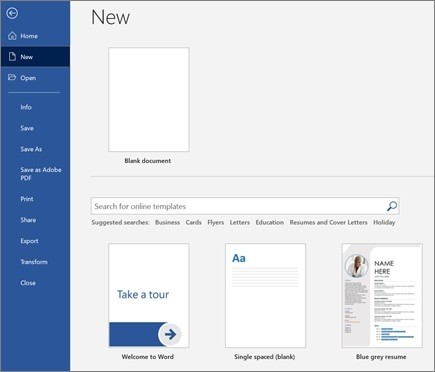
Choose the starting point according to the task
Microsoft describes creating a document through File, New, using either a blank page or a template. A template can provide an initial structure, while a blank document gives direct control over its organization. Inspect any existing placeholder text and decorative elements before using a template for a real report. Decide which sections the reader needs and what each will contain. The starting choice saves setup effort, but it does not establish that the document's wording, headings or layout already fits the intended audience or purpose.
Add text and apply the appropriate formatting controls
Enter the initial content, select the relevant passage and use Home for options such as bold, italic, bullets or numbering. Keep formatting tied to meaning: a list should use the list controls, and emphasis should help readers identify a useful distinction. Review the effect on the selected text before extending it to more content. A document that will be revised benefits from a consistent approach early on, because manual exceptions become more difficult to reconcile when sections are added, reordered or shared with another contributor.
Insert visual content in support of the explanation
The Insert tab provides tables, pictures, shapes, icons, SmartArt, charts and screenshots where supported. Choose the object that conveys the information clearly rather than adding one merely because it is available. Microsoft notes that older Word versions can expose picture commands differently, so follow the purpose of the control if the ribbon label varies. After insertion, inspect the object with its surrounding text and confirm that its size and placement leave the explanation readable. Keep the final document focused, with every visual element serving a clear role in the content.
Review a template as a starting structure rather than a finished document
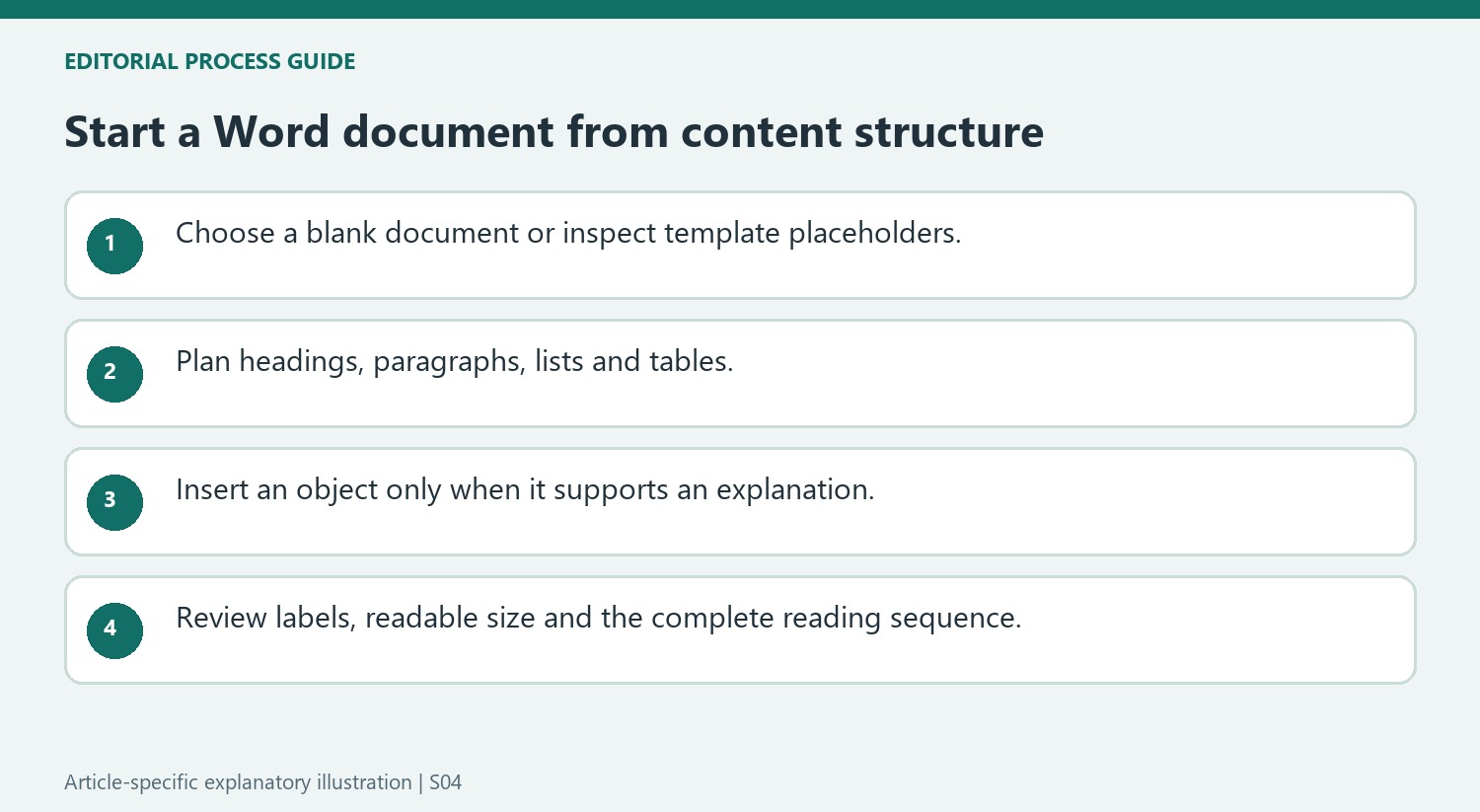
Before filling a template, inspect its existing headings, example wording and objects. Identify which elements serve the intended document and which are placeholders. A report template may supply a convenient sequence of sections, but the actual subject can require different headings or fewer decorative elements. Remove or revise sample content deliberately so it is not mistaken for a statement about the new document.
For a blank document, draft a simple section order before spending time on fine formatting. This makes it easier to decide whether a passage belongs in a paragraph, a list or a table. The Home controls can then express those roles consistently. A clear initial structure also reduces the temptation to use a different visual treatment for every newly added section.
Choose an inserted object by the relationship it explains
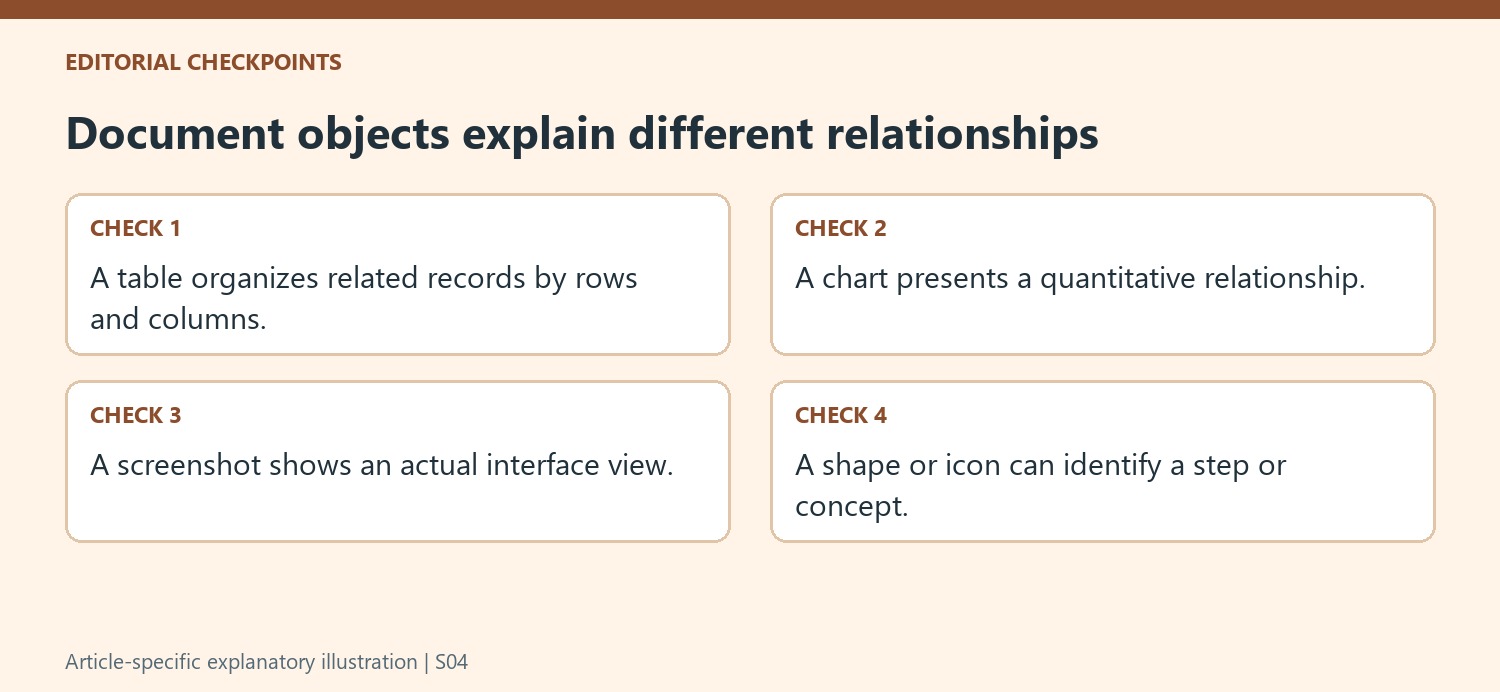
A table can organize values by rows and columns, while a chart visualizes a quantitative relationship. A shape or icon can identify a step or concept, and a screenshot can show an actual interface. Select the form that helps the reader understand the explanation. An object selected solely for decoration can occupy space that the document needs for its main evidence.
Inspect the inserted object immediately with its neighboring paragraphs. Check whether it is large enough to read and whether it interrupts the intended reading sequence. If a chart or screenshot includes text, review that text at the document size rather than only in its original application. The Insert command adds an object, but it does not verify its factual content or make every small detail legible automatically.
Maintain consistency as the initial draft grows
Use built-in list controls for genuine lists and select the intended passage before changing emphasis. When another section is added, compare its treatment with the earlier sections instead of inventing a new appearance from memory. Recheck template placeholders after filling the main content, including labels attached to visuals. Finally, review the document from its opening heading through the last object in order. Each element should have a clear purpose, and the relationship between a visual and its explanation should remain understandable when the document is read outside the editing session.
References
- Create a document in Word. support.microsoft.com.






















Comments
0