 DocumentFlow Desk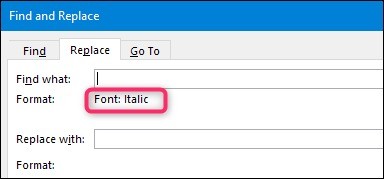
Decide whether the target is text, formatting or both
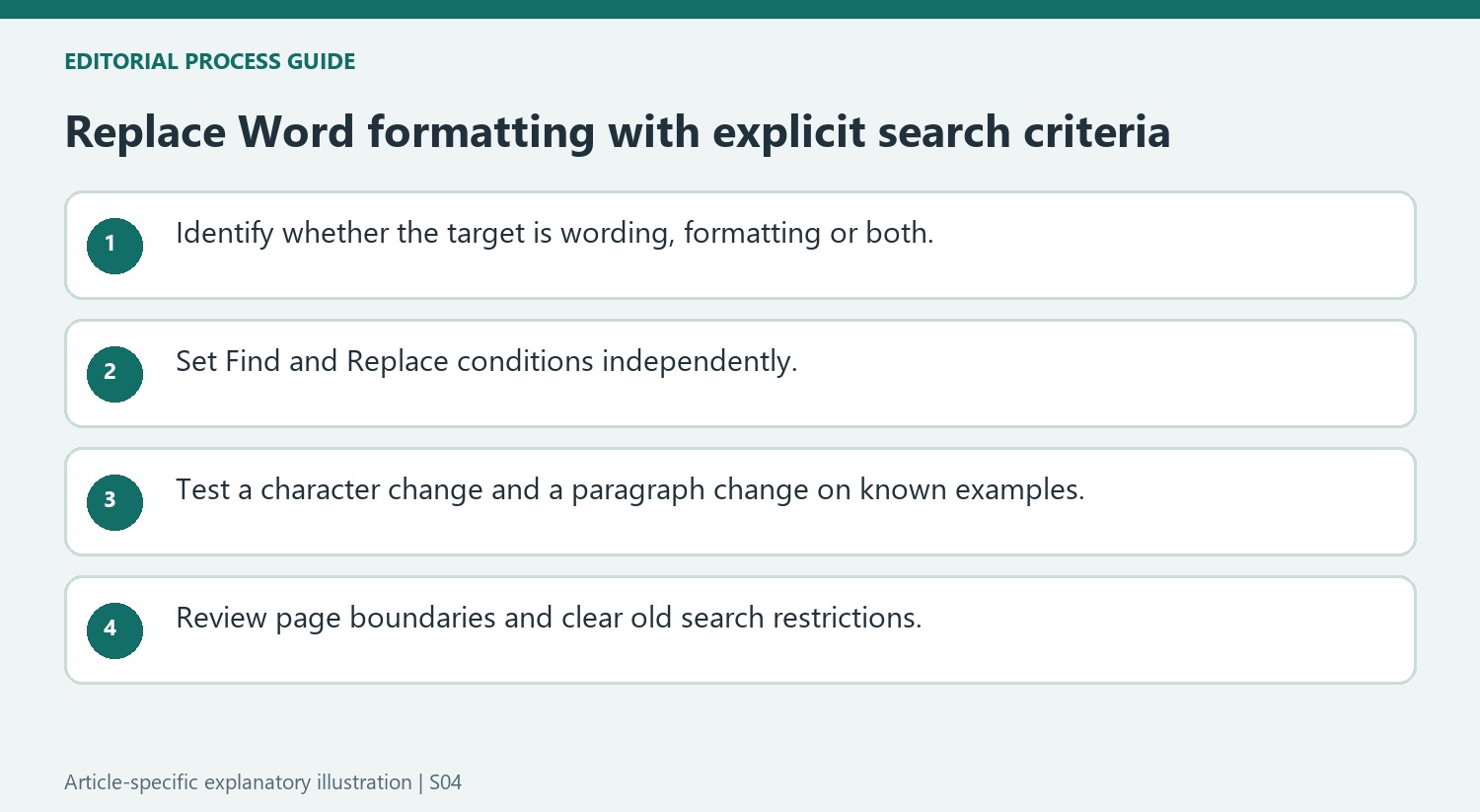
Word Find and Replace can search for character and paragraph formatting as well as words. This makes it useful when a document contains inconsistent direct formatting that is not controlled through a suitable style. Define the target precisely before opening Replace. Removing italic emphasis everywhere differs from updating only a company name that happens to be italic and blue. Keep an original copy and inspect several examples so a broad formatting rule does not unintentionally remove meaningful emphasis from unrelated parts of the document.
Set the Find and Replace formats separately
The source describes placing the cursor in Find what, choosing Format and defining the desired font criteria. The corresponding formatting appears beneath the search box. Repeat the process in Replace with to choose the new condition. A blank search-text field can target formatting alone, while entering a phrase restricts the operation to that text and its selected formatting. Review both displayed criteria before continuing. Find and Replace can retain formatting settings, so an unexplained failure to find ordinary words may require clearing an earlier format restriction rather than changing the search term.
Test individual replacements before changing every match
Use Find Next and Replace to inspect the effect on a few occurrences. Paragraph-level settings can be targeted through their own Format options, but they should be tested with the same care as font changes. Replace All applies the selected rule across its scope and is best used after the behavior is understood. Review the completed document for unintended emphasis or layout changes. Where a recurring structure is involved, consider maintaining it through styles afterward so future updates can be made consistently without reconstructing a complex search-and-replace operation.
Read the displayed conditions as a combined matching rule
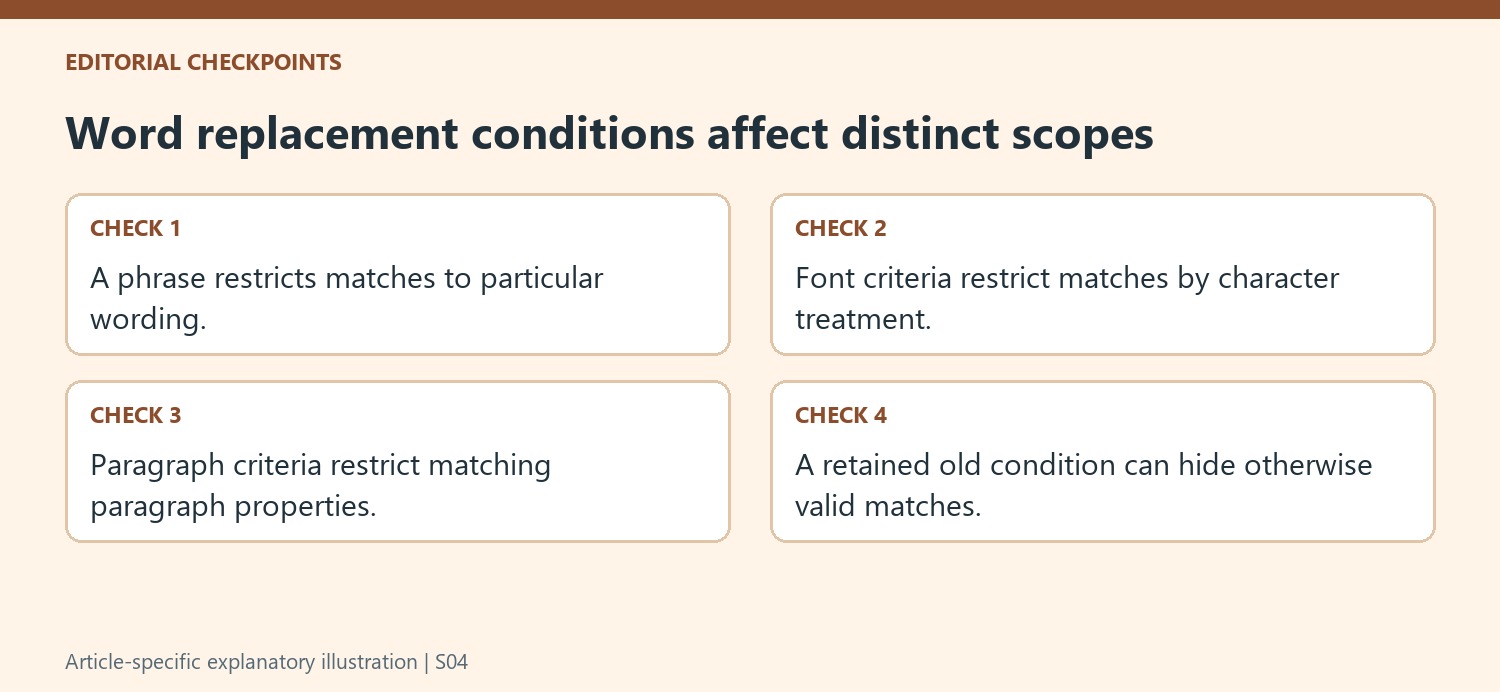
A search containing a phrase and several font conditions finds occurrences meeting that combination. A differently formatted version of the same phrase may therefore remain unchanged. Before a global replacement, inspect examples in the main body and other relevant parts of the document. Decide whether inconsistent versions belong in the same cleanup or need a separate pass with different criteria.
The displayed formatting descriptions beneath Find what and Replace with provide a useful final check. A Regular font choice can explicitly remove both bold and italic, as the source example shows. If bold emphasis should remain, do not assume that choosing Regular removes only italics. Define the desired properties individually where needed and inspect the first replacement closely before continuing through the document.
Treat paragraph spacing as a separate, testable condition
The paragraph example searches for specific space-before and space-after values, then replaces them with a different pair. That targets paragraphs meeting the chosen condition rather than flattening every paragraph in the document. Review adjacent headings, lists and quoted passages because some may intentionally use different spacing. An unusual gap is evidence to inspect, not proof that every exceptional setting is an error.
After changing spacing, review the affected page boundary as well as the paragraph itself. A reduced gap can move later content onto an earlier page, while a larger one can push a heading or figure away from its explanation. Check representative replacements with Show/Hide available if needed so extra paragraph marks are not confused with paragraph-format settings that require another kind of cleanup.
Finish one search task before beginning another
Find and Replace can retain criteria from an earlier operation. Clear unnecessary formatting restrictions when moving from a specialized formatting search to a plain word search, then confirm the displayed conditions are empty where expected. A missing match may otherwise reflect an old criterion rather than an absent phrase. Keep a copy of the original document until the revised text and layout have been reviewed. When the same formatting relationship will recur in later drafts, move it into a suitable style so the next revision can follow an established structure instead of reconstructing a one-time search rule.
References
- How to Find and Replace Formatting in Microsoft Word. How-To Geek; Amelia Griggs.






















Comments
0