 DocumentFlow Desk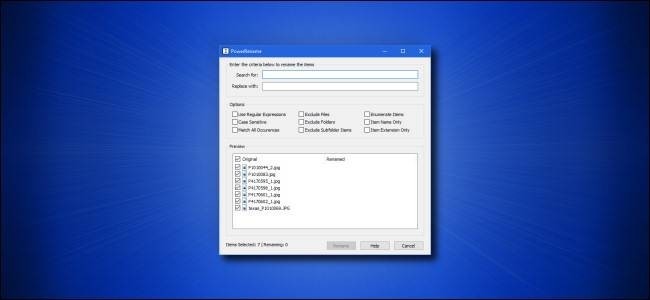
Enable the module and choose a deliberate selection
The article describes installing Microsoft PowerToys and enabling PowerRename in its settings. Obtain a current release rather than following the example installer filename in an older tutorial. In File Explorer or on the desktop, select the intended files and open PowerRename from the context menu. Confirm the selected scope before defining a rule. A batch utility is useful because it applies a consistent transformation, but it cannot determine whether every selected item belongs to the same naming scheme or should be changed at the same time.
Start with a replacement and inspect the preview
Enter the text to find and its replacement, then review the proposed names shown in the window. Options described by the source control case sensitivity, replacement of all occurrences and inclusion of files, folders or subfolder items. Name-only and extension-only settings limit which portion is affected. Choose these deliberately, especially when the goal is to improve document names while preserving their formats. The preview makes it possible to spot unintended matches before the change is applied, so inspect more than the first apparently correct result.
Apply advanced matching only when its effect is clear
Regular expressions allow more complex matching, while enumeration can add sequential numbers. The article demonstrates combining a full-name pattern with enumeration and a name-only restriction to create a fresh numbered set. Confirm that the current interface interprets the pattern as expected and that no unwanted extension changes appear in the preview. Apply the operation after reviewing the whole selection, then inspect the resulting folder. The source describes Ctrl+Z in File Explorer as an undo route. Use that promptly if needed, while treating a clear preview and a suitable backup as better foundations for important batches.
Establish scope before entering a search pattern
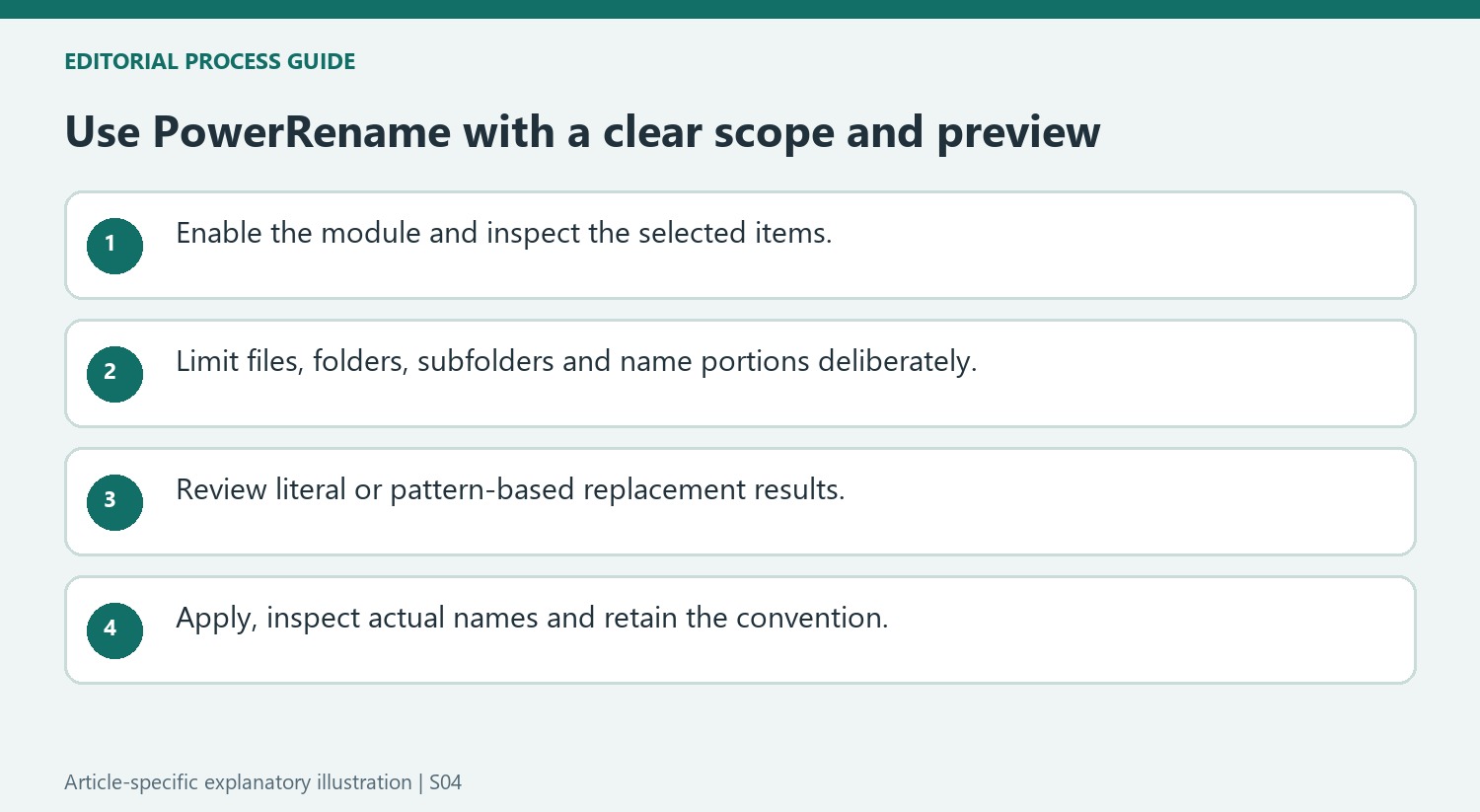
Enable PowerRename in PowerToys and select the intended files in Explorer. Check the current release and interface instead of using an old installer filename as a present recommendation. The selection defines the starting scope, while additional options determine whether folders or subfolder items participate. Review both before judging a preview: a correct-looking rule applied beyond the intended group is still an incorrect operation.
Decide whether the task affects only the descriptive name or the extension too. For normal organization, preserving the extension keeps the format association intact. Renaming an extension does not convert the underlying content. The source describes name-only and extension-only limits; use the relevant current controls and check their effect on several proposed results rather than trusting a familiar label without inspection.
Read replacement and matching options as changes to meaning
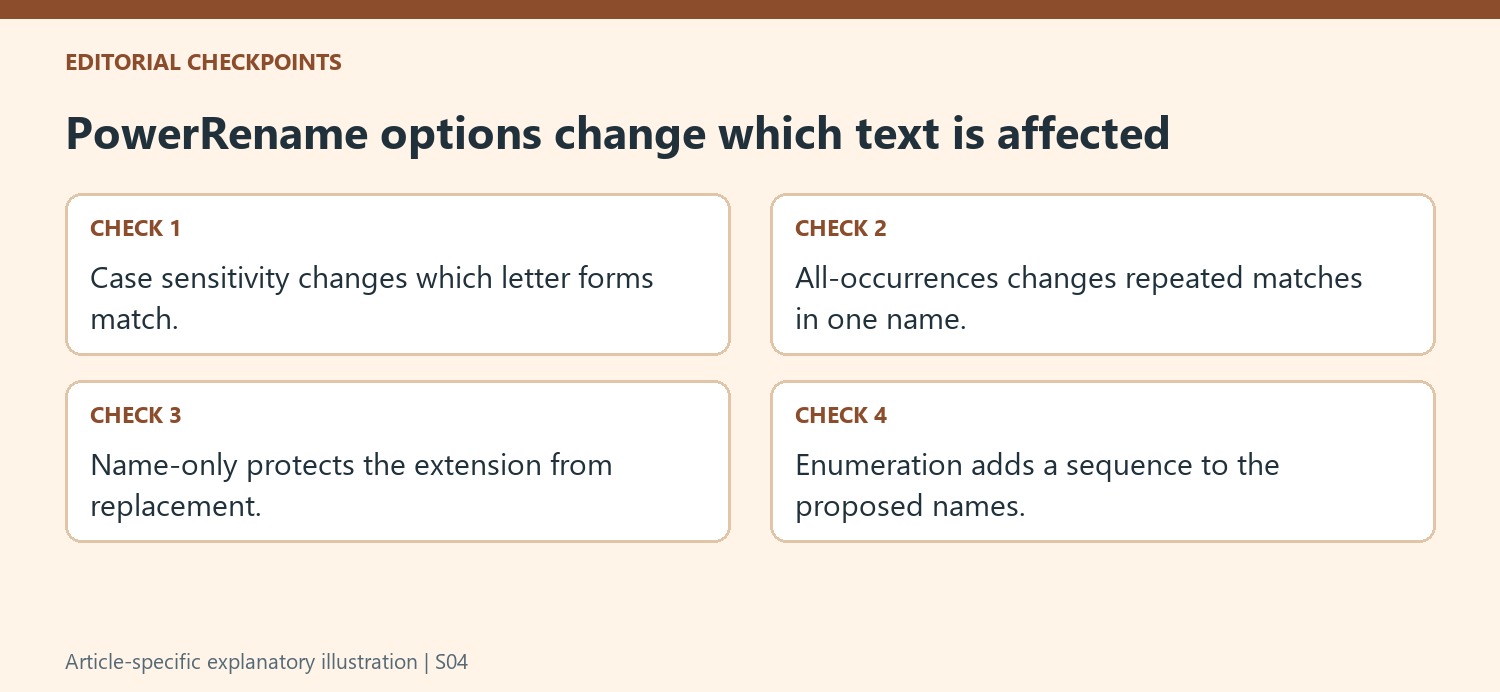
A simple literal search replaces matching text, with options affecting case sensitivity and whether all occurrences are changed. A repeated word can therefore produce a different result from a name containing it only once. Inspect those cases deliberately. A preview is most useful when it includes awkward examples, not only the first name that already happens to fit the proposed rule.
Regular expressions add pattern-based matching, and enumeration can generate a sequence. Understand the pattern before applying it to valuable files. The article's full-name replacement example combines several options, so reproduce it only after checking how the installed interface handles the complete name and numbering. A short pattern can affect far more text than its length suggests, especially when it is intended to match everything.
Verify the resulting names against the original purpose
Before applying, inspect the whole preview for unintended extension changes, lost descriptive information and conflicting destination names. Keep an appropriate backup for important batches and use a small sample while learning a rule. Afterward, review the actual folder rather than assuming a completed operation means every result is useful. The source describes Ctrl+Z in Explorer as an undo route, best used promptly. Retain the chosen naming convention so later additions can follow the same understandable pattern instead of gradually restoring the inconsistency that prompted the cleanup.
References
- How to Easily Batch Rename Files on Windows 10. How-To Geek; Benj Edwards.






Comments
0