 DocumentFlow Desk
Use File Explorer for a straightforward name change
The source describes several Windows 10 routes to the same rename action: the Home menu, the context menu, a deliberate second click on the selected name and the F2 keyboard shortcut. Choose the method that fits your working style. Type the new name and confirm it with Enter. When file extensions are visible, preserve the extension unless changing it is specifically intended. Renaming a document to describe its contents does not require altering the portion that tells Windows and applications what kind of file it is.
Use command-line renaming with explicit names
Command Prompt offers the ren command, and PowerShell provides Rename-Item. Both can be useful when working in a particular directory or incorporating naming into a larger scripted process. The source notes that names containing spaces need appropriate quoting in command-line usage. Check the current folder and the exact old and new names before executing a command. A command-line interface can reduce repeated interaction, but it also makes careful targeting important. For a single ordinary file, the graphical rename action may communicate the intended change more clearly.
Reserve advanced tools for repeated transformations
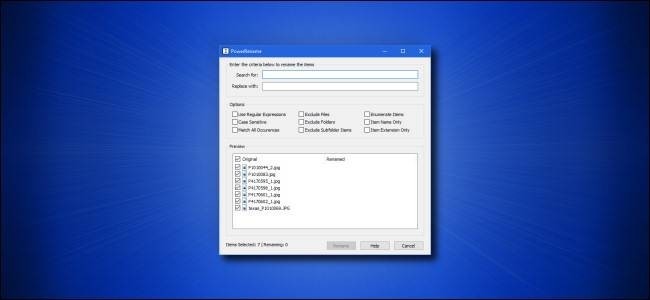
The article also introduces PowerToys' PowerRename module, which can apply search-and-replace rules to selected names. Regular expressions support more complex matching when a simple literal replacement is insufficient. Those capabilities are particularly relevant to batches, where the same transformation must be applied consistently. Preview the proposed results and verify whether the operation includes names, extensions, files or folders. Start with a small, understood selection when learning a rule. The useful distinction is the complexity of the naming task: choose the simplest available tool that makes the intended change visible and reviewable.
Choose a rename route that makes the target obvious
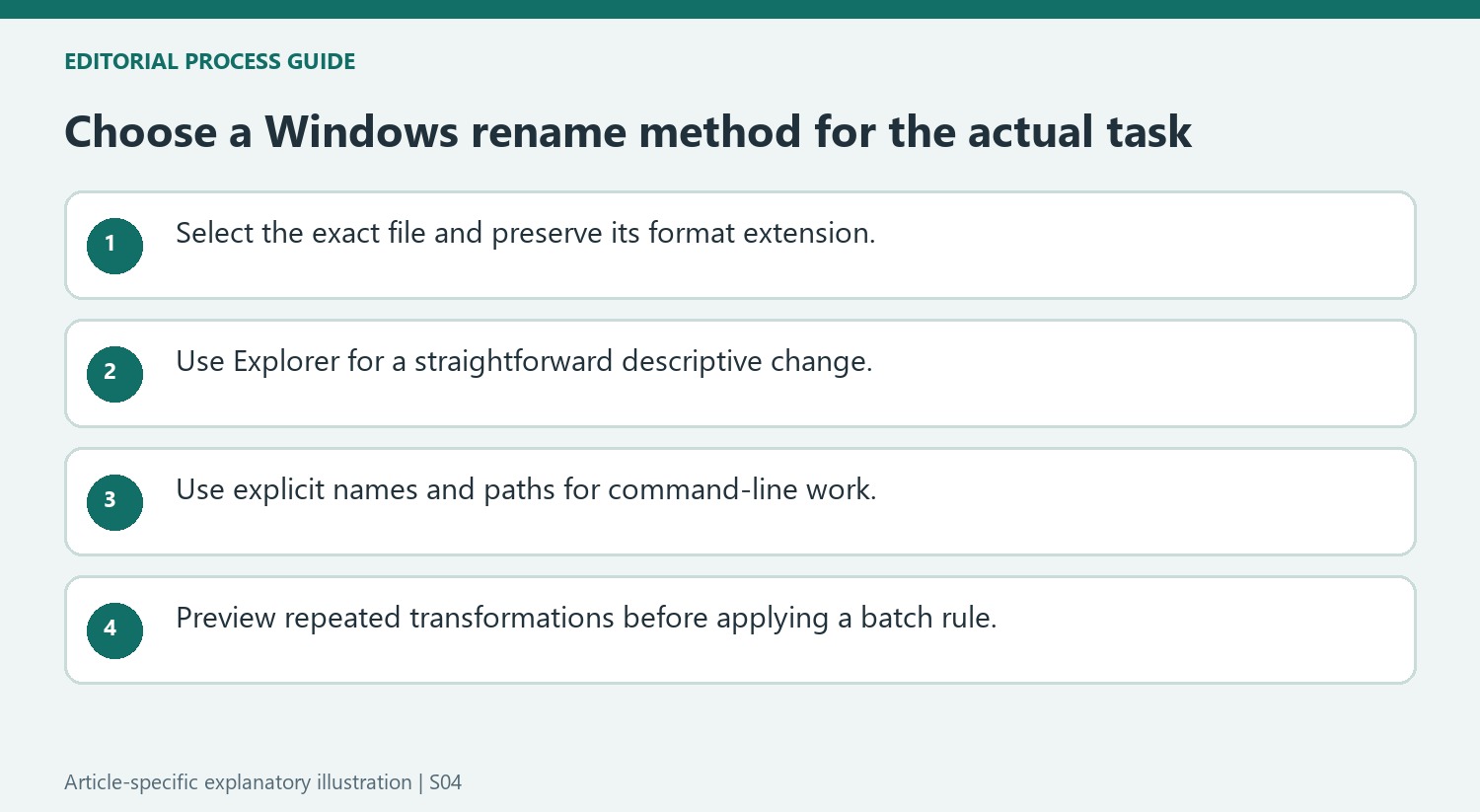
For a single ordinary file, File Explorer provides several routes to the same action. Select the intended item, use F2 or the available Rename command, and inspect the highlighted name before typing. A deliberate second click after selection differs from a rapid double-click that opens the file. Use whichever method gives the clearest view of the change rather than adding complexity without a practical benefit.
Keep the extension intact when the task is only to improve a descriptive name. An extension change does not convert the file's contents into another format. Check the visible filename and file type together, especially when several similar documents are nearby. Confirm the renamed item afterward so an accidental selection or incomplete edit is noticed before more file operations make the sequence harder to reconstruct.
Use explicit paths and names in command-line work
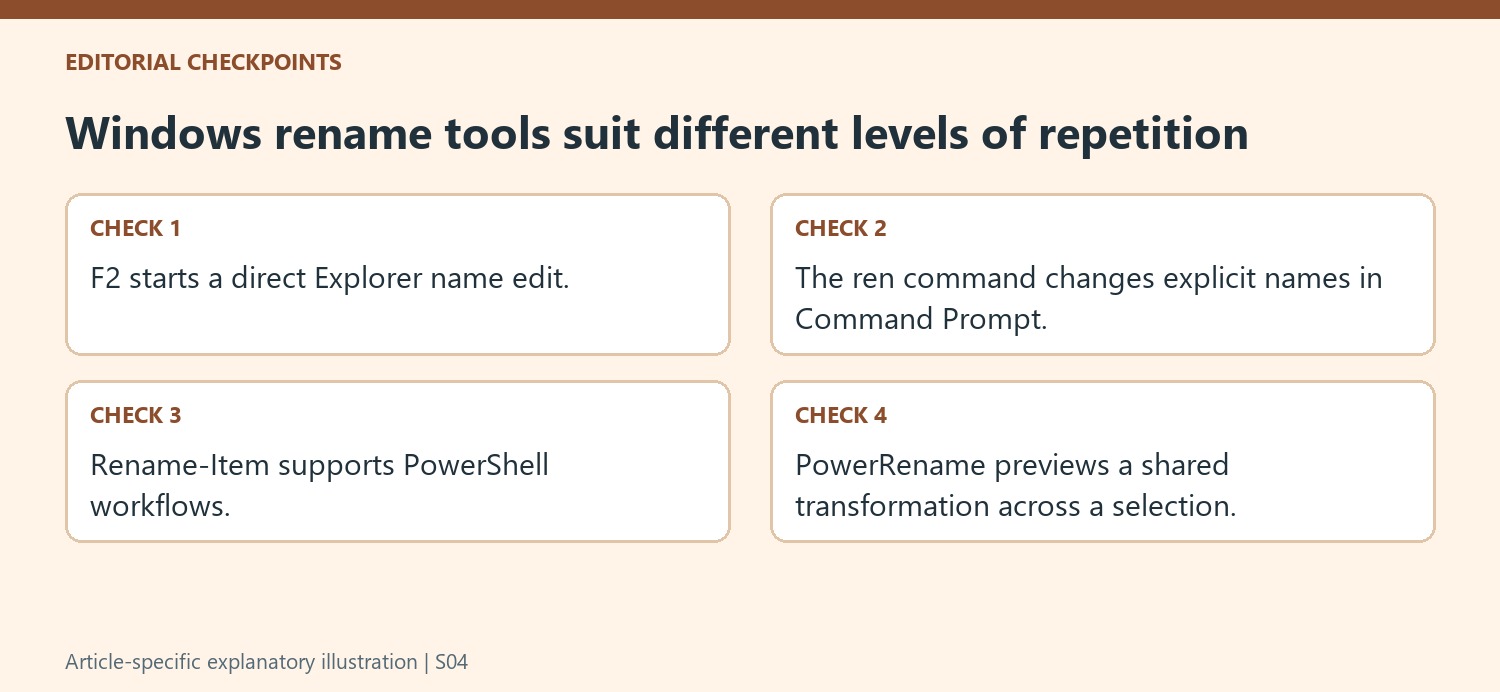
Command Prompt's ren and PowerShell's Rename-Item can perform a rename from a known directory. Verify the current folder and the exact source item before running either command. Quote names containing spaces appropriately. For literal names that contain special characters, use the shell's suitable literal-path handling rather than assuming every character is interpreted as ordinary text in every context.
A scripted approach is useful when naming forms part of a repeated process, but the intended old-to-new relationship should remain reviewable. Check whether the proposed destination name already exists and keep unrelated file moves out of a simple rename task. The source introduces scripting as a more flexible option; that flexibility is most useful when paired with clear targeting and a result that can be checked against the original intention.
Reserve transformation rules for patterns that really repeat
PowerRename can replace common text across a selection and use regular expressions for more complex patterns. Start with a literal replacement when that answers the need. Review whether files, folders, subfolder items, names or extensions are included. Inspect proposed results throughout the selection, not only the first matching item, and test an unfamiliar rule on a small understood set. The best tool is the one that makes the actual change easy to verify; a powerful batch interface adds little to a task that needs only one clear descriptive filename.
References
- 6 Ways to Rename Files and Folders in Windows 10. How-To Geek; Brady Gavin.












Comments
0