 DocumentFlow Desk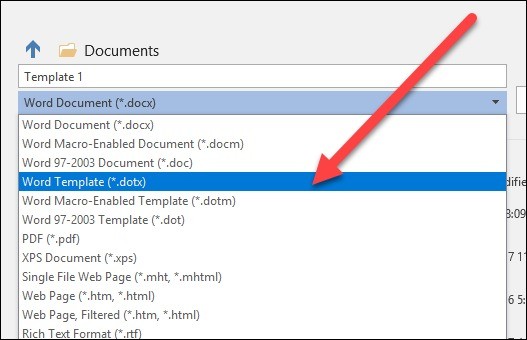
Prepare only the material that should recur
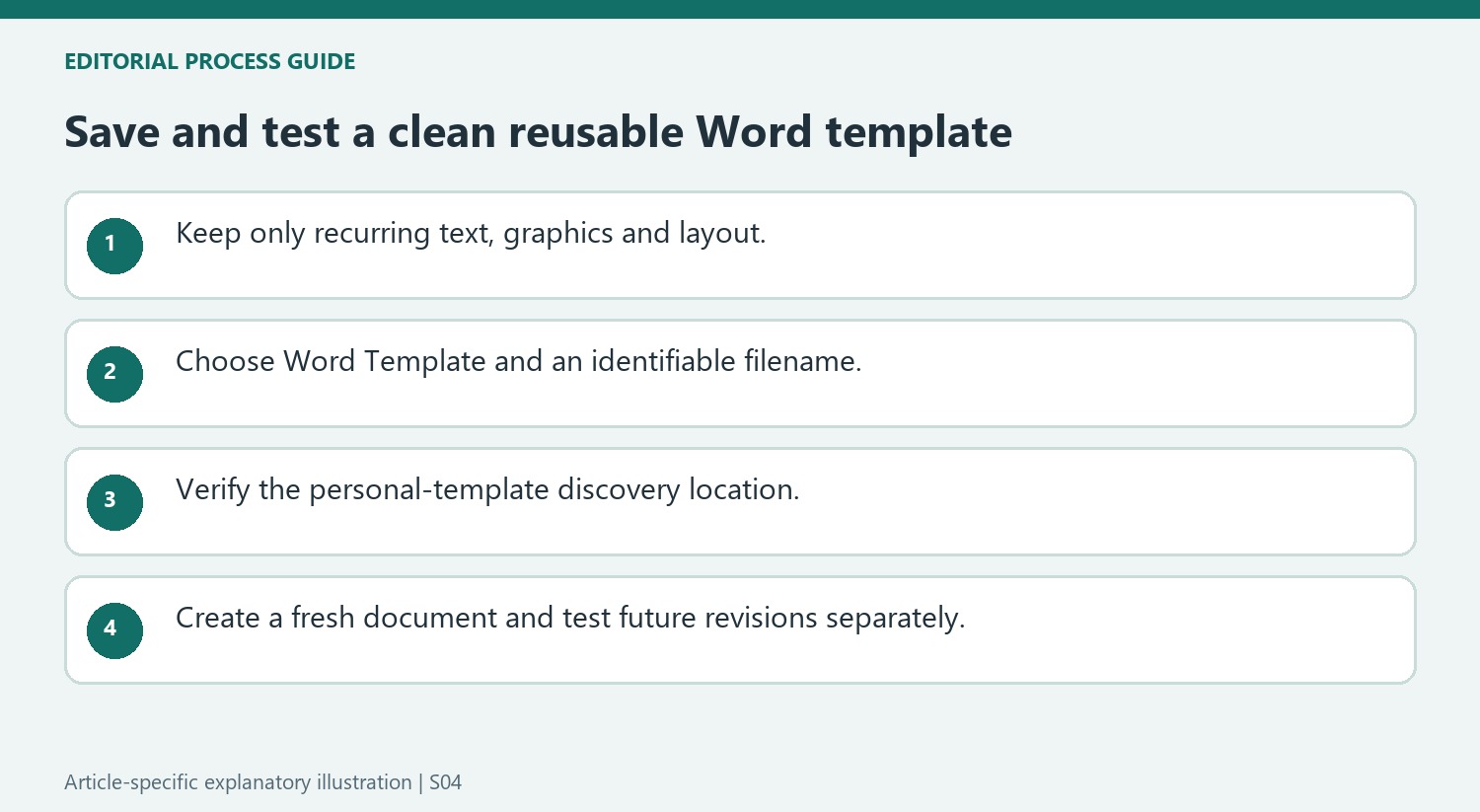
Begin with a document containing the desired margins, sections, columns, styles and other recurring formatting. Keep the standard text and graphics that belong in every new document, and remove details that apply only to the current example. The source emphasizes that a new document inherits both content and layout from the template. That makes preparation important: an outdated name or project-specific paragraph left in the starting file can appear repeatedly in later work. Review the document as a reusable foundation before choosing the template file type.
Save in a location Word can discover
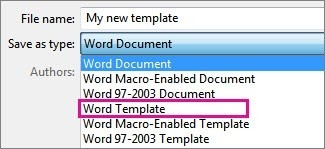
Use Save As and choose Word Template, which uses the dotx extension for a standard template. Word commonly stores personal templates in the Custom Office Templates folder under Documents. Saving elsewhere is possible, but the source notes that a differently located file may not appear among personal templates on the start screen. Choose a meaningful name and a consistent location. If necessary, configure the default personal templates location in Word's save options so future templates are stored where the application expects to find them.
Separate creating a document from editing its template
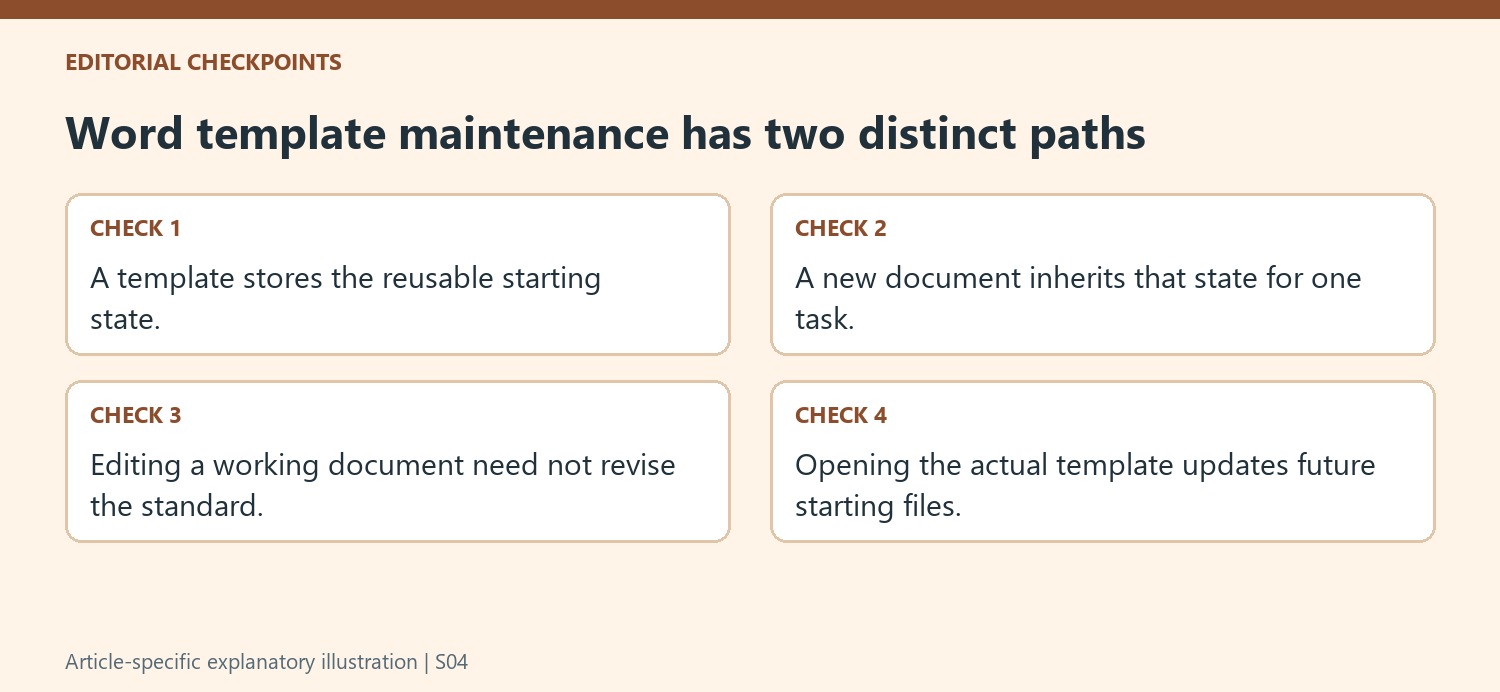
Choose a personal template from Word's new-document interface to create a fresh document based on it. The source also describes opening the template file directly for this purpose, while using its Open command when the underlying template itself needs editing. Confirm which file you are working on before saving changes. A document based on the template can be completed for one task without changing the reusable starting design. Edit the template deliberately when the organization's standard layout or recurring content changes, then inspect a newly created document to confirm the update.
Design the reusable starting state before choosing Save As
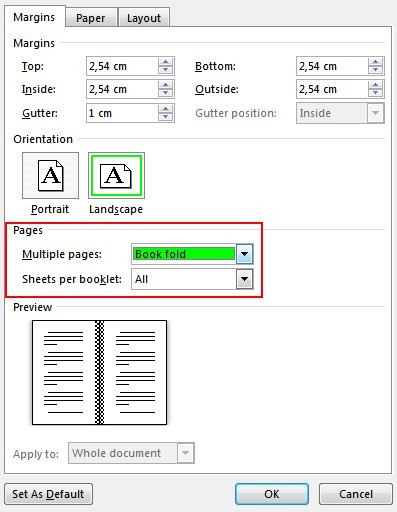
Review margins, sections, columns, tab settings and named styles as well as visible text. These choices influence every new document created from the template. Keep stable boilerplate that genuinely belongs in later files, but remove completed-task details. A finished report can look like a convenient starting point while still containing a customer name or conclusion that should never be inherited automatically.
Test the design with realistic text lengths before making it the standard. A layout that works with a short example heading may wrap differently with the titles used in practice. Check recurring graphics and their relationship with the text. Consistency comes from a suitable structure and clean starting content, rather than only from saving an existing document under a different extension.
Make the storage location part of the template workflow
Choose Word Template in the Save As file-type list and use an identifiable filename. The source describes the standard dotx format and the personal-template discovery location. A file saved elsewhere may still be usable, but it may not appear with the templates on Word's start screen. Decide whether users will find it through that screen or through a clearly documented file location.
If the default personal templates location is changed, use Word's save options and verify the result. Moving a file without understanding the configured location can make it seem missing from the application even though it remains on disk. Keep related templates organized so users can distinguish the appropriate starting design from an older copy or a completed document that merely has a similar name.
Verify both the new-document and template-maintenance paths
Create a fresh document from the saved template and confirm that its initial content, styles and page layout match the intended standard. Complete and save that document independently. When the standard itself changes, open the actual template for editing and save the revision there deliberately. Test another new document afterward, checking the revised area and its effect on the rest of the layout. This two-path check helps prevent an individual report from overwriting the reusable design and ensures that a corrected template actually produces the next document in the form its users expect.
References
- How to Create a Template in Microsoft Word. How-To Geek; Hayley Milliman.




Comments
0