 DocumentFlow Desk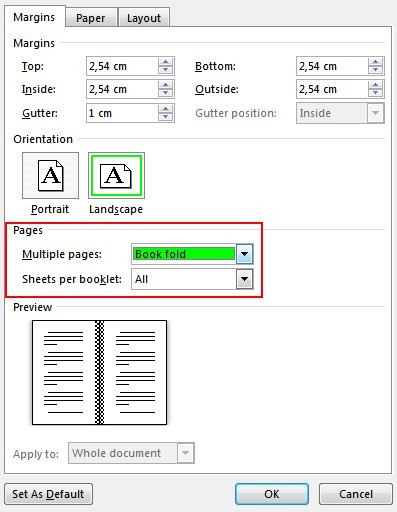
Choose Book Fold before adding complex content
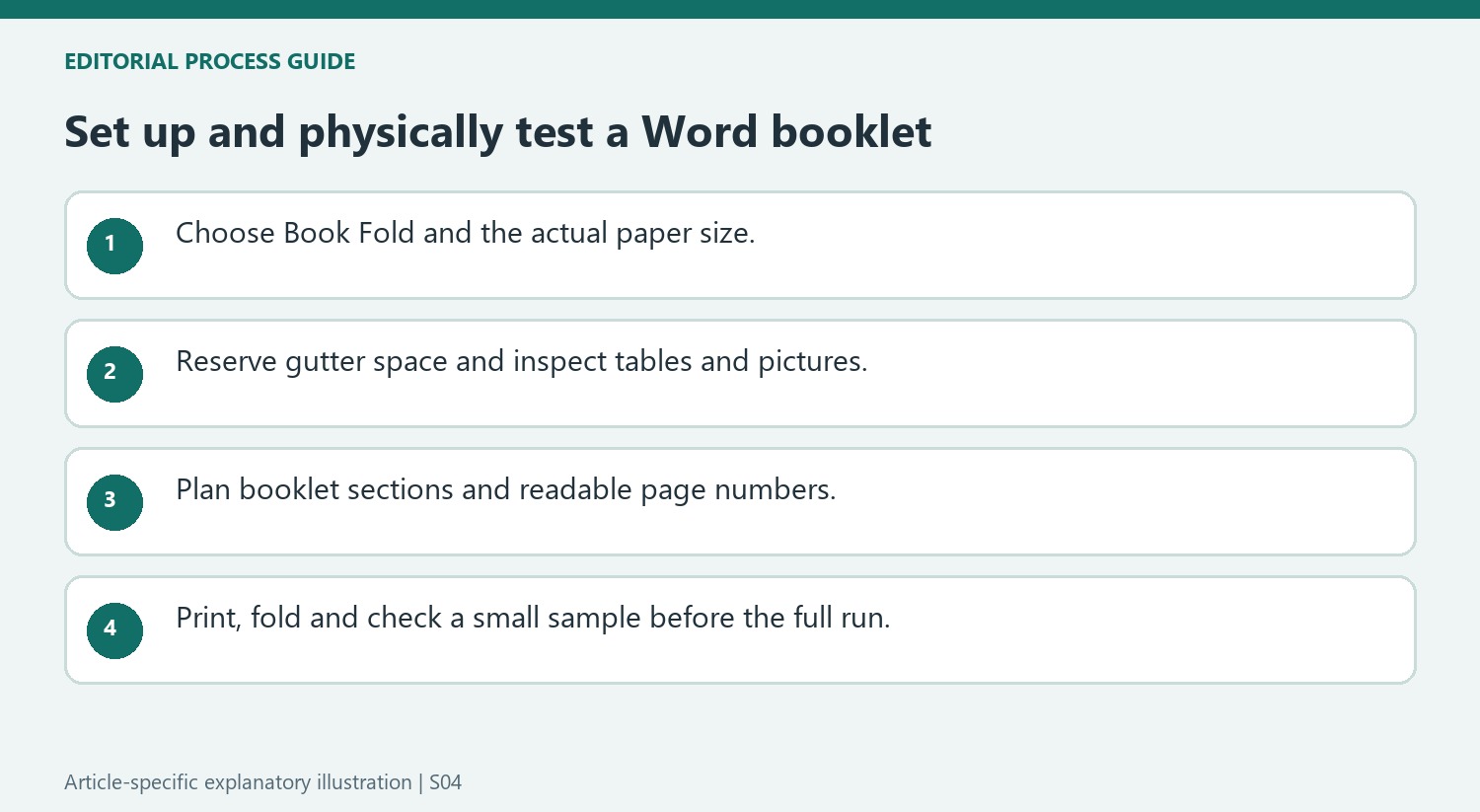
Microsoft recommends setting up the booklet layout before writing because existing tables and pictures may need adjustment after the page geometry changes. In the Layout tab, open the margin settings and choose Custom Margins. Set Multiple pages to Book fold. Word changes the orientation to landscape for this arrangement. This is a page-layout decision rather than a decorative style: it determines how the document will be positioned for folding and binding. Establish it early so headings, images and tables can be designed for the actual finished page size.
Reserve space for the fold and select the paper
Increase the gutter to leave room at the inside fold for binding. Select the intended paper size on the Paper tab; the source notes that the finished booklet page is half the paper's width in this arrangement. For a long document, the Sheets per booklet setting can split the work into smaller sections that will later be bound together. Review the resulting pages after applying the settings. Text may reflow automatically, but that does not guarantee that a wide table or carefully placed illustration still fits the new page dimensions.
Check both sides and the direction of the paper
Open the print controls and select the appropriate one-sided or two-sided workflow for the job and printer. The source describes manually printing both sides when required, then reinserting the sheets as prompted. Follow the printer's instructions and use the correct short-edge flipping arrangement to avoid an upside-down reverse side. Inspect a small sample before committing to a large run. Page numbers can help readers navigate the completed booklet, but their placement should be checked alongside the physical fold so the final sequence remains understandable after the sheets are assembled.
Treat booklet setup as a change to the physical page
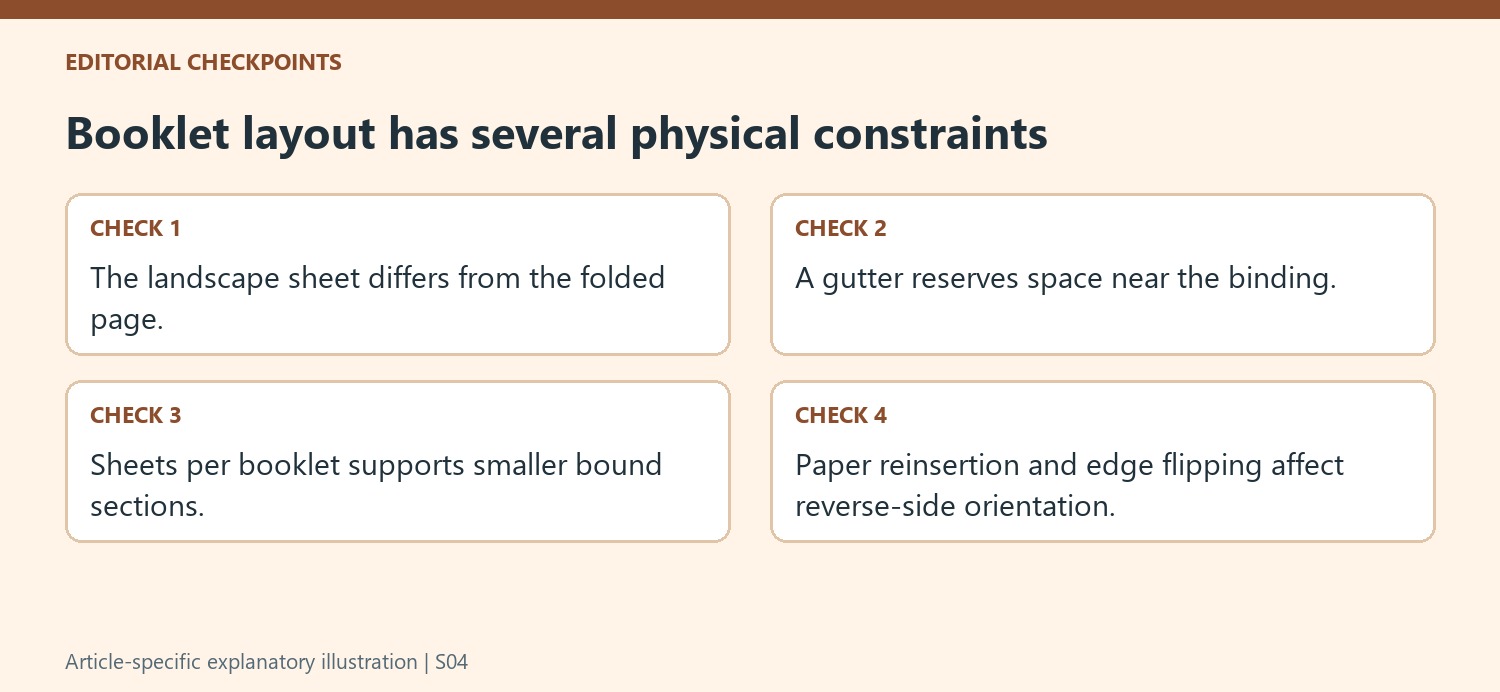
Book Fold changes how pages are arranged on paper for folding, so set it before building a complicated document where possible. The landscape sheet is not the same as the finished booklet page. Check the selected paper size and the resulting folded dimensions before deciding how large a table, illustration or heading can be. A layout that fitted an ordinary portrait page may need substantial adjustment.
Reserve a gutter for the inside fold and review how close important text sits to the binding area. The purpose is usable space after assembly, not merely an attractive on-screen margin. If a document already contains content, inspect the full result after applying the setting. Automatic text reflow does not establish that every positioned object remains inside a practical reading area.
Plan long documents and navigation for assembly
The source describes Sheets per booklet for splitting a long work into smaller booklets that can be bound together. Choose this deliberately according to the intended physical assembly. Review the resulting sections and the sequence in which they will be handled. Do not judge the final reading order only from an ordinary single-page view that does not show how the sheets will be folded.
Page numbers can help a reader navigate, but their position should suit the finished booklet. Inspect headers, footers and any decorative borders against the new page geometry. Check wide tables and images separately, since shrinking them indiscriminately can make their labels unreadable. The best correction may be a layout revision in the source rather than a smaller print scale applied to everything.
Print a physical sample before repeating the job
Use the print settings appropriate to the printer and the required sides. For manual two-sided printing, follow the reinsertion prompt and the printer's instructions; the source calls attention to short-edge flipping to avoid an upside-down reverse. Test a small set, fold it and inspect orientation, sequence and gutter space. This reveals mistakes that a plausible preview cannot settle on its own. Once the sample is correct, retain the successful settings with the document so the full print run follows the tested process rather than repeating an uncertain paper-feed experiment.
References
- Create a booklet or book in Word. support.microsoft.com.



Comments
0