 DocumentFlow Desk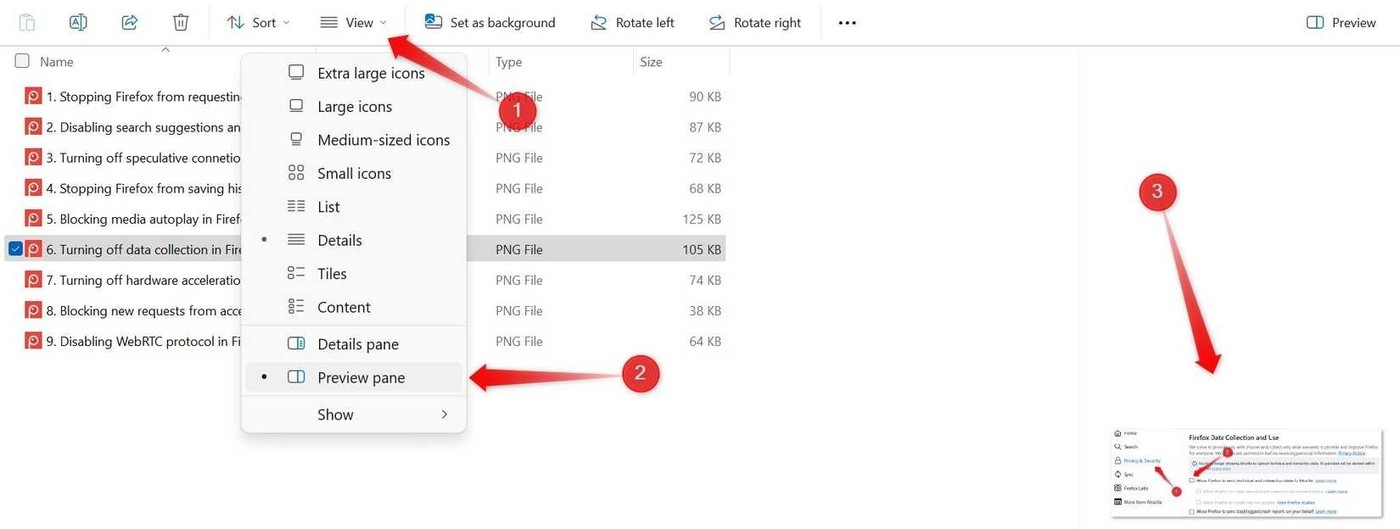
Create a structure that reflects the actual work
The source recommends broad folders such as work, personal material and media, followed by meaningful project or subject folders. Use a consistent naming convention so search can complement browsing. A hierarchy should make the next destination predictable rather than simply add more levels. Review files that have accumulated in one catch-all location and move them to an appropriate home. Distinguish active work from material that can be archived, and keep names descriptive enough that a later search does not depend on remembering where the file was originally downloaded.
Reduce repeated navigation and manage incoming files
Pin frequently used folders to Quick Access in File Explorer and remove pins that are no longer useful. This provides a shortcut to the established location without creating another copy of its contents. The source also discusses changing default save destinations through Windows storage settings and adjusting a browser's download location. Choose destinations deliberately and review downloads promptly. A different default folder does not organize files by itself; its value comes from placing incoming material nearer the workflow where it will be named, reviewed and stored appropriately.
Choose views that help identify the right file
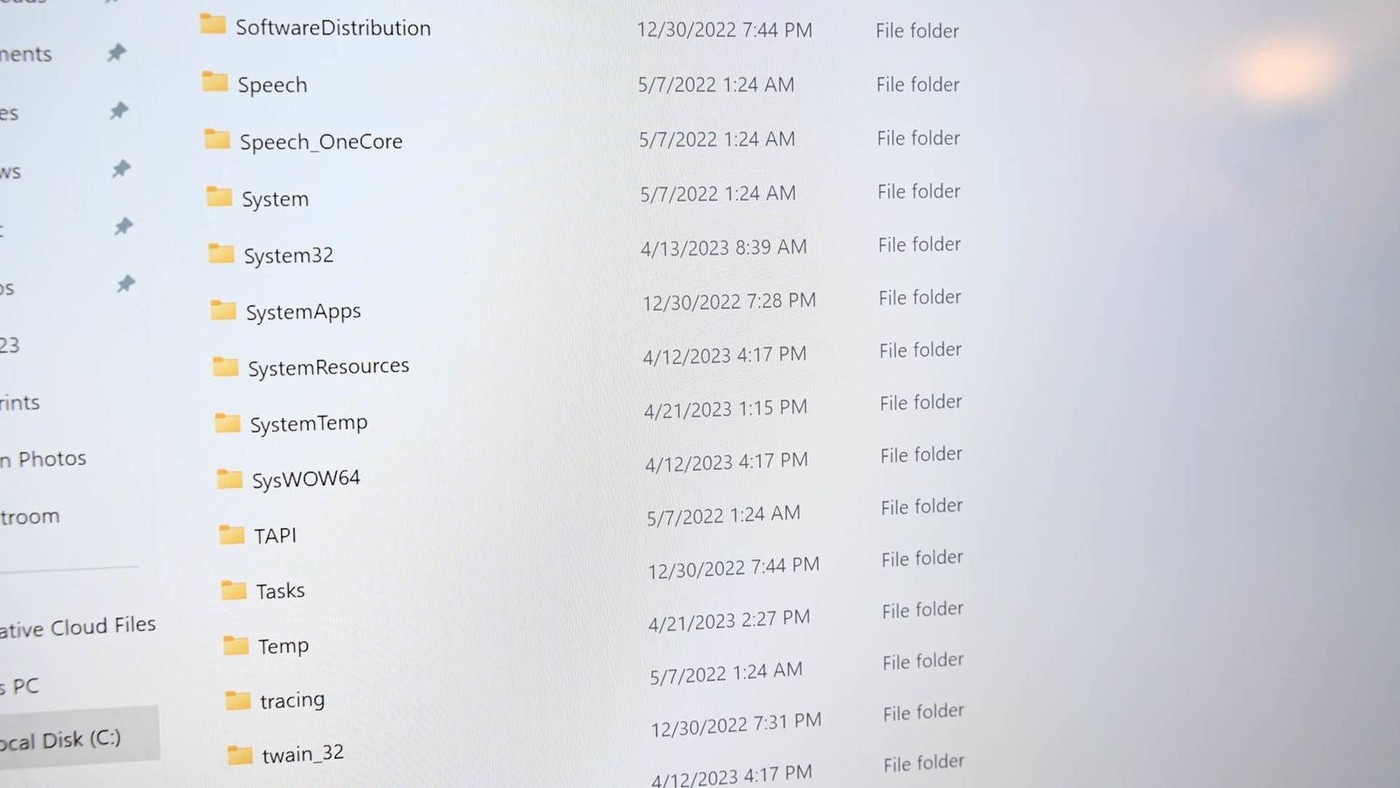
Use Details view when dates, sizes or file types matter, and thumbnail-oriented views when recognizing images is more useful. The preview pane can show supported file contents without opening each item; the source gives Alt+P as a toggle. Folder icons or other visual markers can supplement descriptive names, but should not be the only cue. Some navigation features vary across Windows versions, so check the available commands in the installed interface. Maintain the structure through regular review rather than expecting one round of cosmetic customization to keep an expanding collection organized indefinitely.
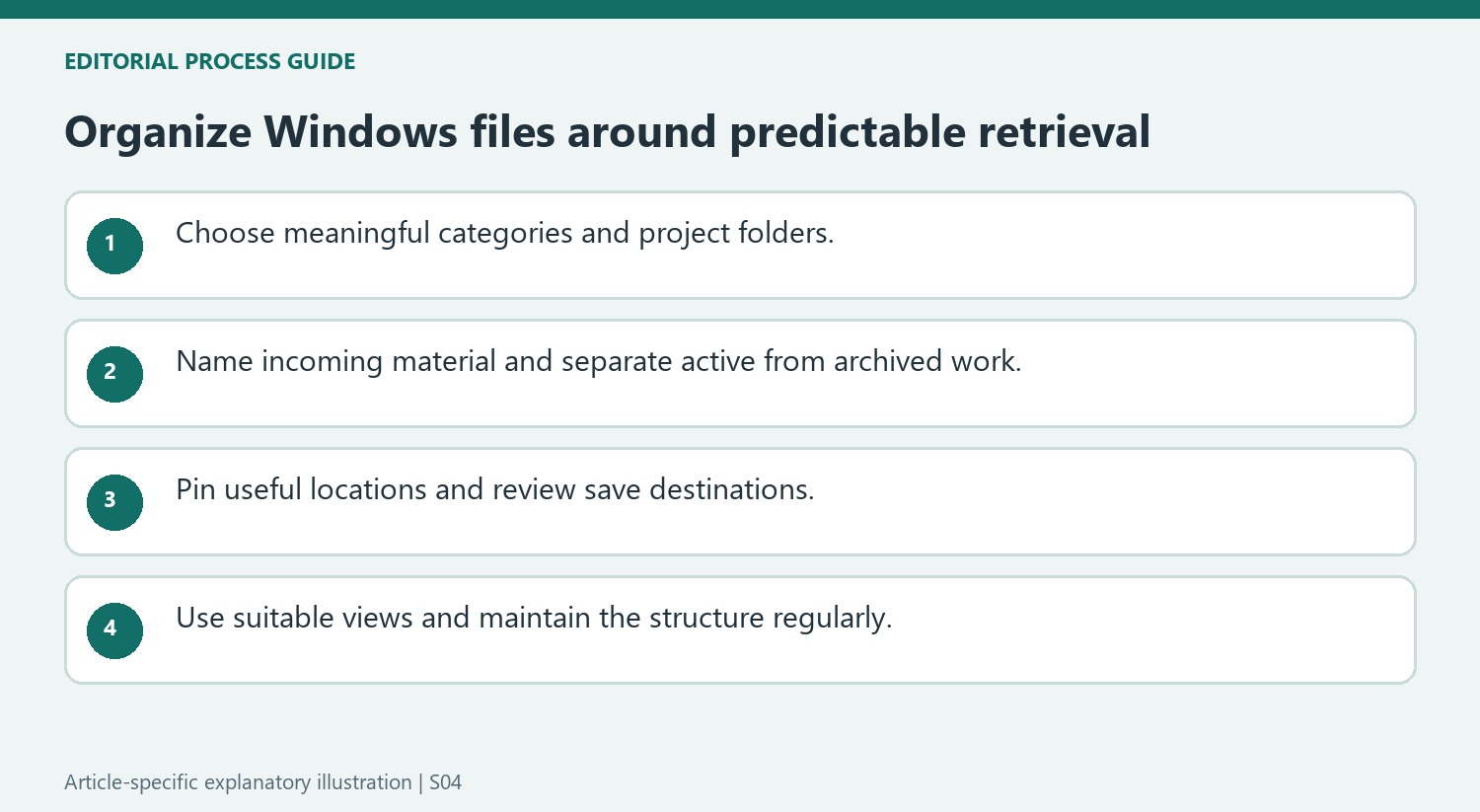
Make the folder hierarchy predictable before adding shortcuts
Choose broad categories that reflect how the material is used, then add project or subject folders where they make the next destination obvious. Avoid creating several plausible homes for the same kind of document. A clear naming pattern can make both browsing and search easier, especially when files arrive with generic download names that say little about their contents.
Review an existing catch-all folder in manageable groups and decide where the active material belongs. Keep archived work distinguishable from current tasks without burying it under unnecessary levels. A structure is practical when a person can file a new document without debating which of many nearly identical subfolders is correct. Consistent decisions matter more than an elaborate hierarchy that nobody maintains.
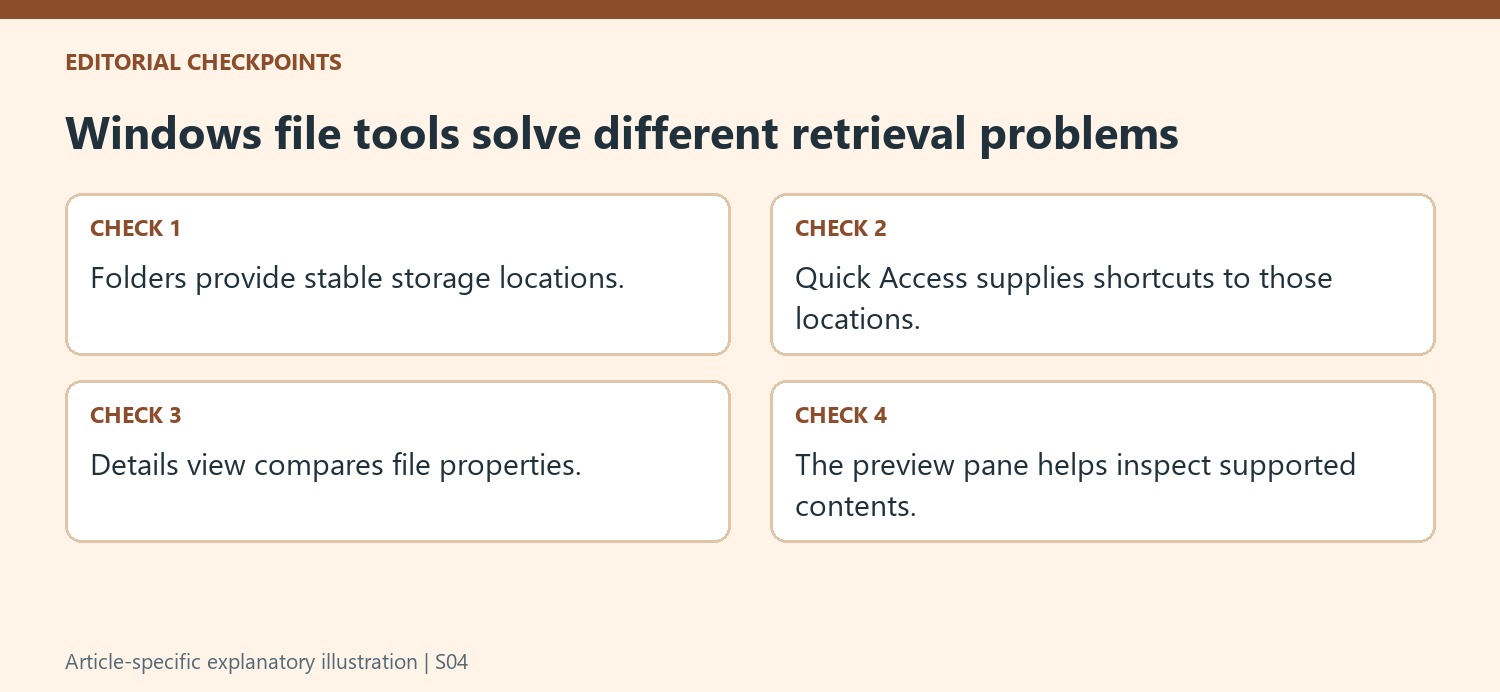
Use navigation and incoming-file settings to support the structure
Pin frequently used locations to Quick Access and remove pins once they no longer help. The pin provides another route to the folder; it does not create an independent copy that should be maintained separately. This makes it useful for reaching a deep project location while keeping the underlying storage arrangement coherent. Descriptive folder names remain important when several pinned items look similar.
The source also discusses Windows storage destinations and browser download settings. Check which setting applies to the content being saved rather than assuming one change redirects every application. If a download location is temporarily changed for a batch, restore or document the intended default afterward. Review and rename incoming files promptly so a convenient destination does not simply become another unstructured accumulation point.
Select views that answer the current identification question
Details view helps compare names, types, dates and sizes, while thumbnails can help recognize visual material. The preview pane can show supported contents without opening each file; use it when filename information is insufficient. Visual folder markers can supplement names, but they should not carry the only explanation of a folder's role. Commands vary with the Windows version, so inspect the available interface. Regularly review active folders, downloads and shortcuts so the system continues to reflect actual work rather than preserving a one-time organization scheme after its usefulness has passed.
References
- 8 tips to organize files efficiently on your Windows PC. How-To Geek; Shan Abdul.




Comments
0