 DocumentFlow Desk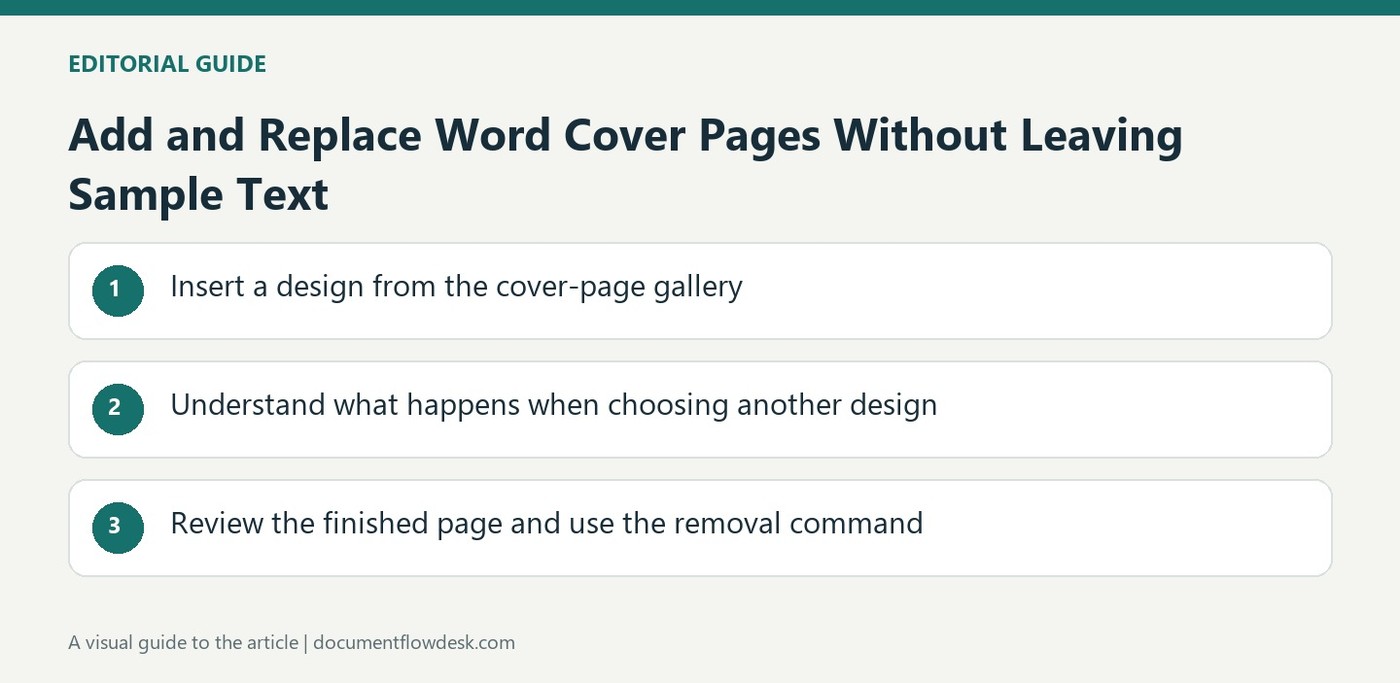
Insert a design from the cover-page gallery
Microsoft's instructions place the Cover Page command on the Insert tab, within the page-related controls in the relevant desktop interface. Open the gallery and choose a design suited to the document. The inserted layout contains sample information that serves as a prompt for customization. Select each relevant area, such as the title, and enter the correct text. Treat insertion as the beginning of the edit: a visually complete page can still contain generic wording that does not identify the actual document or its purpose.
Understand what happens when choosing another design
The source explains that inserting another gallery cover page normally replaces the first gallery cover already in the document. This provides a way to reconsider the design without intentionally stacking several covers at the front. Covers created in an earlier version of Word can require a different sequence: remove the existing cover manually before adding a newer gallery design. Inspect the beginning of the document after making the change so an older page or leftover text does not remain alongside the intended replacement. Confirm the result rather than assuming every historical layout behaves identically.
Review the finished page and use the removal command
Check the customized cover in a suitable layout view; the source identifies Print Layout or Web Layout in its Mac guidance. Verify that the entered title and other document information fit the selected design and that no sample content remains. The source also notes that cover pages do not display page numbers in the described workflow. If the cover is unnecessary, use the Cover Page menu's removal option, whose wording varies by interface. Review the first page afterward to ensure the document now begins with the intended content and that the visual introduction suits the material that follows.
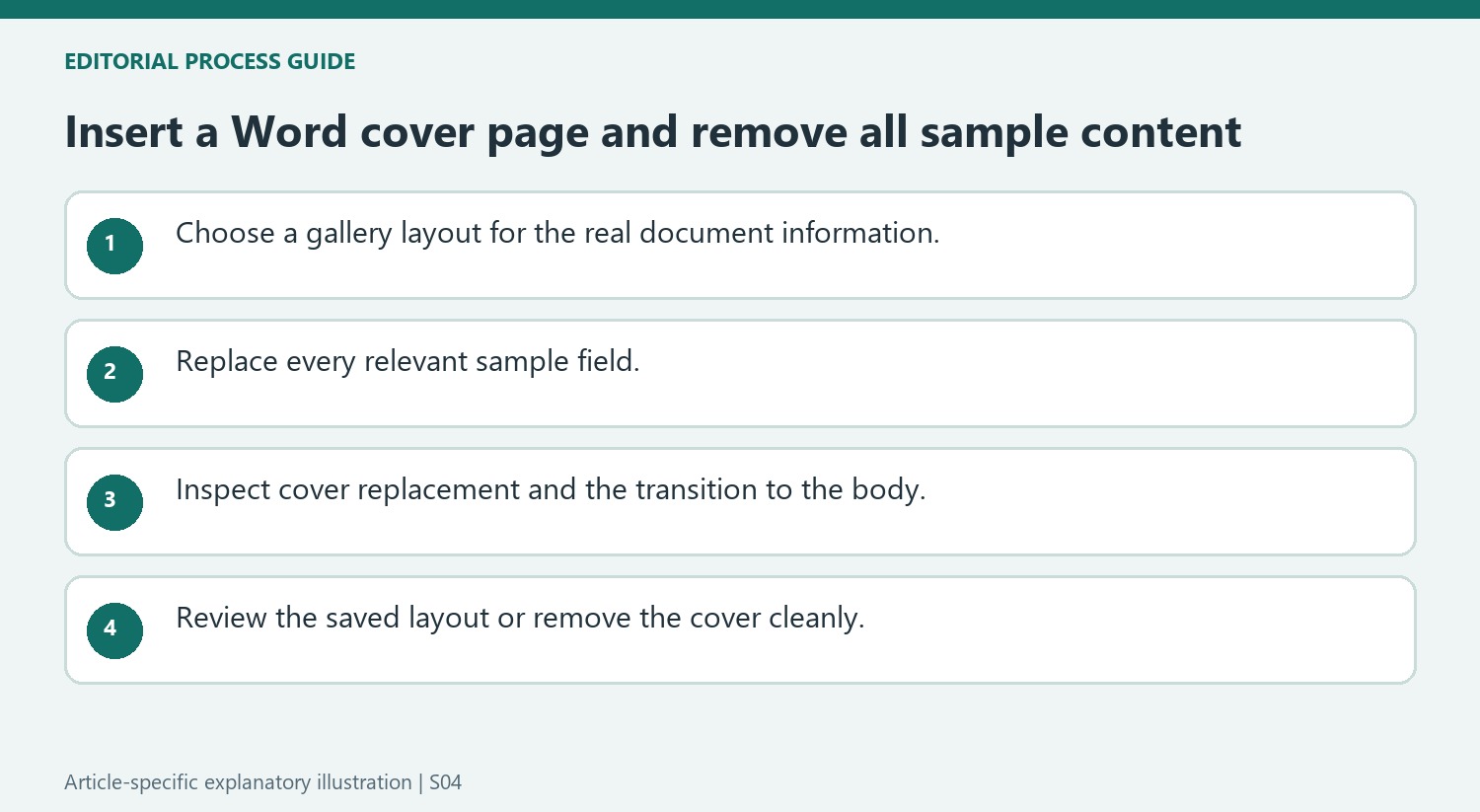
Choose a cover for the information the document must present
A gallery design supplies an arrangement and sample fields, not an accurate introduction to the document. Identify the actual title and other information that should appear before choosing a design. A layout with room for a short heading may need review when the real title is much longer. Judge the inserted cover with the actual text rather than only with the polished example shown in the gallery.
Select each sample area and replace it deliberately. Read the whole page afterward, including smaller fields that can be overlooked once the large title looks correct. A cover that still contains generic wording or a sample date can misidentify the document even when its typography appears finished. Keep the introduction consistent with the body it precedes and with the intended reader's need for context.
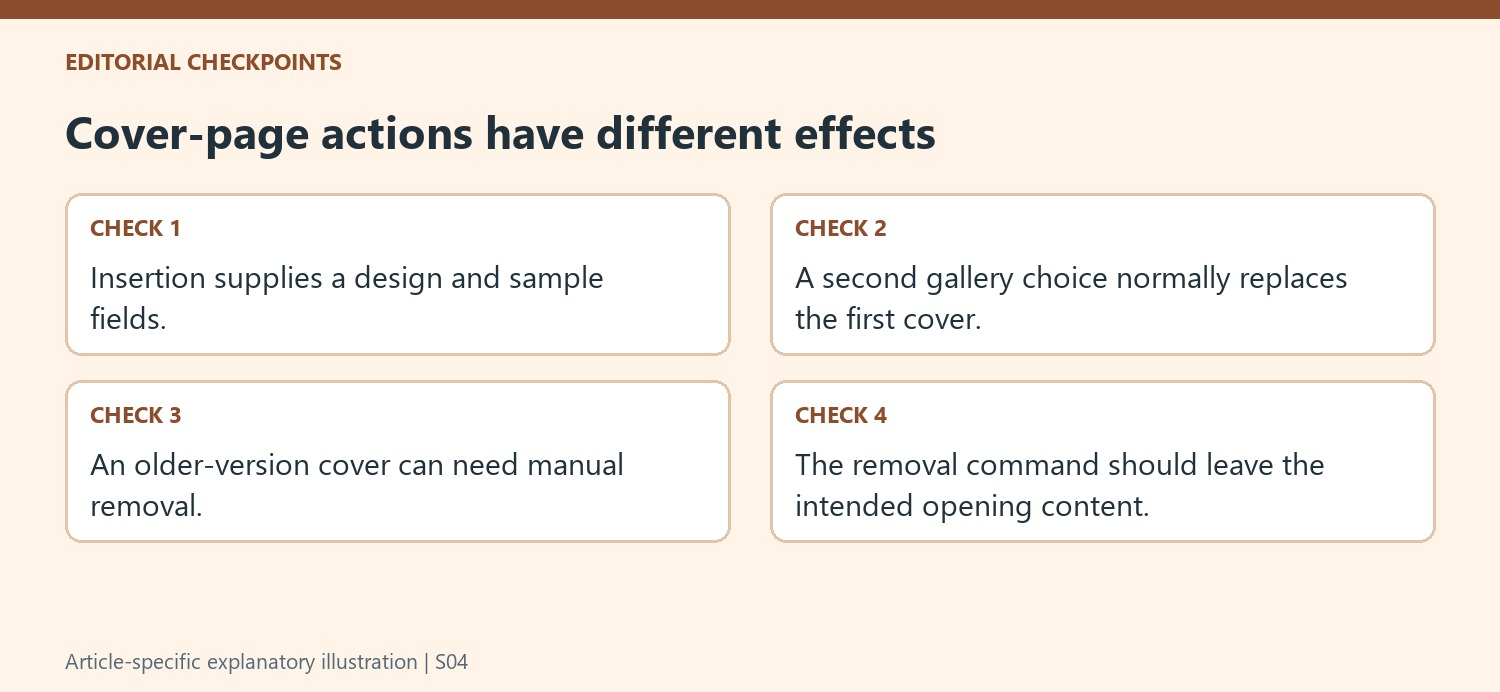
Inspect replacement behavior instead of adding pages blindly
The source explains that choosing another gallery cover normally replaces the first inserted gallery design. Use that behavior to compare alternatives, then inspect the document beginning to confirm the result. A cover made in an earlier Word version may need manual removal before a newer design is inserted. Do not assume that all older layouts participate in the same replacement mechanism.
After changing designs, check that the intended wording survived in the appropriate places and that no duplicate introductory page remains. Inspect the transition from cover to main content as well as the cover itself. A replacement can look successful at the top of the first page while leaving an old text area or an unexpected page boundary that becomes obvious only when reviewing the complete opening.
Review the cover in a suitable layout and remove it cleanly
The Mac guidance identifies Print Layout or Web Layout for seeing the result. Use an appropriate view and verify text fit, visual balance and the first body page. The article notes the described cover-page numbering behavior, but the document's final appearance still needs inspection after other layout edits. If the cover is unnecessary, use the Cover Page menu's removal command and confirm that the intended content now starts the document. Save the reviewed copy after this final check so a discarded design is not left in the delivered version.
References
- Add a cover page in Word. support.microsoft.com.



Comments
0