 DocumentFlow Desk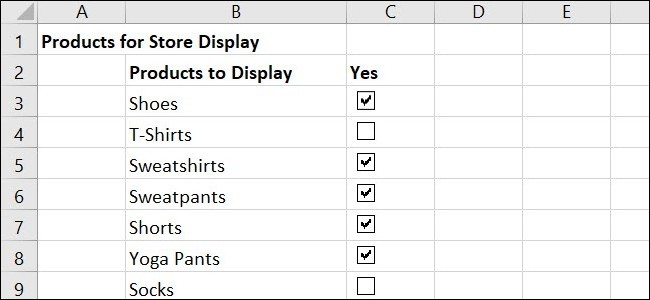
Prepare the list and expose the Developer controls
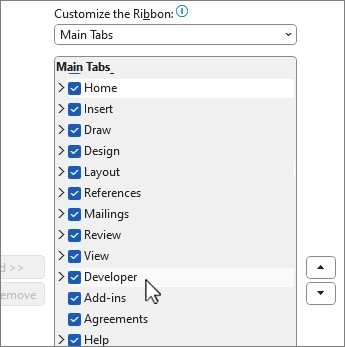
The article uses Excel's checkbox form controls rather than a newer cell-checkbox interface. Enable the Developer tab through ribbon customization if it is hidden, then enter the task names and any column headings. Establishing the list first makes it easier to position a control next to the correct item. From Developer, open Insert and choose the checkbox in the Form Controls section. Draw the control beside the relevant entry. Remove its default label when the task text already supplies the description, and adjust its size and placement as needed.
Configure appearance and the initial state deliberately
Right-click the actual control and use Format Control to inspect its settings. The source describes appearance options and a Control tab for the initial checked state, cell link and shading. An unchecked default suits many task lists, while a checked default can represent options that a user must actively remove. Choose a convention that readers can understand. Do not confuse formatting a worksheet cell with formatting the control floating above it. After changing the settings, click the box to confirm that the visible state behaves as intended for that particular row.
Verify linked cells before using formulas
A checkbox can write TRUE or FALSE to its linked cell, which allows formulas such as COUNTIF to summarize completed items. Enter or select the appropriate reference in the Cell Link setting. Add the remaining controls and check their references individually, especially after copying or filling existing controls. A row of separate-looking boxes is not sufficient evidence that each has an independent link. Test a few checked and unchecked combinations and compare the resulting cells and totals. The checklist becomes useful for calculations only when the connection between each task, control and linked value is correct.
Keep the task, floating control and linked value aligned
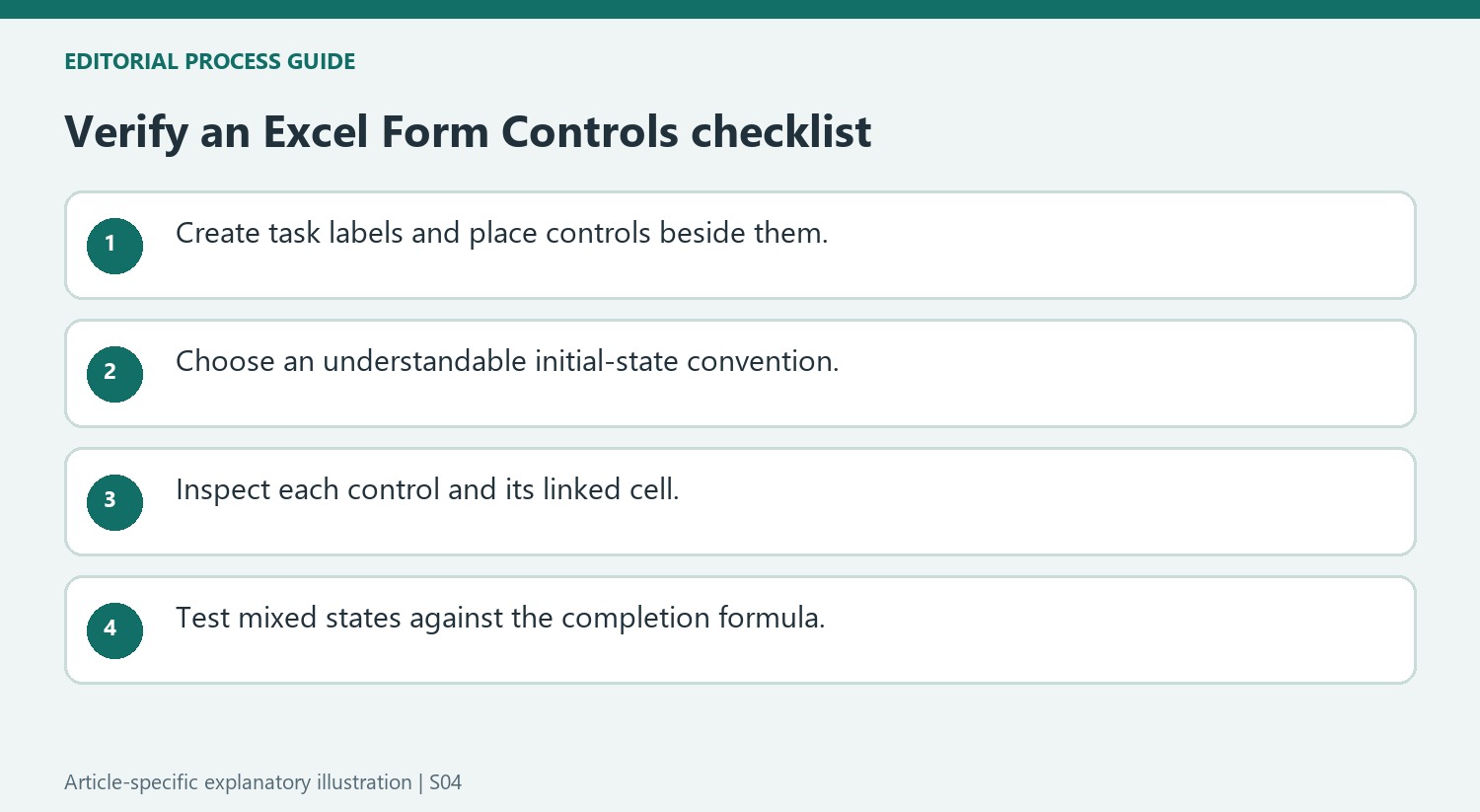
The tutorial uses Form Controls placed on the worksheet, not the separate cell-checkbox feature available in some newer Excel workflows. Begin with the actual task names and headings, then place each control beside the appropriate entry. Right-click the control itself when changing its properties. Formatting the cell beneath it can leave the checkbox unchanged because the two are different objects.
Remove the default control label only when the adjacent text already describes its purpose clearly. Review placement and size after adjusting the sheet. A neat row of boxes is not enough if one has drifted beside the wrong task. The relationship between the visible control and its wording should remain clear before any formulas are introduced to summarize progress.
Choose an initial state that readers can interpret consistently
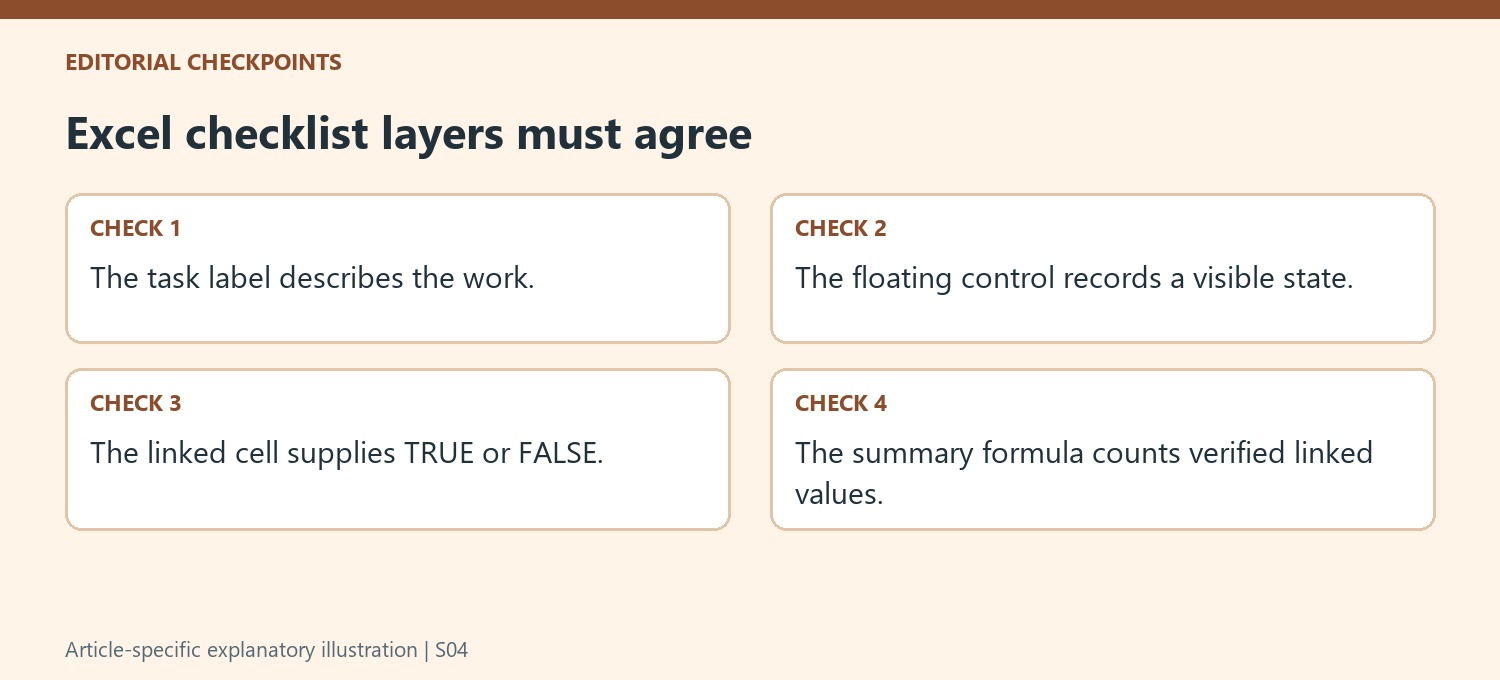
An unchecked starting state often suits work that will be marked complete. A checked starting state can instead represent options included unless the user removes them. State the convention and use it consistently throughout the list. Otherwise, a summary of checked boxes may be numerically correct while answering a different question from the one a reader expects.
Use the Control tab to inspect the initial value and cell link. Appearance settings such as shading, fill and size affect presentation, while the link determines where the state is available for calculation. Test both a checked and unchecked state on a representative item and observe the linked cell. This establishes the intended behavior before copying the pattern across a larger list.
Validate every link before trusting a completion total
A linked cell supplies TRUE or FALSE to formulas such as COUNTIF. After adding or copying controls, inspect the references individually rather than assuming separate-looking boxes have separate links. Check several combinations, including only the first item, only a later item and a mixture of completed entries. Compare the visible states, linked values and summary result. If a total changes unexpectedly, trace those relationships before modifying the formula. The source's copying method can save setup effort, but a useful checklist still requires verified one-to-one associations between each task, its control and the value used in the calculation.
References
- How to Create a Checklist in Microsoft Excel. How-To Geek; Sandy Writtenhouse.




Comments
0