 DocumentFlow Desk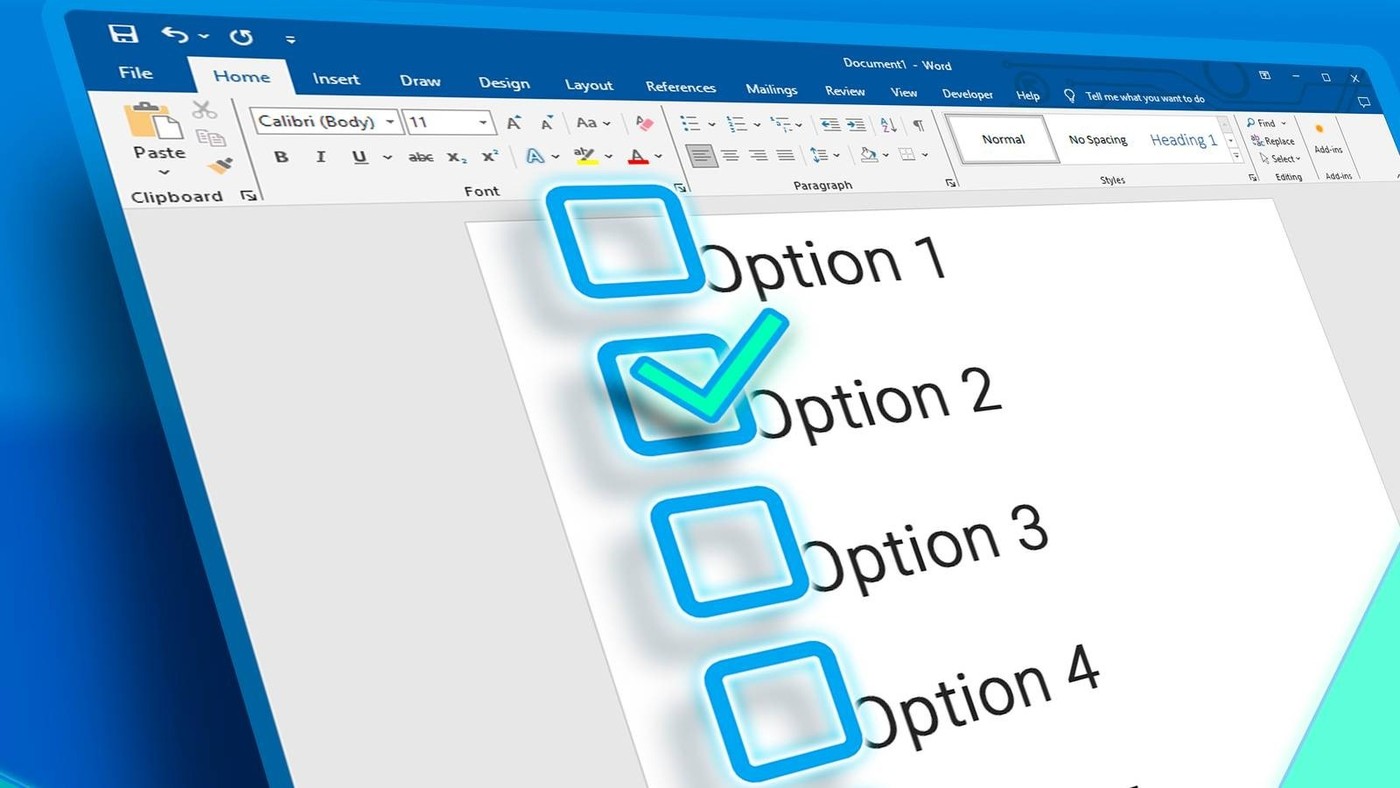
Enable content controls for an interactive document
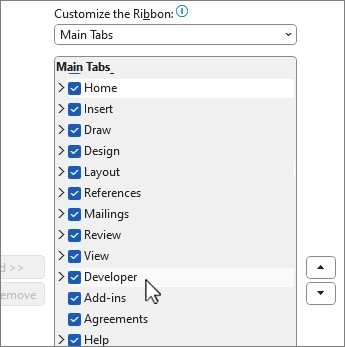
The article's digital method begins by enabling the Developer tab through File, Options and Customize Ribbon. Select Developer among the main tabs and confirm the change. Place the cursor where the first answer or task needs a box, then choose Check Box Content Control. Repeat for the remaining entries. These controls can change state inside Word, making them suitable for a document that recipients will complete electronically. Test them in the intended editing environment before sharing the form so the visual appearance is backed by the required interaction.
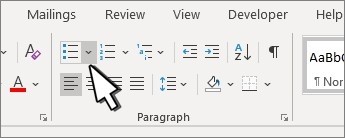
Use a bullet symbol for a paper checklist
For a document intended for printing, open the bullet-list menu on the Home tab and choose Define New Bullet. Select Symbol and locate an appropriate empty square in a symbol font. The source demonstrates Wingdings 2, but the essential choice is a clearly recognizable box that prints well with the document's text. Confirm the selection and type the list as usual. This approach keeps the layout simple when a pen will provide the completion marks, without adding interactive form controls that the printed workflow does not require.
Check behavior rather than relying on appearance
A square bullet and a checkbox control may look similar on the page, but only the content control supports the described digital checking behavior. Choose according to the recipient's task and explain the intended method if the form could be mistaken for the other type. Inspect long answers, spacing and alignment after inserting the boxes. The source notes that recently used symbols can be selected again from the bullet menu, which can simplify consistent formatting. Reuse that visual choice where appropriate while keeping the distinction between a printable mark and an interactive answer clear.
Select the method from the recipient's task
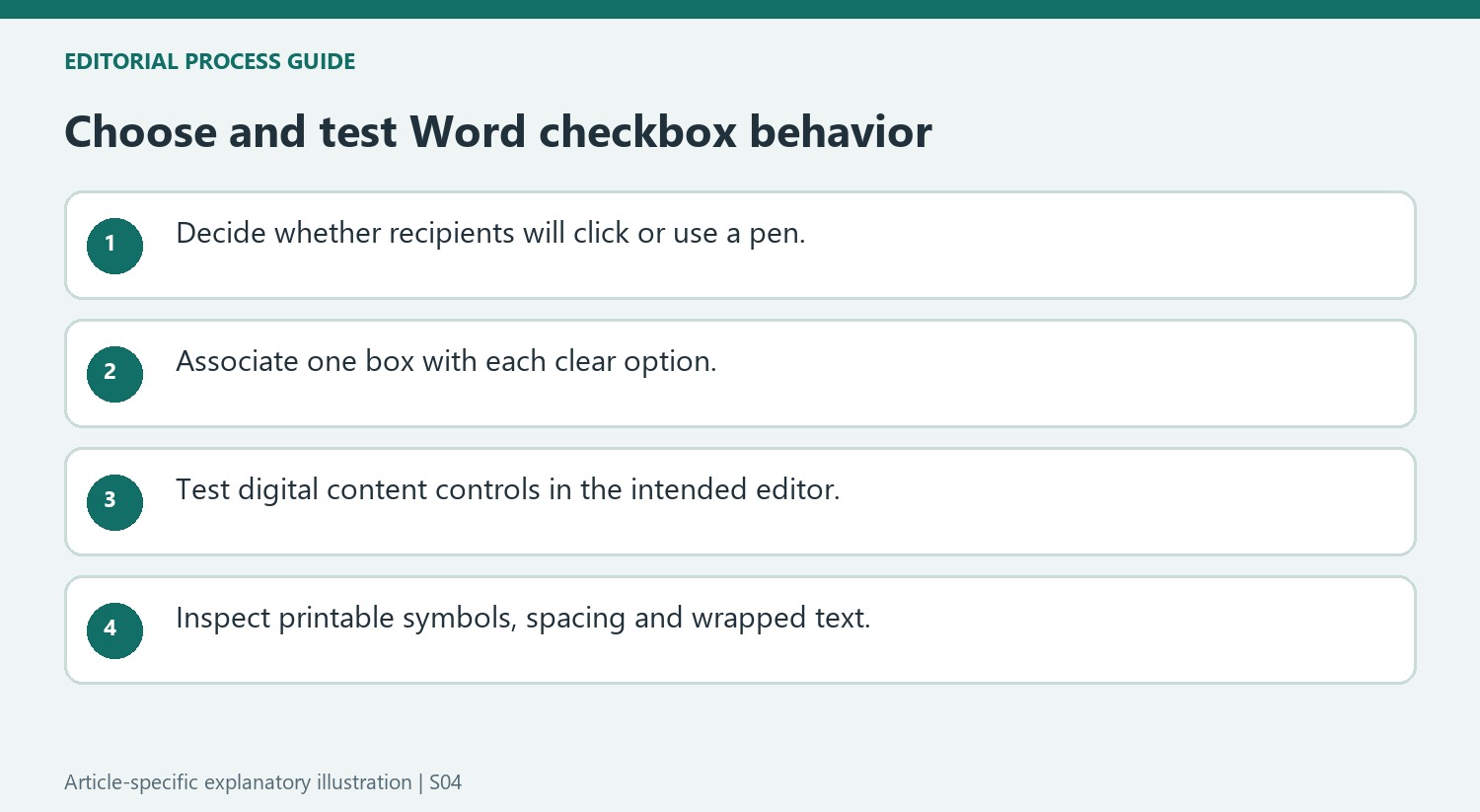
For a digital form, a checkbox content control lets the recipient change the state inside Word. For a printed survey or to-do list, an empty-square bullet supplies a visible place for a handwritten mark. Choose before formatting the whole document. The two can look similar on a page, so appearance alone does not tell a recipient whether clicking should do anything.
Write the accompanying options clearly and keep one box associated with one understandable choice or task. If a line contains several actions, a single mark may not communicate which were completed. Explain the intended convention where it could be ambiguous. In a survey, selection and completion may mean different things, and the document should not require the reader to infer that distinction from a small symbol.
Test the content control as an interaction rather than an icon
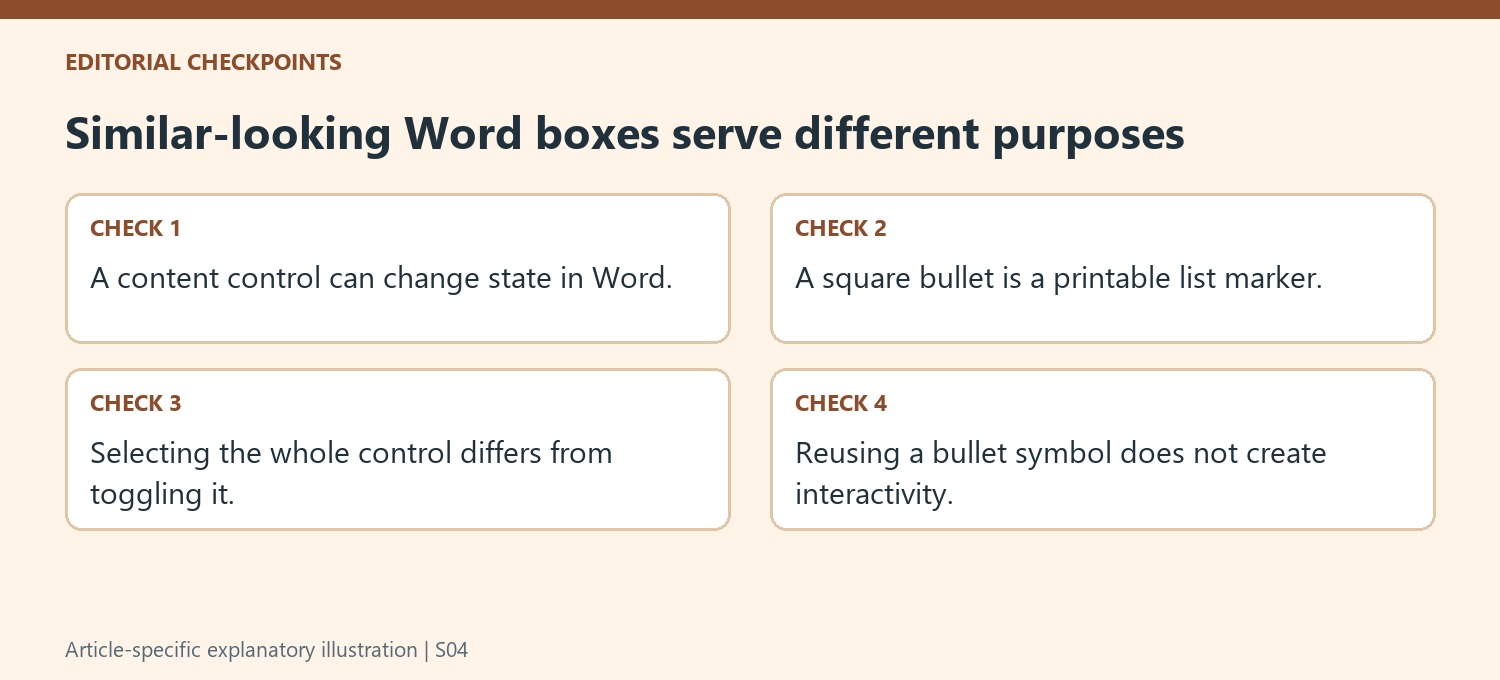
Enable Developer through the ribbon customization settings, then insert Check Box Content Control at the intended position. Test checking and unchecking it before adding the remaining controls. Selecting the entire control for movement or formatting is different from toggling its value. Keep that distinction clear during layout changes so a working box is not replaced with a character that merely resembles it.
Inspect the form with realistic text lengths and the actual editor recipients will use. Long options can wrap awkwardly or make a box appear connected to the next line. Check spacing and alignment after copying controls, and confirm that the list remains readable at normal size. A successful insertion on the author's machine is only part of preparing a usable digital form.
Build printable markers with consistent and legible symbols
Use Define New Bullet and the symbol picker for a paper checklist. The source demonstrates a square from Wingdings 2, while the important design requirement is a box that remains clear alongside the chosen text. Inspect print layout and a representative output before final distribution. Recently used bullets can help repeat the same symbol consistently, but they do not add digital functionality. Retain an editable source for later wording changes and review the complete list again after substantial revisions, ensuring that no item, marker or continuation line has become detached from its intended meaning.
References
- How to Add Check Boxes to Word Documents. How-To Geek; Martin Hendrikx; Nick Lewis.



Comments
0