 DocumentFlow Desk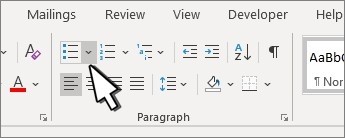
Choose a checklist method for the intended medium
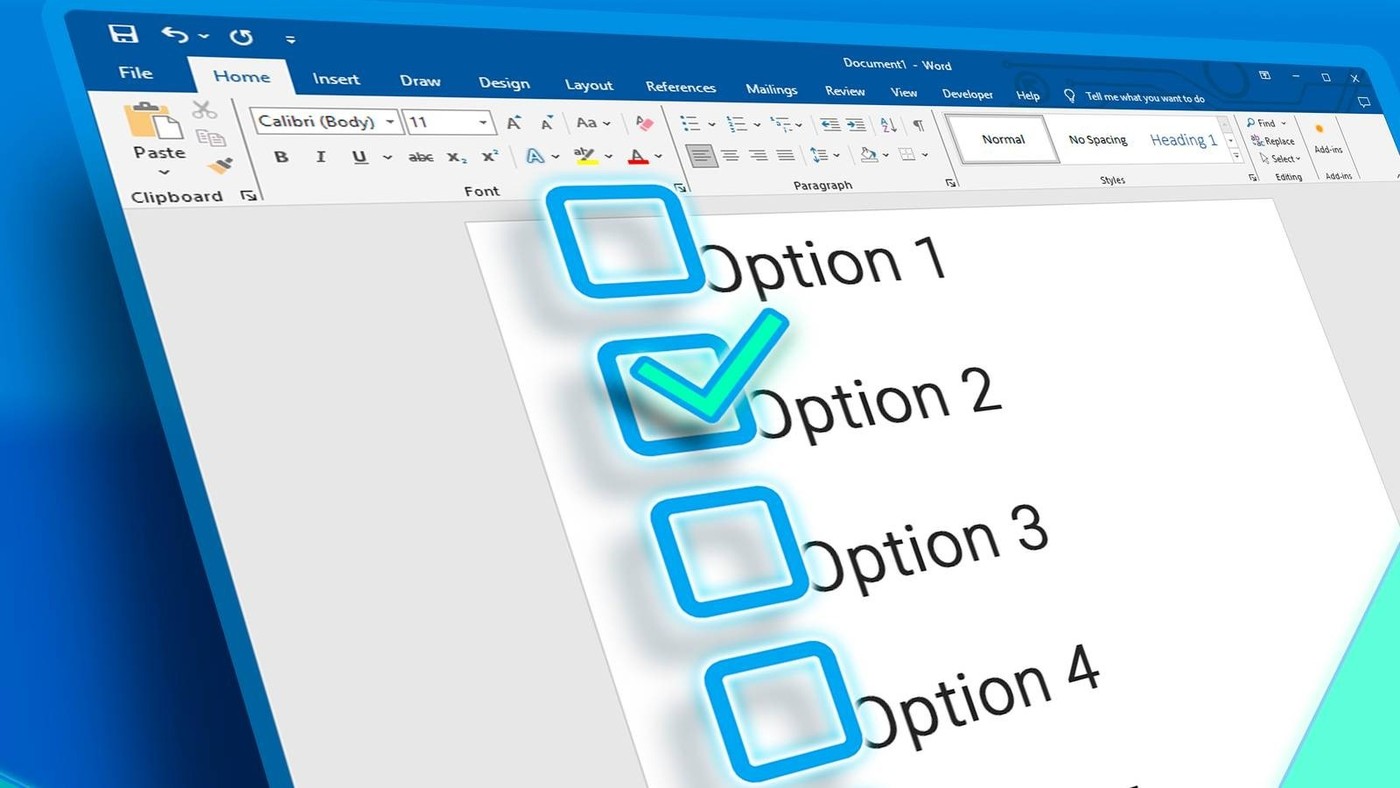
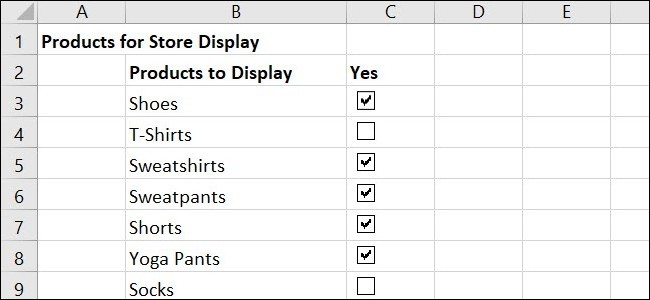
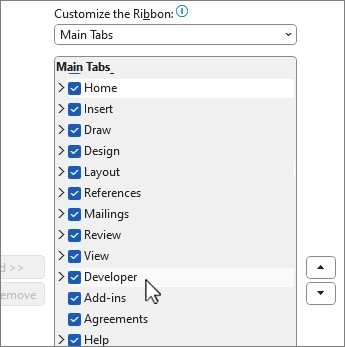
Microsoft provides separate approaches for a digital checklist and a list that will be marked on paper. In desktop Word, interactive check boxes use controls on the Developer tab. Type the list, place a check box at the start of the first item and copy the control to the remaining items. Clicking the control changes its checked state. A printed checklist instead uses an empty-square bullet symbol. That symbol creates a clear place for a handwritten mark, but it does not provide the same interactive behavior inside the document.
Align long items and preserve a usable structure
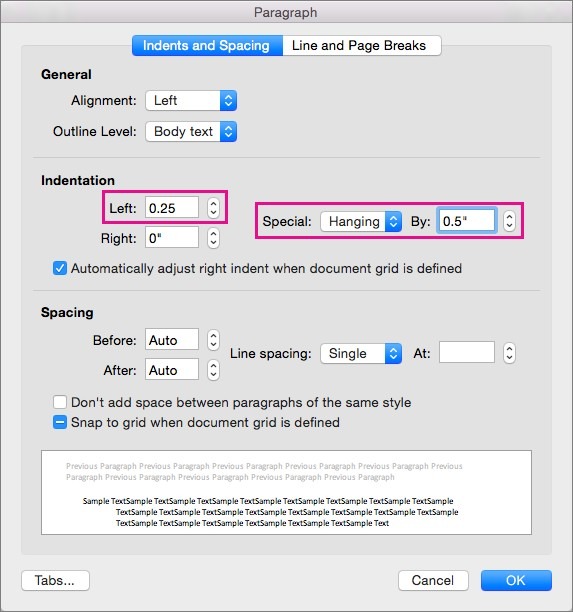
When an item wraps onto another line, hanging indentation can keep the continuation aligned with the text rather than with the check box. The source describes configuring this through the paragraph controls, with platform-specific menu wording. Adjust the indentation to suit the actual document rather than assuming one measurement fits every design. On supported desktop workflows, grouping the selected text and controls can help prevent unwanted changes to the list structure. Ungroup when revisions are required, and test that intended users can still operate the controls before distributing the document.
Use the web checklist where that interface applies
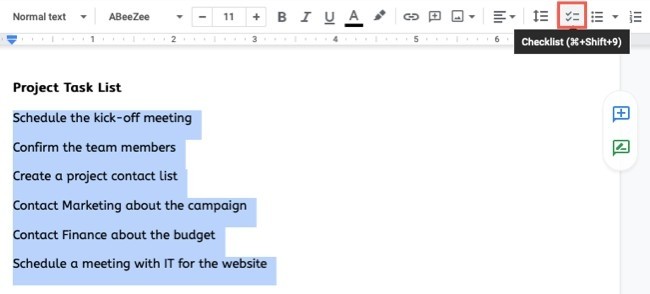
Word for the web has its own interactive checklist command in the Home tab's paragraph controls, according to the source. The documented keyboard shortcut provides another insertion method. Users can select an empty or checked box to change its state. Do not assume this interface requires the same Developer-tab procedure as desktop Word. Choose the instructions for the application people will actually use, then inspect the list with realistic items. Confirm alignment, completion behavior and any protection settings before treating the checklist as a reusable form or a dependable record of completed work.
Decide where completion will actually be recorded
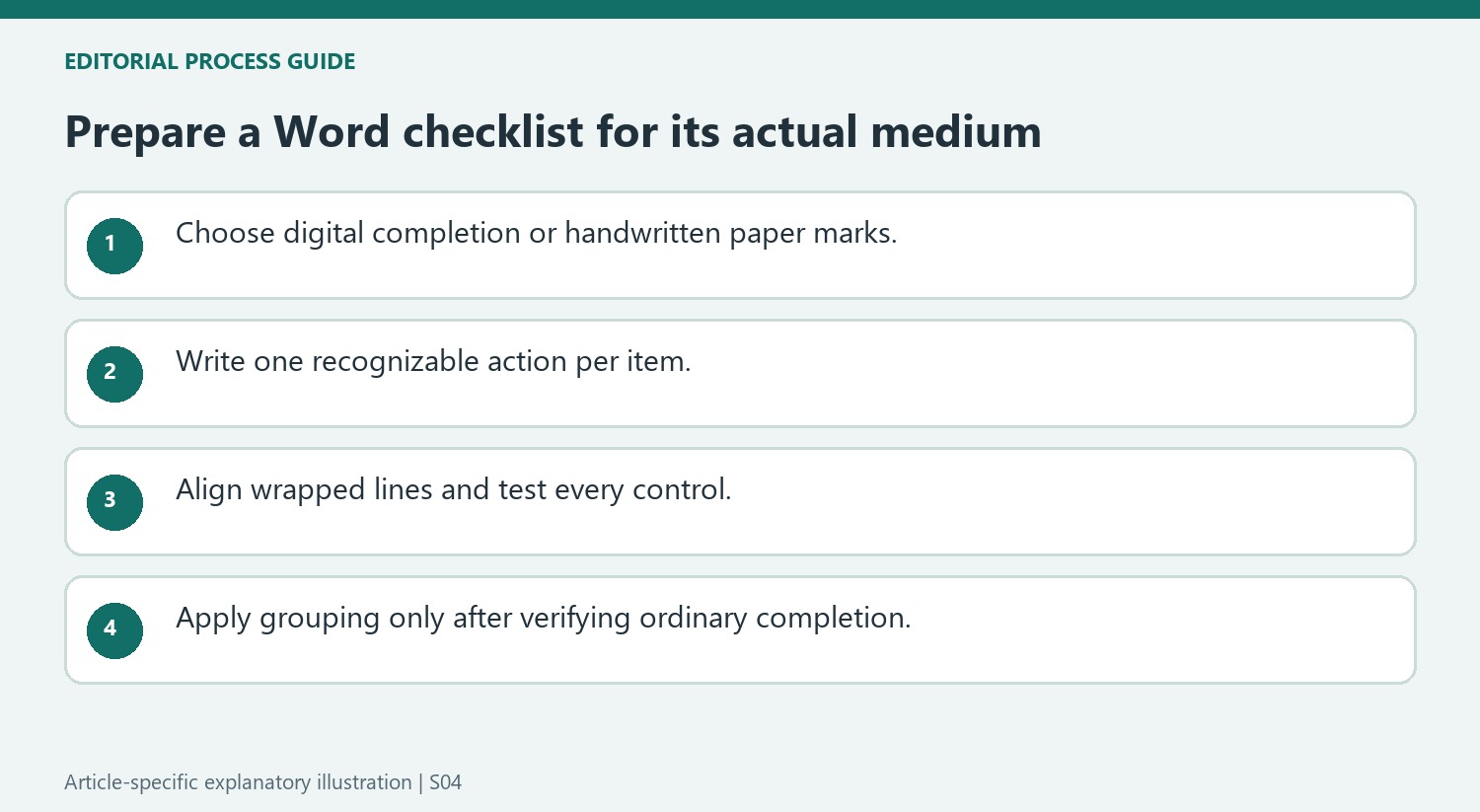
A checklist that will be printed and marked by hand needs a different construction from one completed in Word. Choose the medium before adding boxes so the visible design matches the expected interaction. A square bullet is a useful printed marker, but clicking it does not provide the behavior of a desktop checkbox content control or the web editor's dedicated checklist feature.
Write each item as an action with a recognizable end state. If one line contains several unrelated activities, one checked box can leave the reader unsure which work is finished. Separate those activities where necessary and keep explanatory text outside the task list. A clear completion convention matters as much as the control: readers should know whether a checked box means done, selected or reviewed.
Test long items and repeated controls in the intended editor
Desktop controls are inserted through the Developer tab, while the source describes a separate Home-tab checklist command for Word for the web. Use the instructions that match the application people will use. After inserting the first control, copy it with the appropriate spacing to the remaining items, then check that every box is beside the intended text and can change state independently.
Hanging indentation keeps continuation lines aligned with the task text rather than the box. Test it using an actual long item instead of only a short sample. Adjust the paragraph settings until the line wraps cleanly, with enough space to distinguish the control from the wording. A measurement from a tutorial is a starting example; the document's font, page width and intended reading size determine whether the result is suitable.
Protect the structure only after confirming ordinary completion
The source describes grouping selected text and controls to help prevent unwanted structural edits. Apply it deliberately and test the completed user experience, including checking and unchecking boxes. Keep a maintenance route for revisions by ungrouping where appropriate. Before distributing the checklist, inspect the printable result or reopen the digital copy in the intended environment. Remove sample tasks and unintended checked states. The final document should make the list easy to complete without implying that a decorative symbol or a protected layout provides evidence that the underlying work was actually performed.
References
- Make a checklist in Word. support.microsoft.com.



Comments
0