 DocumentFlow Desk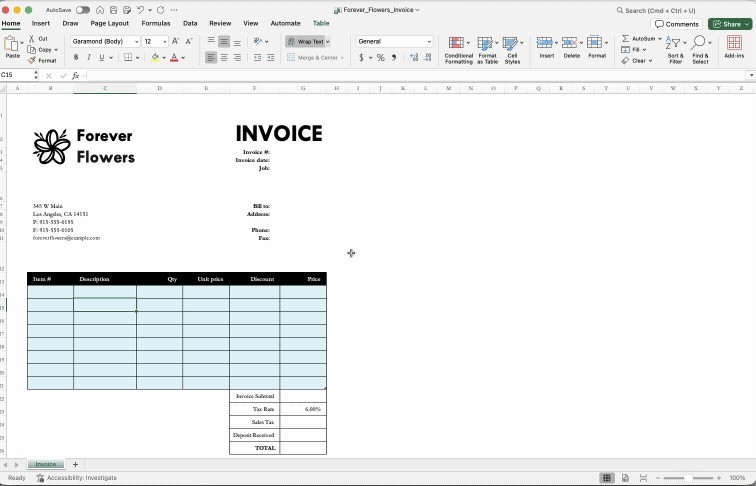
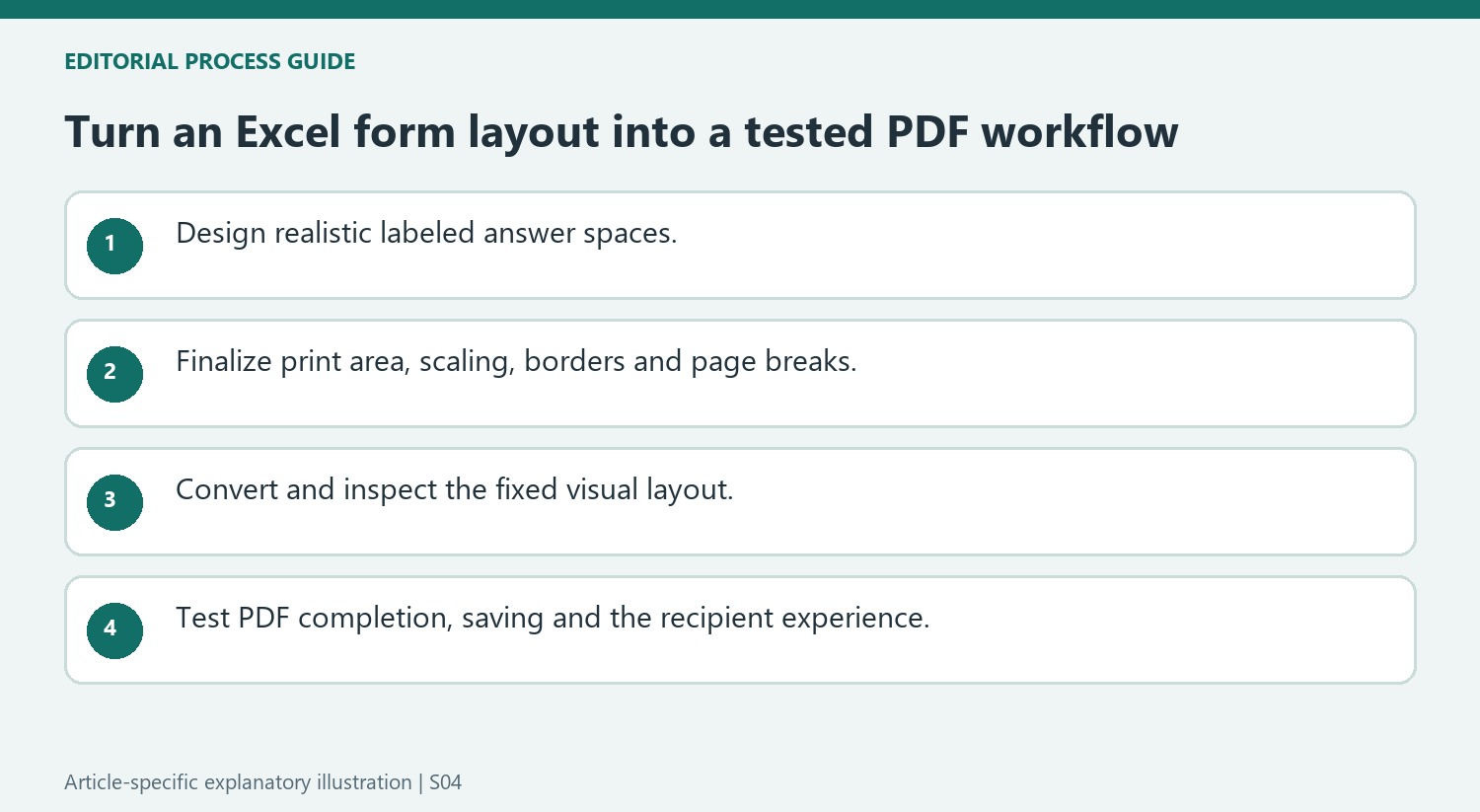
Design clear answer spaces in the worksheet
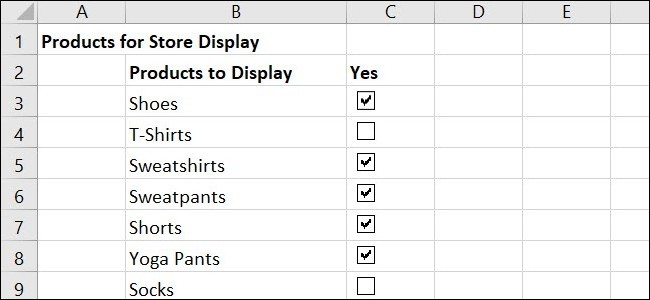
Smallpdf recommends using Excel's rows, columns, labels and borders to create an orderly form. Decide which information is required and leave realistic space for each answer. Longer responses and addresses need more room than short dates or names. Use headings and restrained formatting to separate sections without making the form harder to read. Excel checkboxes can support the spreadsheet version, but their presence does not mean they will remain interactive after conversion. Treat the worksheet as the source of the visual layout and plan separately for how recipients will complete the PDF.
Check the printable area before converting
Set the worksheet's print area and inspect print preview. Confirm that labels are visible, answer spaces are large enough and the form does not spill onto an unexpected second page. Compare portrait and landscape orientation, margins and scaling as appropriate. Excessive shrinking can technically fit the content onto one sheet while leaving it impractical to use. The source describes uploading XLS or XLSX files to the Excel-to-PDF converter. Review the converted result because preserved borders and tables do not imply that formulas remain live or that spreadsheet controls retain their original behavior.
Add PDF entries and test the actual recipient experience
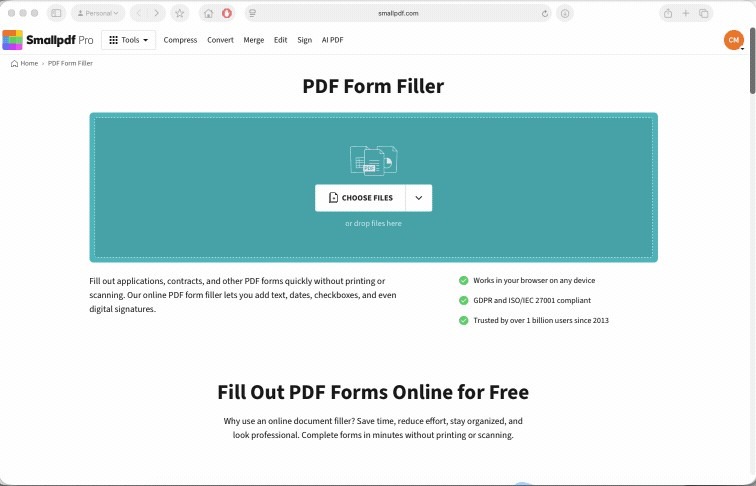
The article then uses Smallpdf's PDF Form Filler to place text, dates, checkmarks and signatures over the prepared spaces. Check the current tool's capabilities against the intended distribution workflow, especially whether recipients need reusable interactive fields or a completed copy. Open the result and enter realistic answers before sharing it. Inspect overlap, alignment, page breaks and the signature area. A successful visual conversion is only one stage: the completed document must also support the way the intended reader will provide, save and return the requested information.
Design answer spaces around realistic entries
List the information the form needs before drawing its layout. A full address, a short date and a description of an expense require different amounts of room. Use row heights, column widths and intentional borders to create suitable spaces. Keep labels close to their answers and separate sections with restrained headings so a recipient can understand the form without instructions from its author.
Distinguish worksheet gridlines from borders chosen as part of the design. The source describes controlling printed gridlines through the sheet options. Check preview rather than assuming the normal editing view predicts the final PDF. Unwanted gridlines can make a simple form look cluttered, while missing intentional borders can make the intended answer area harder to identify.
Finalize the page geometry before adding PDF-level entries
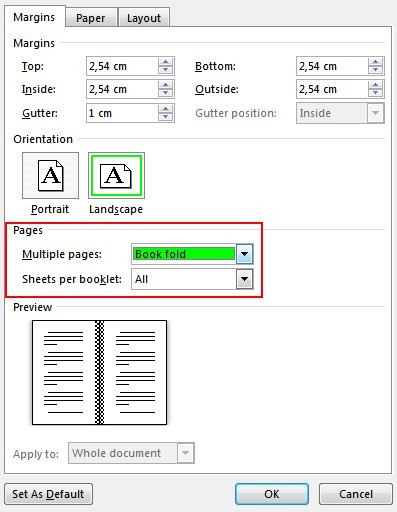
Set the print area and inspect orientation, margins, scaling and page breaks. A one-page result is not useful if the text and answer spaces have been shrunk beyond comfortable use. Test merged areas and long labels, then fix spacing problems in Excel before conversion. Moving rows or columns later can change the PDF layout and invalidate fields or text placed over an earlier version.
Treat the converted PDF as a fixed visual representation of the worksheet at that point. Existing totals can appear, but the original Excel formulas do not remain available to recalculate amounts entered later in PDF tools. If live spreadsheet calculations are necessary, keep the workbook as the working format or evaluate a separate appropriate PDF calculation workflow rather than assuming the conversion supplies one automatically.
Test whether the output is a completed copy or a reusable form
The article describes using a PDF filler to add text, dates, checkmarks and signatures over prepared spaces. Verify whether the current tool produces the reusable interaction the recipients need or only lets an operator complete a copy. Those are different distribution workflows. Enter realistic answers, save and reopen the result, and inspect alignment and signature placement. A drawn or inserted signature appearance alone should not be confused with cryptographic verification. Retain the final Excel source so future layout corrections can be made deliberately before rebuilding the PDF-stage completion elements.
References
- How to Create a Fillable PDF from Excel | Smallpdf. Smallpdf; Stéphane Turquay.




Comments
0