 DocumentFlow Desk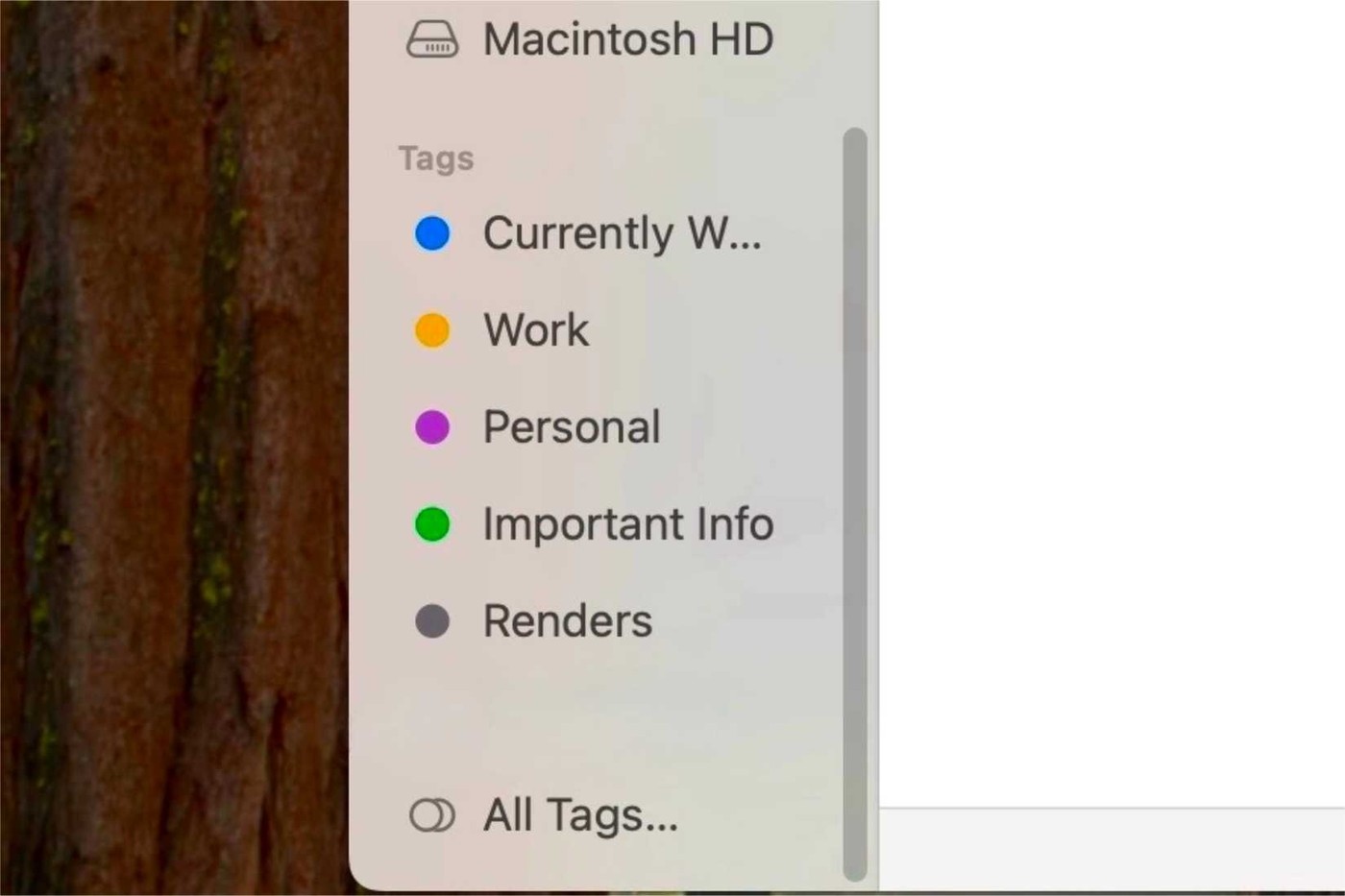
Establish predictable locations and meaningful names
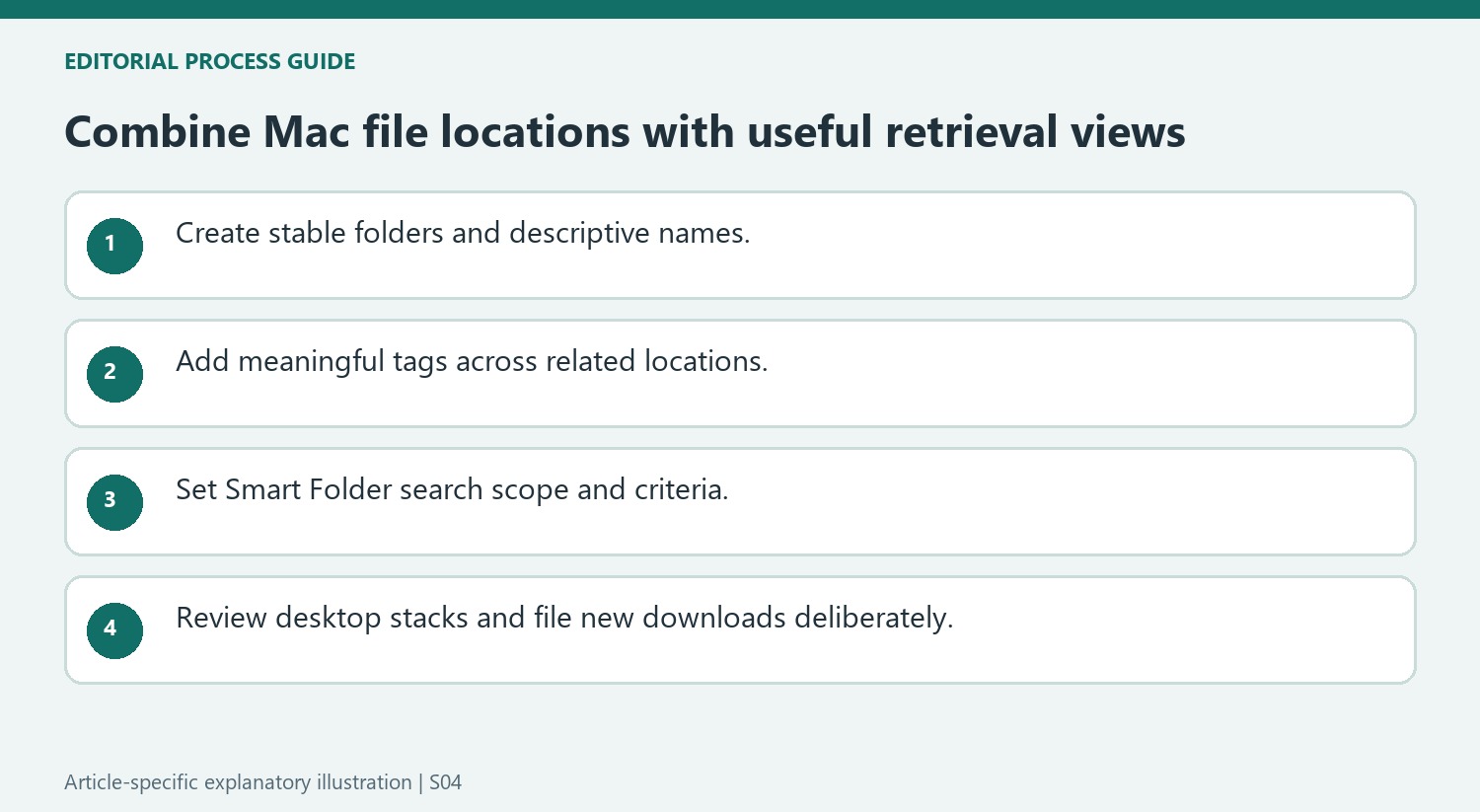
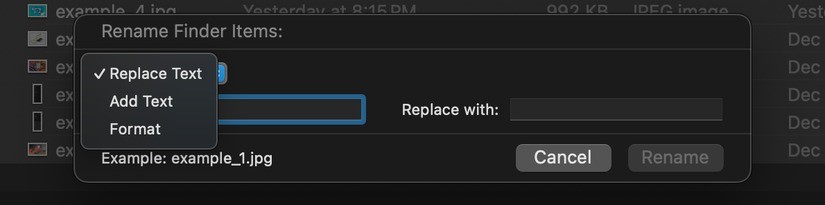
The article recommends a consistent folder structure instead of leaving related files scattered across the Mac. Begin with a recognizable main location, then create categories and project or subject folders that reflect how the material will be used. Rename ambiguous downloads so their purpose is visible in Finder. Batch renaming can apply a shared label or sequence to related files, but individual names may still be needed for documents with distinct meanings. Use enough structure to make the destination clear without making routine filing depend on an unnecessarily deep hierarchy.
Use tags and Smart Folders as alternate views
Finder tags can connect related files across several locations. Apply a meaningful tag through the context menu and use the sidebar to retrieve associated items. Names can make tags easier to interpret than color alone. Smart Folders provide another route by saving search criteria such as file kind, date or keywords. They display matching results as the collection changes; they are search views, rather than a command that physically relocates every matching file. Keep that distinction clear when combining them with an existing folder structure so a useful view is not mistaken for a separate stored copy.
Reduce desktop clutter without losing the underlying organization
Desktop Stacks can group visible files by criteria such as type, date or tags, making a crowded desktop easier to scan. The source describes enabling the feature from the desktop context controls. Grouping the display does not replace naming, filing or reviewing the contents. Continue moving completed material into the appropriate folders and use the search or tag views for cross-cutting access. A practical Mac organization system combines a stable home for each file with convenient ways to retrieve it, rather than relying on one feature to solve every navigation problem.
Give each file a stable home and an interpretable name
Start with a broad location and categories that match the work, then add subfolders only when they help distinguish meaningful groups. Rename ambiguous downloads before they become difficult to identify. A useful name explains the file's purpose without requiring the reader to remember the browser session or message that originally supplied it. Related photos may suit a shared sequence, while different documents often need individual descriptions.
Finder's batch rename can add, replace or format common text, but choose a transformation that preserves useful distinctions. Replacing every document title with one generic label can make a tidy list less informative. Review the selection and proposed names before applying a shared pattern. A good organization system combines consistent structure with enough specific information to recognize the item being sought.
Treat tags and Smart Folders as retrieval layers
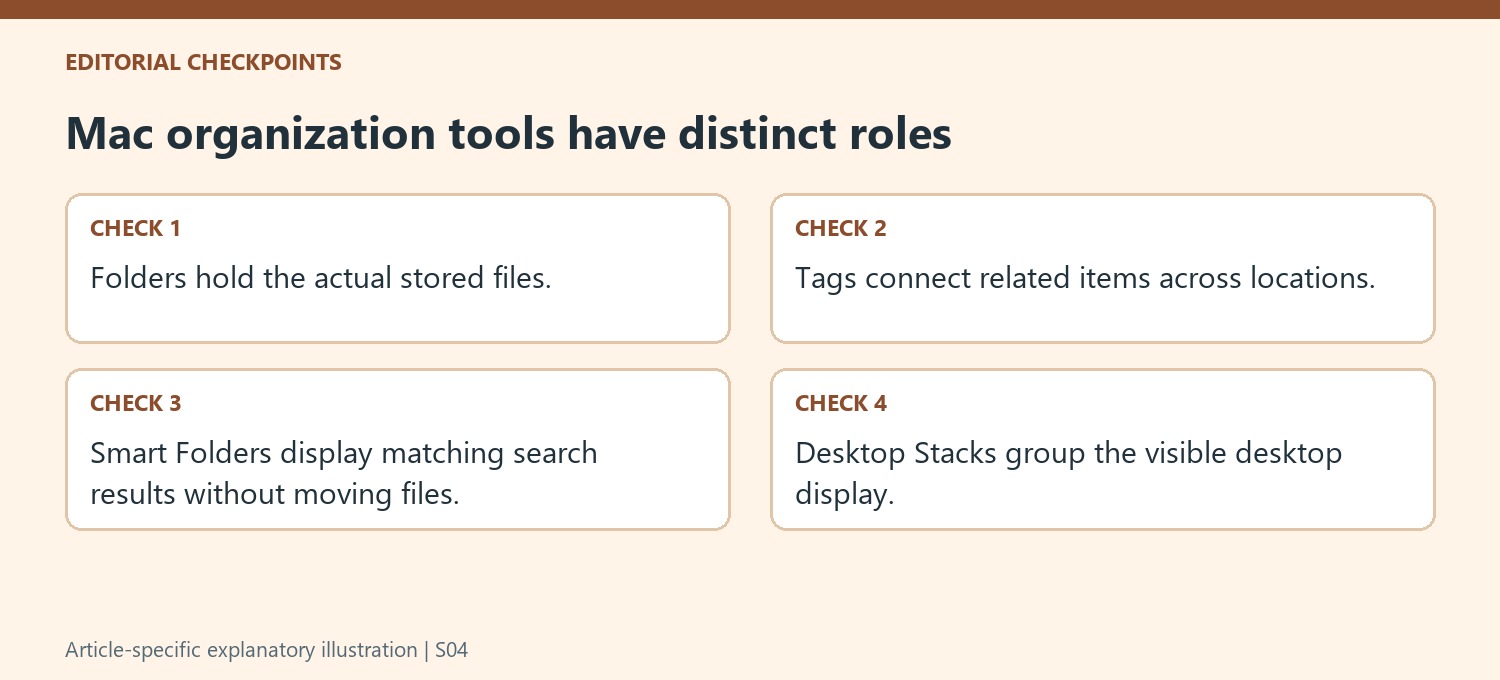
Apply named Finder tags to connect related material that belongs in several storage locations. A tag such as a current learning topic can provide a useful cross-cutting view without requiring duplicate files in another folder. Use color as an additional cue rather than the only explanation. Review the meaning of tags as the collection grows so similar labels do not fragment one intended category.
A Smart Folder saves search criteria and displays matching items as they change. It does not physically move the source files into a new storage folder, despite the source article's misleading description of that behavior. Inspect the search scope and criteria when results seem incomplete. Changing the view or its rules should not be confused with relocating the underlying documents or making a separate archived copy.
Use desktop grouping and download review as ongoing habits
Desktop Stacks can group visible items by kind, date or tags and make a crowded desktop easier to scan. Open the stack to inspect its contents and choose a grouping that helps the task. Continue filing finished material appropriately; a grouped display is not a replacement for meaningful names and locations. Review Downloads as incoming work, renaming and moving relevant items to their established homes. If automation is introduced, define its criteria carefully and test a small sample so an efficient-looking rule does not scatter important files into unintended destinations.
References
- 6 Tips for Organizing the Files on Your Mac. How-To Geek; Nate Pangaro.





Comments
0