 DocumentFlow Desk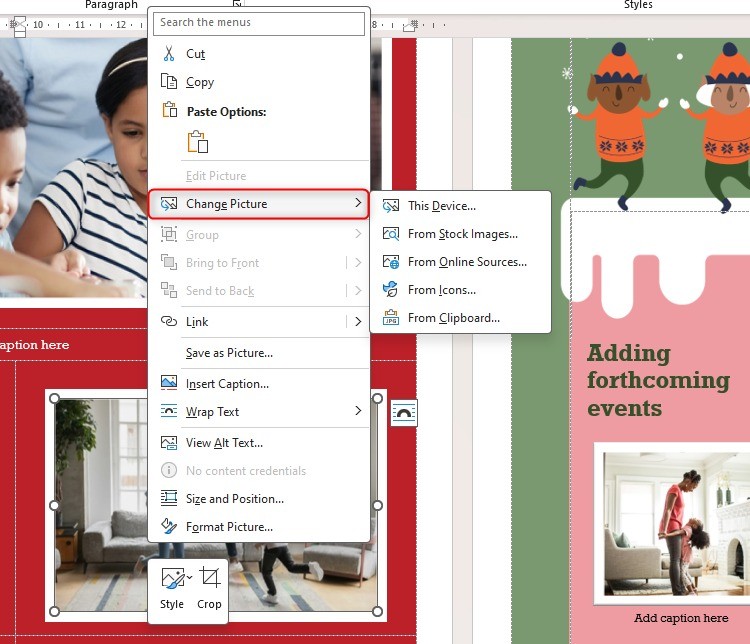
Reveal the layout before replacing an image
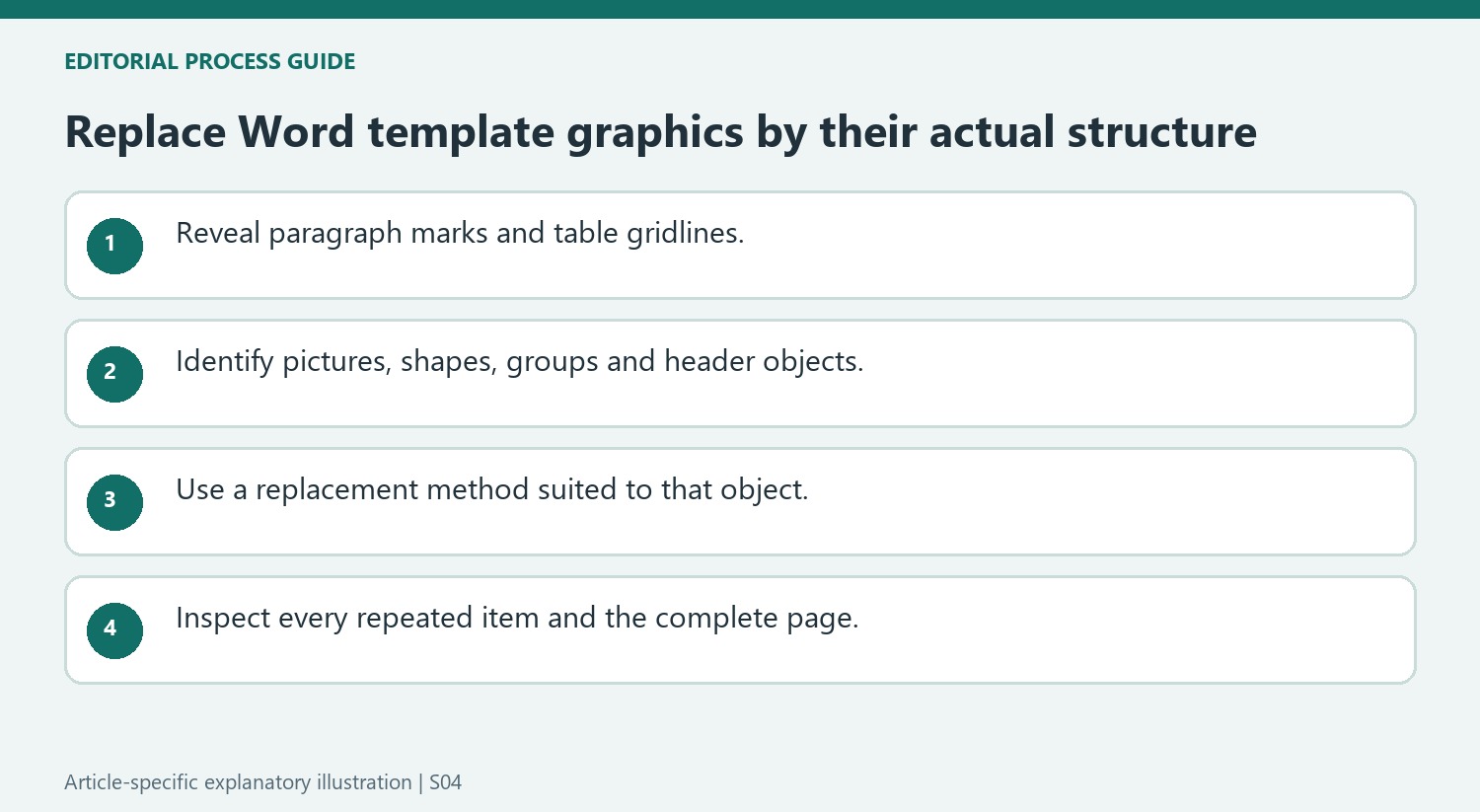
The source distinguishes a single document design from a sheet containing repeated items such as business cards. Show nonprinting characters from the Home tab and display table gridlines to see how the template is arranged. These aids do not print, but they reveal cells and positioning that borderless designs can hide. Identifying the structure first helps explain why selecting an apparent picture sometimes activates a shape, a table or nothing at all. Avoid dismantling the layout before establishing where the graphic actually lives and how it is positioned.
Use the replacement method that preserves the design
For a picture inside a table cell, the Change Picture command can retain existing positioning and formatting more effectively than deleting the object and inserting another from scratch. A background made from grouped shapes needs a different approach. Select the group deliberately, and inspect the relevant formatting tab to understand the object type. When adding a replacement behind a table, the source uses the Behind Text wrapping setting. Check the resulting crop, proportions and position because retaining the frame does not guarantee that every replacement image looks suitable in it.
Inspect headers and repeated items separately
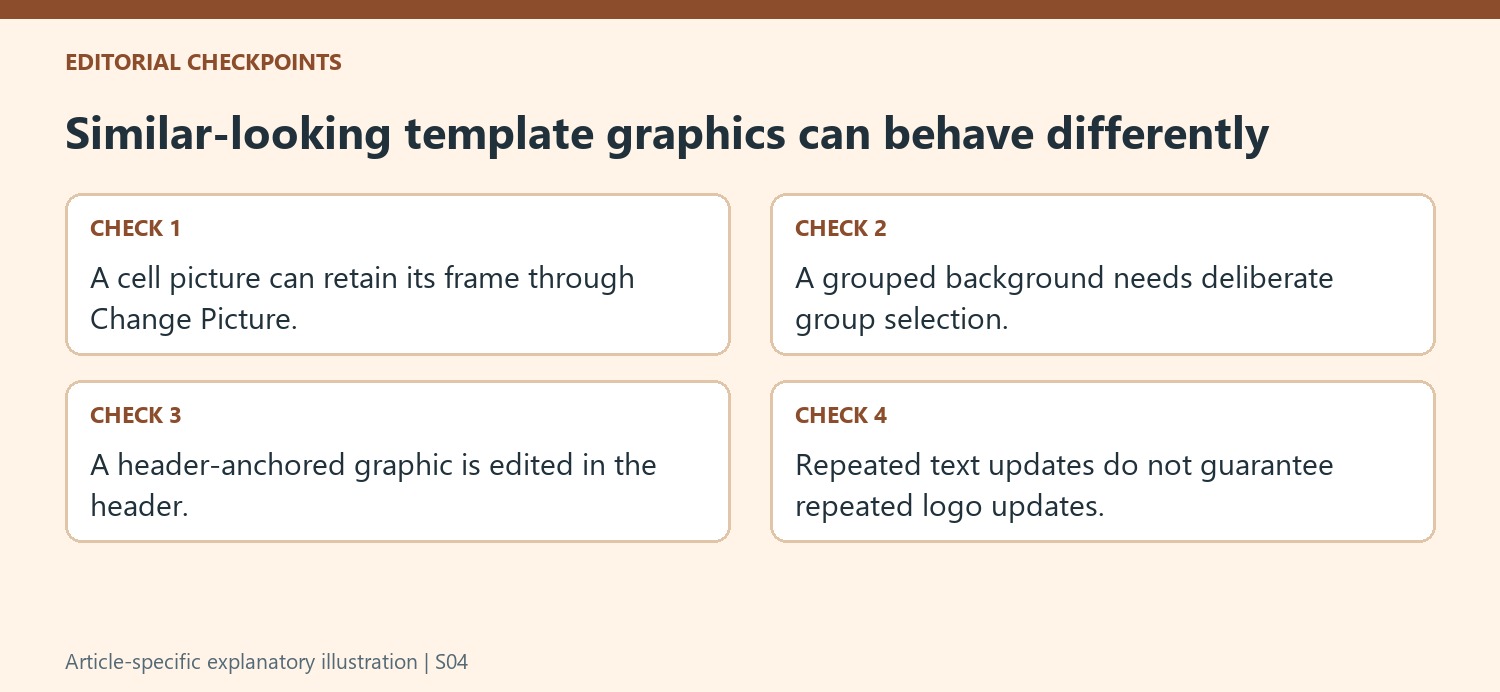
Some graphics are anchored in the header or footer even though they appear across the main page. Double-click the header area to activate those objects, then close header editing when finished. In repeated business-card templates, changing text may update corresponding fields while a replacement logo still needs to be copied into the other cells. Background shapes can also be grouped across the sheet. Review every repeated item after editing so the final document does not contain a mixture of new text, old logos and partially updated decorative elements.
Use layout clues to diagnose the object before changing it
Show paragraph marks and table gridlines so the template's hidden structure becomes visible. A borderless table can control placement even when the page looks like a freeform design. Click the apparent graphic and observe the contextual ribbon: Picture Format, Shape Format or Graphics Format can reveal what was selected. This is more reliable than treating every visible decorative element as a conventional inserted photo.
For a group of shapes, distinguish selecting the whole design from selecting one component. A second click can isolate an individual shape, while moving the wrong selection can separate a coordinated background. Work on a copy when exploring an unfamiliar layout and inspect the surrounding text after each structural change. The goal is to replace the intended element without accidentally rebuilding the document's arrangement.
Retain a useful frame while checking the new image itself
For pictures inside table cells, Change Picture can preserve positioning and formatting that would otherwise need to be recreated. Inspect the replacement after insertion, however: a different aspect ratio may produce a different crop or composition. A correctly retained frame is not evidence that a face, logo or important label remains fully visible. Check proportions, borders and alignment at the final reading size.
A background behind a table follows a different route. The source describes replacing the selected background and applying Behind Text wrapping before repositioning it. Verify that the object remains behind the intended content and does not cover text. If the graphic cannot be activated in the main body, inspect the header or footer instead of repeatedly clicking and disturbing nearby table cells.
Audit repeated designs rather than trusting partial automation
A sheet of business cards can repeat text through linked fields while leaving picture placeholders unchanged. Review every card after inserting the new logo, and copy the correct image into the remaining locations where necessary. Background decorations may be grouped and anchored in the header even when they appear across the page. Finish header editing deliberately, then inspect the full sheet. A template is ready only when text, logos and decorative elements are consistently updated across every repeated item, with no old sample content remaining in a less visible cell.
References
- How to Change Pictures in a Microsoft Word Template. How-To Geek; Tony Phillips.





Comments
0