 DocumentFlow Desk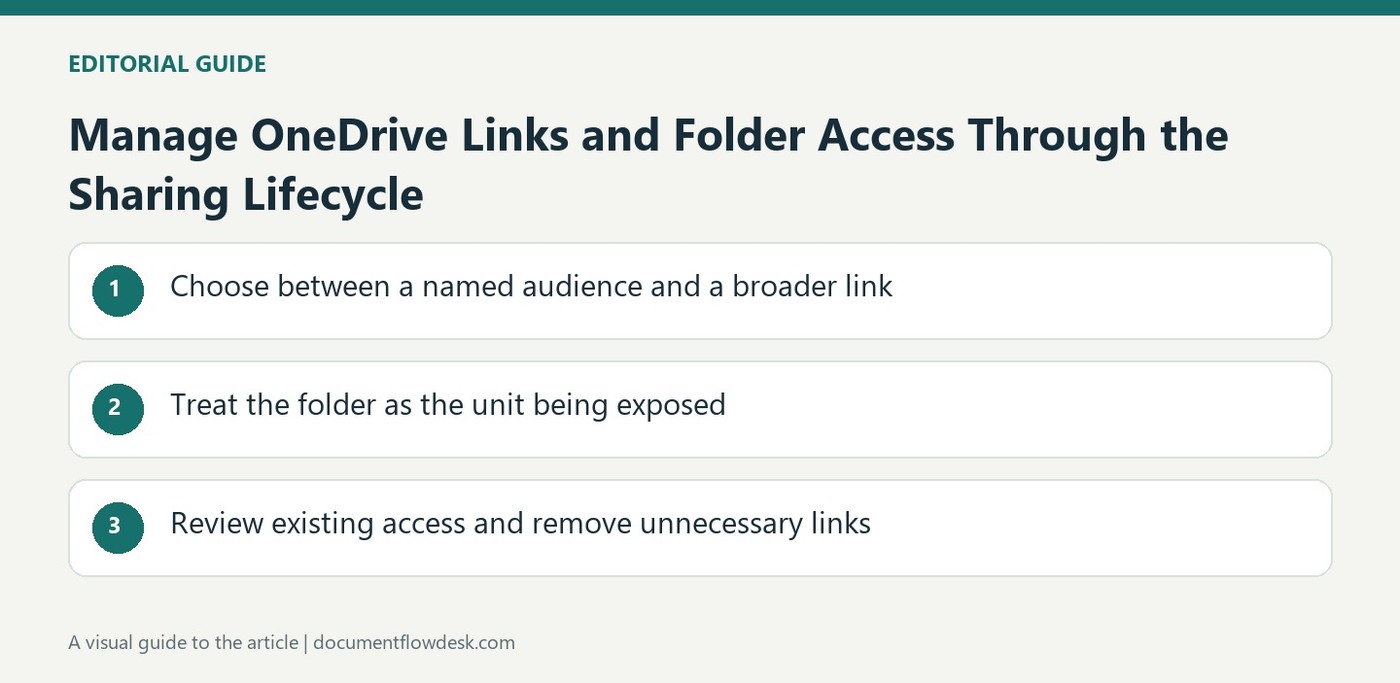
Choose between a named audience and a broader link
Microsoft describes sharing through a link or with specific people. Review the selected permission so the audience can view or edit only as intended. A broad link can be used by people who receive it beyond the original distribution, whereas named access ties the share more closely to selected recipients. Inspect the actual link settings available in the account. Copying a URL and granting access are related but distinct steps, so confirm both before telling someone that the file is ready for them to use.
Treat the folder as the unit being exposed
The source warns that sharing a folder with editing permissions exposes its contents and allows the documented shared-folder workflow. If only certain files should be visible, place those items in a separate folder before sharing it. Check the folder contents and the role together rather than assuming the recipient will notice only the file discussed in the message. When items move or a link stops working, inspect the current location and sharing state. The source recommends generating a new link when the previous one is no longer valid in the described scenario.
Review existing access and remove unnecessary links
As owner, select the item, open its details and use Manage access to inspect the available people and links. The source describes removing a sharing link and, where available, changing its password or expiration settings. Confirm the scope before removing access so an unrelated collaborator is not affected unintentionally. Deleting one link does not necessarily establish that every route to the item has been removed. Recheck the remaining direct and inherited permissions after the change. Useful sharing controls need maintenance throughout the task, especially when a folder's contents, audience or purpose changes after the original invitation.
Choose the audience before choosing a convenient link
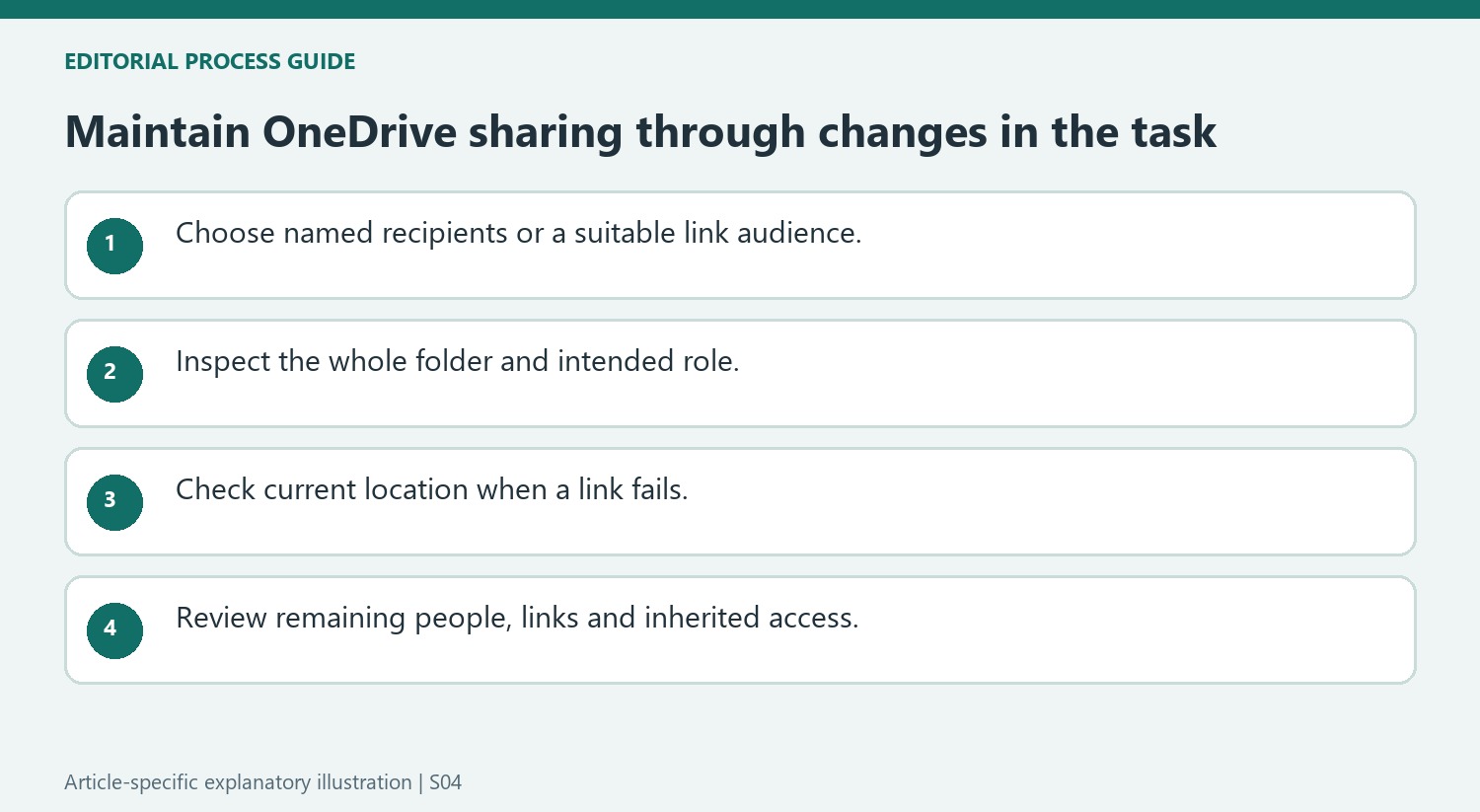
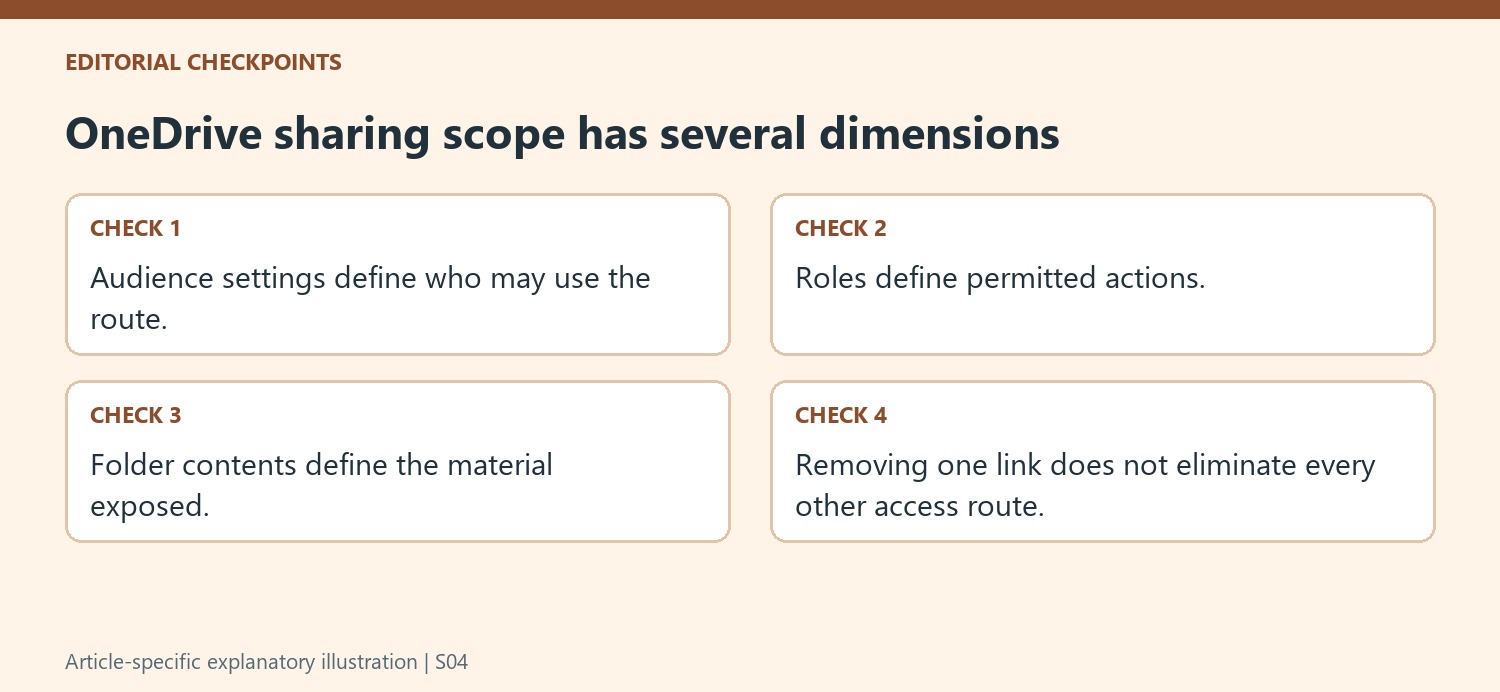
Specific-person sharing and broad link access establish different routes to the same item. Review the actual link settings in the account and choose the role that matches the recipient's task. A link can be forwarded beyond its original channel, so its distribution location alone does not define the eventual audience. Confirm that the selected access rule remains appropriate if someone else receives the URL.
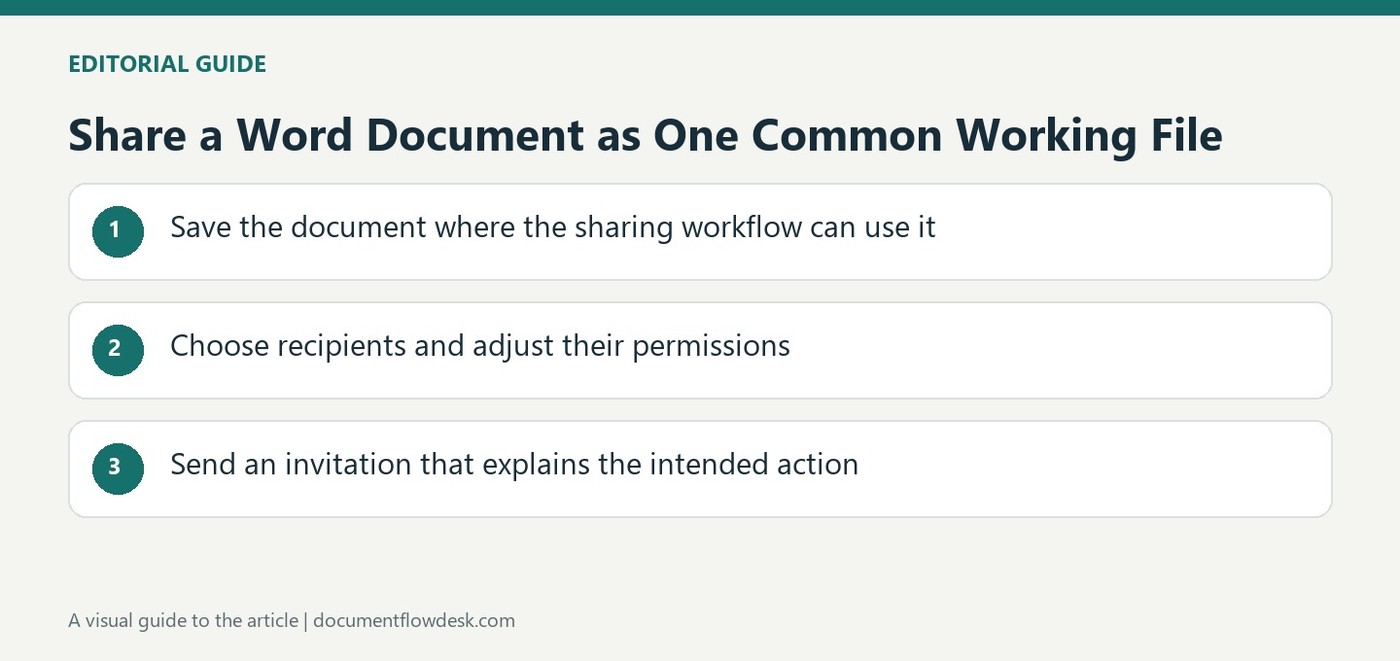
Check that the intended person can actually use the link before treating the handover as complete. Copying a URL and granting access are not always the same action. If editing is unnecessary, choose a suitable reading role rather than leaving a broader default in place. A clear invitation should explain what the recipient is expected to do with the shared material.
Review folder contents and location as part of the share
A folder share can expose its complete contents, including more than the particular document mentioned in a message. Inspect the material and use a separate folder when only a subset belongs with the recipient. Consider the implications of editing permission and the supported shared-folder behavior. A meaningful folder name does not itself limit which files an authorized person can see inside it.
When a link stops working after a move or a sharing change, inspect the item's current location and access state. The source recommends creating a new link in its described scenario, but verify the actual behavior in the present service. Avoid sending repeated URLs without checking whether the underlying problem is an invalid route, a changed audience or a recipient using the wrong account.
Inspect all remaining access when changing permissions
Use the selected item's details and Manage access controls to review available people and links. Change a particular link's password or expiration where supported, or remove that link deliberately. Confirm the selected scope so an unrelated working route is not removed by mistake. Afterward, inspect direct and inherited permissions that may still apply. Removing one link does not establish that all access has ended, and withdrawing future service access does not recall copies already downloaded. Continue that review when the folder's contents, audience or purpose changes during the project.
References
- Share files and folders in Microsoft OneDrive. support.microsoft.com.


Comments
0