 DocumentFlow Desk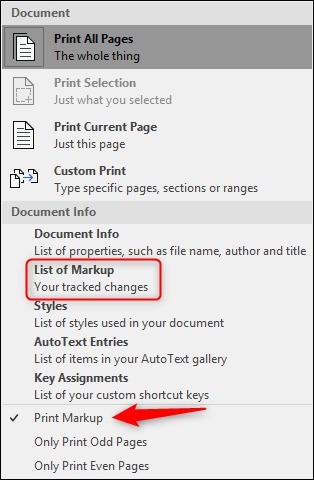
Select the comments and reviewers to include
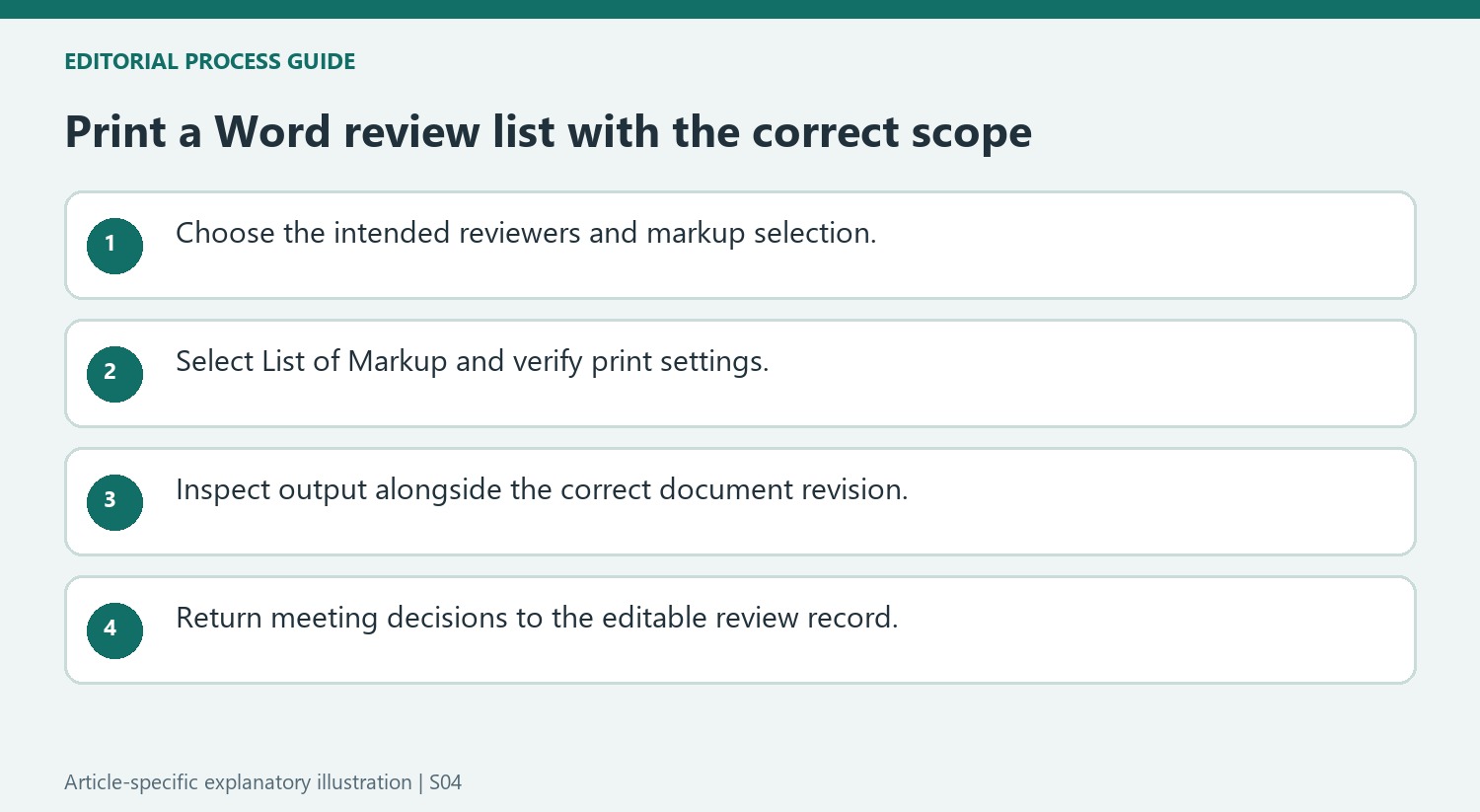
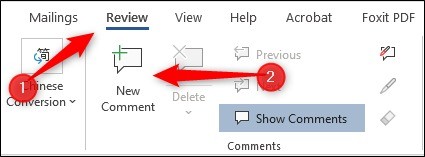
The source describes printing a separate review list for records or for a discussion alongside the document. Begin in the Review tab and inspect Show Markup. Ensure comments are included in the displayed markup selection. If the meeting concerns one reviewer's feedback, use the Specific People controls to choose that person rather than leaving every reviewer selected. Check the resulting scope before moving to the print dialog. Filtering the notes helps focus a discussion, but the printed selection should not be mistaken for the complete set of feedback retained in the file.
Choose the markup list in the print controls
Open File and Print, then inspect the print-content dropdown in Settings. In the workflow documented by the article, List of Markup appears in the document-information options. Select it and ensure that Print Markup is enabled. This differs from printing ordinary document pages with margin comments attached. Check the preview and the available controls in the installed version of Word because review interfaces and menu wording can vary. Confirm the destination printer or output device before starting the job, especially when the notes contain material intended only for a limited review group.
Use the output as a discussion aid with context
Inspect the resulting list to make sure the intended reviewers and comments appear. A separate markup list can be easier to discuss than densely annotated pages, but readers may still need the document to understand the precise passage under review. Keep the source document identifiable when using both together so notes are not discussed against a different revision. The print action does not resolve or delete the comments in Word. Record decisions through the actual review workflow afterward so the digital file reflects the outcome rather than leaving the paper discussion disconnected from the document's status.
Define which review material the printout should represent
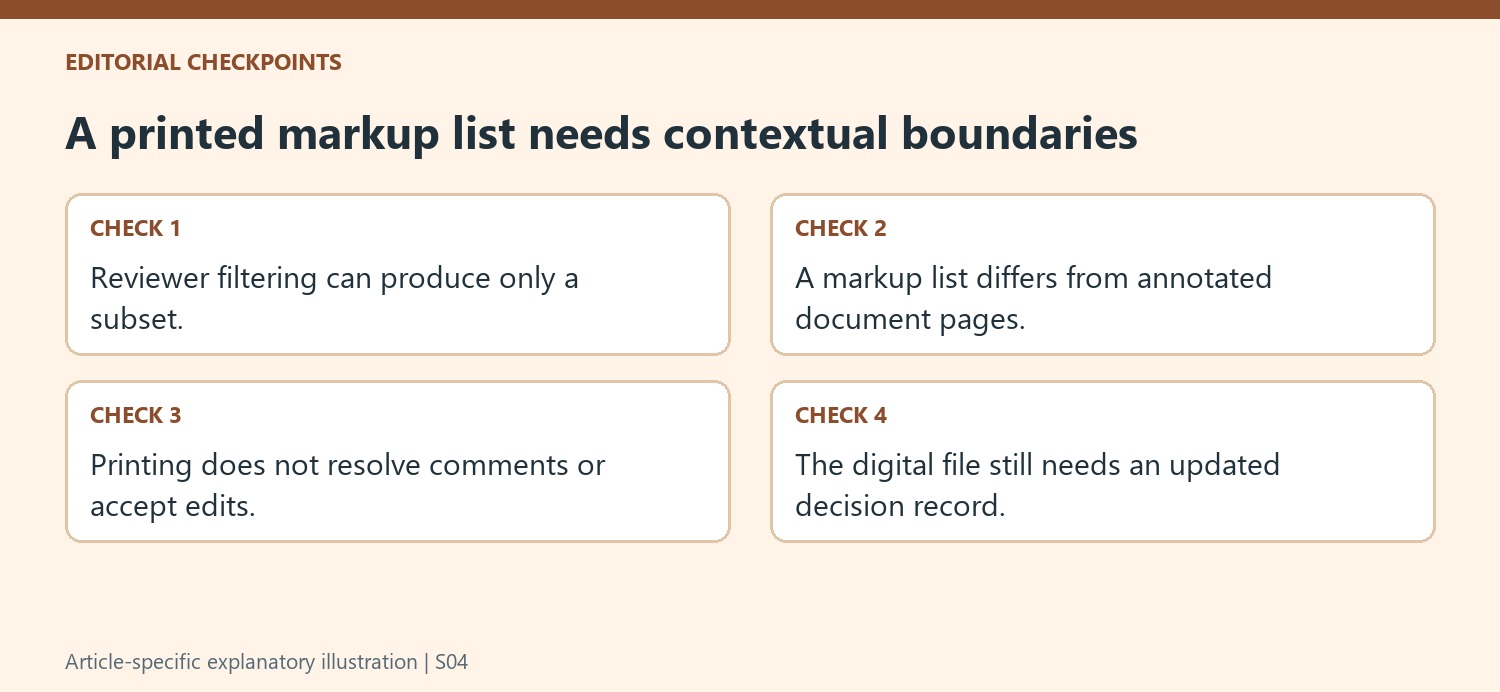
A separate list can support a meeting or a review record, but first decide whether it should include every reviewer or only a selected person. Inspect Show Markup and the Specific People selection before opening Print. A filtered output is a purposeful subset; label or explain it so readers do not mistake it for the complete feedback remaining in the source file.
Check the current document revision as well as the reviewer filter. Notes discussed beside a different version can point to changed or missing wording. Keep the source file identifiable through a clear title or other appropriate context. The printout should help people understand the review, rather than creating an additional detached record whose relationship to the working document is uncertain.
Distinguish a markup list from annotated document pages
The described print-content choice is List of Markup, with Print Markup enabled. That is different from simply printing ordinary pages with notes around them. Inspect the available menu wording and preview in the installed Word version before starting the job. The controls can vary, and a remembered command sequence is less reliable than verifying what the selected output actually contains.
A list of markup can include the material selected by the current review settings, so inspect a representative result rather than assuming the title guarantees comments alone under every configuration. Check reviewer names and intended note scope. Choose the correct printer or output device, especially when the feedback is intended for a limited review group and an unrelated shared printer would be an inappropriate destination.
Carry meeting decisions back into the editable review record
Use the printed list alongside the correct document where passage context is needed. Record what the group decided and update the relevant thread or revision through Word afterward. Printing does not resolve a comment, delete a request or accept a tracked change. If the digital file remains unchanged, later collaborators may repeat a discussion already completed on paper. A useful review printout therefore has a clear role in the process: it supports focused discussion, while the authoritative document receives the resulting decisions and an accurate account of any remaining work.
References
- How to Print Comments Only in Word. How-To Geek; Marshall Gunnell.


Comments
0