 DocumentFlow Desk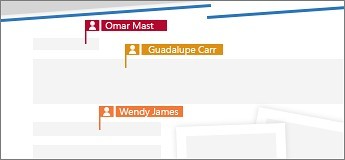
Share the document from a common location
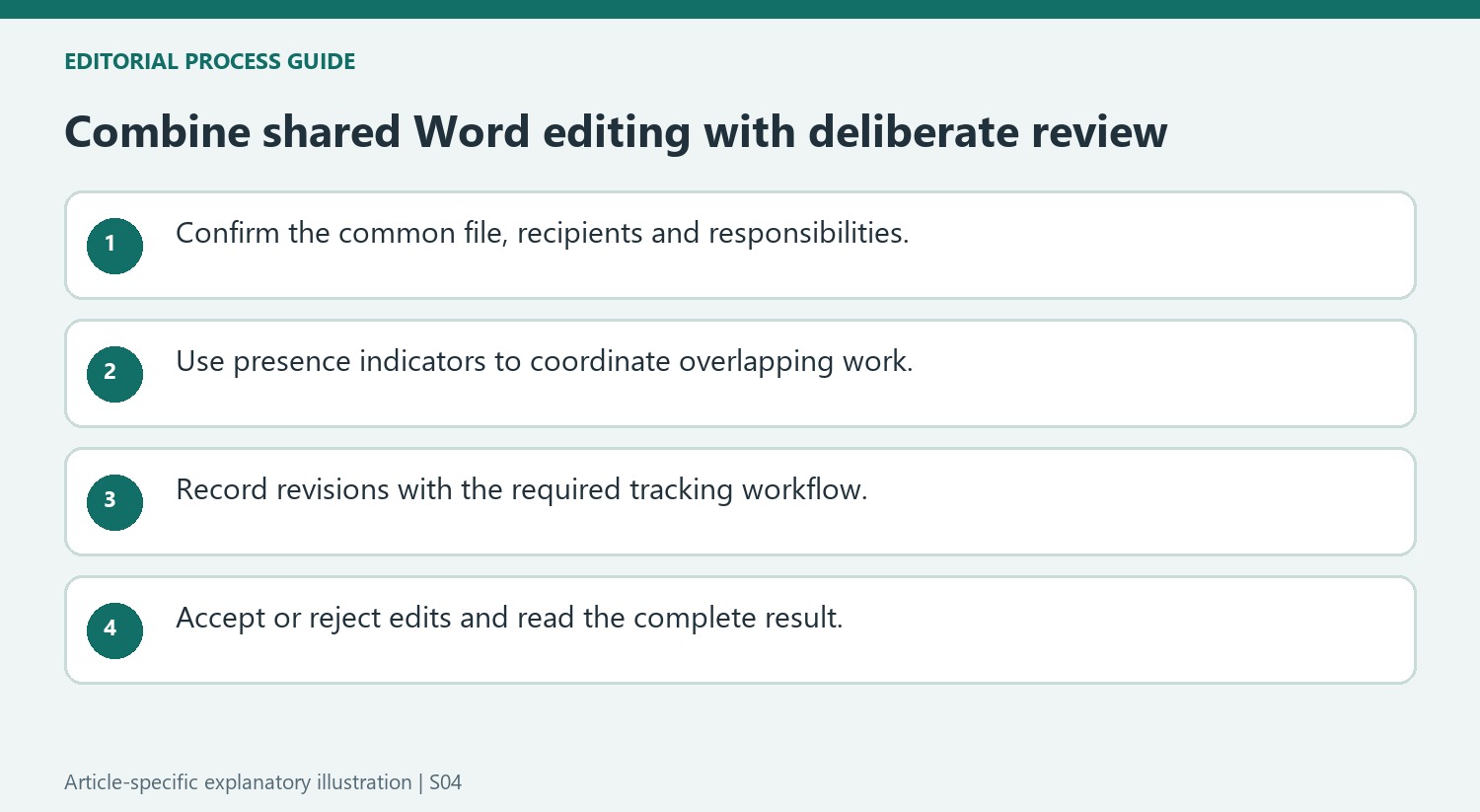
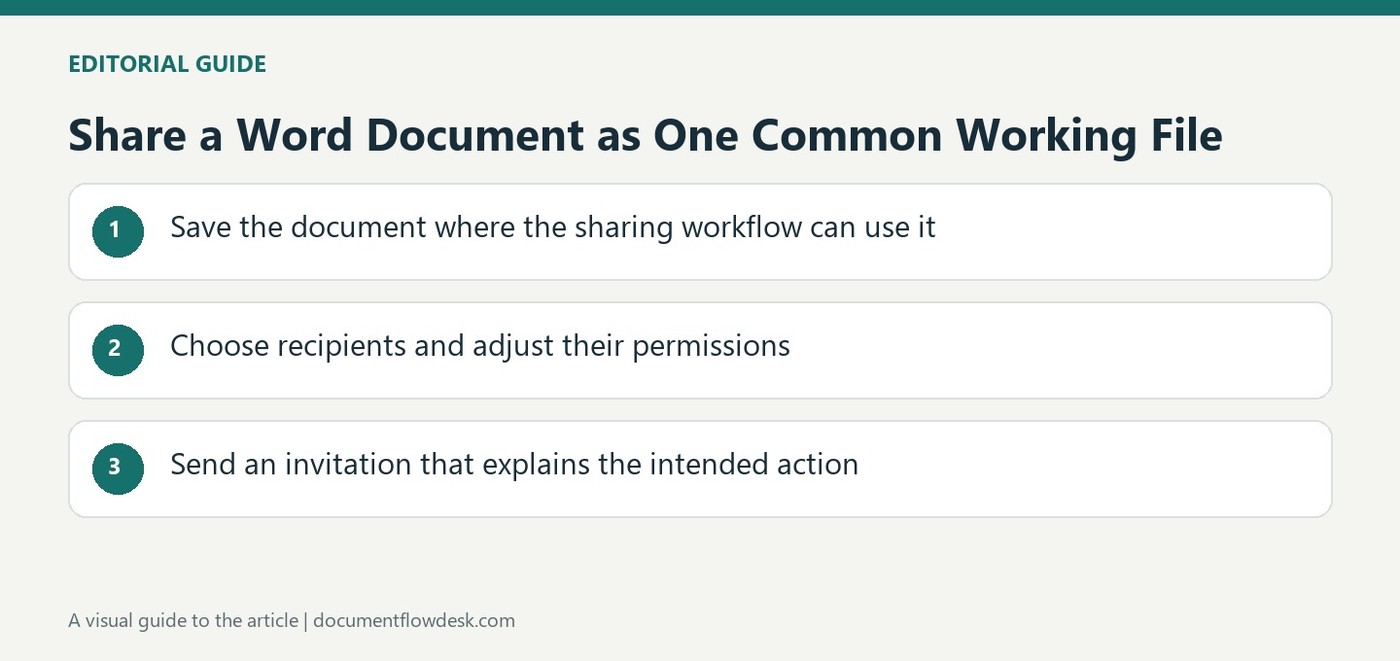
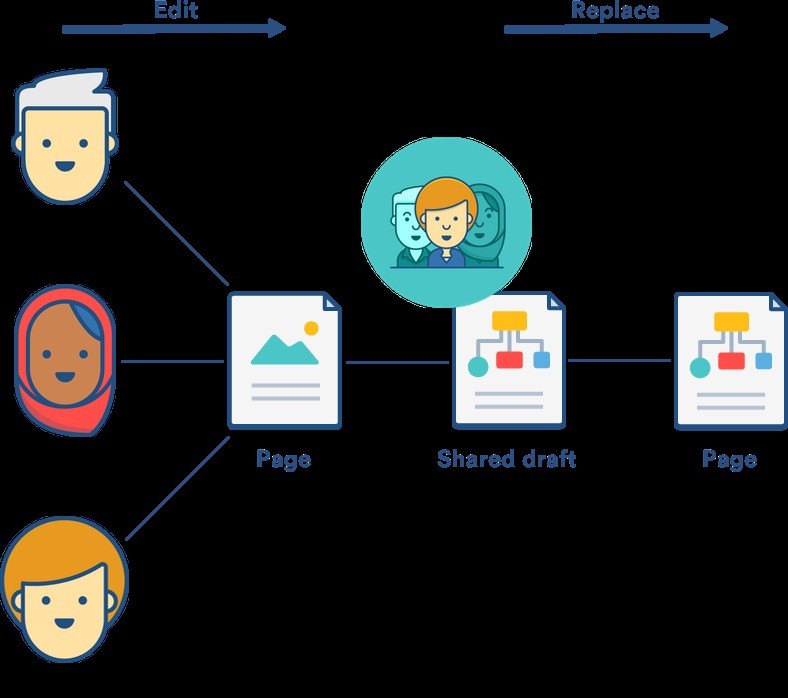
Microsoft's guidance starts with Share on the ribbon or through the File menu. A document not already saved in OneDrive prompts an upload as part of the sharing workflow. Select the intended people by name or email address and add an optional message before sending. Confirm that the shared item is the version the group should work on. This common location is what connects the contributors' changes; sending separate attachments instead produces separate documents that require another process to reconcile later.
Use presence indicators to coordinate simultaneous work
After the document is shared, collaborators can work in it at the same time. The source recommends Word for the web for the described real-time experience and explains that names and colored flags show who is editing and where. Use those indicators to avoid unintentionally competing over the same passage. They provide useful awareness, but they are not a replacement for agreeing on responsibilities when several people are revising a complex document. Check the application being used because the source notes that some capabilities differ between desktop, web and mobile environments.
Review recorded changes before treating the text as final
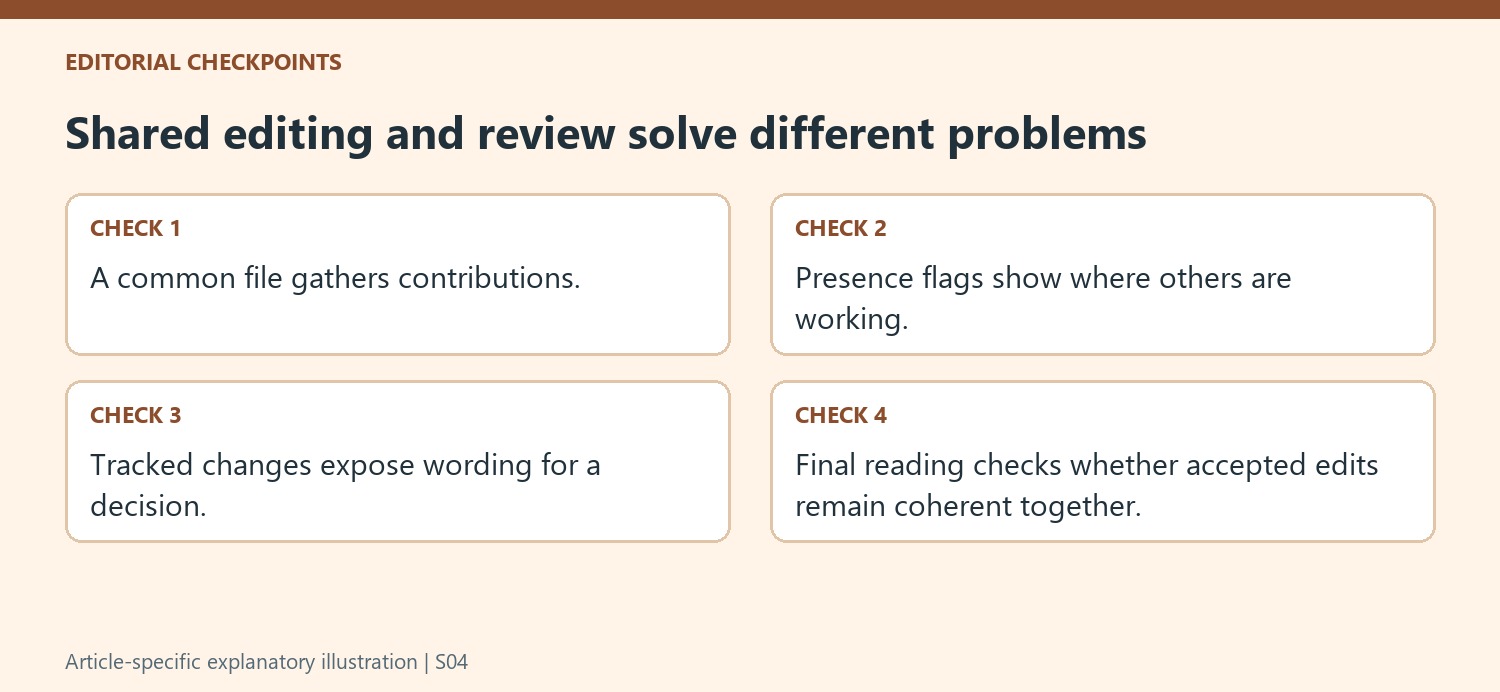
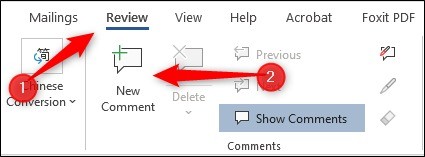
Turn on Track Changes from the Review tab when the workflow requires visible revisions. Inspect each relevant change and use Accept to keep it or Reject to remove it. Shared editing and tracked review solve different problems: one allows people to work in a common file, while the other supports decisions about the resulting revisions. Read the finished text after making those decisions so the accepted changes remain coherent together. A document can be successfully shared and actively edited while still requiring a final review of its meaning, formatting and unresolved feedback.
Make the shared location and editing expectations explicit
Confirm the intended file before using Share and following any OneDrive upload prompt. A common document is different from several attachments with the same title. Let collaborators know which item is authoritative and how they should contribute. Clear responsibilities can reduce accidental competition over the same section without preventing useful simultaneous work elsewhere in the document.
Choose the available sharing role according to the expected contribution and inspect the recipient identity. An optional message can explain whether the person is being asked to read, review or write. The source recommends Word for the web for its described live experience, but also notes client differences. Test the features needed for the actual document instead of assuming every desktop, web and mobile route provides identical capabilities.
Use presence information as awareness rather than approval
Names and colored flags show where other contributors are working in the documented interface. Use them to coordinate a discussion or avoid editing the same sentence simultaneously. A presence indicator does not establish that the visible wording has been reviewed or that an author is responsible for every nearby passage. Keep ownership and approval expectations explicit when the project requires them.
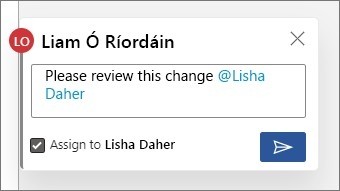
If a section needs substantial revision, communicate the intended change before several people develop incompatible alternatives. Use the common file to retain context and keep the relevant discussion close to the wording. Real-time visibility can help collaboration, but it cannot decide which proposal is accurate or reconcile a difference in the authors' intended meaning without a deliberate editorial judgment.
Treat tracked review as a separate stage of the workflow
Turn on Track Changes when visible revision recording is required and verify that the setting applies to the work being done. Place the cursor appropriately to review each change, then accept or reject according to the intended result. Hiding markup is not the same as completing those decisions. After review, read sentences and paragraphs continuously, inspect formatting and check unresolved feedback. A successful collaboration ends with a coherent approved document and an understood current state, rather than merely a file that many people were able to open and edit at the same time.
References
- Collaborate in Word. support.microsoft.com.


Comments
0