 DocumentFlow Desk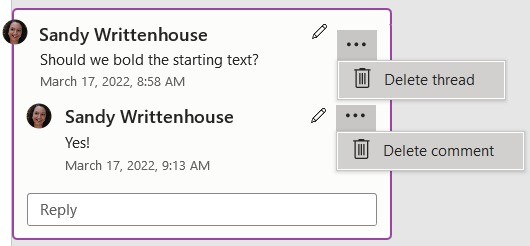
Choose a display setting for the current reading task
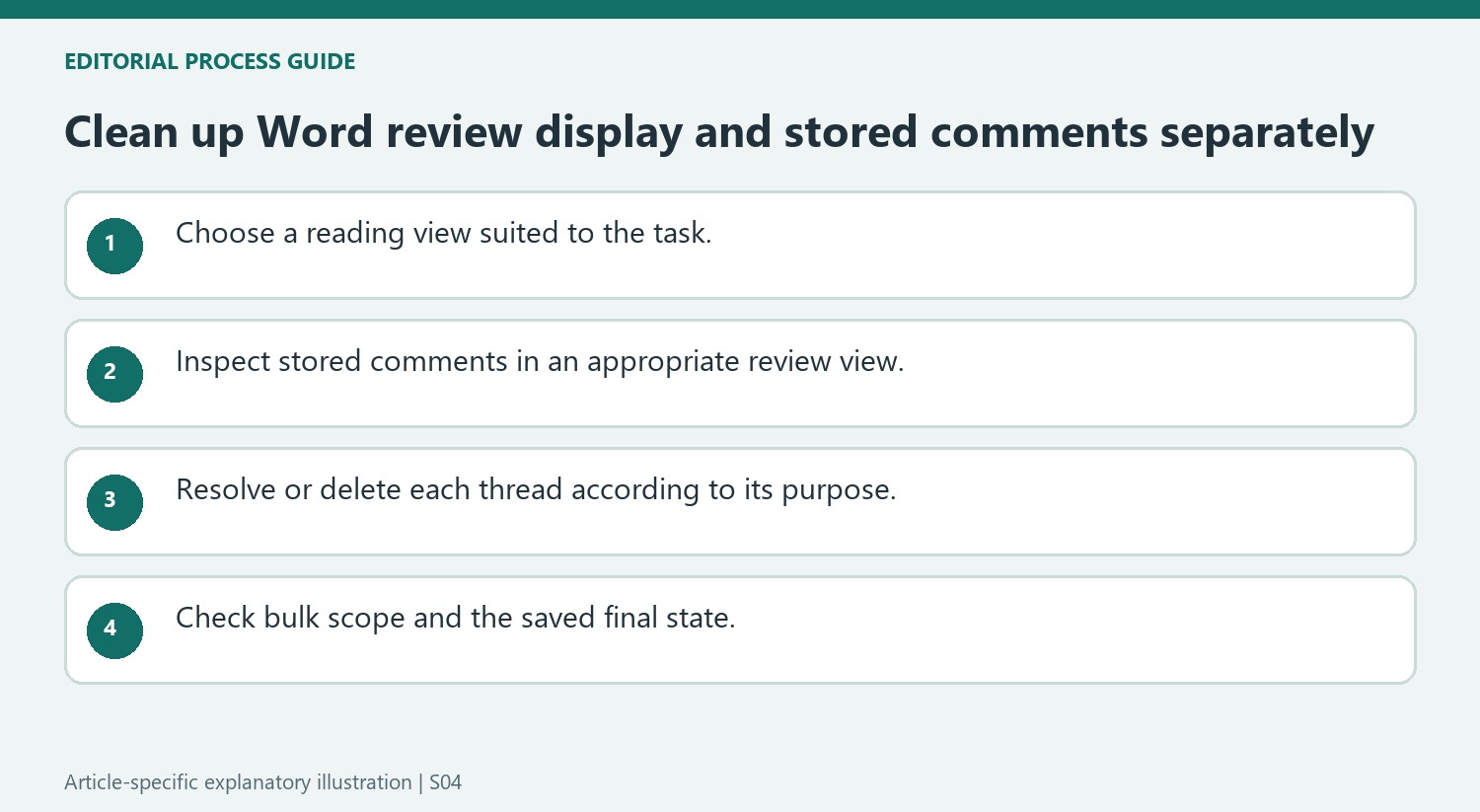
The source offers two approaches to reducing comment clutter. The Show Comments control can hide the full notes while leaving indicators that lead back to them. The No Markup review display hides comments together with other markup and indicators in the described interface. Choose according to whether the goal is focused reading or active review. These controls affect presentation, so a clean-looking page does not establish that comments or tracked revisions have been removed. Remember the selected view when handing the file to another person who may see different review settings.
Remove a specific thread only when that is intended
To delete particular feedback, select the comment and use its deletion menu or the corresponding Review command. The article distinguishes deleting a comment from deleting its thread, including replies. Inspect which option the current interface offers and what material will be removed. If the issue has been addressed but its reasoning remains useful, resolving the conversation can be a better record than deleting it. Choose based on the review process rather than solely on how crowded the margin appears while editing a long document.
Review the scope before deleting comments in bulk
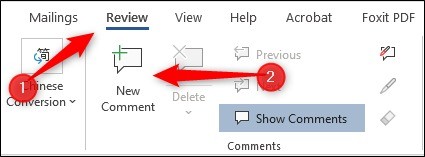
The Review menu can offer Delete All Comments in Document and, in some interfaces, deletion of resolved comments only. Confirm the chosen scope before applying it. Removing every thread can discard unresolved questions along with completed discussions, while hiding comments would leave both intact. After cleanup, inspect the document using an appropriate review view and read the affected content. A finished deliverable requires the intended text and the intended feedback state. Treat visibility, resolution and deletion as separate controls so the document's appearance does not mislead collaborators about what is still stored or awaiting attention.
Choose display settings according to the reading task
Hiding comments can make a long document easier to read while retaining the discussion for later work. The source describes Show Comments leaving indicators and No Markup providing a cleaner review display. Inspect the current interface because comment presentation varies across Word versions. A hidden thread is still part of the document; another reviewer can encounter it through their own settings.
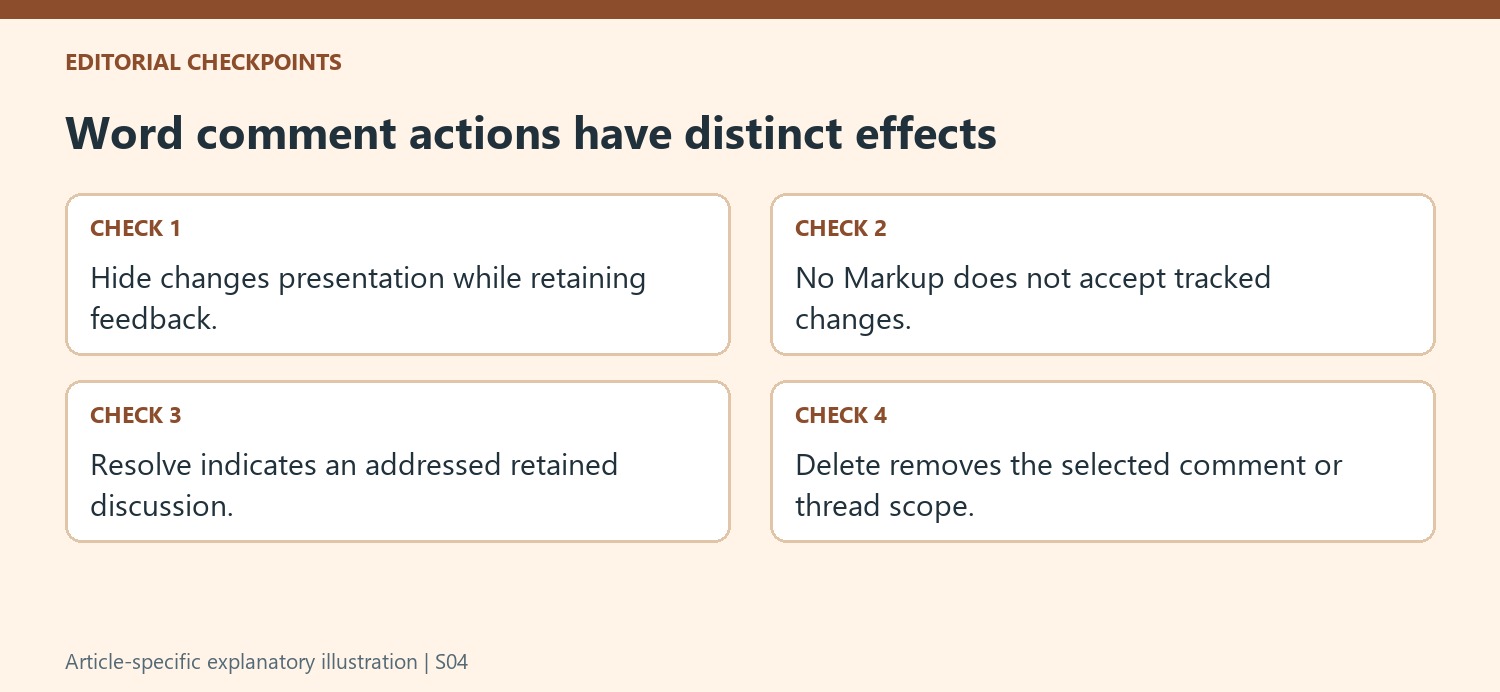
Keep markup visibility separate from editorial decisions. No Markup does not accept or reject tracked revisions, and hiding comments does not resolve or delete them. When checking a final deliverable, return to an appropriate review view so the file's stored feedback and revision state can be inspected. A clean-looking page is evidence about display, not proof that all review work has been completed.
Decide whether to retain the thread before removing it
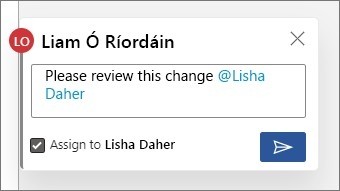
Select the intended comment and read the thread, including replies, before deleting. The available command can distinguish a single comment from the entire conversation. If the issue was addressed and the reasoning remains useful, resolution can retain that context. If the note is obsolete or unwanted, deliberate deletion can be appropriate. The purpose of the review record should guide the choice.
Check the document passage before deciding that a comment no longer applies. A text revision may have solved one part of the issue while leaving another question open. Conversely, an old note may refer to wording that no longer exists. Evaluate its current relevance rather than judging only by its age or how much room it occupies in the margin.
Review bulk cleanup and the saved result
Delete All Comments in Document removes a wider set than deleting resolved comments where that separate option exists. Read the selected command and inspect unresolved threads before confirming a broad cleanup. Afterward, review the intended saved file in the appropriate markup view and read affected passages continuously. Keep a suitable working record if the process requires discussion history. The final handover should make the actual state clear: which wording is approved, which comments are retained and which questions still need attention, independent of the display settings used while writing.
References
- How to Hide or Delete Comments in Microsoft Word. How-To Geek; Sandy Writtenhouse.



Comments
0