 DocumentFlow Desk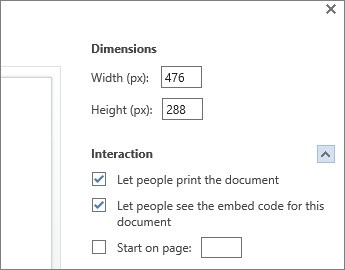
Prepare the document in Word for the web
Microsoft's instructions apply to a document stored in OneDrive and opened for editing in Word for the web. The embedded view is connected to that stored document, so later document updates appear in the website view described by the source. Confirm that the content is suitable for the intended web audience before generating the embed. This connection is useful for material that should stay current, but it also means that changing the source document can affect what readers see on an already published page.
Generate the code and inspect the preview
Use File, Share and the document-embedding command, then generate the embed code. Review the available interaction settings before copying it. The source gives allowing printing as an example of a choice that can be turned off for the embedded view. Check the preview to see how the document will appear within a page. These settings describe particular reader interactions; do not treat them as a universal guarantee against copying or redistribution. Choose them to fit the intended presentation and verify the permissions and behavior available in the actual account.
Insert the code where the site supports it
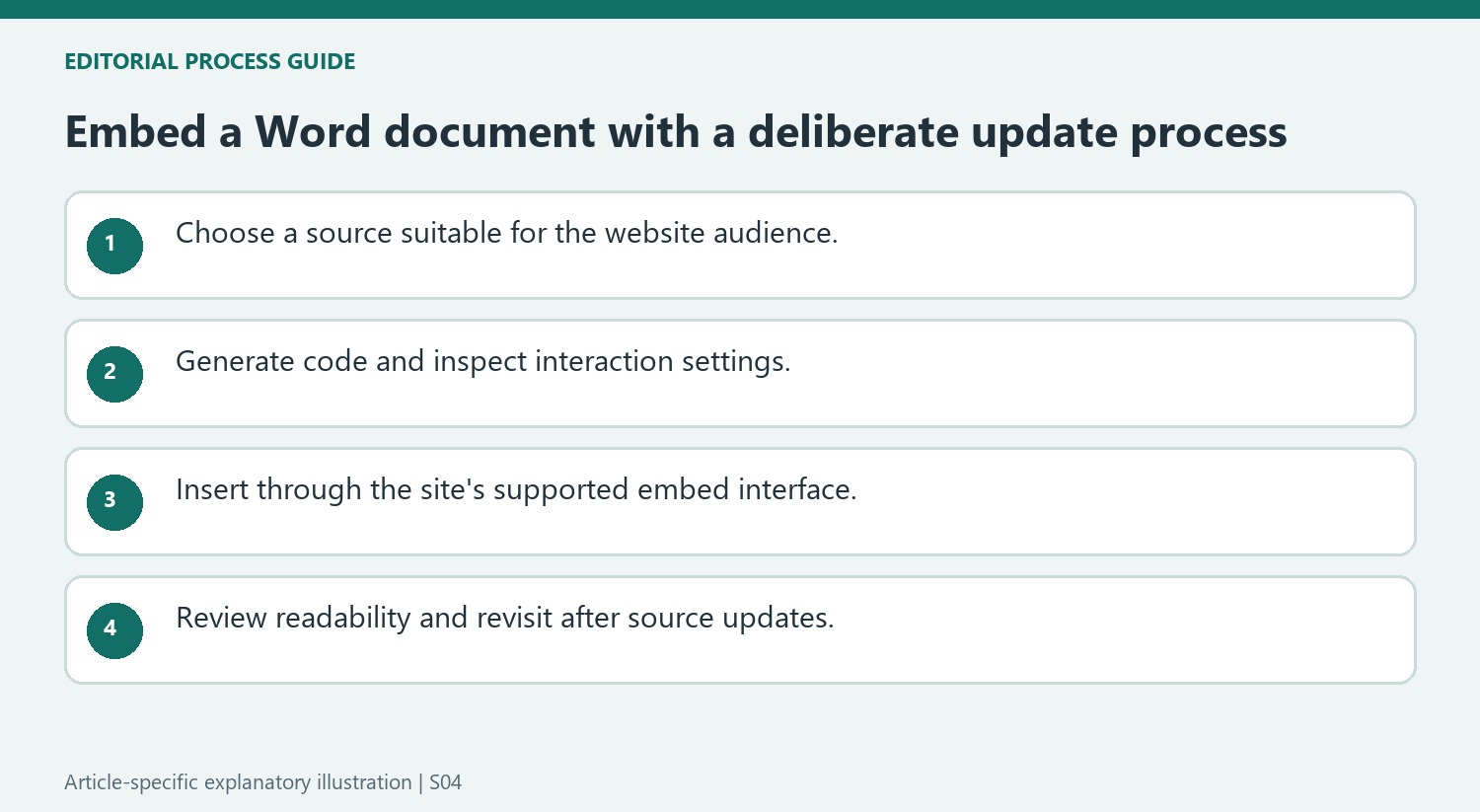
Copy the generated code and paste it into the website or blog editor's supported HTML or embed interface. The source includes examples for particular publishing platforms, but an older platform example does not establish what every current editor permits. Confirm that the site accepts the provided embed format and inspect the resulting page as a reader. Check the width, readability and document content after insertion. Revisit the page after significant source updates so an automatically refreshed document continues to fit its surrounding explanation and does not expose draft material that was meant only for internal editing.
Decide whether a live document is the right web presentation
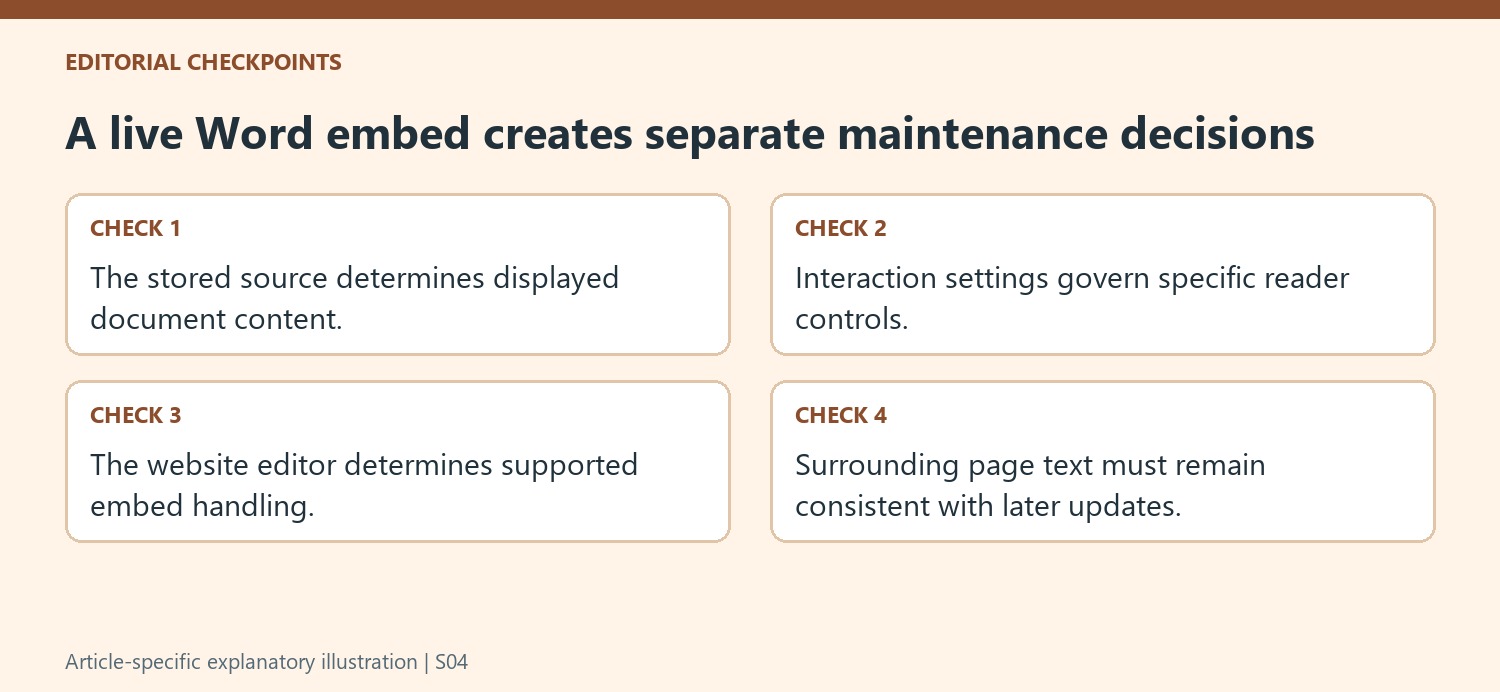
An embedded Word document is connected to its stored source in the described workflow. That can reduce repeated publishing work when information needs to stay current, but it also creates a maintenance responsibility. Confirm the source document is suitable for the website audience and decide who may revise it. An internal drafting change can affect an already embedded view if the shared source is edited.
Check the surrounding webpage explanation against that live relationship. If the page describes a particular approved edition while the source continues to change, readers can encounter a mismatch. Identify the intended update process before generating the code. A convenient embed should not silently blur the difference between a working document and a stable publication that the surrounding text promises to present.
Review the generated settings and the actual page fit
Generate the embed from Word for the web and inspect the preview and interaction choices. The source illustrates a setting for printing. Choose according to the reader experience, while recognizing that disabling one interface action is not a universal prevention of copying. Verify the current account's permissions and available embed behavior rather than assuming every stored document supports the same presentation.
After copying the code, use the website editor's supported HTML or embed interface. A historical example for a named blogging platform does not establish current permissions for every installation. Inspect the resulting page at the width readers will use, including whether text and page navigation remain comfortable. A successful paste is only the first step toward a usable embedded document.
Maintain the relationship after publication
Revisit the page after significant source changes and confirm that the correct document remains visible and readable. Check that headings, dates and surrounding instructions still describe what readers encounter. If the embed fails, investigate source access and website support instead of repeatedly inserting a second unrelated copy. Keep the source location identifiable for maintainers. The benefit of automatic updates depends on deliberate content ownership and review, so the embedded view continues to provide the intended public information without exposing a draft or outgrowing the space provided by the page.
References
- Embed a Word document in your blog. support.microsoft.com.



Comments
0