 DocumentFlow Desk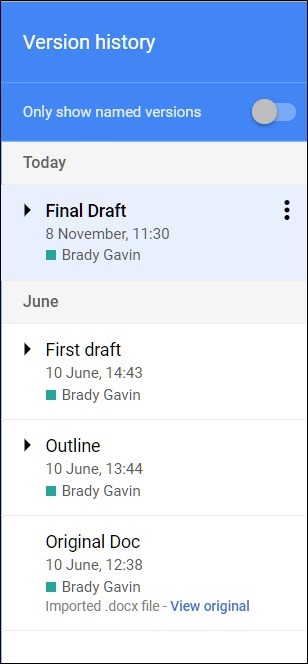
Open the history with the required editing access
The source describes version history for Google Docs, Sheets and Slides. Open the file and use File, Version history and See version history, or the documented keyboard shortcut. Editing permission is required to view this history in the described workflow. Check that you are in the correct file before selecting a previous state. A similarly named copy has its own history, so finding the expected title alone does not prove that you are reviewing the version sequence associated with the current shared work.
Inspect grouped revisions before choosing a state
The right-hand panel organizes versions and related changes. Select an entry to preview its content in the main area and inspect the associated contributors and changes. Expand a grouped entry when a more detailed point in the sequence is available. The article notes that revisions can be grouped or merged, so the panel should not be treated as a separate permanent snapshot of every individual keystroke. Compare the relevant passage or sheet carefully, especially if restoring one earlier state would also replace unrelated changes made elsewhere in the file.
Restore deliberately and verify the current result
After selecting the intended state, choose Restore this version and confirm the action. The source explains that restoration makes the chosen content current without simply erasing all the intervening history. If the result is unsuitable, an editor can return to version history and select another appropriate state. Read the restored document before continuing work and consider whether any newer material must be recovered separately. Version history provides a recovery path, but the important judgment remains choosing the correct state for the whole file rather than restoring solely because one visible passage looks familiar.
Identify the correct file and the appropriate historical state
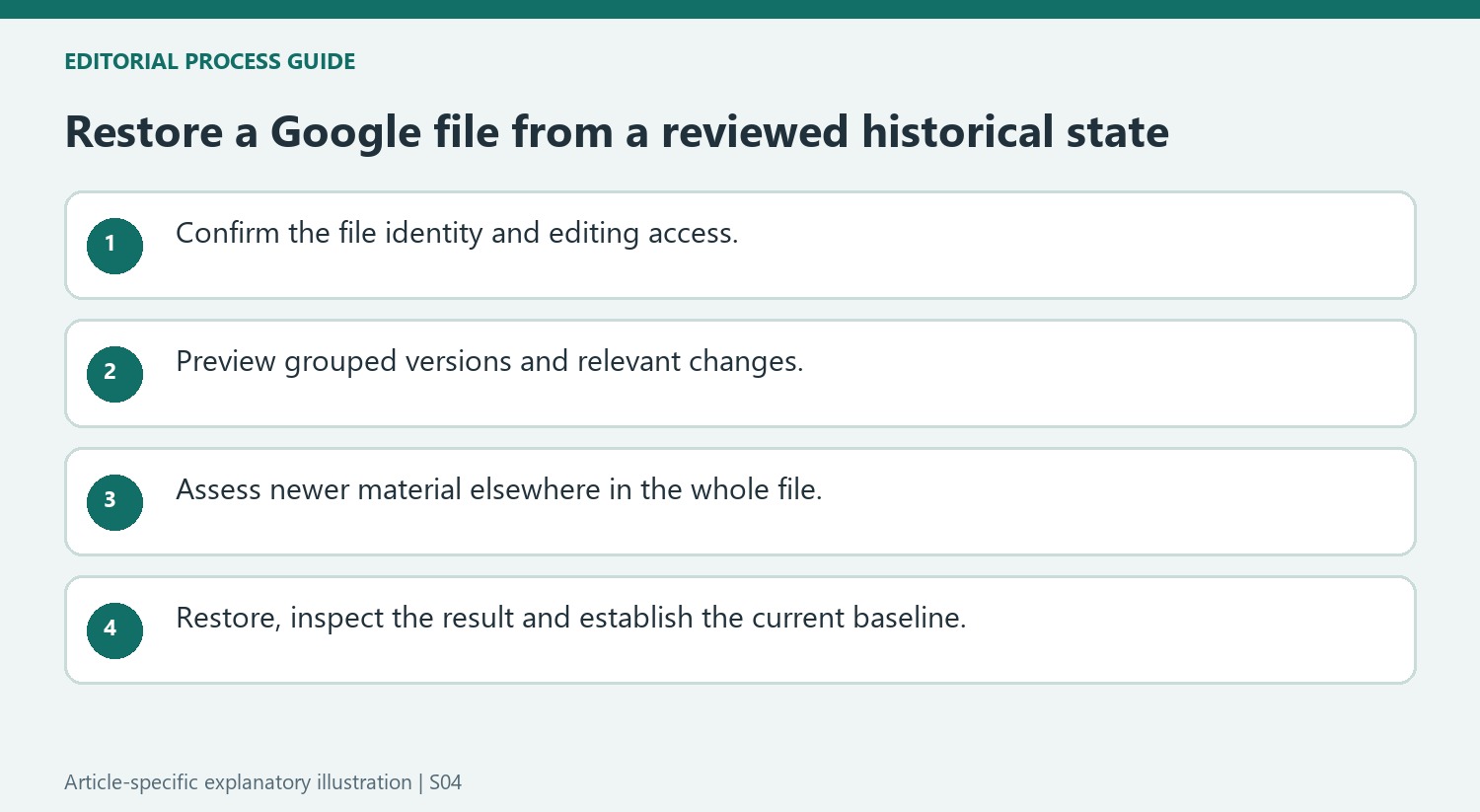
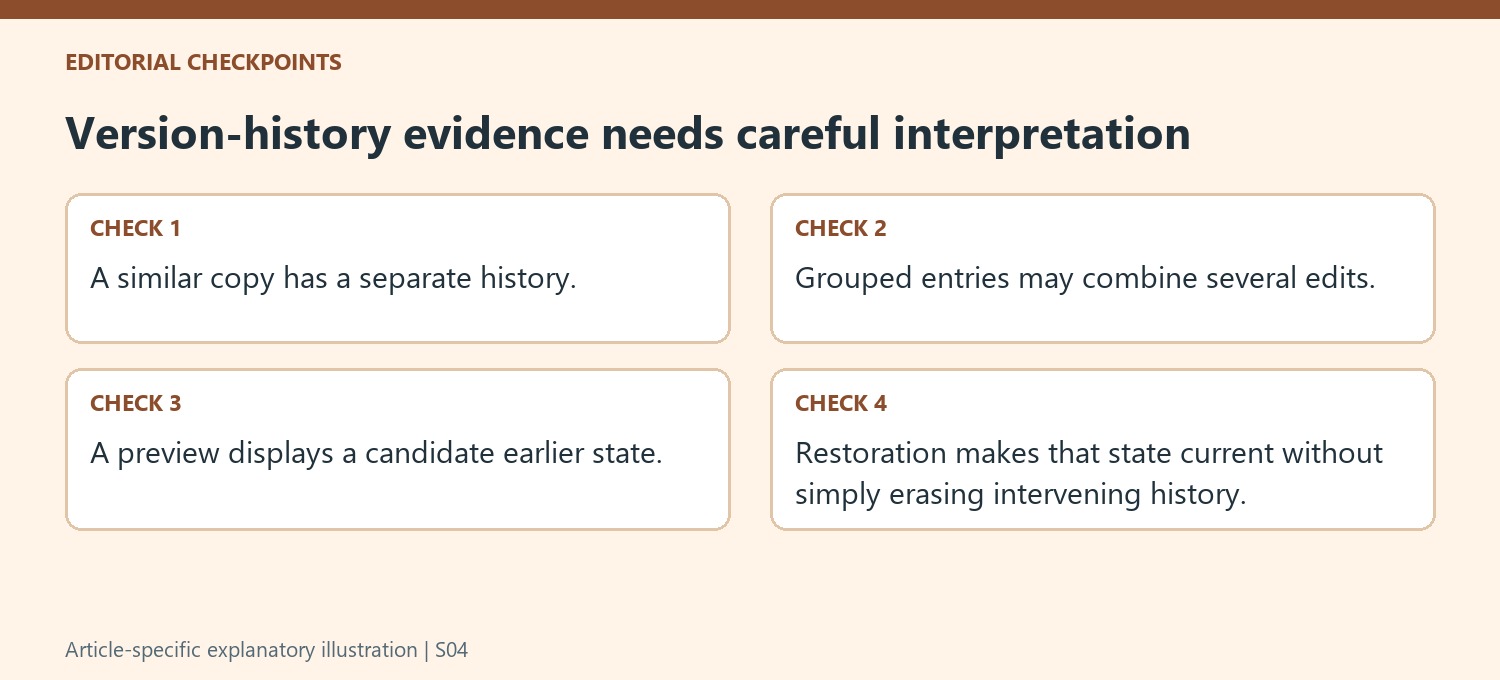
Open the active shared file and confirm that its history is the one associated with the work being recovered. A copied document can have the same visible title while retaining a separate sequence. Editing access is required in the described workflow. If the expected panel is unavailable, resolve permission or file-identity questions before interpreting the absence of entries as evidence that the earlier content never existed.
Select a version to preview it, then inspect the passage that prompted the recovery request. Expand grouped revisions where additional detail is available. The interface can group or merge changes, so do not expect one permanent entry for every keystroke. Use the available timestamps, contributor information and content together to identify a useful state rather than choosing solely by a familiar author name.
Assess the effect on the whole file before restoring
An earlier version may contain the missing paragraph and also lack useful changes made elsewhere afterward. Compare related sections before making that state current. For a spreadsheet or presentation, inspect the relevant sheets or slides too. Recovery is a whole-file decision in this workflow, not a guarantee that only the visible problem area will change when the selected version is restored.
Where only a small passage needs recovery, consider whether the earlier content should be examined separately before replacing the active file. Keep the team's current work in mind and explain the intended recovery decision. A restoration can be technically successful while still being the wrong choice if it silently removes newer agreed material that nobody considered during the review.
Verify the restored state and resume from a clear baseline
Confirm the restore action, then read the resulting current document. Check the original problem and important newer material that may need attention. The source explains that intervening history is not simply erased, so another appropriate state can be selected if the result is unsuitable. Use that recovery route deliberately rather than making several unreviewed restorations in succession. Establish which state the team should now use and continue editing only after the restored content is understood. A clear baseline makes the next round of collaboration easier to interpret.
References
- How to Switch to an Earlier Version of a Google Docs, Sheets, or Slides File. How-To Geek; Brady Gavin.


Comments
0