 DocumentFlow Desk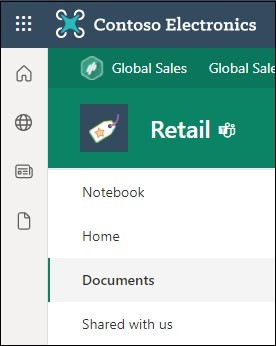
Open the file through the relevant site library
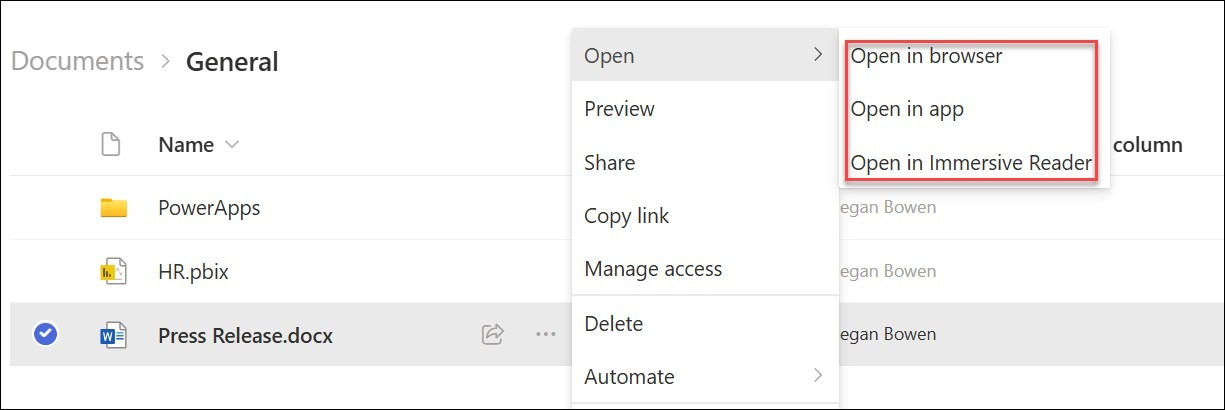
Microsoft's workflow begins by signing in to SharePoint, opening the appropriate site and entering its document library, often named Documents. Select the intended file and choose whether to open it in the browser or in an installed desktop application. The source also lists Immersive Reader as an available reading route where supported. Check the location and file identity before editing, especially when several libraries contain similar names. Opening the correct stored document helps keep work connected to the team's shared version rather than an unrelated local copy.
Share access and coordinate work in the browser
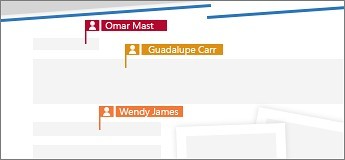
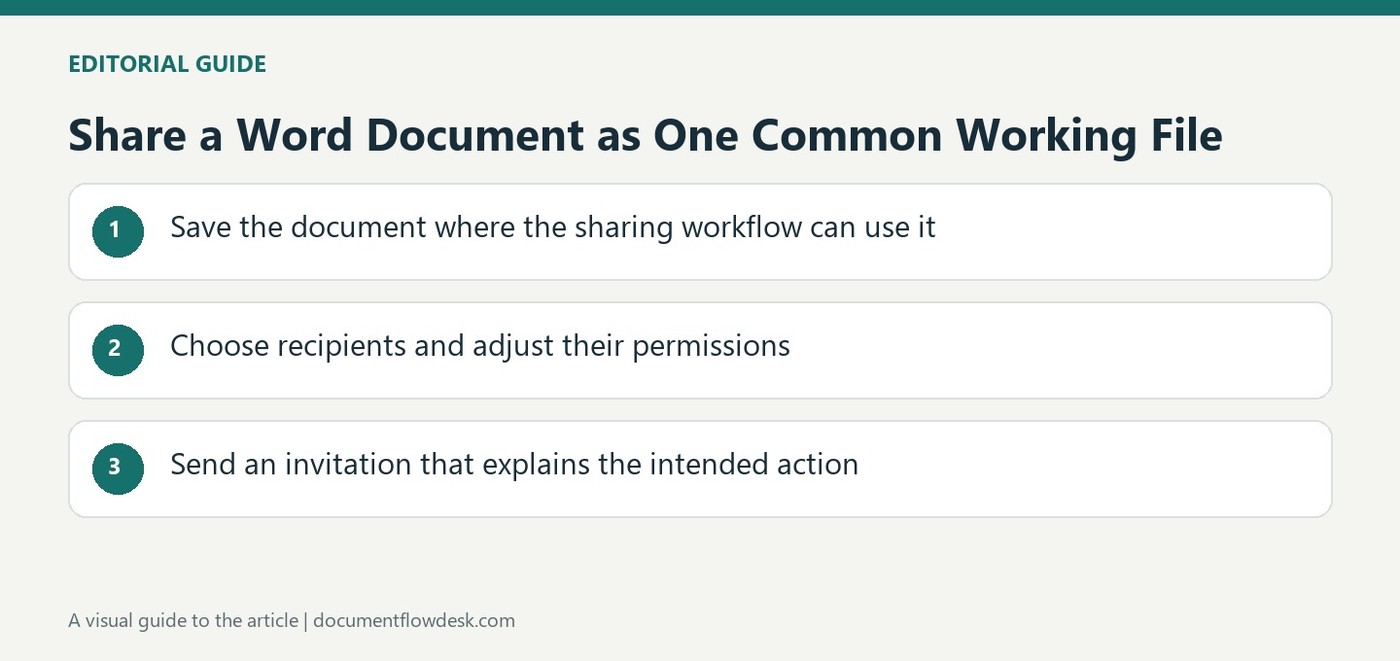
Select the document and use Share to invite named people, optionally with a message, or use Copy Link for distribution through an agreed channel such as email or Teams. Inspect the applicable access settings before sending the URL. For simultaneous editing, the source describes opening a supported document in Microsoft 365 for the web, where the interface shows the number of current editors. A common document makes collaboration possible, but contributors still need clear responsibilities and a review process when changes affect the same content or require approval.
Set up synchronization as a connected local workflow
The library's Sync command starts the OneDrive synchronization setup. Sign in with the appropriate work or school account and complete the configuration. The source describes the files appearing under the organization's OneDrive entry in File Explorer or Finder. Keep that synchronized location distinct from manually downloaded copies, because the two workflows have different relationships to the shared library. Check synchronization status when moving between local and browser work. Mobile access also depends on the relevant Microsoft 365 subscription and environment, so confirm the actual available capabilities before relying on them outside the office.
Keep the library location visible through the editing choice
Navigate to the correct SharePoint site and document library, then identify the actual stored file. Similar titles can appear in several libraries or downloaded copies. Open in browser and Open in app are different ways to work with that selected item; choose according to the required features and installed software. The source also names Immersive Reader as a reading route where available.
Confirm the file's context before making changes, particularly when moving between a local application and the web library. A familiar filename is not proof that the active window is connected to the intended shared item. Keeping the location identifiable helps the team avoid parallel working copies that later require another review to determine which contains the current agreed text.
Review access before distributing a document link
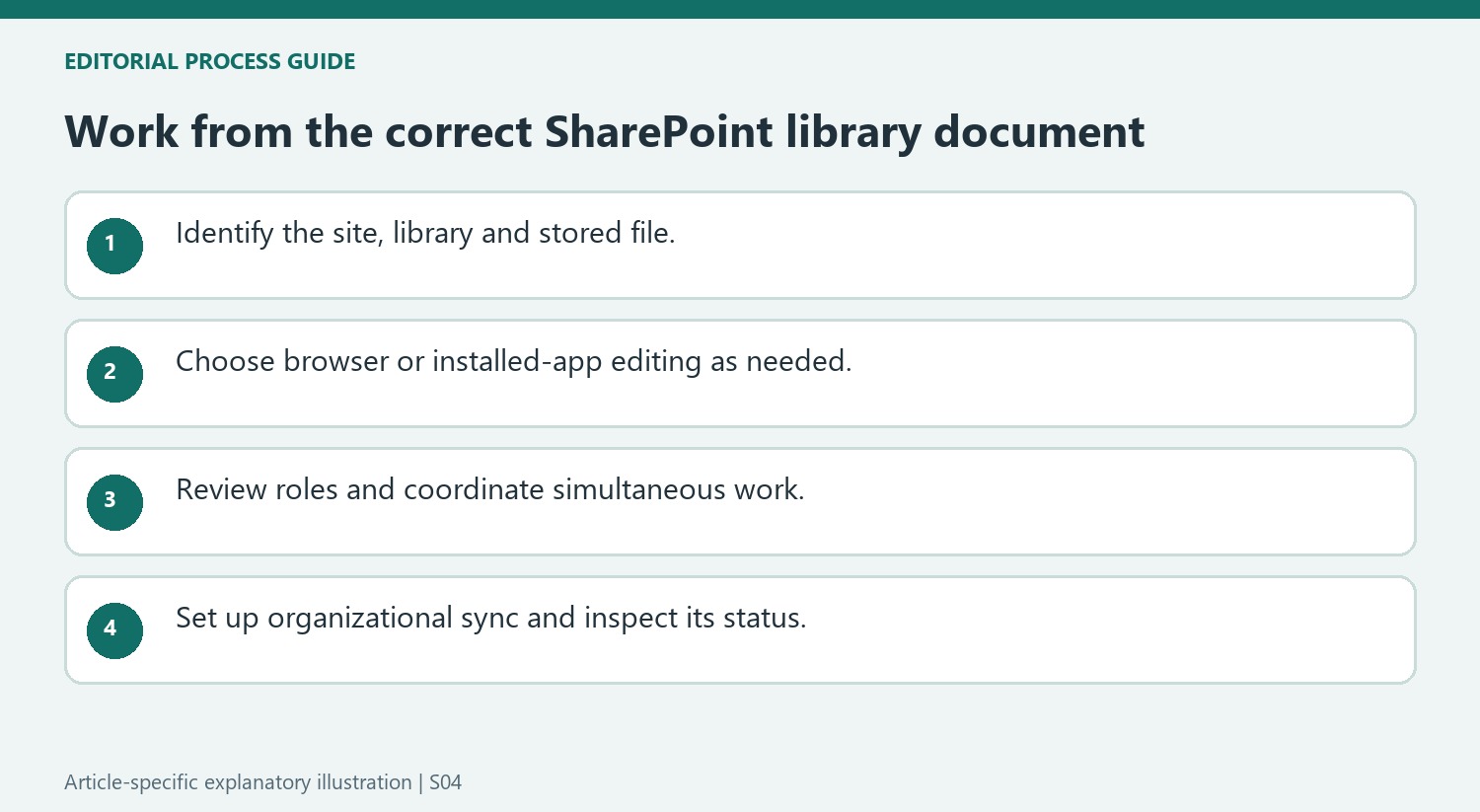
Use Share for named recipients or Copy Link for the intended distribution channel, checking the permission settings in either case. The ability to paste a URL into Teams or email does not establish that a new recipient can open it or that the role is suitable. Match the audience and allowed actions to the task, then explain the expected contribution where necessary.
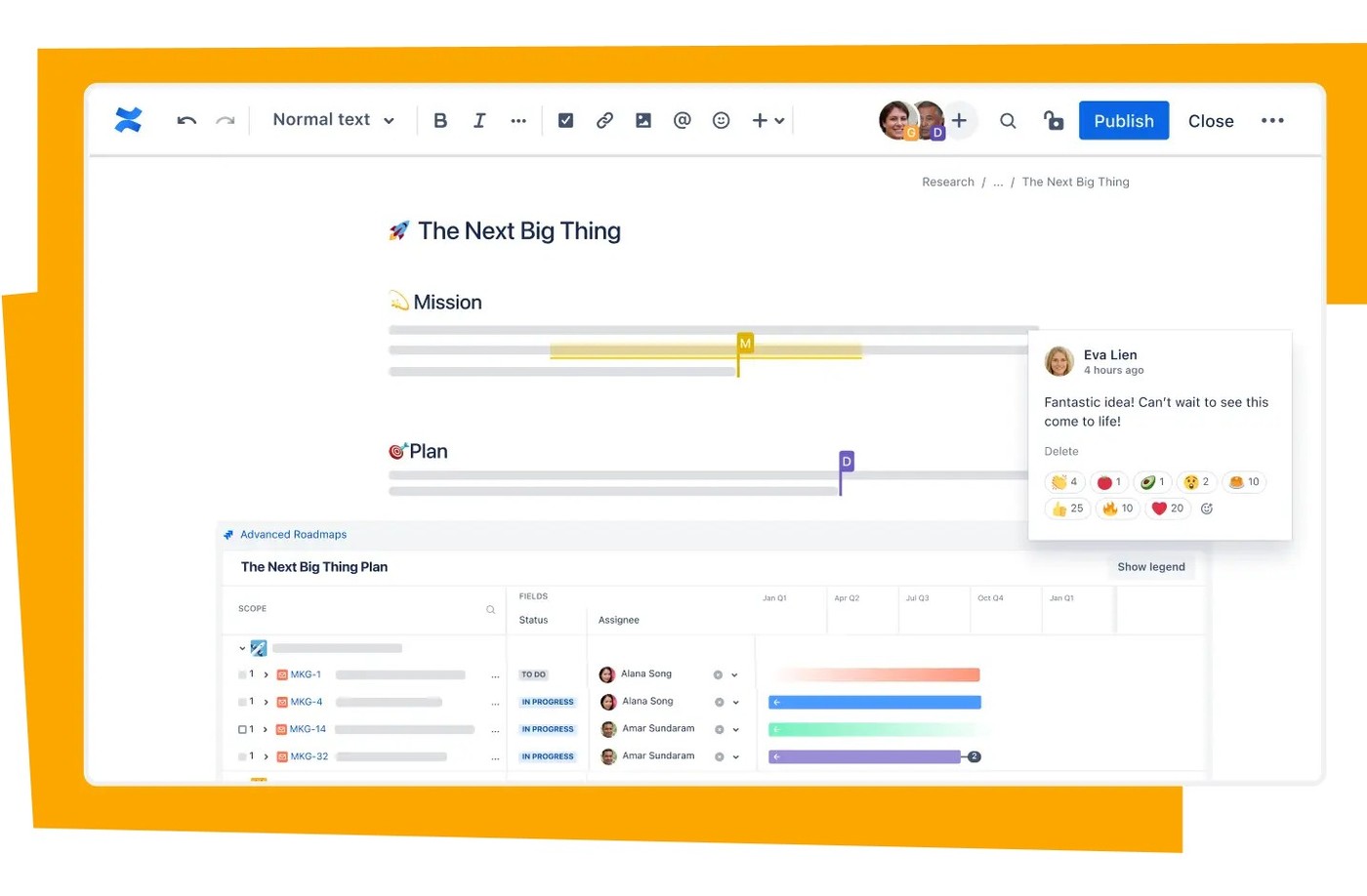
For simultaneous editing, open a supported document in Microsoft 365 for the web and inspect the collaboration indicator. The number of current editors provides useful awareness, but it is not an approval record. Agree on responsibilities and a review process when people are changing the same material. A reachable common document supplies the setting for collaboration, while the team still needs to manage what the contributions mean.
Distinguish synchronized files from manual downloads
The library's Sync command starts a OneDrive setup tied to the work or school account. Complete that setup and locate the organizational entry in Explorer or Finder. Files in that connected location have a different relationship to the library from a manually downloaded copy elsewhere. Check synchronization status when changing between local and browser work so a pending update is not mistaken for a completed handover. For mobile use, verify the actual subscription and environment capabilities. Test the intended end-to-end path before relying on it for a deadline outside the office.
References
- Collaborate in SharePoint. support.microsoft.com.


Comments
0