 DocumentFlow Desk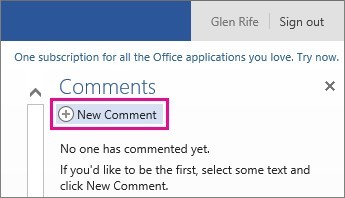
Find the comments for the view you are using
Microsoft's page describes Word Web App with separate routes for Reading View and Edit View. In Reading View, open Comments to inspect the available discussion. In Edit View, use Review and Show Comments. Recognize the interface described by the source before looking for the exact menu labels, because the article also notes that web applications evolve. The core task is to expose the existing review notes without assuming that a document shown in a clean reading view contains no comments or outstanding questions.
Add feedback beside the relevant passage
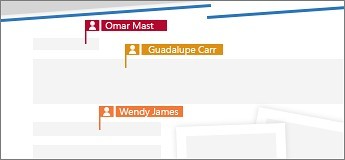
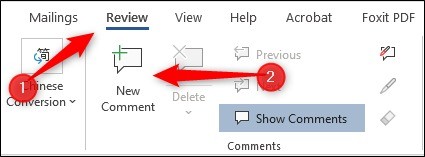
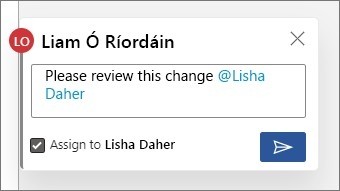
Select the text that the feedback concerns, then use the appropriate New Comment command for the current view. In the documented reading workflow, that command is under Comments; in editing it is on the Review tab. Write the question or recommendation clearly enough that another reader can understand the requested action. A selected passage anchors the discussion, but the note should still explain why attention is needed. Keep distinct issues in separate comments when they require different decisions, rather than combining several unrelated requests into one difficult-to-resolve conversation.
Keep replies, removal and tracked revisions distinct
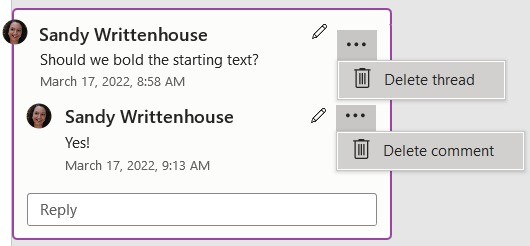
The source explains that existing comments can be viewed, replied to or deleted. Use a reply to maintain a discussion on the same issue, and remove a comment only when the review process calls for it. The article directs users to desktop Word for the tracked-change workflow available in its historical context; check the current application's capabilities instead of treating that as a permanent web limitation. Comments record feedback and discussion, while tracked changes represent revisions to the text. Review both the wording and the associated feedback before deciding that a document is ready for distribution.
Identify the view before looking for the comment control
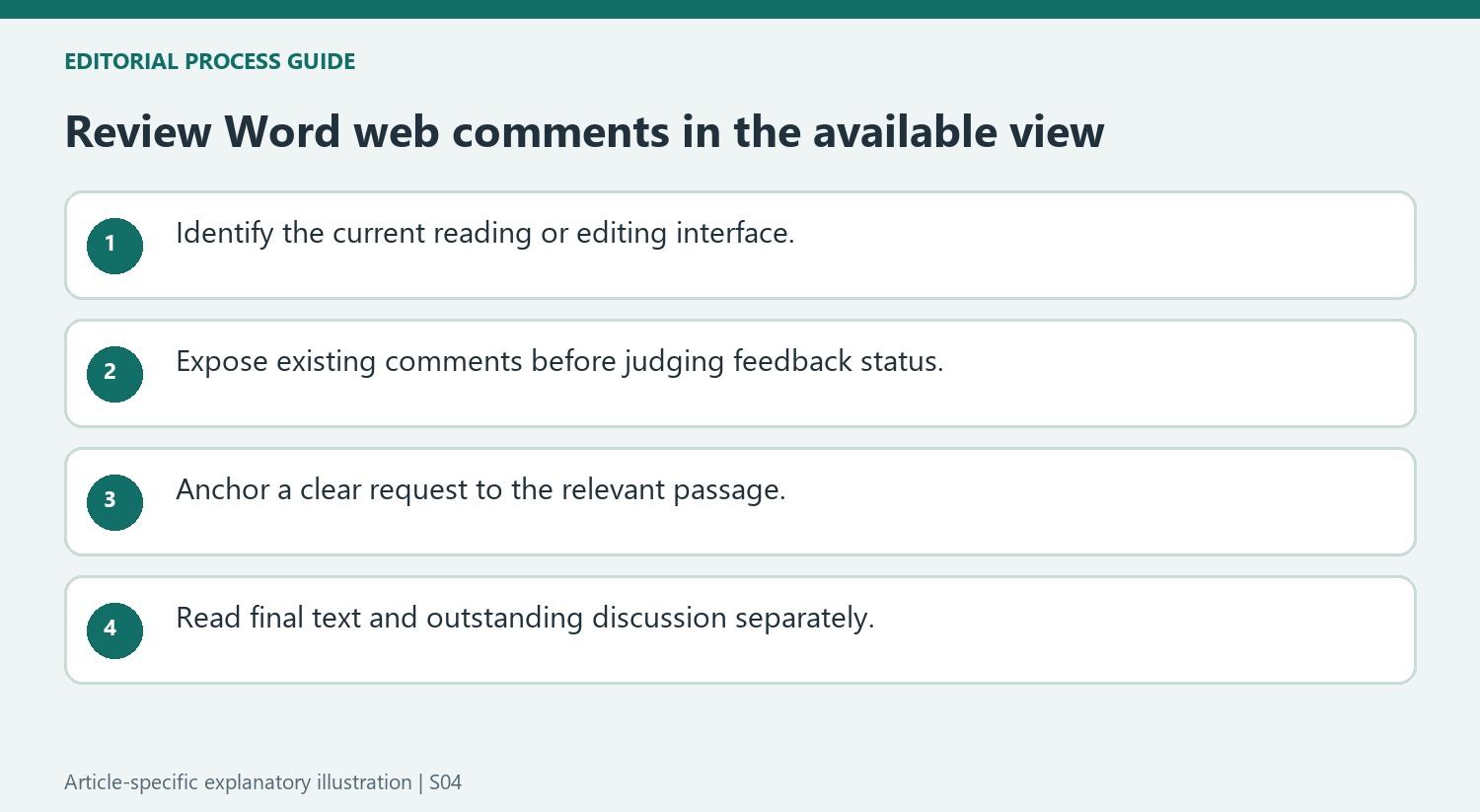
The source uses the historical Word Web App terms Reading View and Edit View, with different routes to comments. Inspect the current application before following those labels literally. The important task is to expose the existing discussion and understand whether the user is reading or changing content. A clean reading page should not be treated as evidence that the file contains no feedback.
When switching views, verify that the same document and relevant passage remain in focus. This helps avoid adding a note to a similar-looking copy or overlooking comments because the interface presents them differently. Current web capabilities evolve, so use the available supported controls and keep the guide's publication context in mind rather than assuming its exact menus define every later version.
Anchor a clear request instead of leaving an unexplained marker
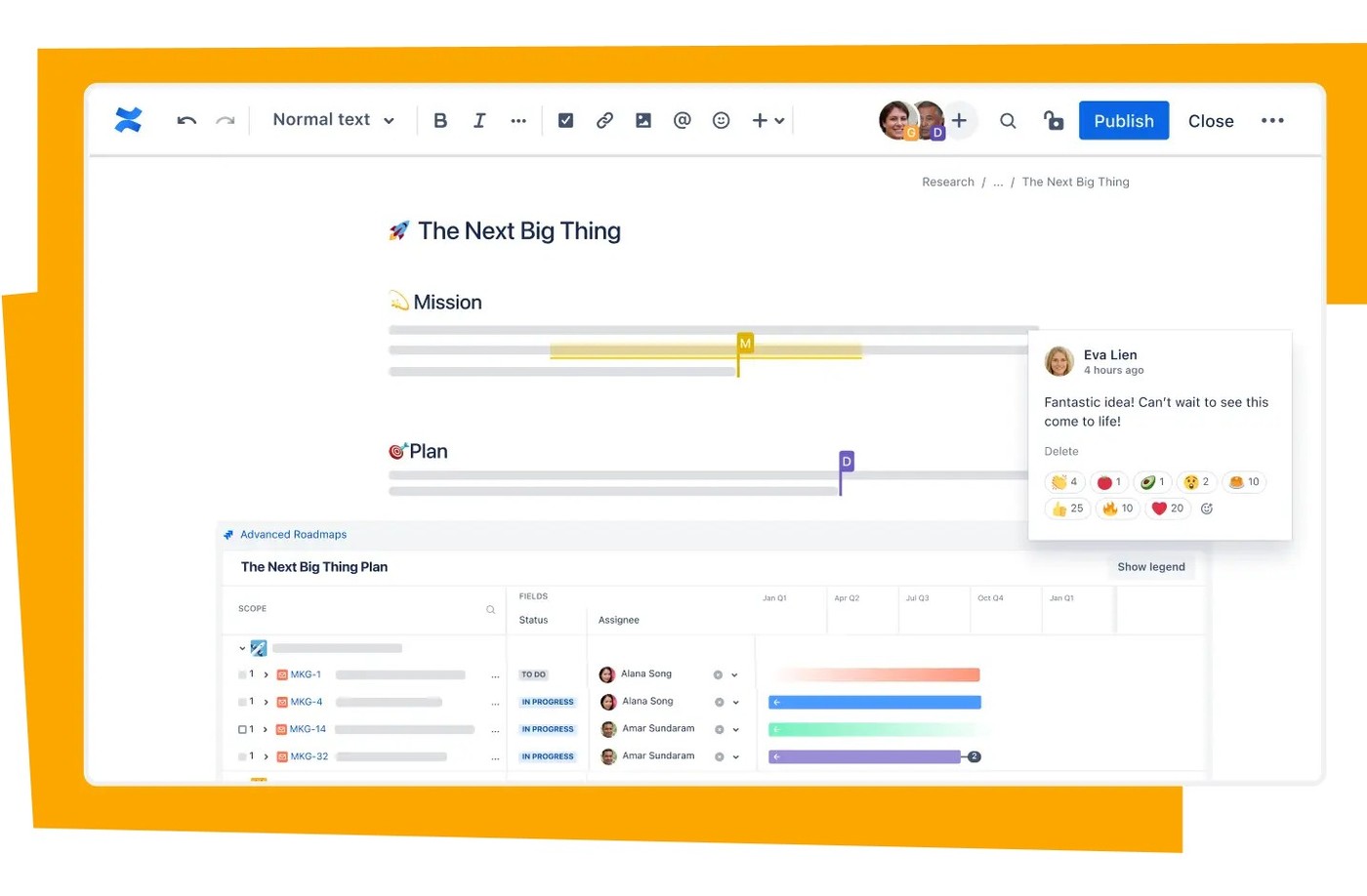
Select the wording that prompted the feedback, then use New Comment through the current view's route. Explain the question or requested improvement in plain language. A highlight can show where attention is needed, but it does not explain whether the concern involves a factual error, missing detail or wording preference. Include enough context for an asynchronous reviewer to understand the issue without contacting the original commenter.
Keep separate decisions in separate threads where practical. One comment containing several unrelated requests is difficult to resolve accurately if only one has been addressed. Recheck the anchor after the surrounding text changes. The discussion should remain connected to the actual passage and not depend on a wording arrangement that disappeared during the next editing round.
Maintain the distinction between discussion and text revision
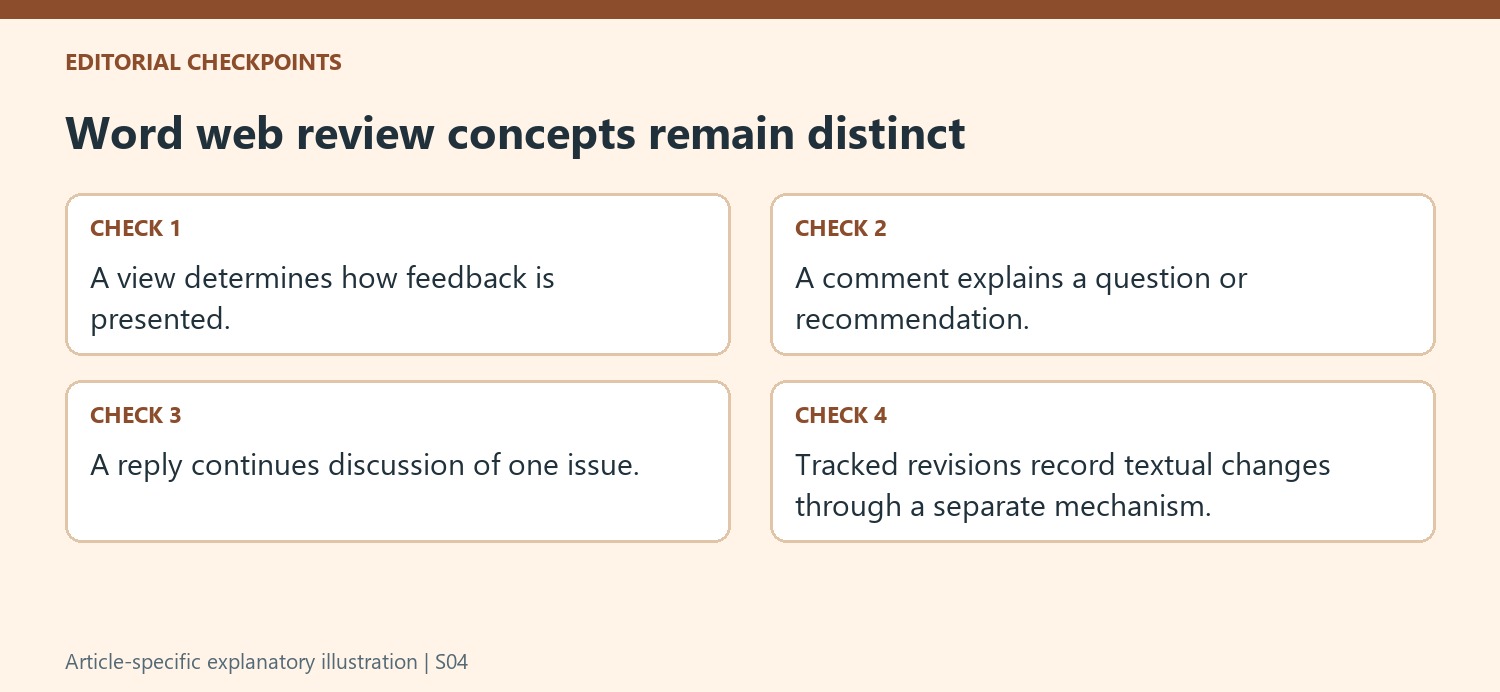
Reply within the relevant thread to preserve its context, and remove feedback only when the review process calls for it. A comment can record a proposed change without performing that change in the document. Tracked revisions are a separate mechanism, and the source's desktop-only direction reflects its historical environment rather than a permanent web limitation. Verify current support where needed. Before handover, read the actual text and inspect outstanding comments so the final state is clear independently of which view a recipient uses to open the file.
References
- Add or view comments in a document. support.microsoft.com.


Comments
0