 DocumentFlow Desk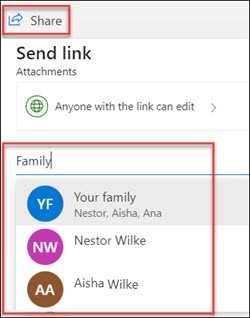
Confirm the account and define the group
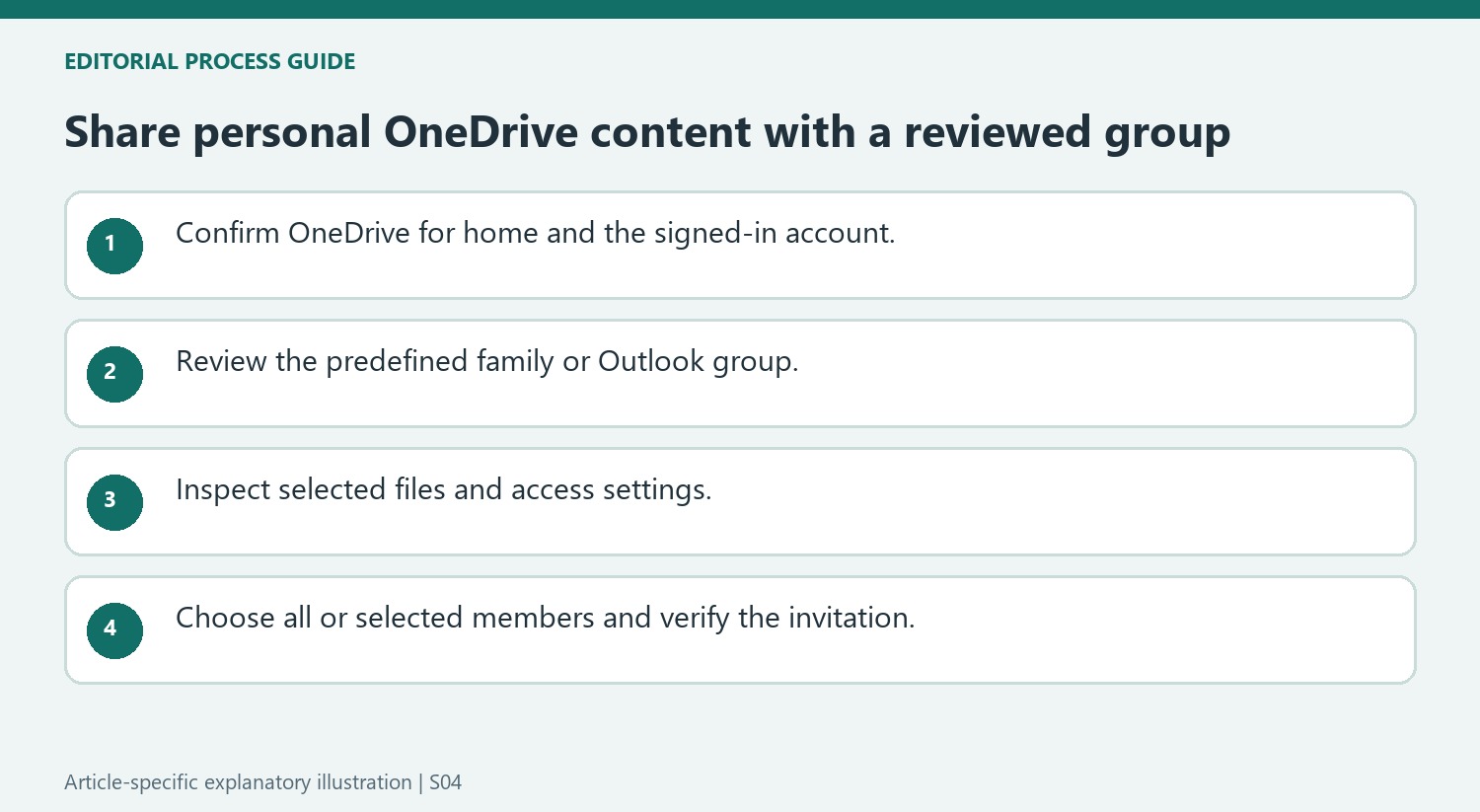
Microsoft's guidance applies to OneDrive for home on the web, including personal and family plans, rather than work or school accounts. Create the Microsoft family group or the relevant Outlook group before using it as a sharing recipient. This step establishes the intended set of people, such as family members or a recurring activity group. Sign in with the appropriate Microsoft account and check that the group represents the people who should receive the material. A familiar group name is useful only when its membership matches the current sharing purpose.
Select the item and review its permissions
In OneDrive, open My files or Photos and select the file or folder to share. Use Share, then inspect the access and editing settings before choosing the group. The source describes a link-permission control that allows customization of the sharing behavior. Do not assume that choosing a family group automatically selects the right role for every kind of material. Photos meant for viewing and files intended for joint editing may need different settings. Review the selected item as well, especially when sharing a folder that contains more than the particular file initially in mind.
Choose the whole group or selected members deliberately
Enter Family or the Outlook group's name in the recipient field. The documented family workflow can show individual members as well as an option for the whole family. Choose the intended audience and add a message that explains the material before sending the invitation. Check the recipients and permissions together rather than treating the group as a substitute for review. If the audience or purpose later changes, revisit the sharing settings. The benefit of a predefined group is simpler recipient selection, while responsibility for deciding what to share and how remains with the person initiating the invitation.
Create the group before using it as a recipient shortcut
The documented feature belongs to OneDrive for home on the web. Confirm the signed-in personal account and the relevant family or Outlook group before selecting material to share. A work or school OneDrive account follows a different context. The group name is a convenient entry point only when it resolves to the actual people intended for this invitation.
Review membership according to the sharing purpose. A recurring sports team, a family and a temporary activity group can overlap without being interchangeable. An old group may no longer represent the current participants. The source describes predefining the group; use that preparation to make recipient choice easier, while retaining a deliberate review at the moment the file or folder is shared.
Inspect the selected content and the link settings together
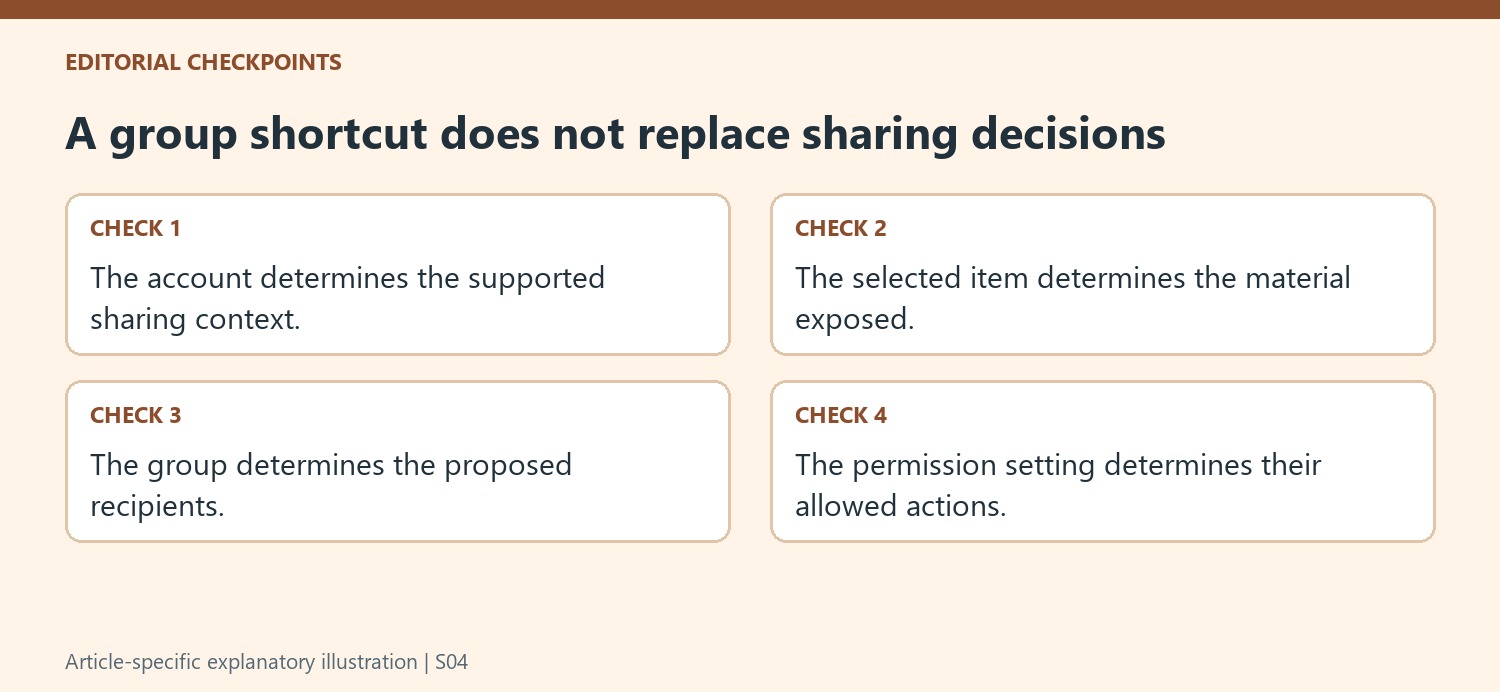
Choose the actual item in My files or Photos and confirm the selection before opening Share. A folder may contain substantially more material than the visible file that prompted the action. Review its contents and decide whether the whole collection belongs with the chosen audience. This avoids granting a broader view merely because a folder was easier to select than an individual photo or document.
Use the available permission control to inspect access and editing behavior. The source illustrates a link setting that can permit editing, but that is not automatically appropriate for every family or group share. Viewing holiday pictures and jointly maintaining a planning document are different tasks. Confirm the chosen behavior before sending so the recipient shortcut does not obscure an important permission decision.
Choose all members or specific people with a final check
Typing Family can surface individual members as well as an option for the whole family. Select the intended audience and inspect the resolved recipients rather than relying on the text initially typed. Add a concise message explaining the material and any expected contribution. After sending, keep the sharing arrangement under review as the audience or purpose changes. The practical benefit of the feature is reduced recipient-entry work; it does not remove responsibility for checking the account, selected content, current people and permitted actions that together define a suitable sharing decision.
References
- Share files and photos with family or Outlook groups. support.microsoft.com.


Comments
0