 DocumentFlow Desk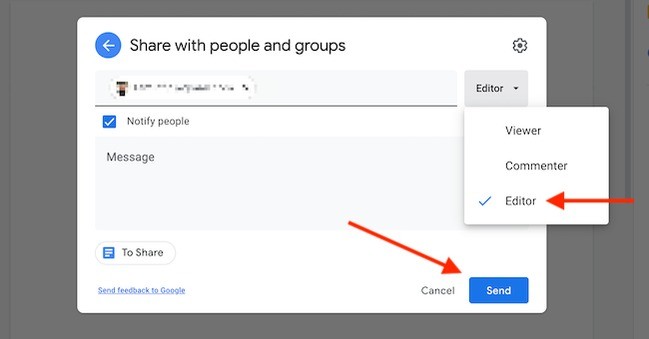
Open sharing from the file or the document
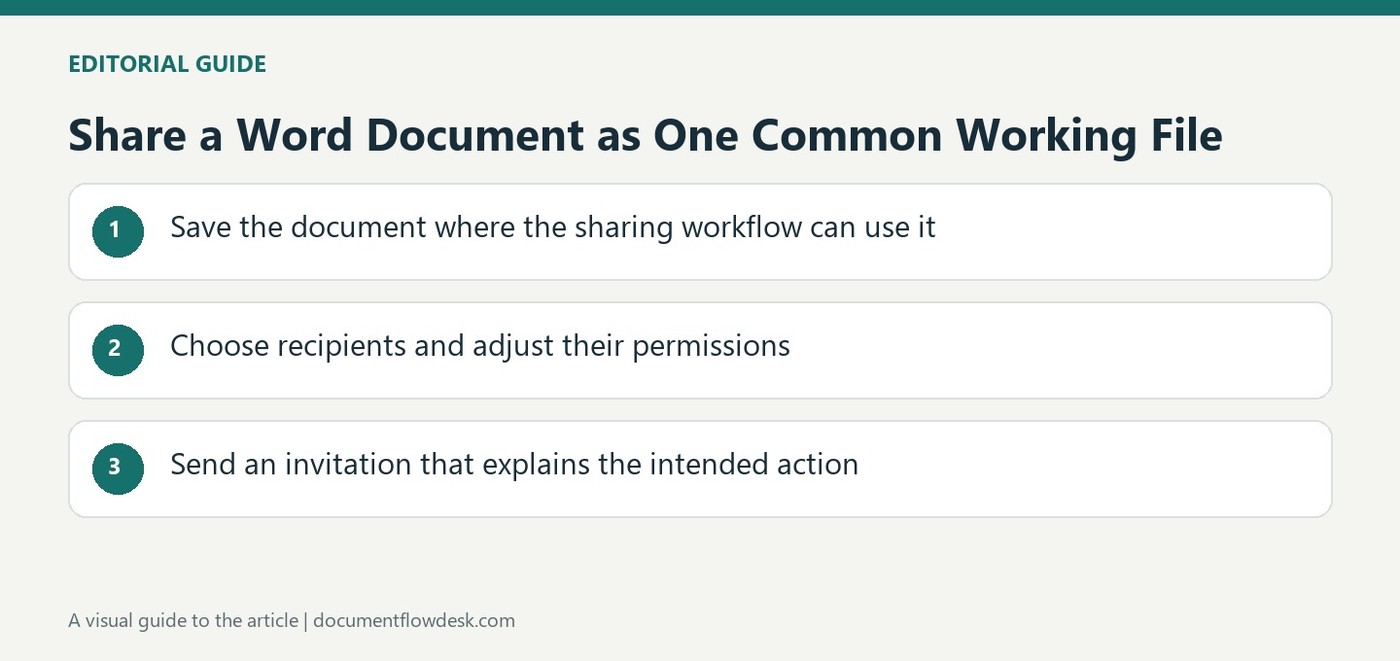
The article describes using the Share button inside a Google document or the context menu for a file or folder in Drive. Add the intended people or groups by name or email address, then select the appropriate role. Editors can revise the content, commenters provide feedback and viewers read it. Check the recipient list before sending the invitation. A folder can expose more material than a single file, so inspect its contents and inherited access before choosing it as the shared unit. Do not rely on an older tutorial's participant limits as current service specifications.
Choose whether a general link should grant access
The source distinguishes inviting particular people from enabling access for anyone who has the link. General link access also has a role, so the audience and permitted actions must be considered together. A viewer link supports reading, while an editor link can allow changes. Copy the URL only after reviewing that setting. Sharing a broad-access link in one channel does not ensure that it stays within that channel. If access should remain limited to named collaborators, retain restricted access and ensure those people have actually been granted the role they need.
Check both access routes when ending the share
To stop an individual's direct access, open the sharing dialog and remove the relevant entry where permitted. To stop broad link access, change the general-access setting back to Restricted. These are separate actions: restricting the link does not remove people already listed, and removing one person does not necessarily eliminate access inherited from a folder or group. Review the current access structure rather than assuming the initial share had only one route. Confirm the resulting settings after the collaboration changes so the file's audience remains aligned with the people who still need it.
Choose the shared unit as carefully as the recipient
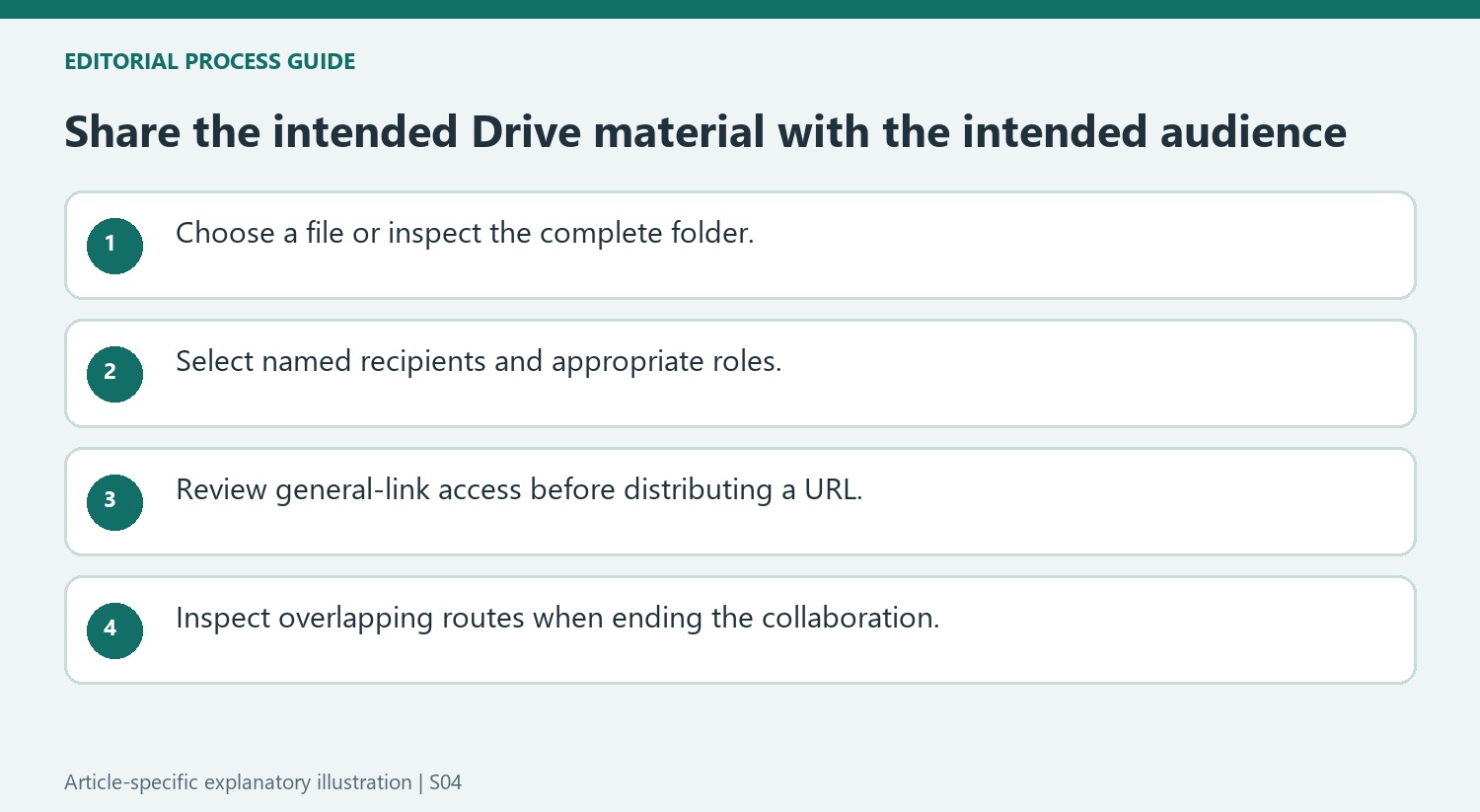
A file and a folder can use similar sharing controls while exposing different amounts of material. Inspect a folder's contents and relevant inherited access before granting a role. Sharing a whole project folder for the sake of one document may include unrelated drafts or later additions. Decide whether the recipient needs the collection or only a specific item, then verify the selected target in the sharing dialog.
Use a named person or group where the audience should remain explicit. Check the role against the task: reviewing a proposal does not necessarily require direct editing. An optional notification can explain what has been shared and what response is expected. Service limits and menu labels can change, so use current account behavior rather than treating a historical tutorial's numbers as a present specification.
Understand the audience created by a general link
Anyone-with-the-link access gives the URL a different role from a restricted link available only to authorized recipients. Inspect the selected permission level before copying and distributing it. A viewer link and an editor link can reach a similar audience while allowing very different actions. Review both dimensions together instead of assuming that choosing a convenient channel also constrains who may eventually receive the URL.
If the work should remain with named collaborators, retain restricted access and confirm those people have the necessary permissions. Copying a restricted link does not by itself add a new recipient. Conversely, deleting a message containing a broad-access link does not change the underlying file setting. The sharing dialog, rather than the location where the link was posted, defines the relevant access route.
Review overlapping routes when ending a collaboration
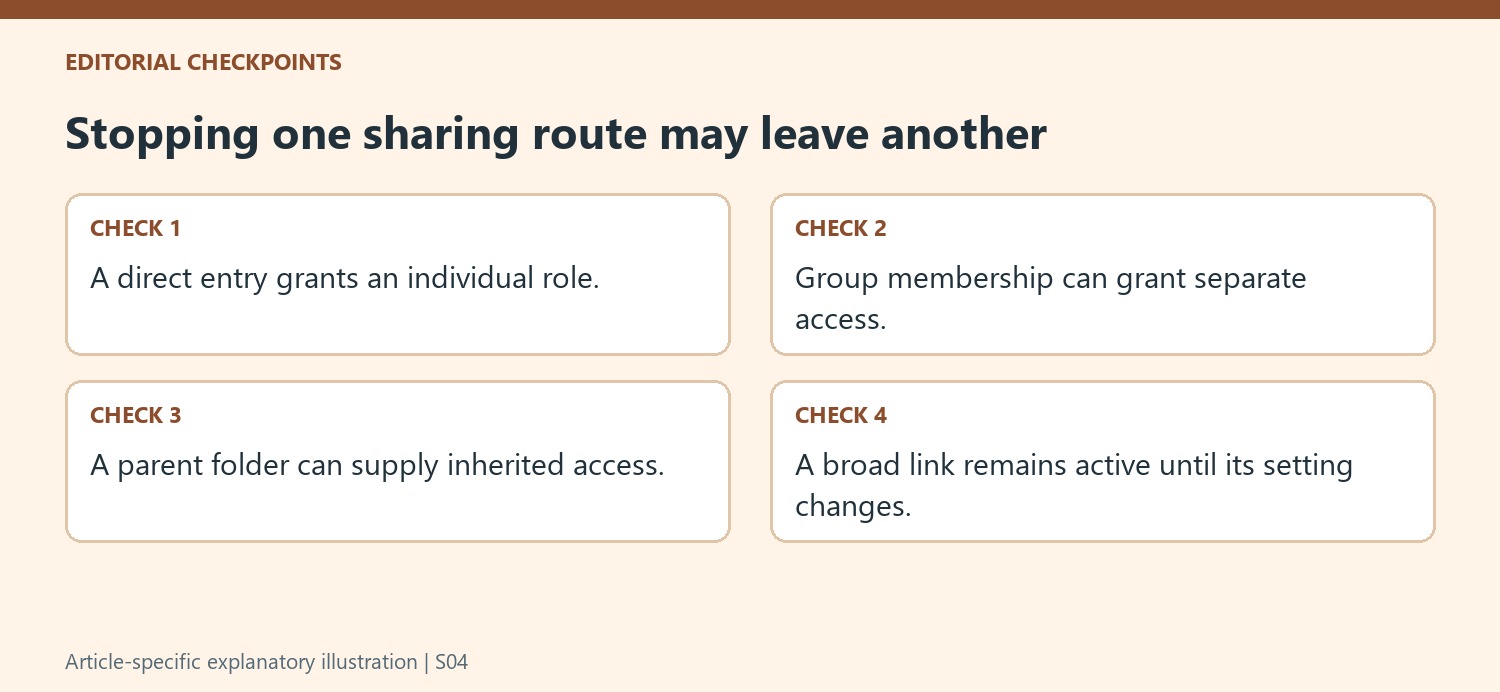
Remove an individual entry where appropriate and separately inspect general link access. A group or parent folder may still grant access even after the direct entry is removed. Likewise, restricting the link does not remove listed collaborators. Check the actual permission structure and confirm the saved settings after making changes. This final review matters especially when the original share combined a folder, a group and a general link. The intended endpoint is a current audience that matches the ongoing work, with obsolete invitations and unnecessary broad access removed through their respective controls.
References
- How to Share Folders, Files, and Documents on Google Drive. How-To Geek; Khamosh Pathak.


Comments
0