 DocumentFlow Desk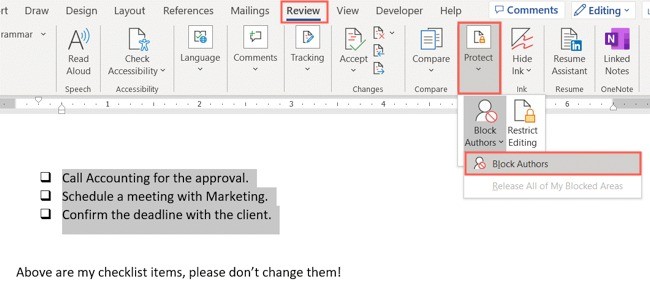
Select the text that needs a temporary boundary
The source describes Block Authors as a way to stop collaborators from changing a selected sentence or paragraph in a shared Word document. Select the relevant text, then use Review, Protect and Block Authors in the documented desktop workflow. This is useful when particular wording needs to remain stable while other parts are still being revised. Keep the selected scope deliberate: blocking an unnecessarily large area can obstruct useful collaboration. The article notes that the command can be unavailable when the document is not shared or when the selection is an object such as an image.
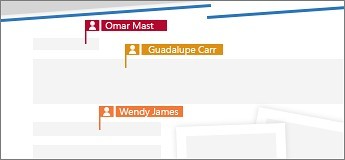
Recognize the visible indication of the blocked area
After applying the command, Word displays an icon and a boundary indicator beside the affected text. Collaborators see the indication when opening the shared document, including in the web example shown by the source, and cannot edit the blocked portion through that workflow. Check that the boundary covers the intended passage. A visible block helps communicate that an area is reserved, but it should not be confused with broader access control, encryption or a complete document-security policy. Other editing and sharing needs still depend on the document's permissions and environment.
Release the block when the passage is ready for review
The source provides platform-specific ways to remove a block from one area through its indicator. It also describes releasing all areas that the current author has blocked from the same Review controls. Use those options when the protected wording needs another review or when the reservation is no longer useful. Inspect the result afterward to confirm that collaborators can work in the intended passages again. A temporary editing boundary works best when the team understands its purpose and when its owner removes it promptly instead of leaving unexplained restrictions in a completed shared document.
Reserve only the passage that needs to remain stable
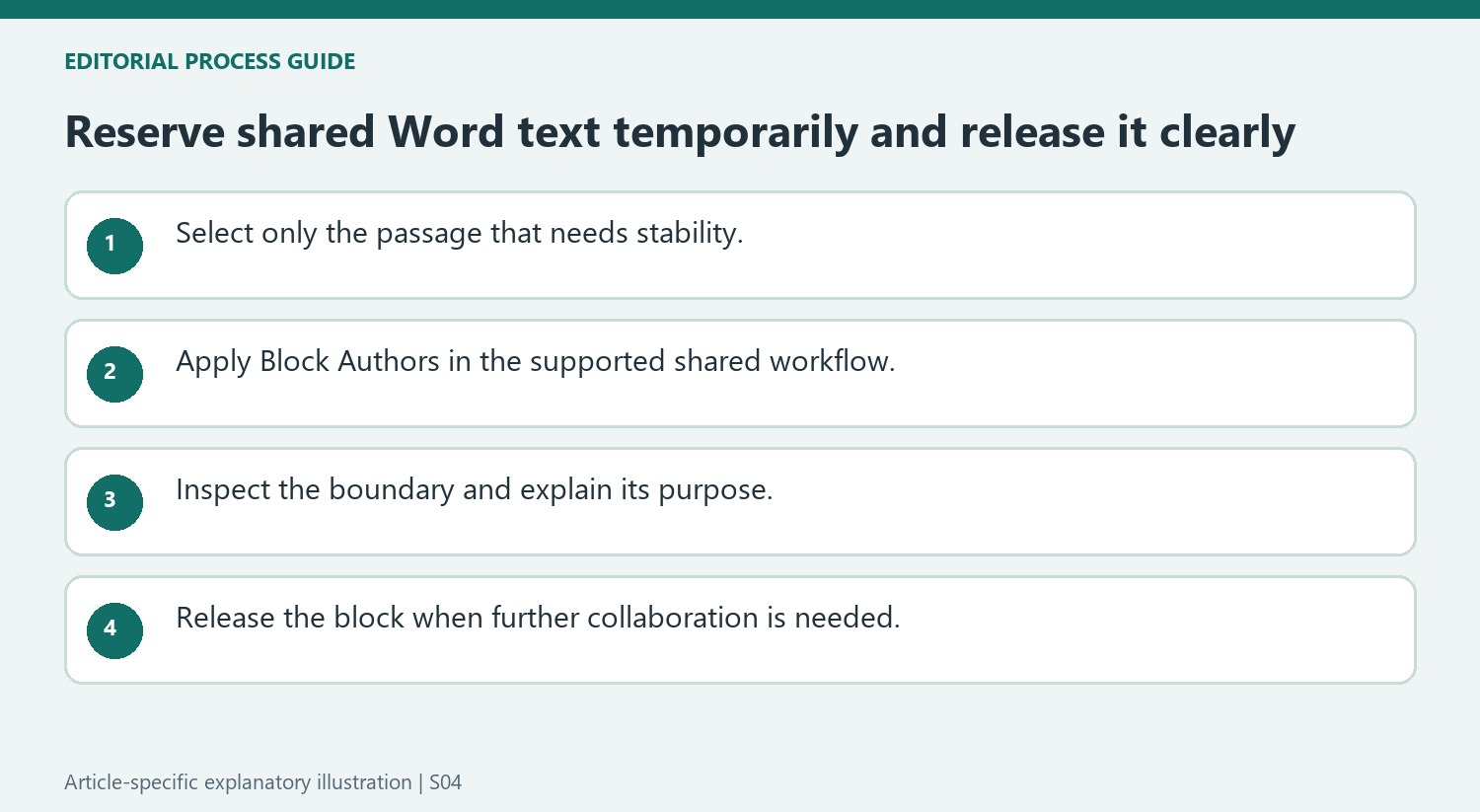
Block Authors applies to selected text in the shared-document workflow described by the source. Identify the sentence or paragraph that needs a temporary boundary and avoid selecting unrelated material. A precise block can let the team continue useful work elsewhere while one author finishes a sensitive piece of wording. An unnecessarily broad block can prevent the collaboration the shared file was meant to support.
Check that text is actually selected and that the document is shared if the command is unavailable. The article notes that a non-text object such as an image can leave the option grayed out. Do not interpret a disabled command as proof that the passage is already protected. Inspect the current document state and available controls before deciding how to preserve the intended wording.
Use the visible boundary as a collaboration signal
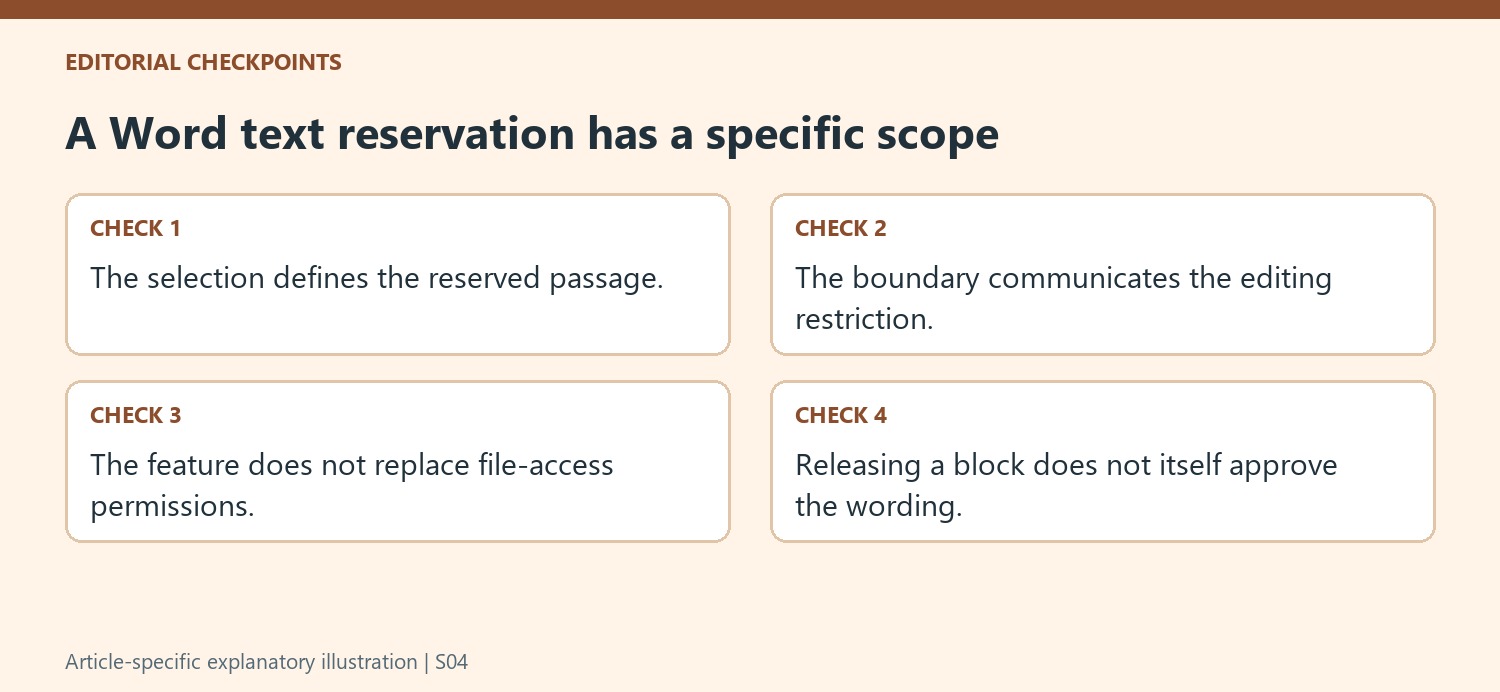
After applying the command, inspect the icon and boundary beside the text. Confirm that the selected scope matches the intended passage, including any nearby sentence that should remain editable. The source shows collaborators seeing the indication in the shared document. Explain why the area is reserved when the purpose is not obvious, so colleagues know whether to comment, wait or work in another section.
Treat the block as an editing coordination feature. It does not replace control over who can open the file, and it does not provide encryption or a complete guarantee against disclosure. A passage may also need substantive review even though its current wording is temporarily stable. Keep those decisions separate so a reserved section is not mistaken for an approved or permanently finalized section.
Release the reservation when its purpose ends
Use the indicator to unblock an individual passage or the relevant command to release all areas blocked by the current author. Check the platform-specific wording in the installed version. Then verify that the intended text is available for collaboration again and read any outstanding comments. Removing a temporary block promptly prevents unexplained restrictions from surviving into later review rounds. A clear ownership and release habit makes the feature more useful than leaving boundaries in place after nobody remembers why they were originally created.
References
- How to Block Collaborators From Editing Parts of a Word Document. How-To Geek; Sandy Writtenhouse.


Comments
0