 DocumentFlow Desk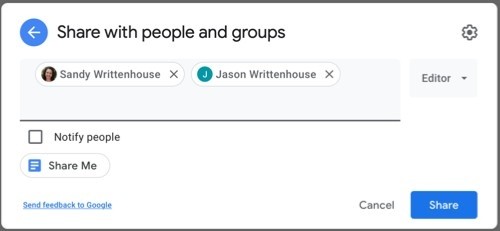
Choose recipients and the role they actually need
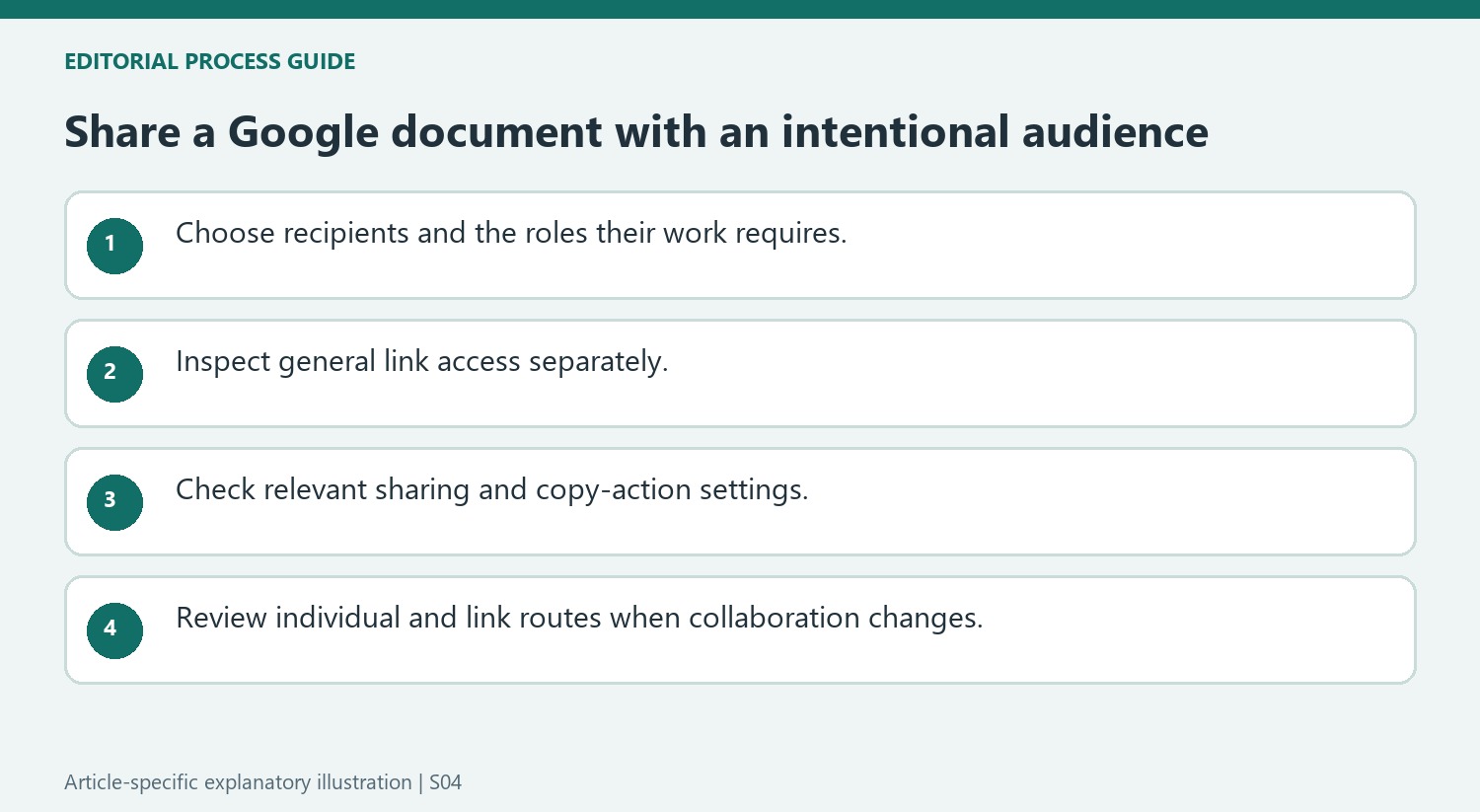
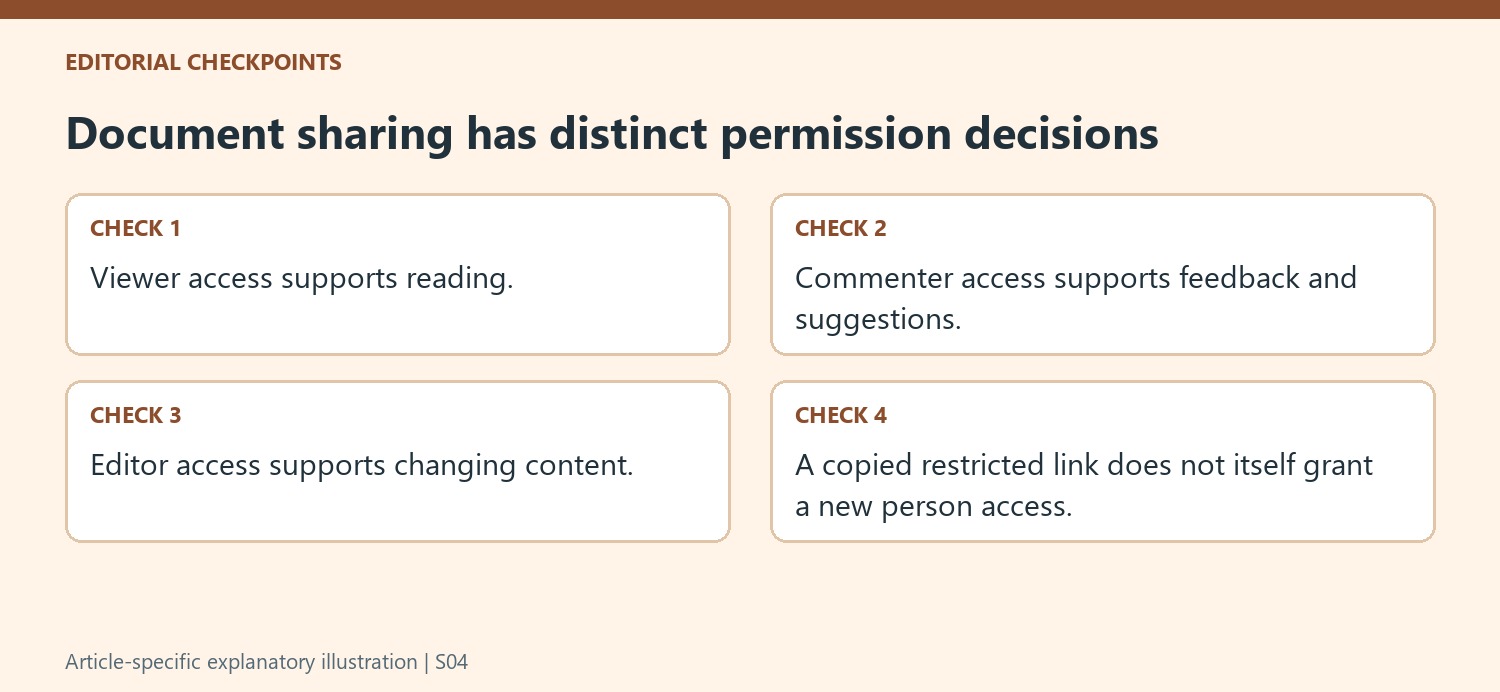
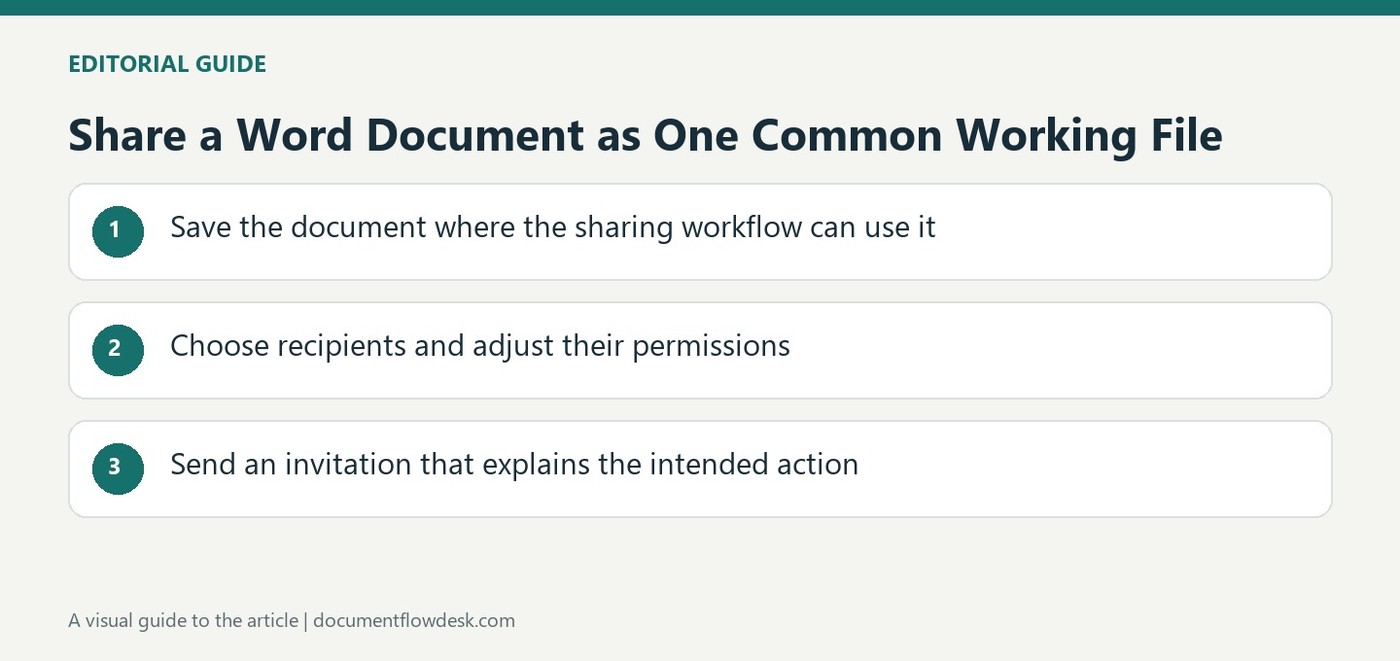
Open Share in the relevant document and add the intended people by name or email address. The source describes Viewer, Commenter and Editor roles. Viewers read, commenters provide feedback and suggestions, and editors can change the content. When adding several recipients together, inspect the role assigned to the group and adjust individuals afterward when their needs differ. Do not assume that everyone participating in a review needs editing permission. Check the names carefully before sending, particularly when similar contacts or external addresses appear among the suggestions.
Distinguish a copied link from a public-access decision
A restricted link works with the people who already have access; simply copying it does not make the document available to everyone who receives it. Anyone-with-the-link access broadens that audience according to the selected role. Choose the general-access setting deliberately before distributing the URL. The source also describes settings that can limit editor resharing or hide download, print and copy options for viewers and commenters. Review the current controls in the account being used, and understand them as specific interface restrictions rather than a guarantee against every form of information capture.
Review and remove access when the work changes
The sharing dialog allows an authorized user to change a recipient's role or remove that person. General link access can also be changed back to Restricted. Inspect both areas when ending a collaboration, because restricting the link does not automatically remove explicitly listed recipients. Add a notification message when it helps people understand why the file was shared, or distribute the link through the agreed channel. A useful sharing workflow includes maintenance after the initial invitation so the document's audience continues to match the current task and the people responsible for it.
Separate the audience decision from the role decision
First determine who needs the document, then choose what each person should be able to do. A viewer reads, a commenter supplies review feedback and an editor changes the working text. A person participating in a review does not automatically need editing access. Check contact names and addresses carefully so the intended role is not correctly assigned to the wrong recipient.
When adding several people together, inspect the shared role applied at that stage. Adjust individuals when their responsibilities differ. A notification message can explain why the document is being shared and what response is expected. The act of granting access and the act of asking for a particular contribution are related, but one does not reliably communicate the other without clear context.
Review general link access as a separate route
Copying a restricted link does not grant access to a new person. Conversely, Anyone with the link makes possession of that URL part of the access route, subject to the selected role and account controls. Check the general-access setting before distributing the link and decide whether that audience is appropriate. The same-looking URL can therefore be used under very different sharing arrangements.
Inspect the current settings for editor resharing and viewer or commenter download, print and copy actions where available. These controls limit specific interface behavior; they are not a universal guarantee that information cannot be captured another way. Treat them as part of the intended collaboration workflow and keep the audience decision aligned with the actual sensitivity and purpose of the document.
Revisit all access routes when collaboration changes
Use the sharing dialog to update roles or remove listed recipients as work concludes. Also review general access, because an individual removal can leave a broad link route in place. Changing the link to Restricted does not automatically remove people who remain explicitly listed. Folder or group permissions may create additional routes in a larger Drive setup. Check those where relevant before assuming one setting has ended access completely. Maintaining sharing is an ongoing task: the current audience should continue to reflect who needs the material now, rather than every person who once received an invitation.
References
- How to Share Documents on Google Docs, Sheets, and Slides. How-To Geek; Sandy Writtenhouse.


Comments
0