 DocumentFlow Desk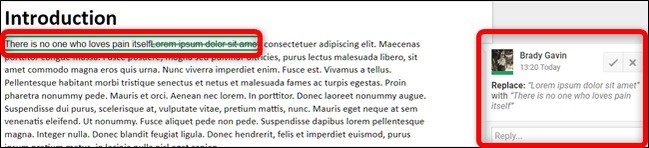
Check the document mode before making a revision
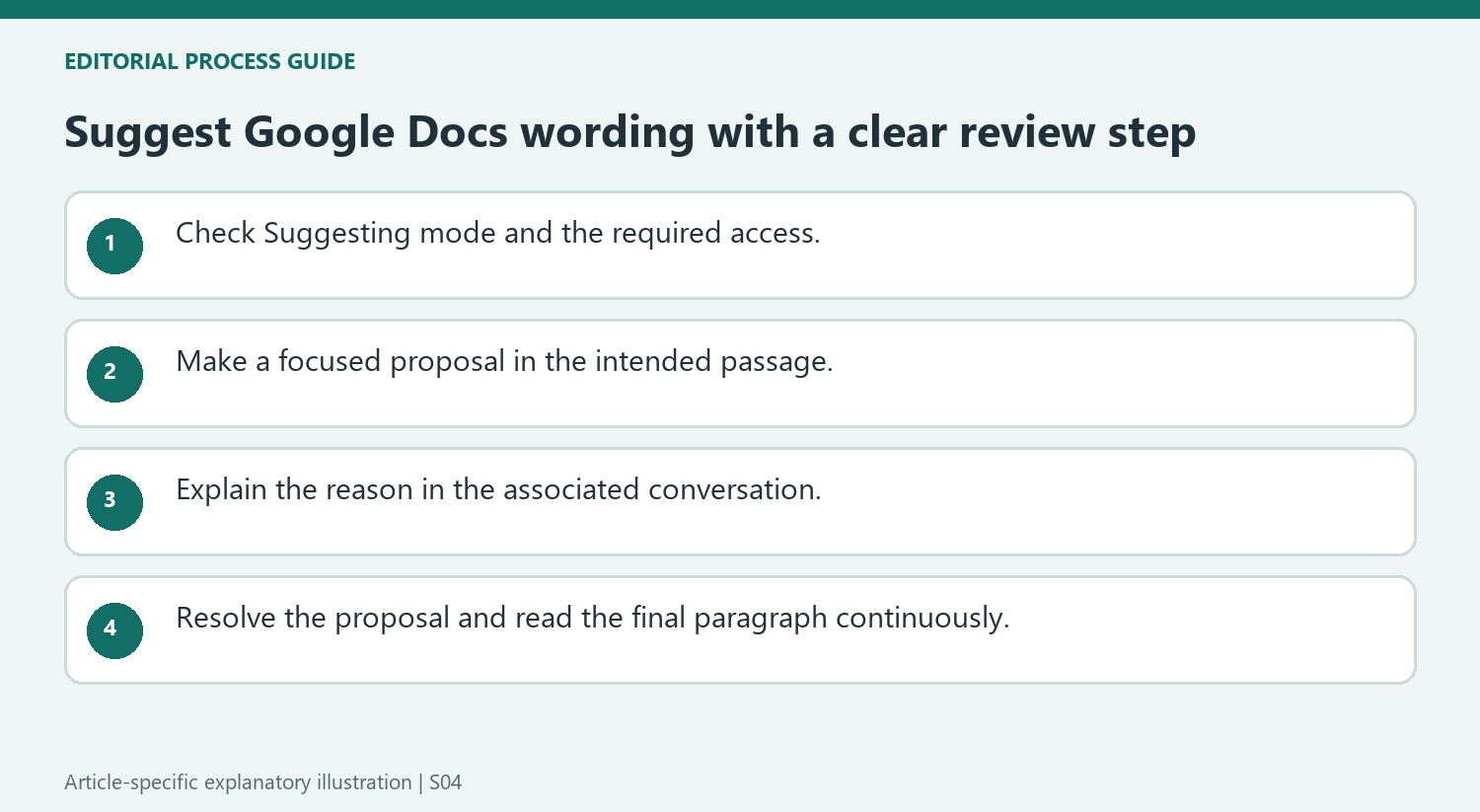
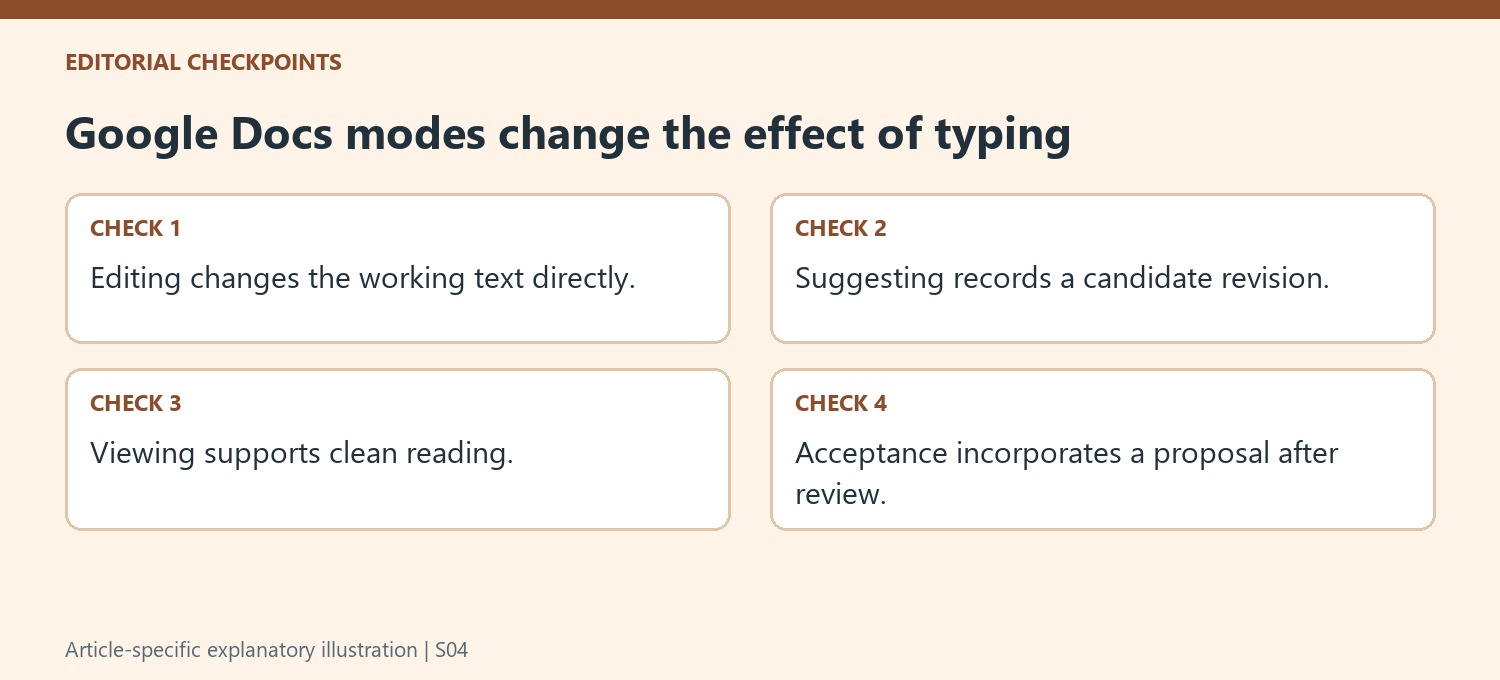
The article distinguishes Editing, Suggesting and Viewing in Google Docs. Editing changes the working document directly, while Viewing provides a reading-oriented experience. Suggesting records proposed changes for another review step. Inspect the mode control near the upper-right corner before typing, then choose Suggesting if that is the intended workflow. If the option is unavailable, ask the owner to provide appropriate access. This check matters because identical typing can have a different effect depending on the selected mode, even when the document otherwise looks unchanged.
Make the proposal and explain its purpose
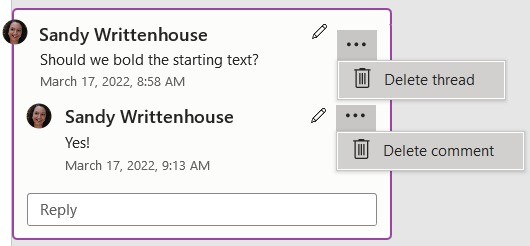
Type the proposed wording in the relevant passage. The source describes additions appearing in a different color and deleted words remaining visible with a strikethrough. A related box in the margin identifies the change. Use its reply area when the reviewer needs context, such as the reason for a terminology change or a question about an ambiguous sentence. Keep the explanation tied to the specific proposal. A visible revision shows what would change, but it does not by itself establish whether the new wording is accurate, complete or appropriate for the document's audience.
Review each proposal before finalizing the text
The source describes notifying the owner and providing controls to keep or reject a suggestion. Accepting incorporates the proposed wording, while rejecting removes the proposal rather than applying it. Review additions and deletions together so the final passage remains coherent. When a suggestion needs discussion, use the associated conversation before making the decision. This workflow is most useful when collaborators need a visible distinction between a proposed change and an approved one. After review, read the resulting passage continuously rather than assuming that several reasonable individual edits necessarily produce a clear final paragraph.
Verify the mode at the moment the revision is made
The same keystrokes can either alter the working text directly or create a proposal, depending on the document mode. Look at the control before beginning a review and again if the workflow changes. Viewing provides a cleaner reading experience, but it is not the mode for proposing wording. If Suggesting is unavailable, resolve the access question before assuming a proposed correction will be recorded for review.
Select the intended passage and keep the change focused enough that its meaning can be evaluated. A replacement often involves both an addition and a deletion, so inspect those together. A visible strikethrough is proposed removed wording, not necessarily text that has already been approved for deletion. Make that distinction clear to collaborators who are unfamiliar with the review display.
Use the suggestion conversation to explain a judgment
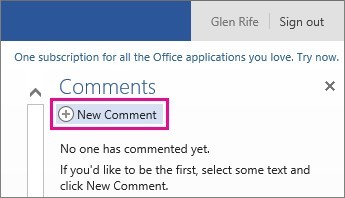
The margin box connects the proposed wording with a place for discussion. Add an explanation when the reason cannot be understood from the edit alone, such as a terminology choice or an uncertainty about the source. Keep the comment specific to that change. A general observation about the whole document may be better expressed separately than attached to one apparently minor word replacement.
Read replies before resolving a suggestion that raised a substantive question. The goal is to decide whether the proposed wording improves accuracy and clarity, not simply to remove visible review marks. An owner notification can draw attention to the proposal, but it does not itself establish that the issue has been considered. Preserve open questions as open until the relevant person can clarify them.
Read the approved passage as continuous text
Accepting a suggestion incorporates it, while rejecting declines that proposed change. After resolving several edits, read the whole sentence and paragraph rather than checking only the isolated words. Adjacent suggestions can interact, leaving repetition or a missing connection even when each looked reasonable individually. Confirm that the final passage expresses the intended meaning and remains consistent with related sections. This final reading step gives the review a clear endpoint: the wording has been considered and the resulting document makes sense without relying on the suggestion boxes to explain what its authors meant.
References
- How to Suggest an Edit in Google Docs. How-To Geek; Brady Gavin.


Comments
0