 DocumentFlow Desk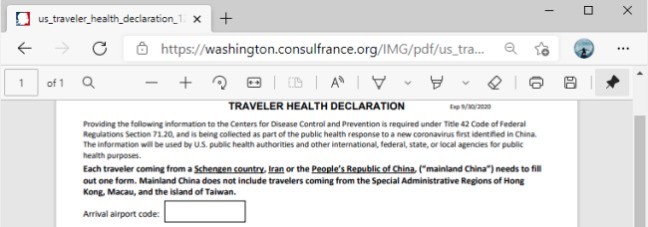
Open the PDF and choose the appropriate markup tool
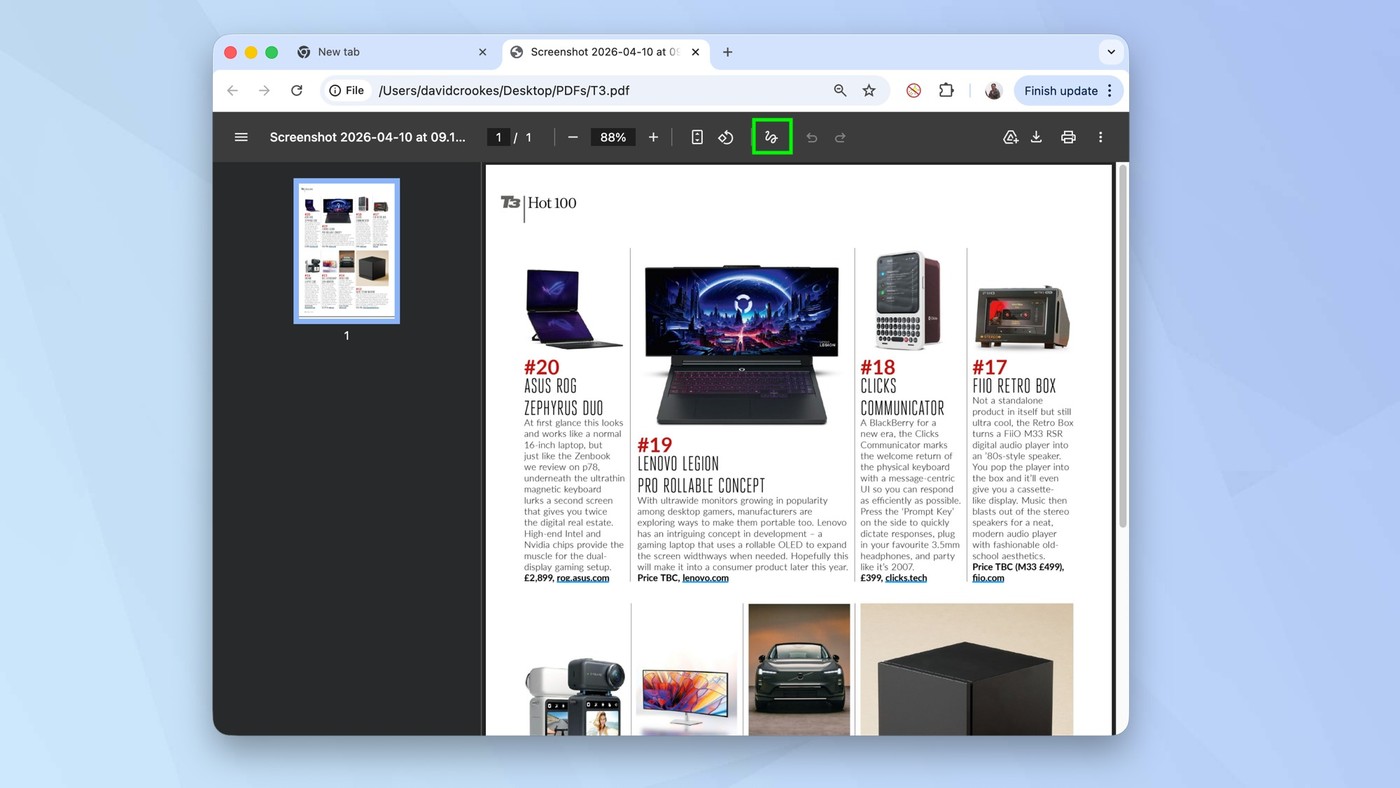
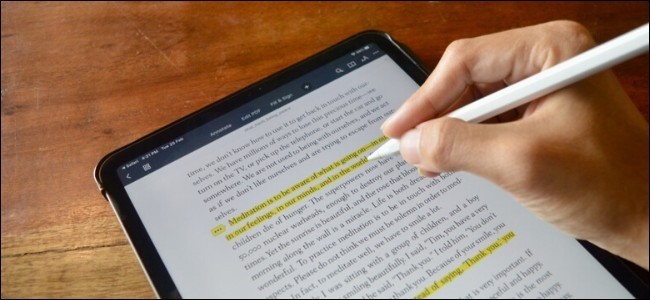
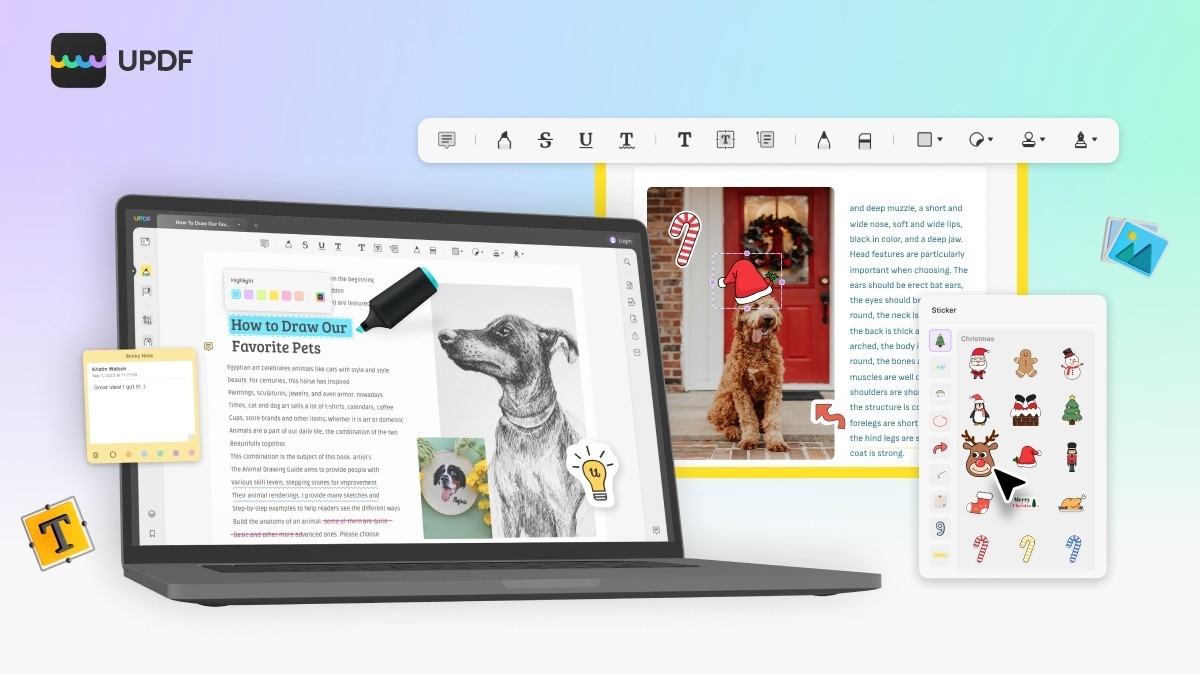
The source describes Edge's PDF toolbar for local and online documents. A pen tool supports freehand annotation with configurable color and thickness, while a highlighter can mark text. Select the intended tool and test a small mark before annotating an entire document. Keep the source wording readable and use the eraser for accidental strokes. These actions add review information; they are not equivalent to editing the underlying paragraph or changing the document's official content. Maintain an unannotated original when the review process needs a clear reference copy.
Use comments to explain the meaning of a highlight
The article describes adding a comment to highlighted text and reviewing it through the associated indicator. A highlight alone can mean approval, concern or simply a point to revisit, so explanatory text makes the intent clearer. Check that the note is attached to the right passage and that its wording is useful outside the current editing session. Review the current Edge interface for the available controls, since annotation features can vary by version. Save the changes and reopen the file to confirm that comments and highlights remain available in the intended reading environment.
Distinguish fillable fields from general PDF editing
The source notes that a PDF form may expose highlighted entry fields. Entering data in those fields differs from adding a text annotation or changing ordinary page content. If a page has no usable form controls, the viewer does not thereby become a full content editor. Choose the workflow that matches the required task and authorization. Before sharing, inspect field values, comments and freehand marks together, and verify the saved filename and page scope. A useful review copy should preserve the source information while making the intended feedback or completed entries unambiguous.
Choose the annotation type from the information it should communicate
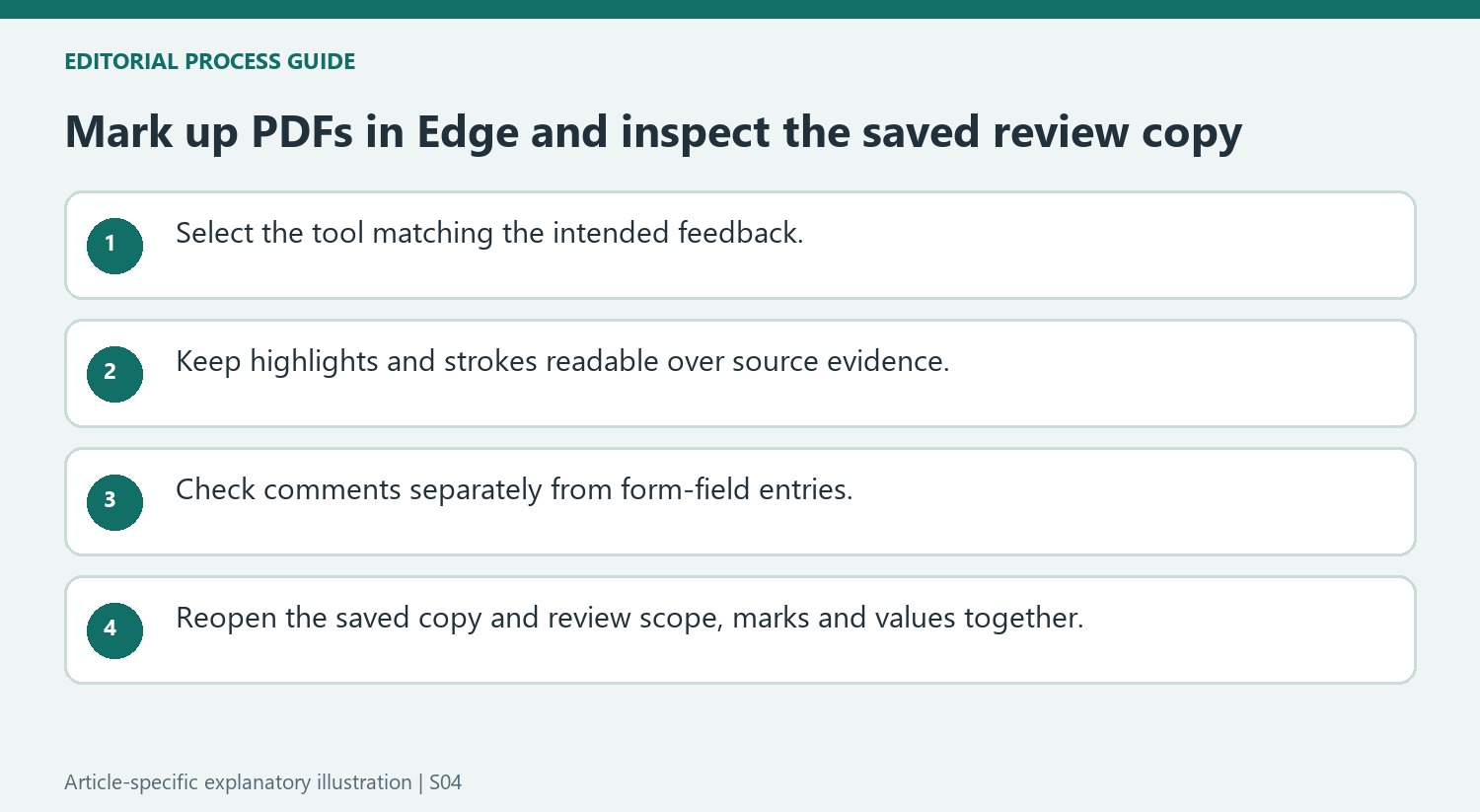
A pen adds freehand strokes, a highlighter marks a passage and a comment supplies an explanation. Use the one that matches the review need and inspect the intended target before applying it broadly. A highlight alone can leave the reader unsure whether the passage needs correction or was simply useful. Add a concise note where the purpose is not self-evident.
Check color and thickness against the actual document. A mark visible over a white margin can obscure fine print or a graph when drawn across content. Test a small example and review it at ordinary reading size. Keep the underlying source legible and preserve an unannotated original when the process needs a clear baseline for later discussion or comparison.
Keep annotation controls separate from form-field entry
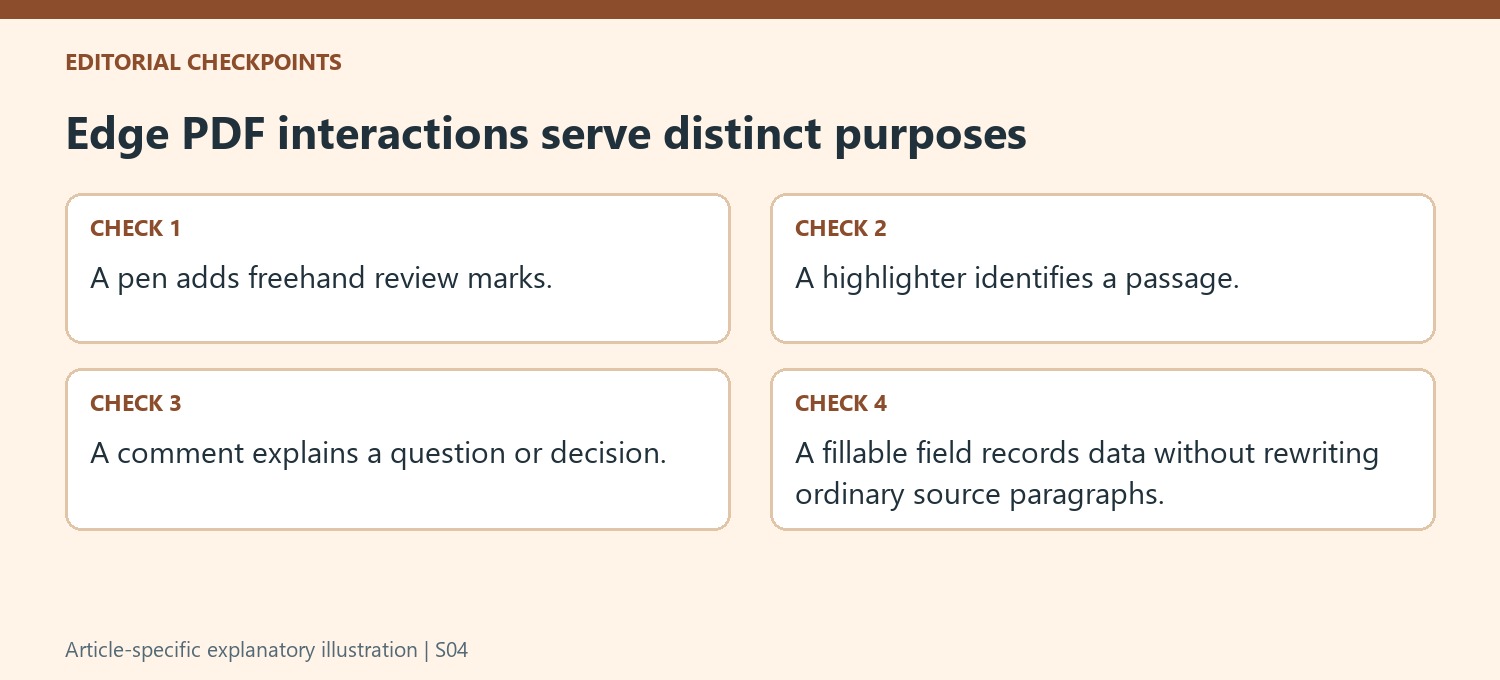
The source describes highlighted entry areas in fillable PDFs. Typing into one supplies a field value, while placing a note elsewhere adds review material. Neither should be assumed to edit the ordinary source paragraph. If no usable form control is available, identify whether the task needs an annotation, a proper form workflow or another editing tool rather than guessing from the page appearance.
After entering form data, inspect the actual field values and save behavior. A visible typed entry during the session is not sufficient evidence that the downloaded or saved copy contains it. For comments, check the indicator and the associated passage after reopening. These checks matter because feedback notes and completed form entries have different meanings to the next person reading the same PDF.
Review the saved copy outside the active annotation session
Use a filename that distinguishes the marked or completed output from the source, then open it from the saved location. Verify page scope, comments, highlights and freehand marks together. Remove accidental strokes and confirm that the explanation remains understandable without access to the original editing context. Edge features can vary by version, so inspect the controls actually available rather than assuming every historical tutorial step appears unchanged. A useful final review copy preserves the source evidence while making its feedback and any entered form information clear and unambiguous.
References
- How to Annotate and Highlight PDFs in Microsoft Edge. How-To Geek; Samir Makwana.


Comments
0