 DocumentFlow Desk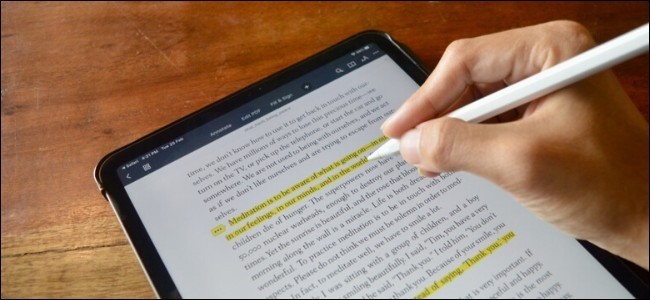
Import a copy and choose the intended annotation tool
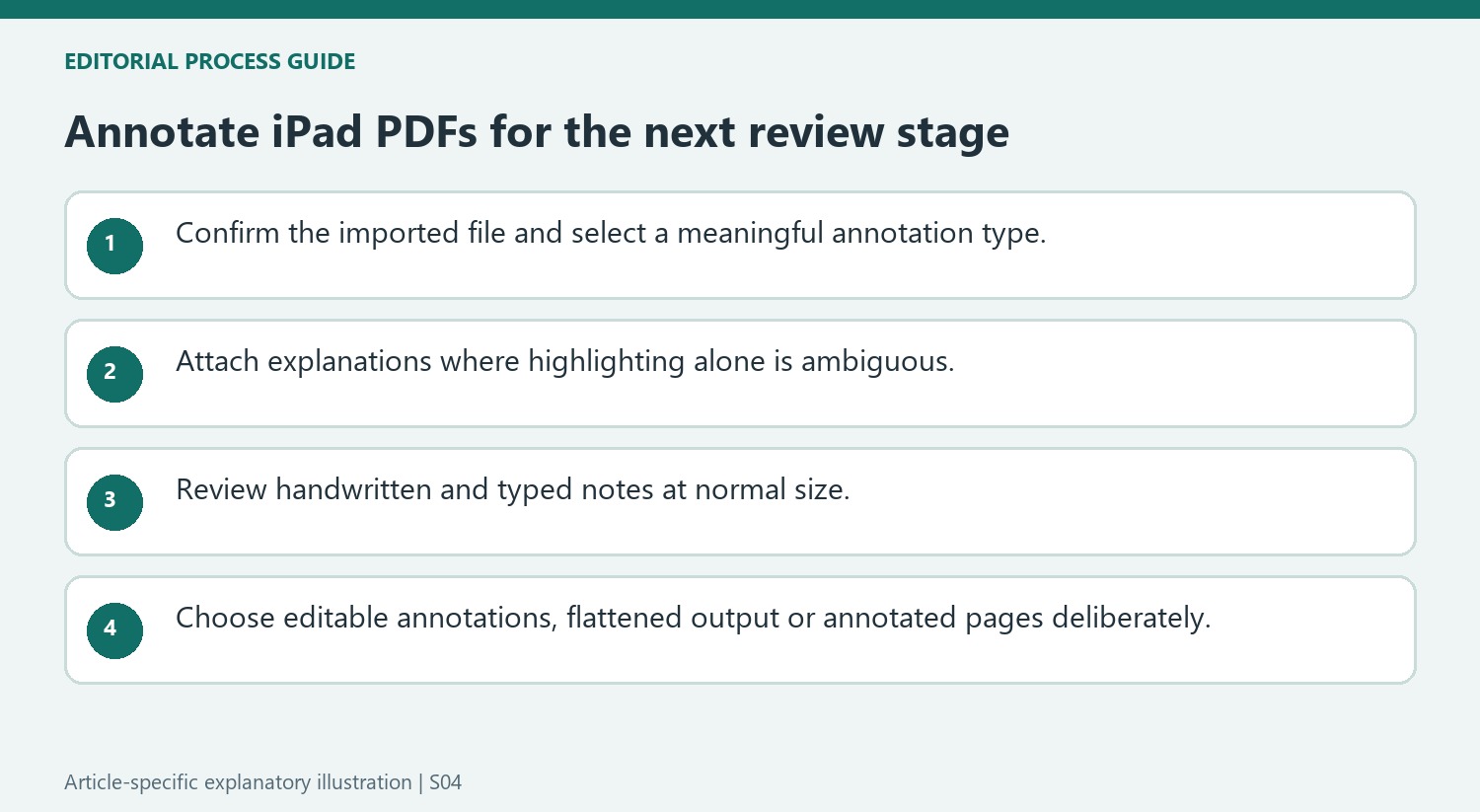
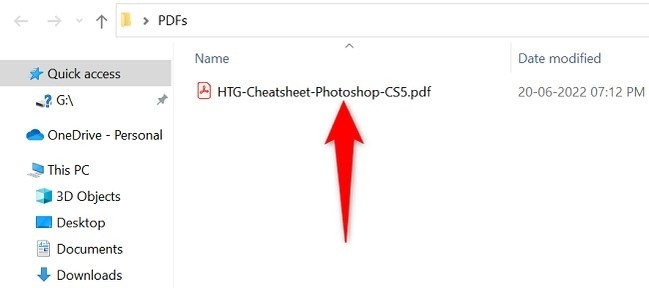
The source demonstrates PDF Expert through the iPad share sheet and its Annotate interface. Confirm which file is being imported and keep the original available for comparison. A text highlighter targets recognized text, while a pen or marker can place freehand strokes over the page. Use the tool that fits the task rather than drawing over a passage merely because text selection is unavailable. A scan may not expose selectable words in the same way as a text-based PDF, so the resulting mark should be reviewed in context.
Keep notes readable and associated with their passages
The article describes attaching notes to selected text, using text boxes for typed annotations and adding handwriting with a finger or Apple Pencil. Choose colors and sizes that make the comment clear without covering the source wording. Inspect the annotation at the normal reading scale, not only while zoomed in. Use a note to explain a question or decision when a highlight alone would be ambiguous. The application version and feature plan can differ from the historical example, so check available controls before assuming every described tool is included in the current edition.
Review the export behavior before sharing
The source distinguishes sharing an original-style document with editable annotations, a flattened copy and annotated pages only. These outputs serve different review needs. A flattened annotation is not the same as cryptographic tamper protection or an assurance that a PDF cannot be edited by other tools. Choose whether the recipient needs the whole document, continued annotation editing or a fixed visible review copy. Save and reopen the selected output to verify page scope, note visibility and handwriting placement before distribution, retaining the best-quality source for any later corrections.
Choose a mark that expresses a specific review intention
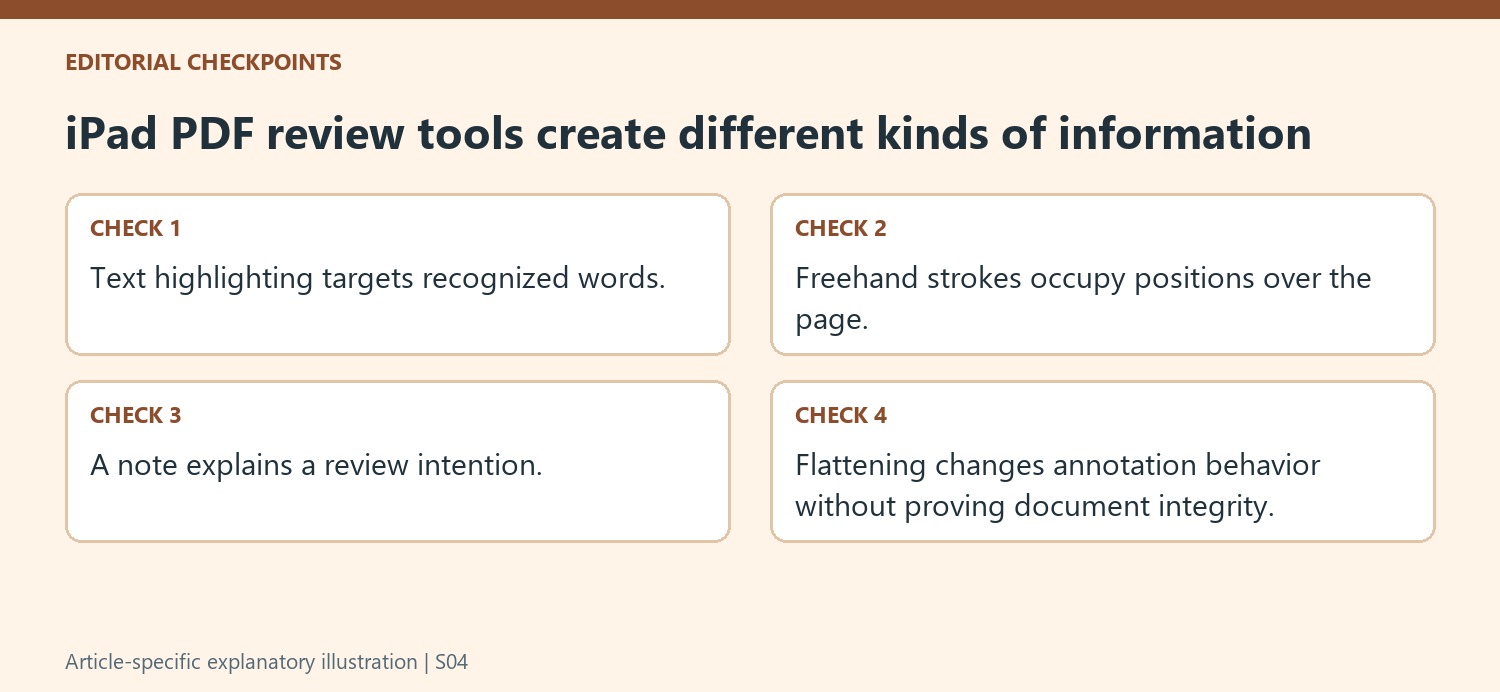
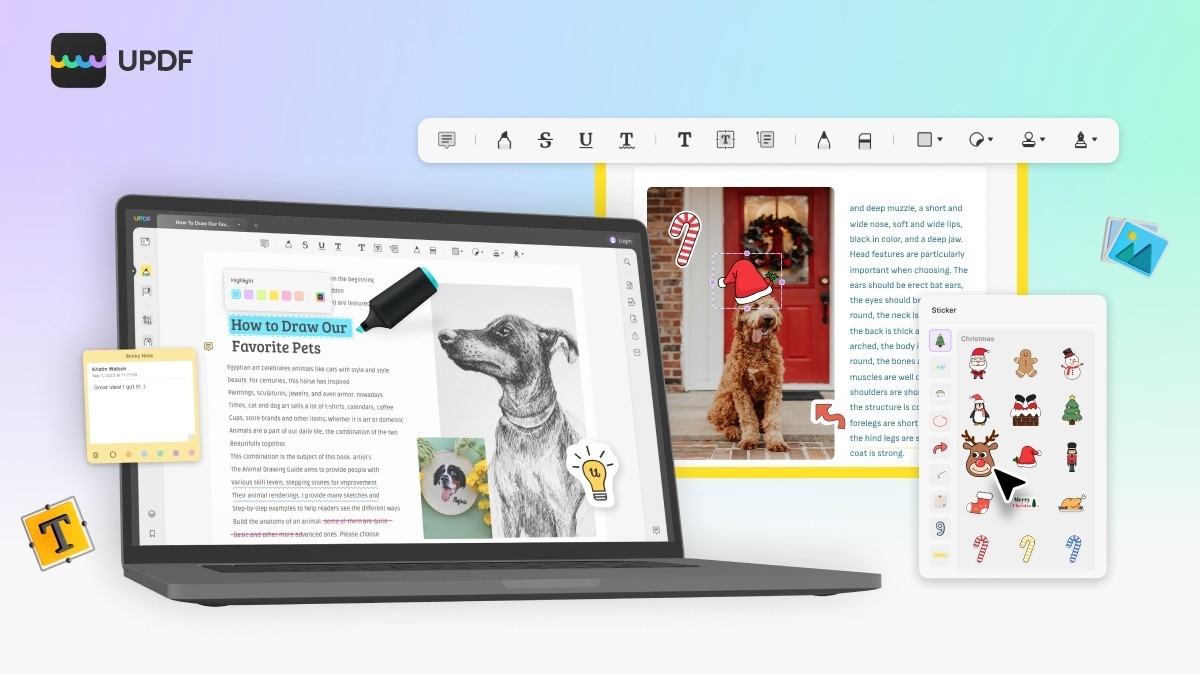
A highlight can identify a passage, but it does not say whether the reader approves it, questions it or wants to revisit it. Add a note when the meaning would otherwise be ambiguous. Keep the note attached to the correct wording and include enough context for someone who was not present during the review. A useful annotation should communicate a decision or question rather than only add color.
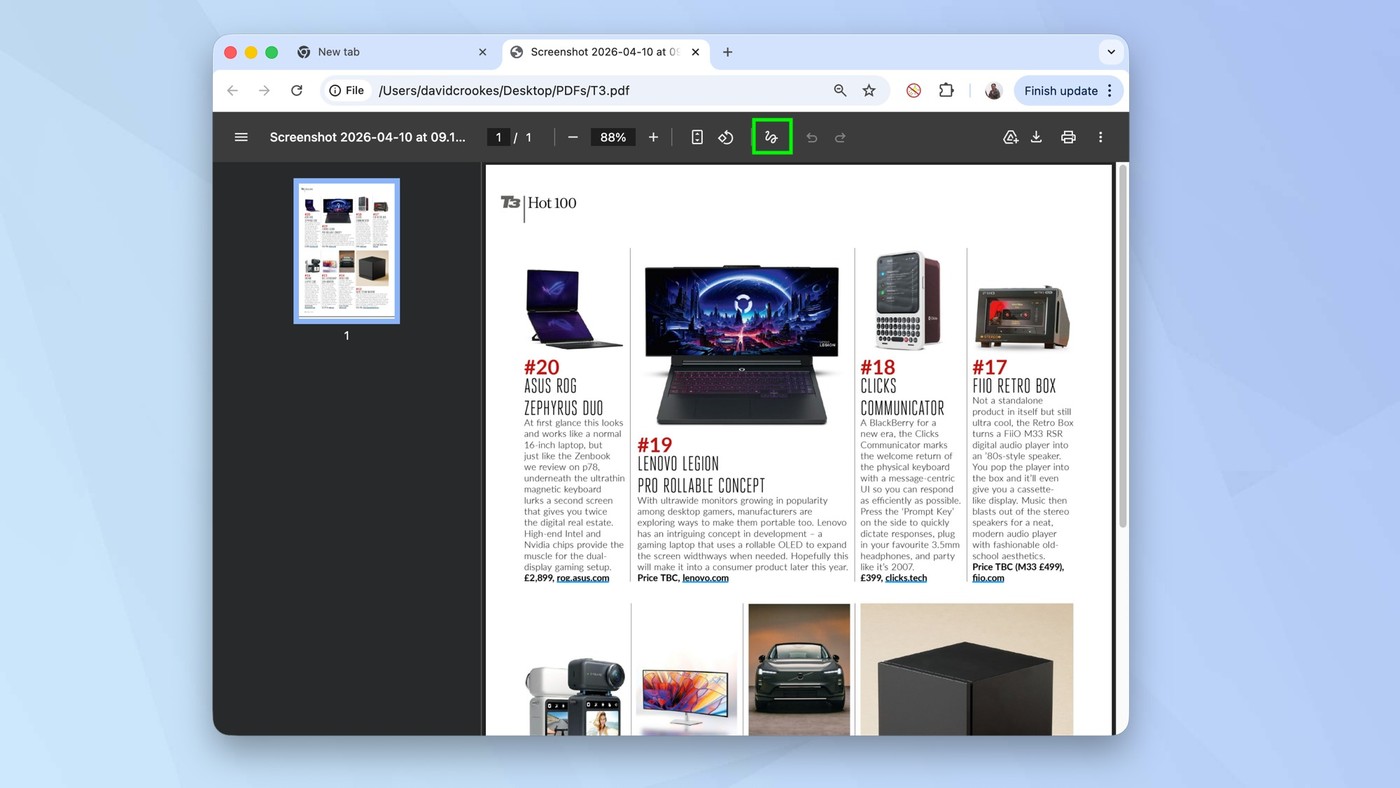
Text highlighting and freehand strokes behave differently. A recognized text selection can follow the words, while a pen or marker places a drawn mark over the page. Choose deliberately and inspect the result at normal reading size. A scan that lacks selectable text can require another approach, but a broad drawn highlight should still leave the original evidence readable and its intended target clear.
Review handwritten and typed notes for placement and legibility
The source describes a finger or Apple Pencil for handwriting and a text-box tool for typed annotations. Check whether the chosen approach remains readable when the page is viewed without editing zoom. A note that was comfortable to write at high magnification can become too small, while a thick stroke can cover punctuation or a figure important to the passage.
Use undo or the relevant correction control for misplaced marks before accumulating more annotations nearby. Review dense passages and page edges as well as open margins. The historical article's specific app version and pricing are not a guarantee of the current feature plan, so inspect the installed controls and terms for the workflow actually being used. Evaluate the saved result rather than relying on the tutorial's overall app recommendation.
Select the exported copy according to the next review stage
The described options include an original-style document with editable annotations, a flattened copy and annotated pages only. Continued collaboration can need editable notes, while a focused feedback extract can need only selected marked pages. Verify that the chosen output includes the intended scope. Flattening changes annotation behavior but does not supply cryptographic tamper verification or make every kind of PDF edit impossible. Reopen the saved copy and inspect notes, handwriting and page count, keeping the unannotated original or best-quality source available for later review and correction.
References
- How to Highlight and Annotate PDFs on Your iPad. How-To Geek; Khamosh Pathak.


Comments
0