 DocumentFlow Desk
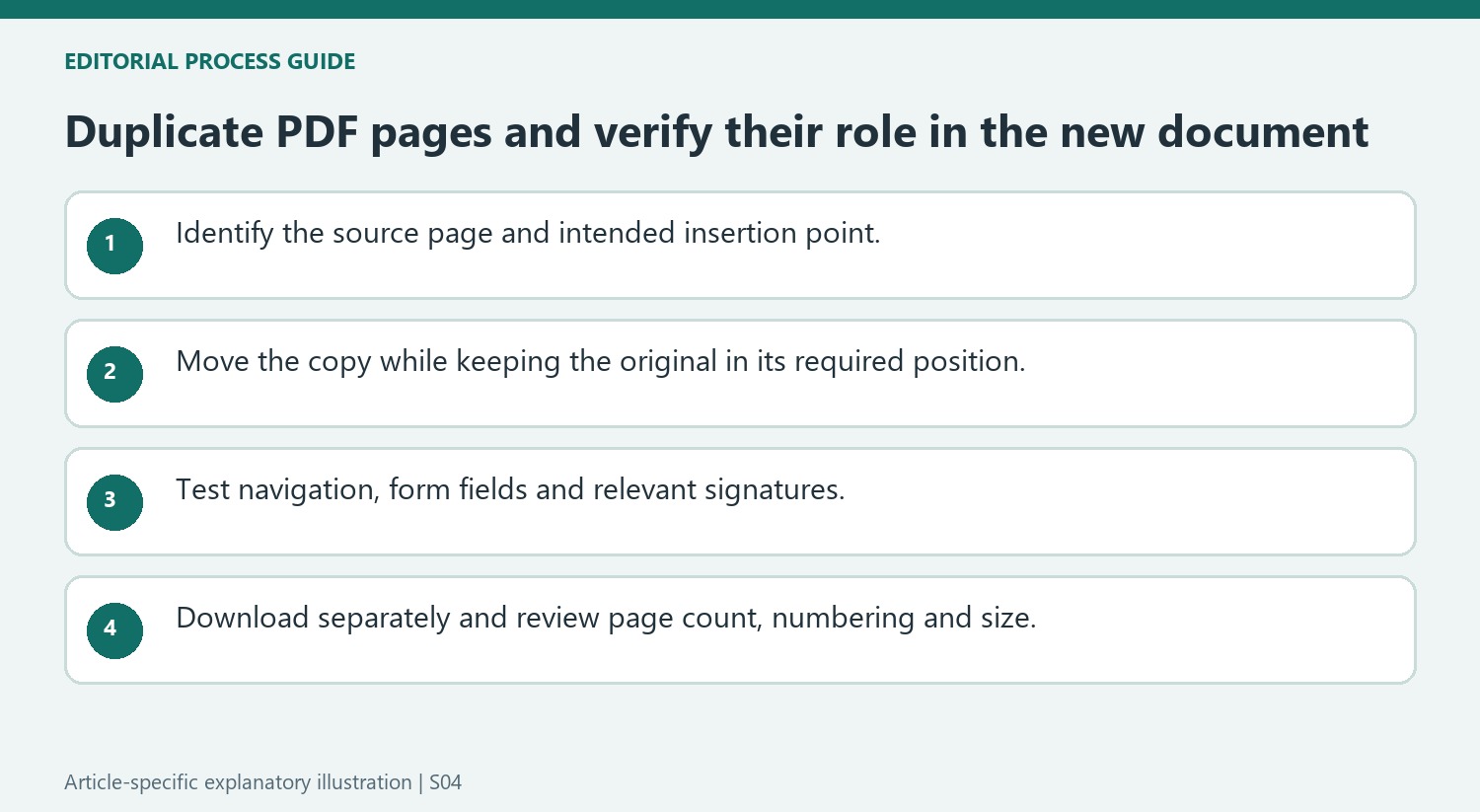
Identify the exact page and intended insertion point
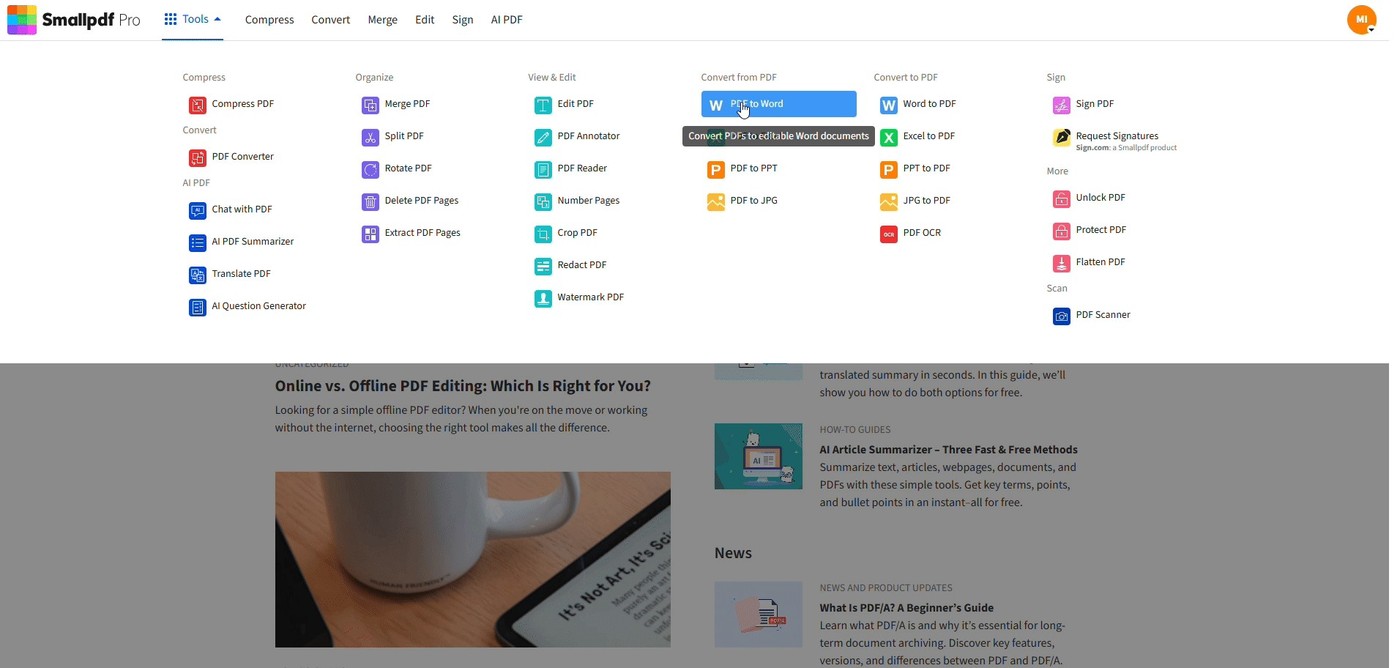
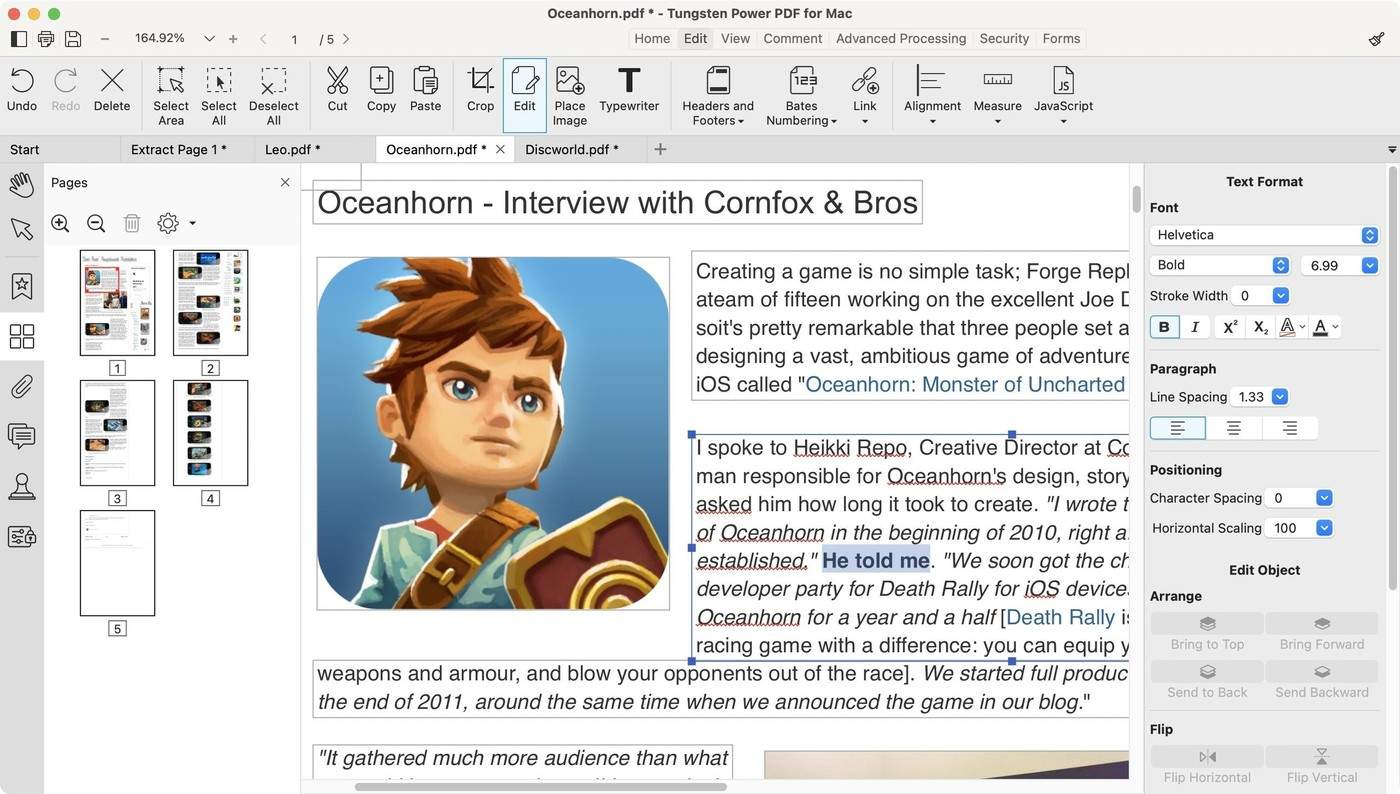
The source describes a thumbnail-based Organize PDF workflow that duplicates individual pages. Open the intended file, find the source page and choose its duplicate control. Move the copy into the required position rather than accidentally relocating the original. This can support repeated worksheets, forms or divider pages without copying the entire document. Review the neighboring thumbnails before finishing. Similar-looking pages can make an error difficult to spot, so inspect their actual content and any visible page labels instead of relying only on the thumbnail position.
Distinguish a copied appearance from preserved behavior
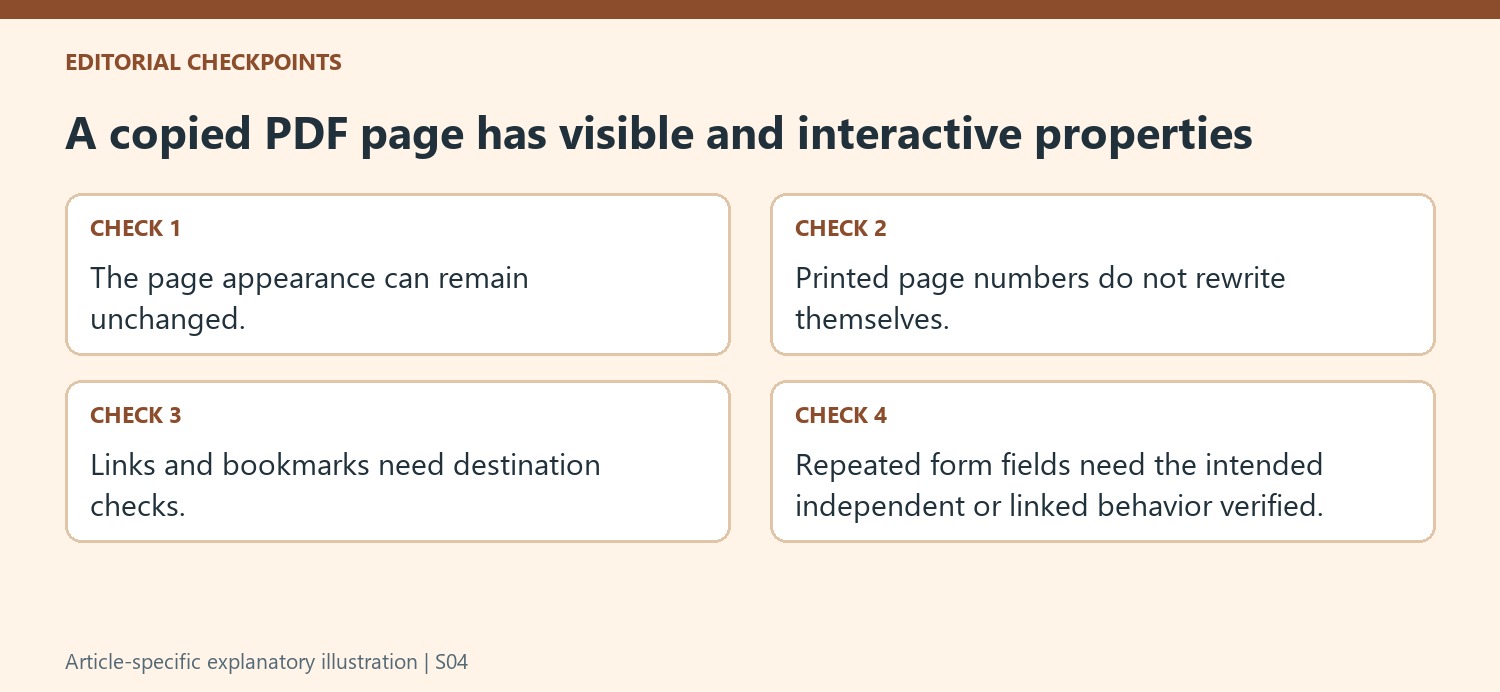
Duplicating an existing page should preserve its visible content more directly than reconstructing it in another format. The article nevertheless recommends checking interactive elements such as hyperlinks, bookmarks, form fields and signatures. A page position can change while a link destination retains a relationship that no longer matches the intended reading sequence. Repeated form fields can also require specific behavior. Test the features that matter to the document rather than assuming that an unchanged appearance means every underlying interaction or validation property survived exactly as required.
Respect restrictions and inspect the downloaded result
A password or editing restriction can prevent reorganization; obtain the proper authorization or source copy before modifying a restricted file. Repeated image-heavy pages can also increase the final size. Finish the organization, download a separate output and reopen it in a normal viewer. Check page count, duplicate placement and the original page's continued position. Keep the source available for comparison and use a filename that distinguishes the revised document. The final review should confirm that the copied pages support the intended workflow rather than creating ambiguity about which instance should be completed or cited.
Verify the source page and the copy as separate positions
Find the actual page content before using the duplicate control, then confirm which thumbnail is the original and which is the new copy. Moving the original accidentally can leave a later section missing its reference page even though the document now contains a similar-looking page elsewhere. Inspect the neighboring content at both positions before finishing the organization step.
A repeated worksheet, divider or information page should have a clear role in its new location. Check any visible page number printed on the page, since duplicating a page does not automatically rewrite that number to match the new sequence. If the new reading order requires revised numbering, handle that as a separate deliberate task and review its result.
Test interaction independently from unchanged visible appearance
The source lists links, bookmarks, fields, buttons, annotations and signatures as features needing extra review after duplication. A page can look identical while its navigation or form behavior does not match the intended repeated use. Follow important internal links and contents entries, then inspect their actual destinations in the reorganized file rather than assuming a shifted page position is always handled automatically.
For repeated form pages, test the fields recipients are expected to complete. A visible duplicate is not necessarily equivalent to creating a fresh independent form entry. Likewise, adding a copied signature appearance does not create another completed signing action. Check the required behavior through the actual saved document and keep these interactive requirements distinct from whether the page text and images still look correct.
Review structure, size and permissions before distribution
The article notes that access restrictions can prevent page reorganization. Obtain the appropriate permission or source rather than treating the read-only view as a tool failure. Adding image-heavy duplicates can also increase size, so measure the saved result if there is a delivery limit. Download a separate output, verify page count and all duplicate placements, and confirm the original pages remain where needed. Keep the source for comparison until the revised package is accepted and the repeated pages have a clear meaning for the intended reader. Verify one complete repeated-page workflow after the final download.
References
- How to Duplicate a Page in a PDF | Smallpdf. Smallpdf; Stéphane Turquay.



Comments
0