 DocumentFlow Desk
Build the navigation in the source document
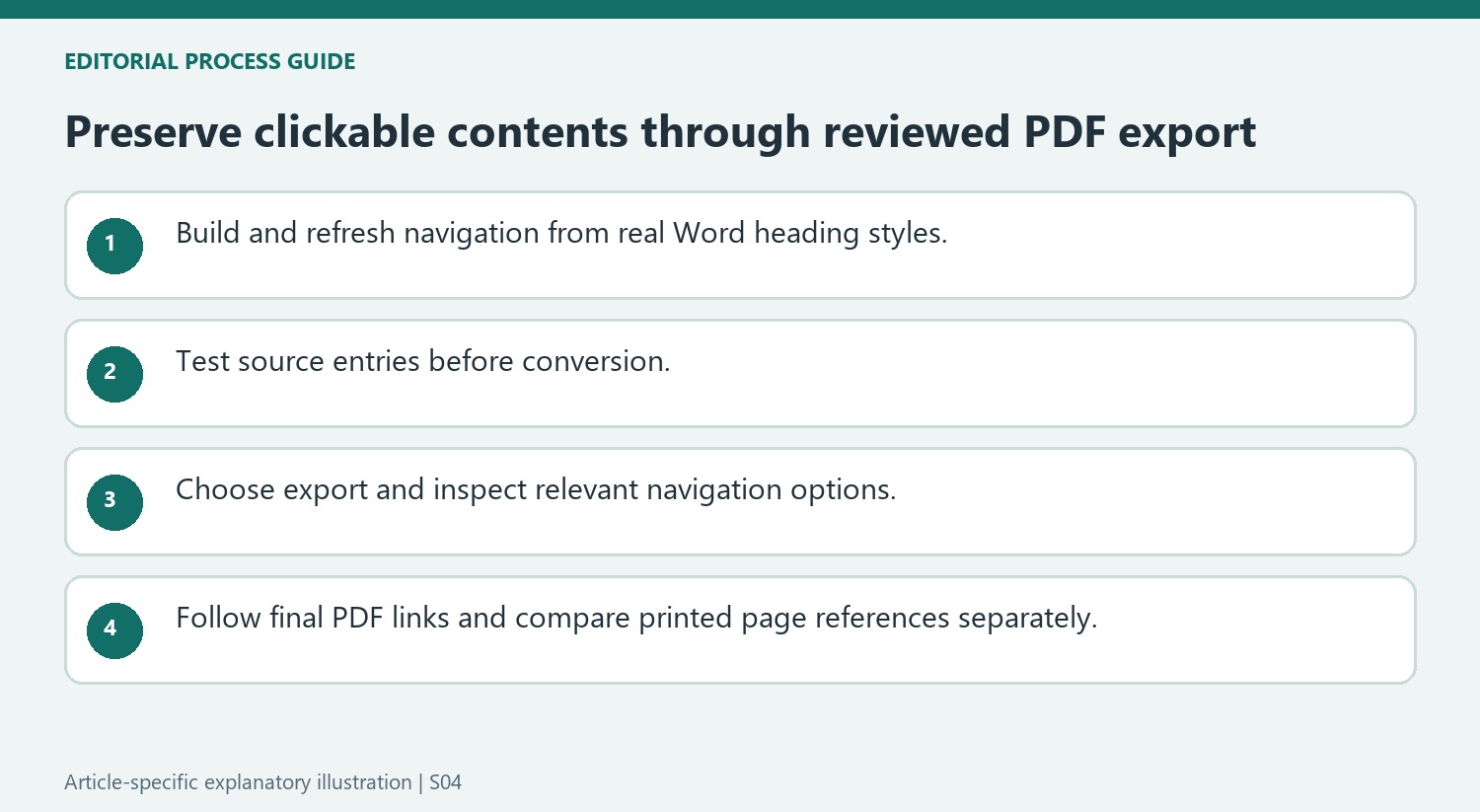
The article recommends using real heading styles for section titles and generating an automatic contents table through References. A manually typed list of titles and page numbers does not establish the same link structure. Apply levels according to the section hierarchy and refresh the whole table after revisions. Test representative entries inside Word before exporting. If a source entry points to the wrong section, conversion is not the right stage to repair it. Fix the heading structure and navigation relationship first, keeping the underlying document clear enough for future maintenance.
Choose a conversion route that retains interactive features
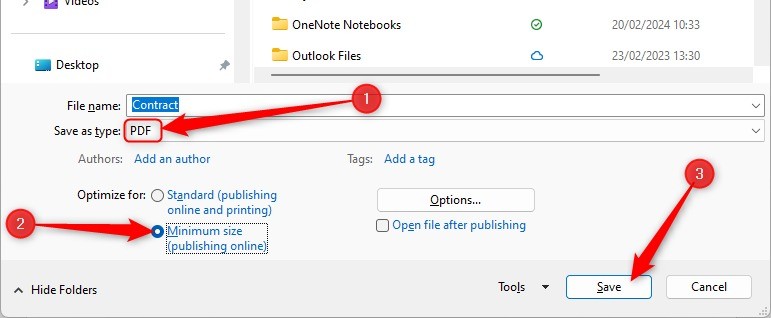
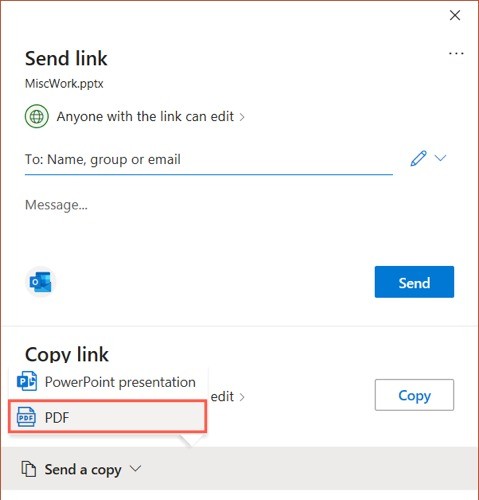
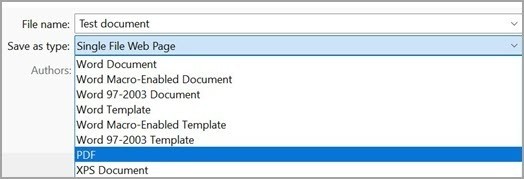
The source contrasts Word's Save As or Export to PDF with a print-to-PDF workflow, which can lose interactive links. Use an appropriate export route and review options such as bookmarks based on headings and document structure tags where relevant. These settings support different aspects of the output and should not be described as a guarantee that every possible link will survive. A browser converter is another route discussed in the article, but it still requires the same verification against the actual source and document-handling context.
Test the finished PDF as a reader would use it
Open the exported PDF and click entries from several hierarchy levels and distant parts of the document. Confirm that each arrives at the intended heading rather than merely a nearby page. Inspect ordinary hyperlinks and cross-references when they are also part of the report. Verify the displayed page numbers after final edits, since an accurate link and a correct printed reference are separate checks. Keep the editable source so navigation corrections can be made there and exported again, avoiding a growing collection of manual fixes that only exist in one final-format copy.
Validate source navigation before evaluating its conversion
Real heading styles and an automatic contents table give the source a maintainable navigation relationship. Test several entries in Word, including a subordinate heading and a distant section. If one reaches the wrong place there, inspect the heading structure or field relationship before exporting. A conversion step cannot be relied on to infer which destination an incorrect source link was supposed to use.
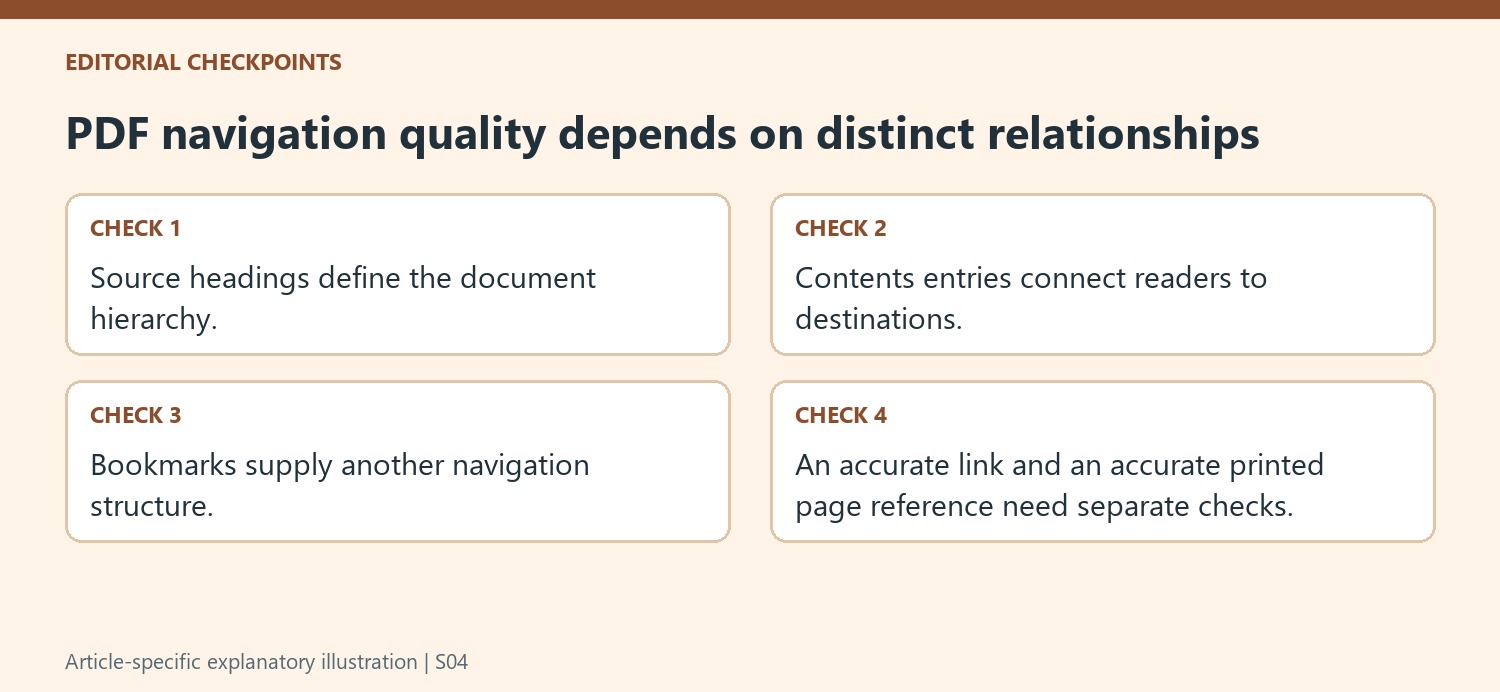
Refresh the whole contents table after headings are renamed, inserted or reordered. Then compare the entry wording, hierarchy and displayed page references with the body. Those checks serve related but distinct purposes: the link can reach the right heading while the printed page number is stale, or the number can appear correct while the entry targets an unintended location. Both matter for a document used on screen and in print.
Choose a PDF route that supports the required interaction
The article contrasts export or Save As PDF with print-based output, which can lose interactive link information. Use the appropriate supported route when clickable navigation is required. Review bookmarks and structure-tag options for their actual purposes rather than treating them as one universal switch. Bookmarks provide navigation, while structural tags support another aspect of document interpretation.
A browser converter is another possible route, but verify its saved output on the actual source document. A simple report and a heavily revised manual can expose different edge cases. Preserve the editable source and keep the tested conversion path clear so later maintainers can recreate the result after another content revision. Adding fixes only to one final-format copy can leave the next export with the original navigation problem.
Inspect links in the final viewer and retain readable context
Open the PDF and follow entries from several hierarchy levels and page regions. Confirm the destination heading, not merely that the viewer moved somewhere. Check ordinary hyperlinks and cross-references that form part of the report too. For a scanned contents page, OCR can support text-based reconstruction, but navigation links remain a separate feature to create and test. Keep the visible contents wording meaningful and the printed references current so readers retain useful navigation even when they choose a different reading method.
References
- How To Keep Table of Contents Clickable After Word to PDF Conversion. Smallpdf; David Beníček.


Comments
0